Radio Silence for macOS
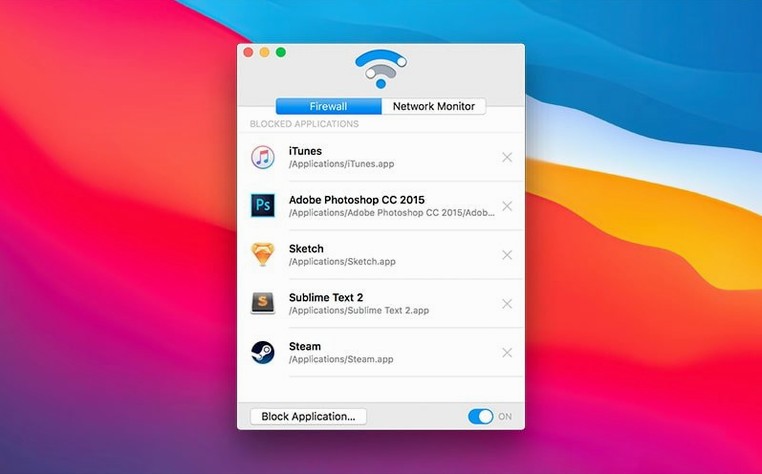
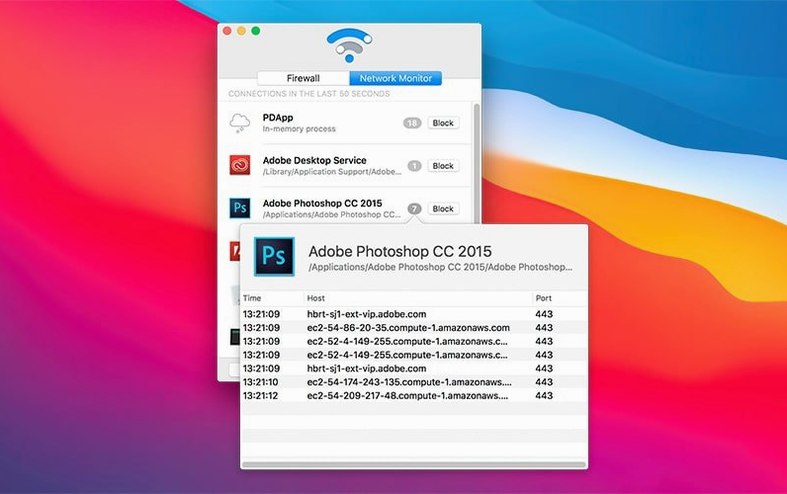
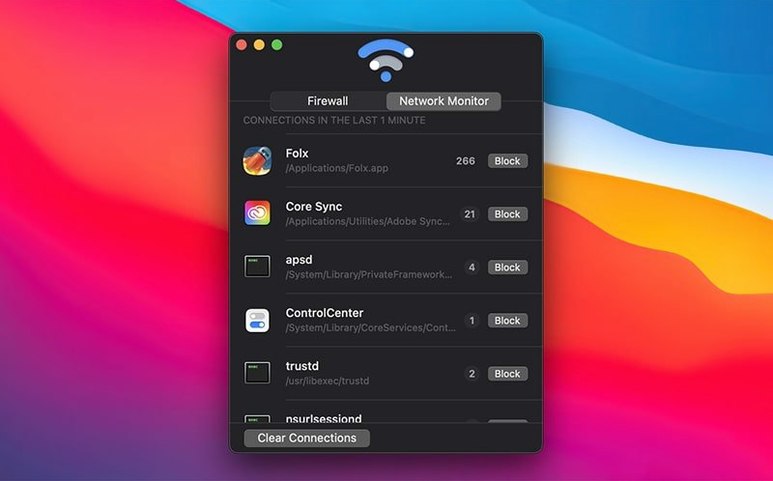
Radio Silence is a network monitor and firewall that stops the applications you choose from making internet connections. It runs invisibly—no menu bar icon—while tracking every connection attempt in real time and letting you shut down the ones you don't want.
- Block without a trace. Pick an app, flip the switch, and Radio Silence silently drops its packets. The app never knows it's being blocked; it just sees a dead connection.
- See every connection attempt. The main window shows a live feed of which apps are reaching out to which servers, so you can spot unexpected network activity as it happens.
- Manage the firewall list. The Firewall tab holds every app you've blocked. Removing an app from the list restores its access instantly—no reboot, no reconfiguration.
- Invisible monitoring. No dock presence, no menu bar icon. Radio Silence does its work from the background, surfacing only when you open the app to check on things.
- Universal binary. Runs natively on both Apple Silicon and Intel Macs, from macOS 10.15 through the latest release.
Version 3.4 adds a help view that pops up with troubleshooting information if the app fails to launch, plus smoother handling of installation errors and missing permissions. It's a focused tool: no bandwidth graphs, no complex rule sets—just a clean list of what's connecting and a toggle to make it stop.
Why the Tahoe permission flow now finishes in minutes
The jump to 3.4 isn't flashy, but it removes friction during the first five minutes—exactly when most people bounce off a networking tool. If you're on macOS Tahoe, the installer now guides you through the permission dance explicitly. Earlier versions assumed you'd figure out the Network Filter authorization dialogue on your own; 3.4 walks you through it step by step, so you're not left staring at a half-functional firewall wondering why nothing is blocked.
The bigger practical win is the new help view. Previously, if Radio Silence failed to launch—usually because of a botched installation or a missing system extension approval—you got silence in the worst way: nothing on screen, no feedback. Now the app catches that state and surfaces a troubleshooting panel with concrete checks. It tells you what's missing rather than leaving you to dig through systemextensionsctl output yourself. For a tool built on invisibility, failing invisibly was always the weak point, and 3.4 closes that gap.
Installation error handling also got smarter. Corrupt network filter registrations and half-approved permissions are detected earlier, and the recovery path is clearer: re-run the installer, approve the extension, relaunch. Small things, but they turn a ten-minute head-scratcher into a thirty-second fix.
How Claire caught a sneaky Markdown editor phoning home
Claire writes long-form journalism and uses a minimalist Markdown editor she grabbed from a small indie developer. It's a beautiful app—no features she doesn't need—but she noticed her MacBook's fans spin up whenever it's open, even when she's typing offline notes. Activity Monitor shows network traffic she can't identify. She's not paranoid; she just doesn't want her draft about a corporate scandal phoning home to a server she's never heard of.
She installs Radio Silence, opens the Network Monitor tab, and leaves it running while she writes. Within ten minutes she sees the editor reaching out to api.telemetry-service.com every two minutes. It's probably harmless usage stats, but she didn't consent to that, and the privacy policy buried it on page seven. She clicks the Block Application button next to the entry, and the connections stop cold. The editor still works perfectly—it just can't report home anymore. She checks the Firewall tab, sees the app listed there with its block active, and gets back to writing. The fans stay quiet.
A week later she opens Radio Silence again and spots a new entry: a menubar weather utility she installed is connecting to an ad-tracking domain. She blocks it in two clicks. The live feed turned a vague unease into a specific, fixable list.
Blocking mDNSResponder broke AirDrop for a week
The most common mistake is blocking a process you don't recognize without checking what it does first. Radio Silence will happily let you block mDNSResponder or a system daemon, and then you'll wonder why AirDrop, Bonjour printing, or local network discovery stops working. The app shows the process name and the remote address—spend ten seconds searching the process name before you flip the switch. System processes with root or names ending in d (for daemon) deserve a second look.
Another classic: blocking an app's update checker and then complaining the app never updates. Applications that use a single domain for both content and updates—looking at you, many indie apps—will break silently when blocked. Radio Silence drops packets indiscriminately; it doesn't know which connection is the update check and which is telemetry. If an app stops receiving updates after you block it, check the Firewall tab and remove it temporarily, update manually, then re-block.
Some users expect a block to take effect immediately on an already-open connection, but Radio Silence blocks new connection attempts. If an app already has an established TCP session streaming data, that session may continue for a while until the app tries to open a fresh socket. Quitting and reopening the blocked app forces a clean slate.
Finally, people occasionally mount the .dmg, drag the app to /Applications, launch it, and skip the installer step entirely. Radio Silence needs its network filter extension installed at the system level; copying the app bundle alone won't cut it. Run the installer inside the disk image. Version 3.4's new guidance catches this earlier, but the habit of drag-and-drop installs dies hard.
What to check when blocks vanish after a point release
Blocks not working after a macOS update. Major macOS upgrades occasionally invalidate network filter configurations. If your carefully curated block list stops working after a point release, open System Settings, navigate to Network > Filters (or the equivalent path on your macOS version), and confirm Radio Silence's extension is still listed and active. If it's missing, re-run the installer from the disk image. Your block list survives the reinstall, so you won't lose your configuration.
Radio Silence itself won't launch. This is the exact scenario version 3.4 now handles with its help view. The most common cause is a denied system extension approval during installation. When you first install, macOS pops up a security dialogue asking you to allow the network filter in System Settings. If you miss that window or dismiss it by accident, the extension never loads, and the app has no filtering engine to talk to. Open System Settings > Privacy & Security, look for the extension approval prompt, and allow it. Then relaunch Radio Silence.
An app you blocked still connects. Check whether the app spawns multiple processes. Some Electron apps, for example, have a main process and several helper processes, each making independent connections. You might have blocked MyApp but not MyApp Helper (Renderer) or MyApp Networking. Watch the Network Monitor tab while the app runs, and block every process that appears under its name. The Firewall tab will accumulate a small family of related entries, which is normal.
Pausing the firewall and forgetting about it. The pause function is useful for troubleshooting, but it's easy to leave it paused for days. Radio Silence doesn't nag you with a badge or notification when the firewall is inactive—by design, it stays out of your way. Make it a habit to glance at the Firewall tab after any troubleshooting session to confirm the toggle is back in the active position.
The system extension prompt you must allow during install
You've downloaded the disk image and you're staring at it. You mount radio_silence_3.4.dmg and run the installer inside. macOS Tahoe throws up the expected system extension prompt; you allow it in System Settings, and the installation finishes cleanly. Radio Silence launches, and you see the main window for the first time: a mostly empty Network Monitor pane and a Firewall tab with zero entries.
You leave the window open on a secondary display and go about your work. Within minutes, entries start populating: your email client connecting to imap.gmail.com, your RSS reader pulling feeds, a design tool phoning home to check for license validity. Nothing surprising yet, but you're watching the list grow and getting a feel for your machine's background chatter.
Then something catches your eye: a utility app you installed months ago is connecting to analytics.thirdparty-tracker.net every thirty seconds. You didn't sign up for that. You click the row to highlight it, then hit Block Application. The entry vanishes from the live feed and appears in the Firewall tab with a block indicator. You switch tabs to confirm it's there—it is—then switch back to the monitor.
Half an hour later you've blocked three more apps: a video player that was contacting an ad network, a "free" PDF tool that was uploading something to an AWS bucket, and a game that kept trying to post high scores to a server you've never heard of. Each block took two clicks and zero configuration. The Firewall tab now lists four apps. You glance at the monitor occasionally and see only the connections you expect: browser traffic, email, your cloud sync tool.
Before wrapping up, you remember you need to update your RSS reader, which you blocked earlier because it was sending reading habits to its developer. You open the Firewall tab, select the reader from the list, and remove it from the block list. The app regains internet access instantly. You launch the reader, run the update, and re-block it with the Block Application button from the Network Monitor tab. The whole detour takes under a minute.
You close the Radio Silence window. The app stays running in the background with no icon, no dock presence, no notification—just a kernel-level filter quietly enforcing your block list. Next time you want to check what's connecting, you'll open the app and the live feed will be waiting, still accumulating data, still ready for you to say no.
- Installation guidance for macOS Tahoe.
- Improved handling of installation errors and missing permissions.
- A new help view with troubleshooting information when the app fails to launch.
- macOS 10.15 or later
- Apple Silicon or Intel Mac
Comments 0
Sign in or create an account to leave a comment.
No comments yet. A codec, a slice, a machine — they appear after moderation.