
RAR Extractor for macOS
RAR Extractor is a desktop archive utility that handles a long list of compressed formats on the Mac. If you've searched for a winrar torrent mac alternative, this is a straightforward, native app that opens and creates archives without a browser or a terminal.
| Fact | Detail |
|---|---|
| Current version | 13.9.6 |
| macOS required | 11.5 or later |
| Apple Silicon support | Yes, universal binary |
| Interface languages | English, Simplified Chinese |
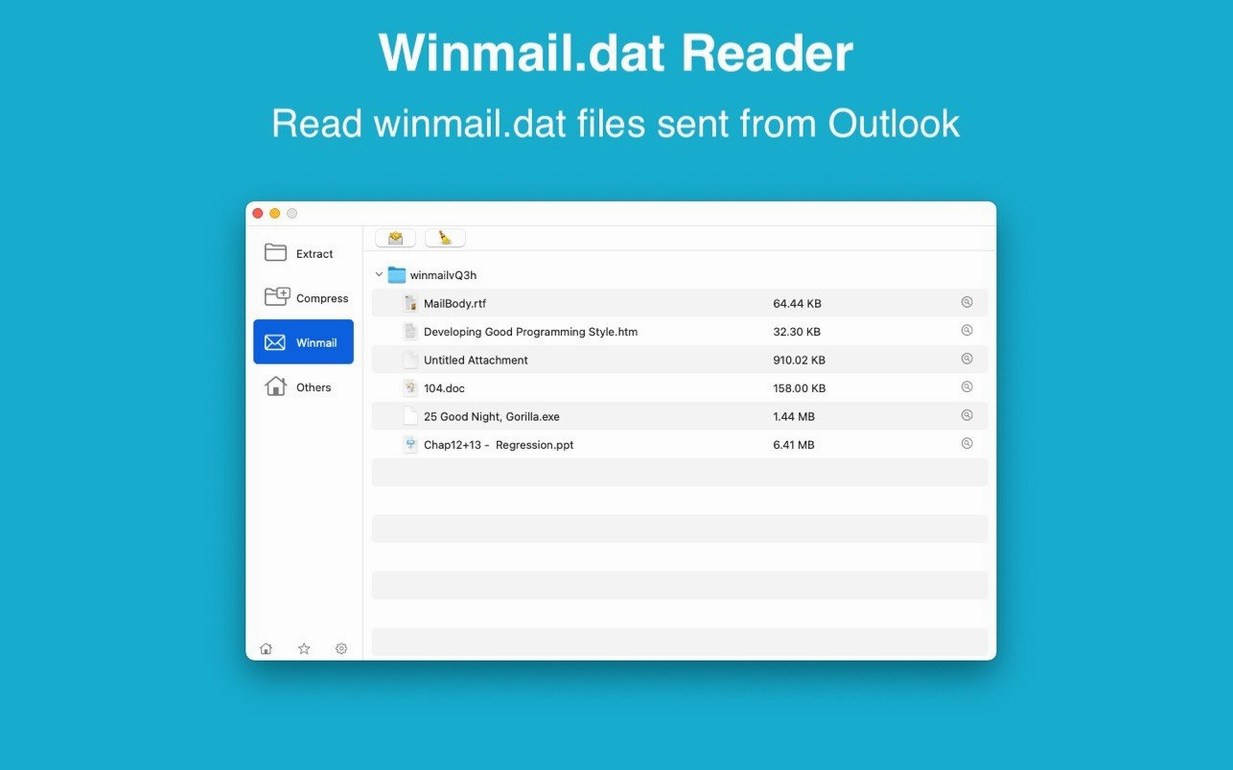
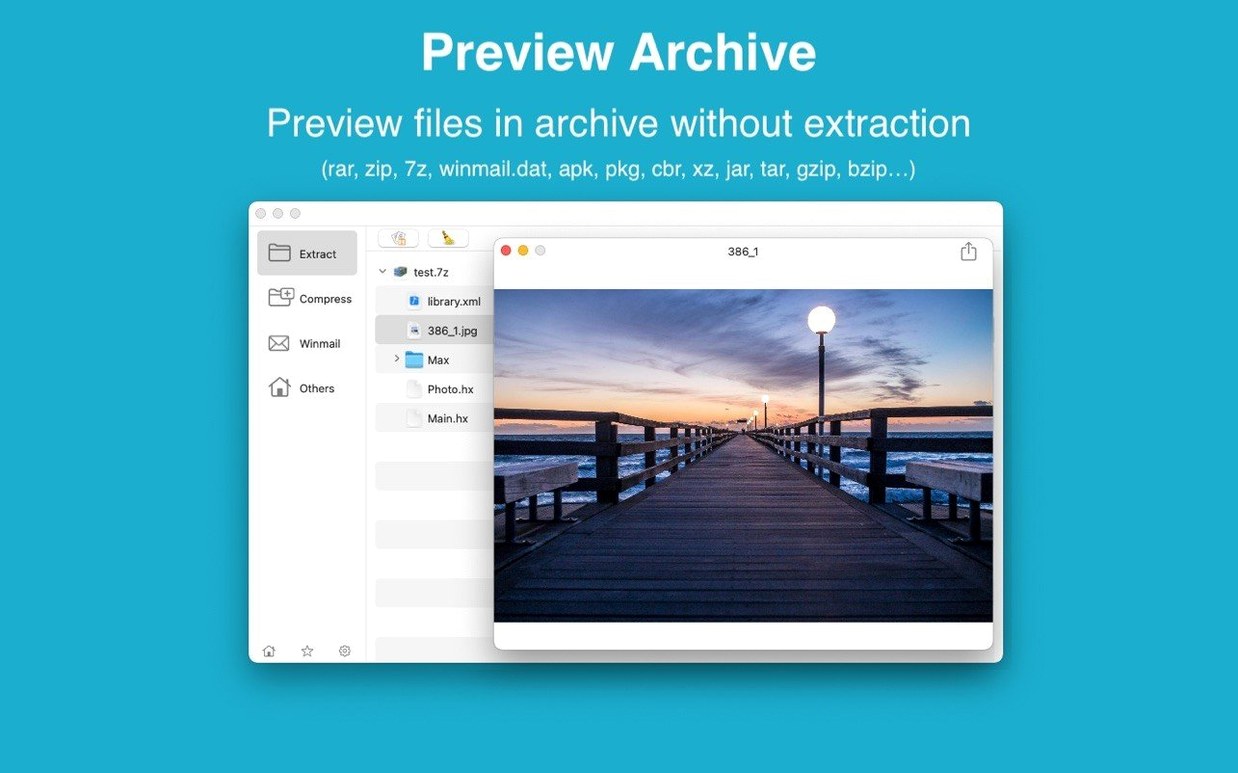
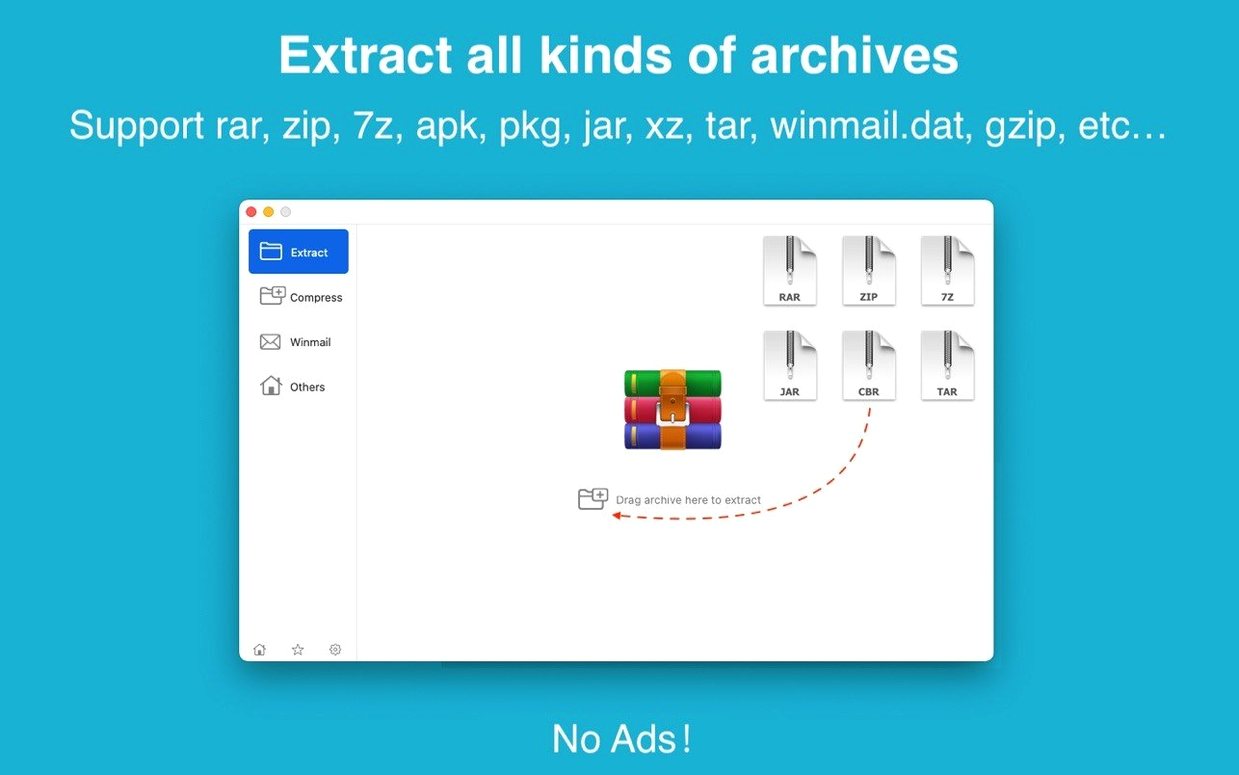
The app lets you drag any archive straight to the Dock icon to view its contents or trigger an extraction. There’s a fast preview that shows what’s inside before you commit to unpacking everything, and you can pull out a single file or folder instead of expanding the whole bundle. Encrypted RAR and ZIP archives are supported, and the built-in winmail.dat previewer is a small bonus if you live in a Microsoft Outlook world. Set it as the default archive opener and compressed files launch directly into the app.
Drag three different archive types onto the Dock icon at once
Imagine you've just downloaded a project bundle from a client. Three files land on your desktop: assets_final.rar, source_backup.zip, and a stubborn old brochure_2003.ace that nobody else seems able to open.
You drag all three onto the RAR Extractor Dock icon. The app opens with three tabs waiting — one per archive. The RAR file appears first; the file list shows a tree of folders and the total unpacked size. You click the preview icon next to the main PSD and a quick-look panel slides out, showing the header data and a thumbnail. It's the right file, so you hit Extract All and pick the project drive. While that runs, you switch to the ACE tab. The contents list populates immediately. You only need the old logo file from 2003, so you select it, right-click, and choose Extract selected. The ZIP archive is encrypted. A small dialog asks for the password — the client included it in a separate message — and you type it in. A moment later, the lock icon turns green and the file list appears. You press Extract All for that one too.
Three archives, three different behaviours, and you never opened Terminal or waited on a website to convert anything. The whole thing took under a minute.
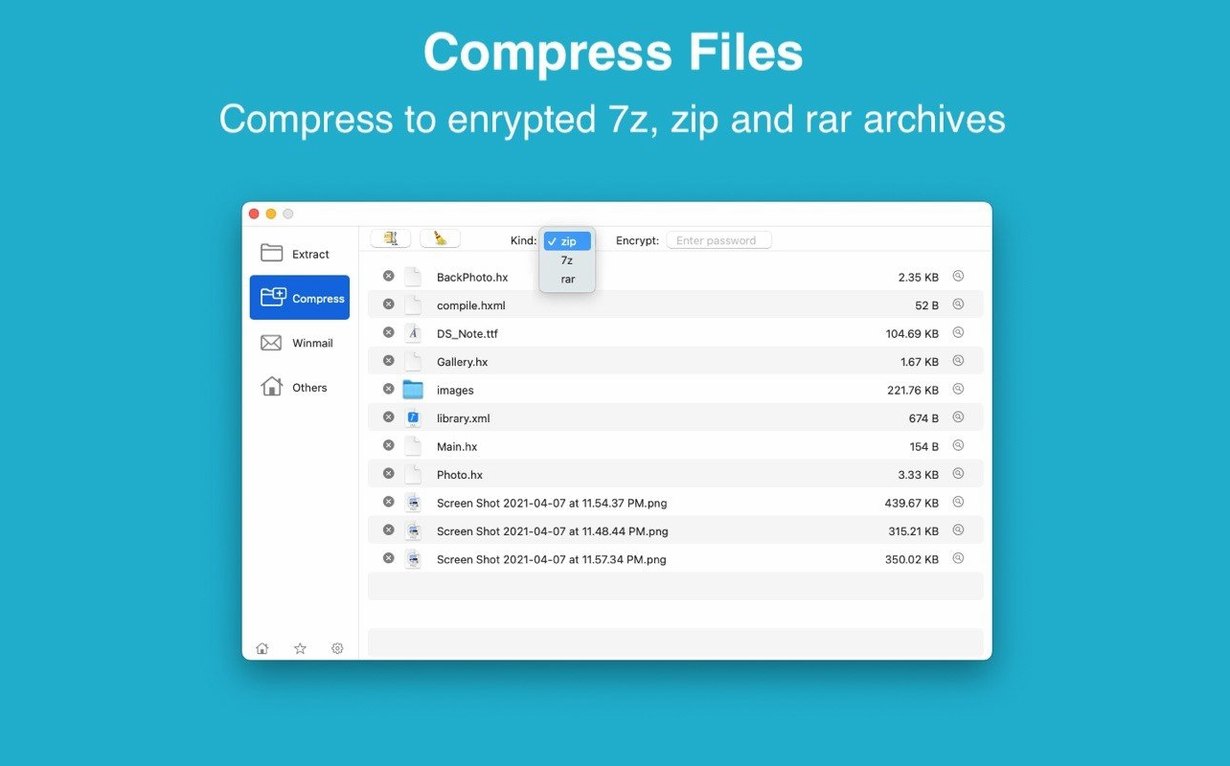
What about creating archives? You select a folder full of log files, right-click, and choose the app from the Services menu. The creation dialog offers ZIP (with AES-256) or 7Z. You pick 7Z, set a password, and the archive appears next to the original folder. The password protection is real — without it, opening the file later asks for the string you set.
Tick “Set as default archive app” so double‑click opens everything inside
The defaults work, but a few tweaks make the app feel like it's been there for years.
First, open the preferences and tick Set as default archive app. After that, double‑clicking any RAR, ZIP, or 7Z file opens it inside RAR Extractor instead of Archive Utility. It's a small change that saves you from right‑click drills.
Next, decide on an extraction location. The app can ask every time, or you can point it to a fixed folder. If you deal with lots of temporary unpacking — say, checking downloads before filing them — set the output to a _unpacked folder on your desktop. Everything lands in one predictable spot, and you can clean it out later. If you'd rather keep archives and their contents side‑by‑side, leave the setting on "ask each time".
Open a multi‑part RAR file (something like archive.part1.rar) early on. The app handles split archives without you needing to select every piece manually — it finds the siblings as long as they're in the same folder. This is worth confirming, because some Mac tools trip over multi‑part RARs. A quick test with a known split archive gives you confidence for the real ones that arrive later.
Try the batch unpacking feature before you need it. Drop five different archives onto the Dock icon and watch the queue form. You'll see a progress indicator per item and an overall count. It's the kind of thing you don't want to discover while someone's waiting for files.
ACE and LZH support for old client files that nobody else can open
Three groups stand out.
Designers and print‑shop operators who receive client files as RAR archives — sometimes multi‑part, sometimes password‑protected — see a format list that covers the obscure ones too. ACE and LZH support isn't a gimmick when a client's old designer sent a compressed folder from a Windows 98 machine. The winmail.dat previewer also pays off here; Outlook users inside large organisations still generate these files, and the app opens them directly.
Mac users searching for a rar extractor mac dmg tool that feels native will appreciate that the app is a universal binary. It runs on Apple Silicon without Rosetta, launches quickly, and respects the dark‑mode setting. If you've been using a winrar mac os workaround through Wine or a virtual machine, RAR Extractor replaces all that with a single, lightweight app.
Developers and IT staff unpacking code archives — JAR, APK, PKG, RPM — can inspect contents without extracting the whole thing. The file‑list view shows what's inside before you write anything to disk, which matters when you're checking a downloaded package for its internal structure. Paired with the ability to extract a single file, this turns the app into a quick inspection tool, not just a bulk unpacker.
Gatekeeper blocks the first launch—use the Open button in Finder
A few things trip people up in the first week.
Gatekeeper blocks the app on first launch. This is standard behaviour for software distributed outside the App Store. The install notes describe mounting the disk image and using the Open Gatekeeper friendly file — it's a small script that opens a Terminal window with a pre‑filled command. Press Enter, and macOS registers the exception. After that the app launches from the Applications folder like any other.
Encrypted archives ask for a password and then show nothing. If you mistype the password, the app may not show a clear error — the file list simply stays empty or the lock icon remains red. Type the password again slowly; the app uses AES‑256 for ZIP and 7Z, and there's no recovery path for a wrong string. If the archive came from a Windows user, check whether the password language or keyboard layout might have introduced a character mismatch.
Double‑clicking an archive still opens Archive Utility. The "set as default" preference only changes the handler for formats the app can open. If you installed another archive tool that registered itself later, the file associations might have switched back. Open a RAR file's Get Info panel, choose RAR Extractor under "Open with", and click Change All. Repeat for ZIP if needed.
A split RAR archive shows missing‑file warnings. The parts need to be in the same folder with their original names. If you renamed them or moved a single part out, the app can't reconstruct the chain. Drop all parts back into one folder and drag any of them onto the app again.
ISO and NRG disk images show as empty or fail to extract. The app handles disc‑image formats, but some images contain file systems it can't parse. Try extracting to a folder on your main drive rather than an external drive formatted with a case‑sensitive file system — occasionally the internal paths collide with macOS file‑system rules.
Drop archives straight onto the Dock icon without opening the app first
- Dock‑icon drag target. You don't need to open the app first. Drag any archive file onto the Dock icon and release — the app opens directly to that archive's file list. It works with multiple files too, triggering the batch queue.
- Desktop‑side extraction. Drag an archive from a Finder window and drop it onto a visible patch of desktop. The app extracts the contents into a new folder right there, without any dialog. It's the fastest path from download to unpacked folder, and it works for single archives.
- Dual‑window display. In the View menu, enable the dual‑pane layout. The left side shows the archive tree; the right side shows file details. It's useful when you're comparing two archives or copying a file path from one to the other — but mostly it just feels more like a desktop file manager during long extraction sessions.
- Selective extraction via right‑click. Inside the file list, right‑click any file or folder and choose Extract selected. The app unpacks only that item and preserves the folder structure leading to it. If you need one DLL from a massive JAR, this saves minutes.
- Preview before extracting. The quick‑look button next to a filename uses the app's internal previewer. For text files, configs, and PDFs it shows enough to confirm you have the right version. For binary files it displays metadata and a hex snippet. It's not a full file viewer, but it answers the "is this the right file?" question without launching another app.
- Keyboard shortcuts for the queue. When the batch window is active, press Space to pause the current extraction, Return to resume, and ⌘W to close the whole queue panel. The shortcuts aren't listed in a menu, but they work.
- winmail.dat handling. If someone sends you a
winmail.datfile — the kind Outlook generates when it wraps attachments in TNEF format — double‑clicking it in RAR Extractor shows a list of the real attachments inside. You can extract them as normal files. The feature sits quietly in the background until you need it, and then it saves a confused email exchange.
- macOS 11.5 or later
- Apple Silicon or Intel 64-bit
$ man rar-extractor | grep -A2 "?"
Which archive formats can it extract?
It extracts RAR, ZIP, 7Z, WINMAIL, TAR, GZIP, BZIP2, ACE, ISO, PKG, APK, JAR, CAB, RPM, and many more—over 30 formats in total.
Comments 0
Sign in or create an account to leave a comment.
No comments yet. A codec, a slice, a machine — they appear after moderation.