PopClip for macOS
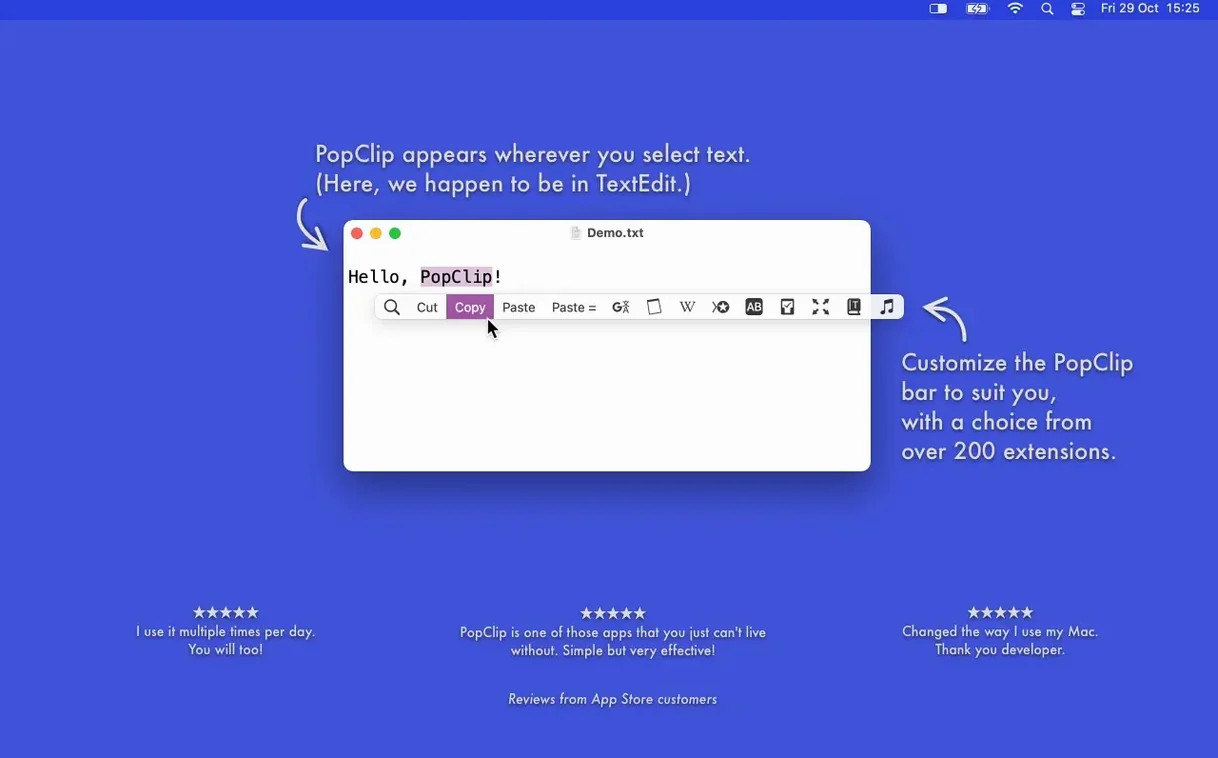
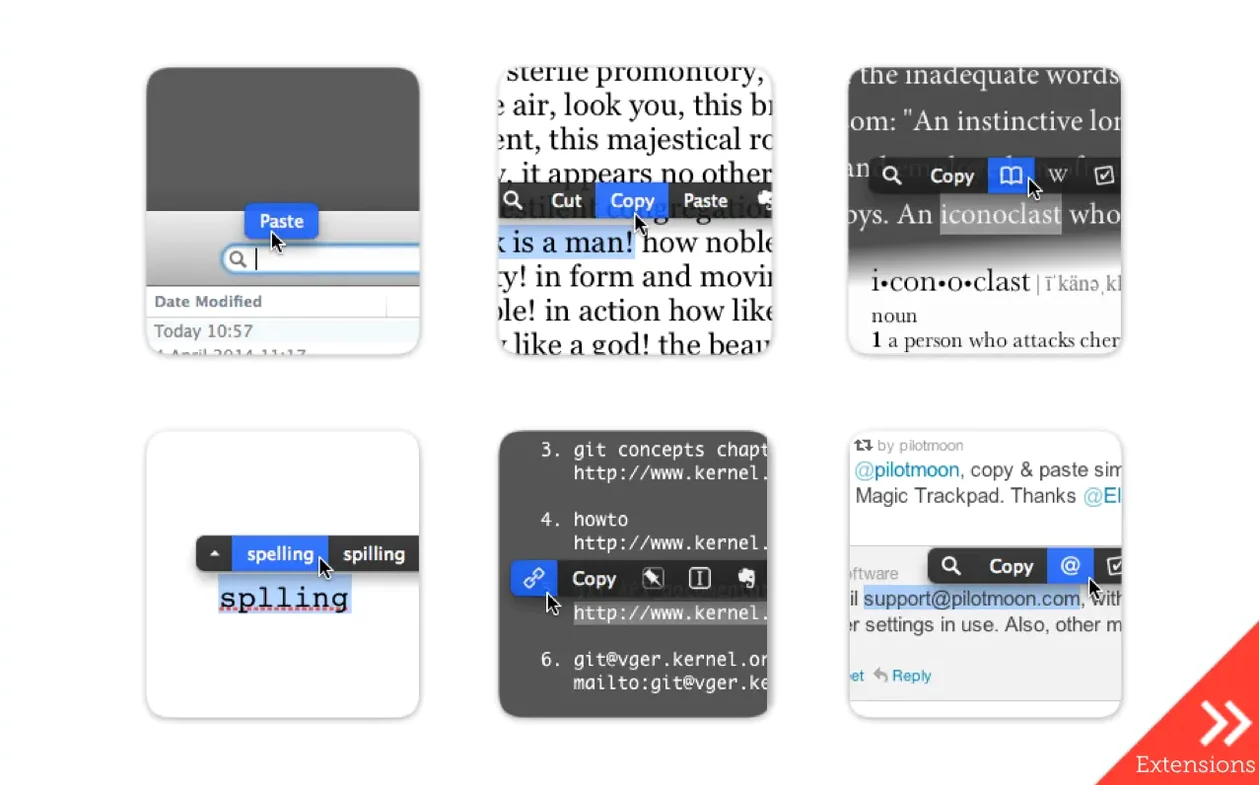
Selecting a word triggers a popover of up to a dozen action buttons, but the real payoff comes from the extensions directory. Here are three things to try first.
Look up a word without leaving your flow
Highlight any term and click the Dictionary button. A definition panel slides out right there — no right‑click, no Ctrl+Cmd+D needed.
Search the web from anywhere
Select a phrase and hit the search action. It fires up your default browser with the query, skipping the copy‑paste‑tab routine.
Clean up pasted formatting
After copying a styled snippet, select the spot where it should land and use Paste and Match Style. The action strips font sizes, colors, and links so the text inherits the destination formatting in one click.
Where the popover refuses to appear
PopClip doesn’t appear in every app. Terminal, Xcode’s editor pane, and some Java‑based tools block the accessibility hooks it relies on. If the popover stays hidden, check System Settings → Privacy & Security → Accessibility and make sure PopClip is toggled on. A quick restart of the app after granting permission usually fixes it.
Another frequent hiccup: the popover flashes and vanishes immediately. That often means two copies of PopClip are running — one in /Applications and an older version dragged straight to the Dock months ago. Open Activity Monitor, quit any extra PopClip process, and launch it fresh from the Applications folder.
Some users report that Paste and Match Style refuses to fire inside Google Docs or Microsoft Word online. Those web apps override the system pasteboard in ways PopClip can’t intercept. The workaround is to paste normally, then trigger the app’s own “paste without formatting” shortcut — or use a plain‑text intermediate like Notes for a moment.
If spell‑check suggestions don’t appear, open System Settings → Keyboard → Text Input, confirm that “Correct spelling automatically” is active, then restart PopClip. The app reads macOS spelling data; if the system isn’t generating corrections, PopClip has nothing to show.
Bumping the popup size one notch
PopClip’s preferences pane is small but a few tweaks pay off immediately. Under the General tab, bump the Popup Size slider up one notch. The default icons can feel cramped on a 14‑inch MacBook Pro; a slightly larger popover makes targeting actions faster without eating much screen real estate.
Next, check Appearance time. The default delay is fine for casual reading, but anyone editing text all day benefits from pulling it down to the minimum. The popover appears the instant you release the mouse button — no waiting.
Under Extensions, disable every action you never use. PopClip ships with dozens enabled out of the box. Stripping back to the eight or nine you actually reach for keeps the popover tight and prevents muscle‑memory misclicks. While you’re there, reorder the remaining actions by dragging them. Put your most‑used button at the far left — that’s where the cursor lands naturally after a selection.
If you use a popclip‑style workflow across multiple Macs, flip on iCloud sync in the Advanced tab. It pushes your extension layout, installed actions, and per‑extension settings to every machine signed into the same Apple ID. One setup, everywhere.
Workflow: sending a browser quote to Evernote with context
Here’s a specific task that shows how PopClip extensions chain together. Say you’re reading a long article in Safari and want to save a key paragraph into a specific Evernote notebook, complete with the source URL.
- Select the paragraph with the mouse. PopClip appears.
- Click the Copy action, then select the article’s title and URL in the address bar.
- PopClip reappears. This time, click the Send to Evernote extension. A small panel drops down asking which notebook to target.
- Pick the notebook — “Research” or “Project Notes” — and confirm.
- Evernote creates a new note containing the copied paragraph, the page title, and the source URL as a clickable link. No manual pasting, no switching apps.
To make this smoother, install the Paste and Match Style extension if you haven’t already, and drag it next to the Evernote action. Now the flow becomes: select paragraph, paste‑match into the note body, select URL, send to Evernote. Two clicks, one note, zero formatting cleanup.
For a popclip download that already includes the Evernote extension, grab the latest .zip from the developer’s site, unzip it, and drag the app to /Applications. The extension appears in the Extensions tab ready to configure.
Pulling quotes from Safari without breaking stride
It’s 9:30 AM and I’m writing documentation in Bear. The draft references three web sources, and I need to pull quotes without breaking my stride.
I switch to Safari, find the first article, and select a sentence. PopClip bounces into view. I tap the Copy icon — it’s muscle memory now — then Cmd+Tab back to Bear. The popover doesn’t appear because I’m pasting with the keyboard, but that’s fine; the clipboard already holds exactly what I need. I hit Cmd+V and the quote appears in place. No formatting carried over because I’d set Paste and Match Style as the default copy action in PopClip’s preferences earlier in the week.
Back in Safari, I find a second quote a few paragraphs down. This time I highlight it, then click the Search button in the popover — I want to verify the statistic before quoting it. Firefox opens a new tab with the search results. A quick scan, I’m satisfied, so I close the tab, re‑select the text, and copy it with PopClip again.
The third source is a PDF in Preview. I highlight a short passage. PopClip appears without fuss — Preview plays nicely with it — and I click Define on a term I’m not fully sure about. The dictionary panel slides out, confirms my understanding, and I dismiss it. One more click on Copy and the quote joins the others in Bear.
Before wrapping up, I select the three pasted quotes one at a time and use the Word Count extension to check their lengths. Each click shows a small bubble with the count — instant, no menu diving. Total time from first selection to final check: under four minutes.
Later that afternoon, a colleague sends a file path in Slack: /Users/marcus/Documents/specs/final-draft.md. I select the whole path, and PopClip offers Open Link. One click opens the file directly in my default Markdown editor. No Finder browsing, no right‑click menu.
By the end of the day, I’ve probably triggered PopClip forty or fifty times without thinking about it. That’s the point — it fades into the background until you’re on a Mac that doesn’t have it installed, and suddenly text selection feels weirdly inert. For anyone running PopClip free of the default Apple selection friction, the workflow becomes second nature fast.
- Released 2026‑09‑07 as version 2026.8.1.
- Maintenance and cleanup build following PopClip 2026.7 — no new features, just under‑the‑hood tidying.
- macOS 13.5 Ventura or later
- Apple Silicon or Intel 64‑bit processor
$ man popclip | grep -A2 "?"
Does PopClip sync settings between Macs?
Yes — extensions, action layout, and settings sync through iCloud as long as you're signed in with the same Apple ID on each machine.
Comments 0
Sign in or create an account to leave a comment.
No comments yet. A codec, a slice, a machine — they appear after moderation.