Permute for macOS
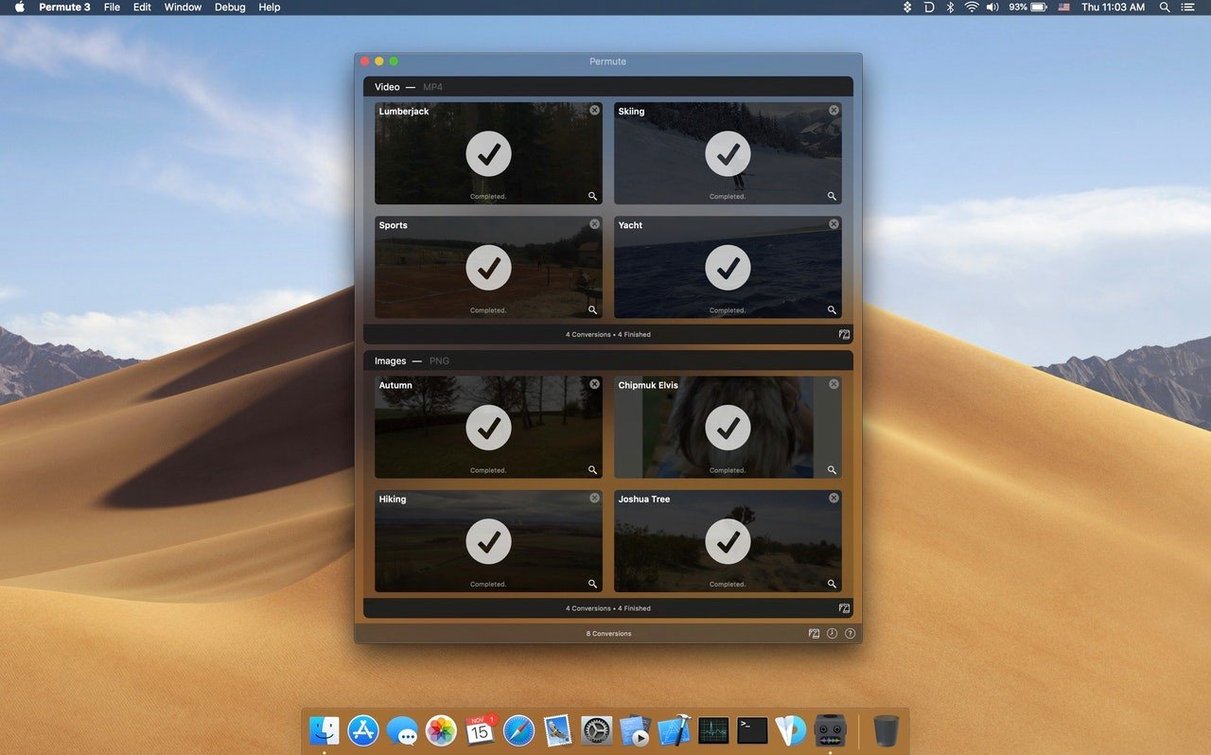
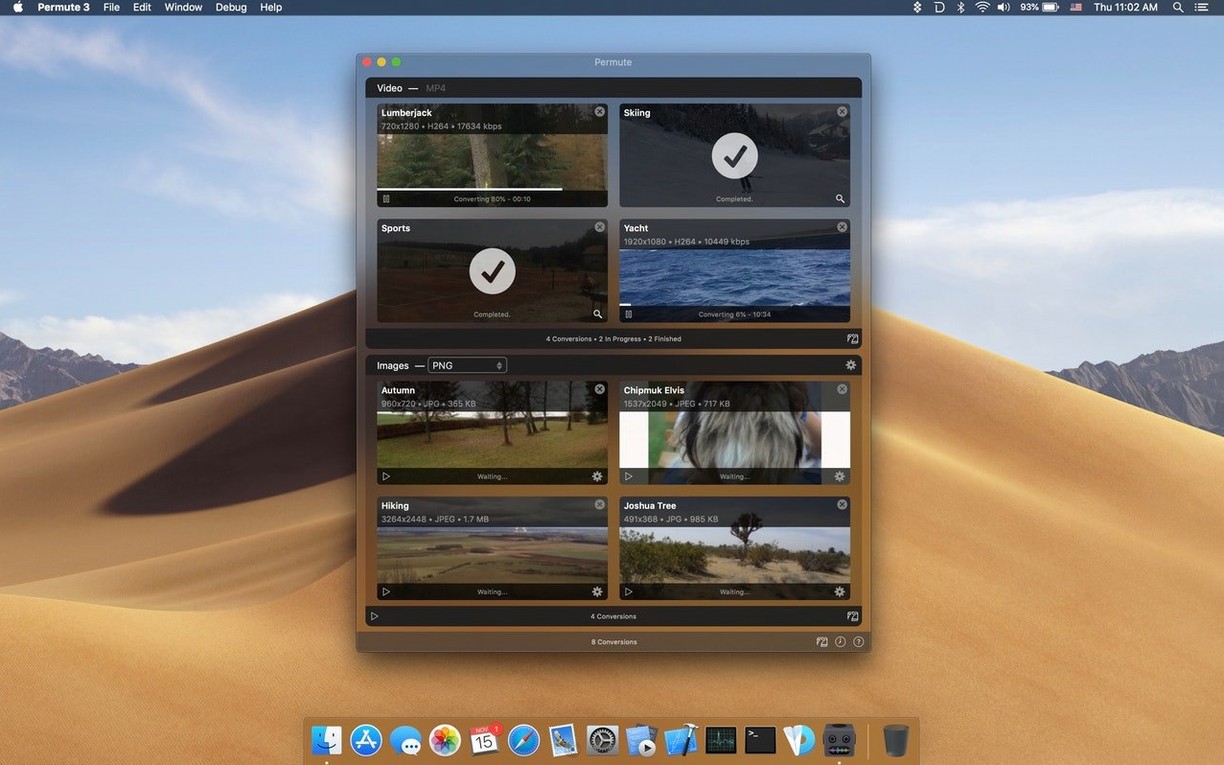
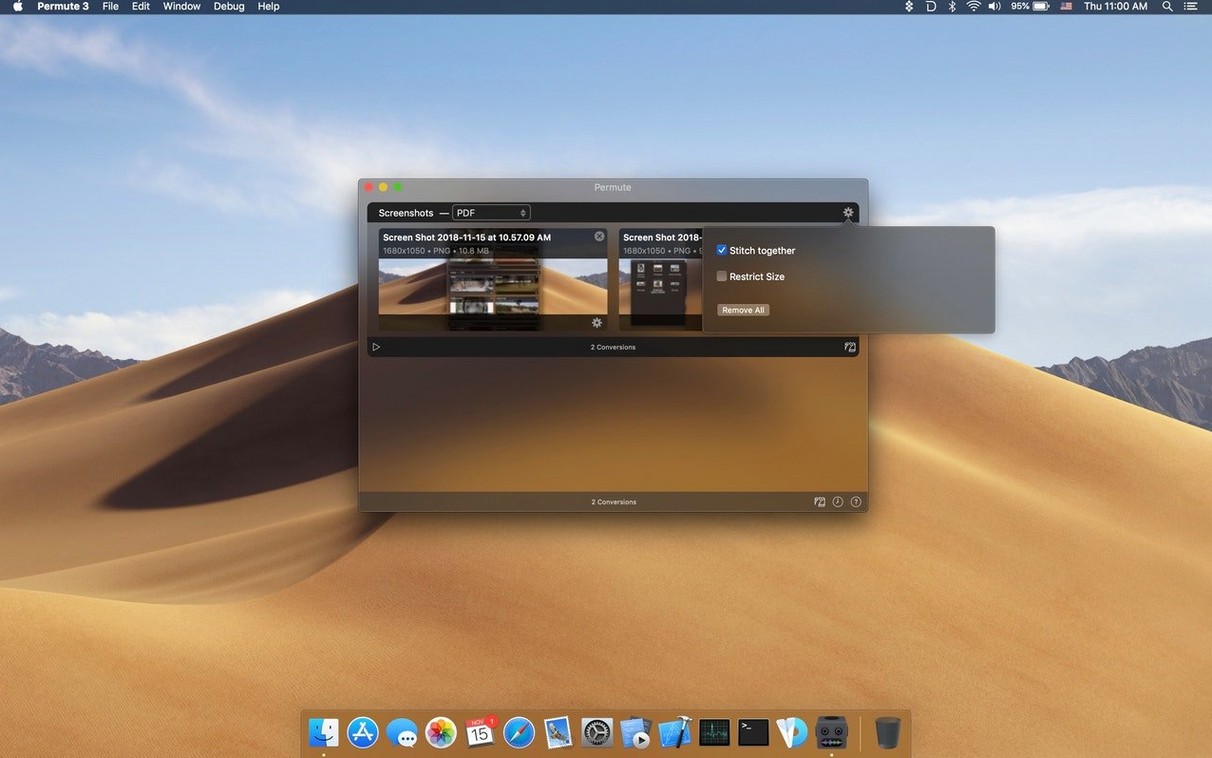
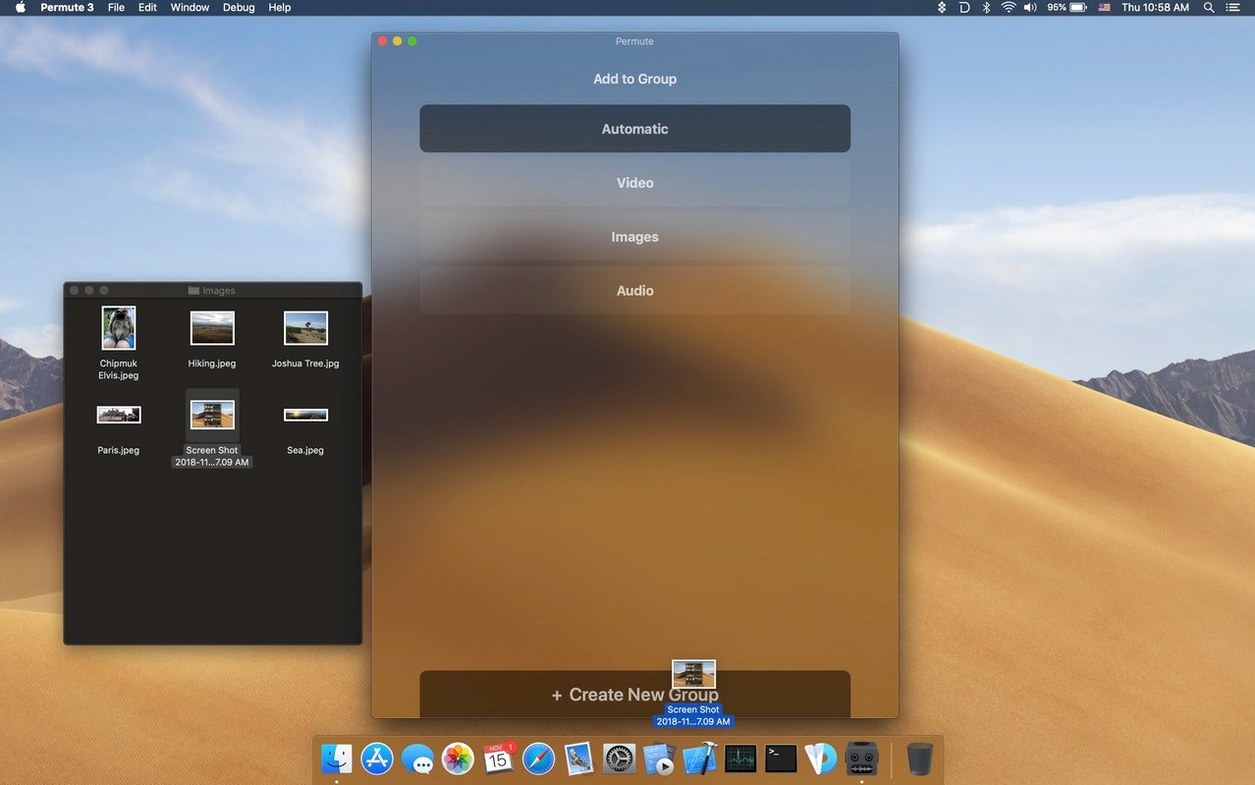
Permute 4 is a media converter for macOS that takes your video, audio, and image files and turns them into other formats through a straightforward drag-and-drop interface. It’s built by a single developer, Charlie Monroe Software, and leans on FFmpeg libraries under the LGPLv2.1 to handle the heavy lifting. If you’ve just downloaded Permute 4 and are staring at its window wondering what to do first, the answer is simple: drop something in and watch it work.
| Detail | Note |
|---|---|
| Current version | 4.0.11 |
| Architecture | Apple Silicon native |
| Languages | 15, including English, German, Spanish, Russian, Chinese (Simplified) |
A good first exercise is converting a video to an audio-only track — say, pulling the commentary from an MP4 into an M4A. Drop the file onto the app, pick an audio preset from the dropdown that appears, and hit the start button. Next, try adding a subtitle track: load a video, click the gear icon to open the inspector, and drag an SRT file into the subtitle slot. The combined result plays back with selectable captions in any player that respects the track. Formats you wouldn’t expect also show up here. Need an ISO from a folder? Permute can do that. The preset menu covers a wide spread of devices and file types, so you rarely need to tweak encoder settings unless you want to. Spend ten minutes experimenting with a few source files and you’ll quickly get a feel for what the app can reshape.
Why your file just sits there with no reaction
A few snags come up often enough to deserve a mention. The most common is dropping a file and seeing nothing happen — no preset menu, no reaction. Nine times out of ten the file container looks familiar but holds a codec Permute doesn't recognize because FFmpeg can't parse it. Renaming .avi to .mp4 doesn't fool the parser. The fix is to remux the source with something that rewraps without re-encoding, or grab a cleaner copy.
Another headache: the start button stays grayed out even though you picked a preset. Check the output path at the bottom of the window. If the destination drive is full or the folder no longer exists (unplugged external, network share that dropped), the app quietly refuses to start. Point it somewhere writable and the button lights up again.
Subtitle merging fails silently more often than you'd expect. The most likely culprit is a subtitle file with a mismatched encoding — Permute expects UTF-8 for .srt and .ass tracks. If your subtitles came from an older source, open the file in TextEdit, duplicate it as UTF-8, and drag the new copy onto the video. The preview panel won't show the captions during conversion, but they'll be there in the output.
If you use permute 4 to combine two videos and the result has glitchy audio or a frozen first frame, the clips probably don't share the same frame rate or audio sample rate. The merge preset tries to reconcile them, but extreme mismatches (23.976 fps plus 60 fps, for instance) can confuse the pipeline. Convert both clips to the same intermediate format first, then merge.
How fast a 45-minute MP4 shrinks on an M2
Permute pushes work straight to the media engines on Apple Silicon. A 45-minute H.264 MP4 transcoded to HEVC finishes in roughly four to six minutes on an M2 or M3 — about what you'd get from a well-tuned HandBrake run without touching the advanced tab. The progress bar is honest, not jumpy, and the time-remaining estimate settles after the first ten percent of a job.
Memory use stays modest. A single conversion rarely pushes past 400 MB of RAM, and a queue of four or five videos hovers around a gigabyte. The app doesn't spawn background agents after quitting, so there's nothing lingering in Activity Monitor. CPU temperature climbs during a batch but drops fast between jobs because the scheduler inserts a short cooldown gap. Fans spin up on fanless Air models under sustained load, which is unsurprising, but the thermal throttling is gentler than you'd see with a software encoder.
Stability is uneventful in the best way. Crashes are rare and usually traceable to a specific broken source file — a truncated MKV or a corrupt WebP image — rather than a memory leak or thread bug. When the app does hit something it can't parse, it marks the file red in the queue and moves on without killing the whole batch. That alone saves you from babysitting long queues overnight.
The per-item inspector that overrides bitrate and channels
The gear icon on each file entry opens a per-item inspector where you can override the preset's bitrate, frame rate, and audio channels. Most people never click it because the defaults are sensible, but it's the fastest way to downmix 5.1 audio to stereo or cap a video at 30 fps without creating a custom preset.
Hold down the Option key while dragging a folder onto the window and Permute flattens the contents — every video, audio, and image file inside lands in the queue as a separate item, nested folders ignored. Without the modifier key you get a single folder-to-ISO conversion prompt. The distinction is never spelled out in the interface, but it turns a three-step workflow into one gesture.
The queue remembers unsaved items across restarts. If you quit with a half-finished batch, the remaining files reappear on the next launch. There's no preference checkbox for it — it just works. Combined with the per-file start/pause controls, you can run a big job in chunks without rebuilding the list.
Right-click any preset in the dropdown and you'll find a "Duplicate" command. That's how you build variant presets — same container, different codec or resolution — without starting from scratch. Your copies live in a user presets section at the top of the menu, which matters when you're jumping between projects that need, say, a high-bitrate archival encode and a small review copy.
Who clicks with Permute, and why
Video editors who need dailies or reference clips get the most out of it. A timeline export can be huge; Permute shrinks it to a screenable H.264 or HEVC file with a single drag, no timeline re-render required. The subtitle-merge feature alone saves them from opening a compositing app just to burn captions into a rough cut.
People wrangling media libraries — Plex and Jellyfin maintainers, archivists pulling old DVDs — gravitate toward the batch workflow. A folder of mixed formats drops in and comes out as a uniform set of MP4 or MKV files, all with the same codec profile. The ISO conversion option catches the disc-ripping crowd too, letting them turn a VIDEO_TS folder back into a mountable image for players that expect one.
Casual users who just need a ringtone from a song, or an audio track from a YouTube clip they already downloaded, find the app's presets remove the guesswork. They don't need to know what AAC-LC means; they pick "Audio only — M4A" and get what they wanted. The absence of a cluttered preferences window keeps the app approachable for that crowd.
If your work involves permute 3 download habits — re-encoding batches of assets for different playback targets — Permute 4 slots into that rhythm without demanding you learn a new mental model. The same drag-drop-repeat loop that made version 3 comfortable is still here, just faster and running native on Apple Silicon. People who rely on permute download as part of a larger pipeline appreciate that the app doesn't try to become a media manager or a player; it stays a converter and stays out of the way.
- macOS 26 or later
- Apple Silicon Mac
$ man permute | grep -A2 "?"
What conversion engine does Permute use?
Permute relies onFFmpeg libraries released under the LGPLv2.1 to decode and encode the majority of media formats.
Can Permute extract audio from a video file?
Yes. Drop a video onto the window, select an audio format like MP3 or M4A from the preset chooser, and the app converts only the audio stream.
Comments 0
Sign in or create an account to leave a comment.
No comments yet. A codec, a slice, a machine — they appear after moderation.