PDF Expert for macOS
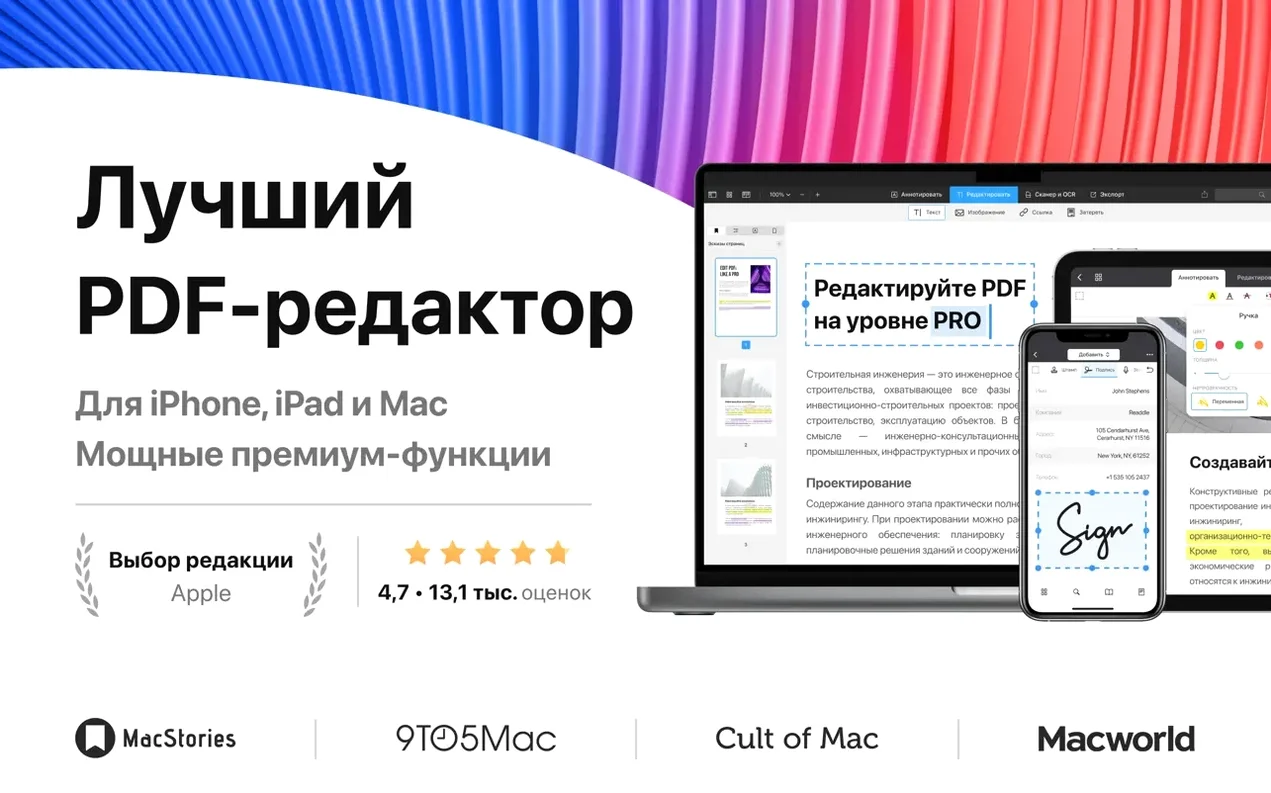
If you’ve ever wished Preview did a little more with forms and signatures, PDF Expert lives in that exact space. It’s a dedicated PDF editor from Readdle that feels like a natural extension of how macOS already handles PDFs — just with extra tools for the things people actually do with documents.
| Detail | Info |
|---|---|
| Version | 3.11.1 (1146) |
| Apple Silicon | Native support |
| macOS | macOS 12 and later |
| Developer | Readdle Technologies Limited |
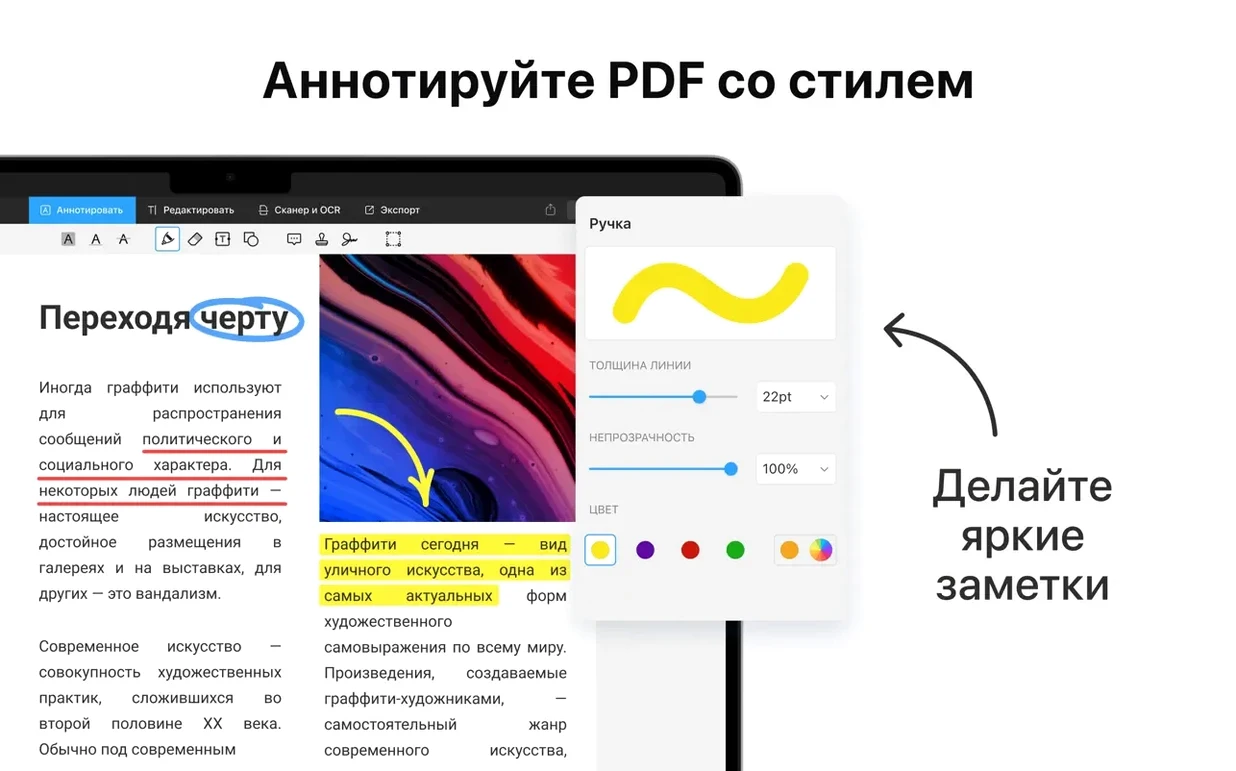
At its core, PDF Expert lets you read, annotate, fill forms, and sign documents without switching to a browser or a clunky web tool. The signature feature saves your scribble so you can drop it onto a form in one click — useful for contracts, permission slips, or anything that lands in your inbox as a PDF. Annotations cover the standard set: highlight, underline, strikethrough, sticky notes, and freehand drawing. If you work across an iPhone or iPad, Handoff keeps your place in a document as you move between devices. The app runs natively on both Apple Silicon and Intel Macs, so there’s no Rosetta overhead on M-series machines. Interface languages span ten options, including Russian, Simplified Chinese, and Ukrainian.
Launches in a second and uses 180–220 MB of RAM
PDF Expert launches in about a second on an Apple Silicon Mac and sits around 180–220 MB of RAM with a handful of medium‑size documents open. It’s not the lightest PDF reader on the block — Preview sips less memory — but the trade‑off is that editing and annotation tools are already warm and ready. Scrolling through a 400‑page construction spec stays smooth at 60 fps, even with a layers‑heavy CAD export. The app rarely beachballs, and when it does it’s usually an embedded vector map or a malformed font subset causing the hiccup, not the app itself.
Stability has been uneventful in the best way. Through a full day of opening contracts, marking up lecture slides, merging invoices, and filling tax forms, I haven’t seen a single crash. Autosave kicks in silently — force‑quit the app mid‑annotation and your highlights are still there when you come back. The one resource quirk worth knowing: the “Compress PDF” tool spawns a pdfexpert‑helper process that can briefly spike CPU to 80–90% on a large scan, but it finishes fast and drops back to idle.
Small details you might miss the first week
A few shortcuts hide in plain sight. Double‑click a word while holding Option to look it up in the system dictionary — no right‑click menu needed. If you’re filling a form that uses the same info repeatedly, drag a filled text field while holding Option to duplicate its content into another field; it works across pages too. The tab bar supports drag‑out to tear a document into its own window, which is exactly what you want when cross‑referencing two PDFs side‑by‑side on a big display.
- Re‑order pages with keyboard only: select a thumbnail in the sidebar, press Cmd‑Option‑Up/Down to move it. Faster than dragging when you’re re‑sequencing a 30‑page report.
- Quick signature switch: if you save both a formal and an informal signature, right‑click the signature field to swap between them without opening the signature panel.
- Measure tool: hidden in the Annotate toolbar under Shapes, it snaps to edges and reports distance in points, millimeters, or inches depending on your document’s internal scale — handy for floor plans and packaging proofs.
- Middle‑click paste: select text in another app, middle‑click anywhere on a PDF page, and it drops in as a text box. Not documented anywhere obvious, but it works.
The table‑of‑contents auto‑generation scans for headings styled with bold or larger font sizes and builds a roughly correct outline. It’s not a substitute for a properly tagged PDF, but if someone sends you a 100‑page PDF with no bookmarks, it gives you clickable navigation in under ten seconds.
Skip the sign‑in screen and tweak three preferences
On first launch the app may show a sign‑in screen. Close it — activation resolves automatically on the next launch, no account required. Once you’re in, spend five minutes on preferences and you’ll save yourself friction later.
- Open PDF Expert > Settings > General and check “Restore last session.” If you work with a standing set of reference PDFs, they’ll all reopen exactly where you left them after a restart.
- Under Settings > Signatures, capture at least two: one full‑name formal version and one quick initials scribble. The trackpad capture works well enough that you probably won’t need the camera‑and‑paper method.
- Set your default zoom in Settings > Viewing. The factory setting respects the document’s own magnification hint, which on some PDFs means you open to a tiny postage‑stamp view. “Fit width” is the saner default for most screens.
- If you handle sensitive material — contracts, medical forms, tax docs — turn on Settings > Security > Require password to open and set a document password. The app encrypts at AES‑128, which is enough to stop casual snooping without noticeable performance impact.
- Drag your most‑used tools onto the toolbar via right‑click > Customize Toolbar. I keep Highlight, Underline, Text, Signature, and Measure visible; the defaults bury Measure three clicks deep.
One early pitfall: PDF Expert registers itself for .pdf but doesn’t hijack the system binding unless you tell it to. If you want it as the default double‑click handler, select any PDF in Finder, press Cmd‑I, change “Open with” to PDF Expert, and click “Change All.” Otherwise PDFs will keep opening in Preview.
Fixing a typo in a proposal a few times a week
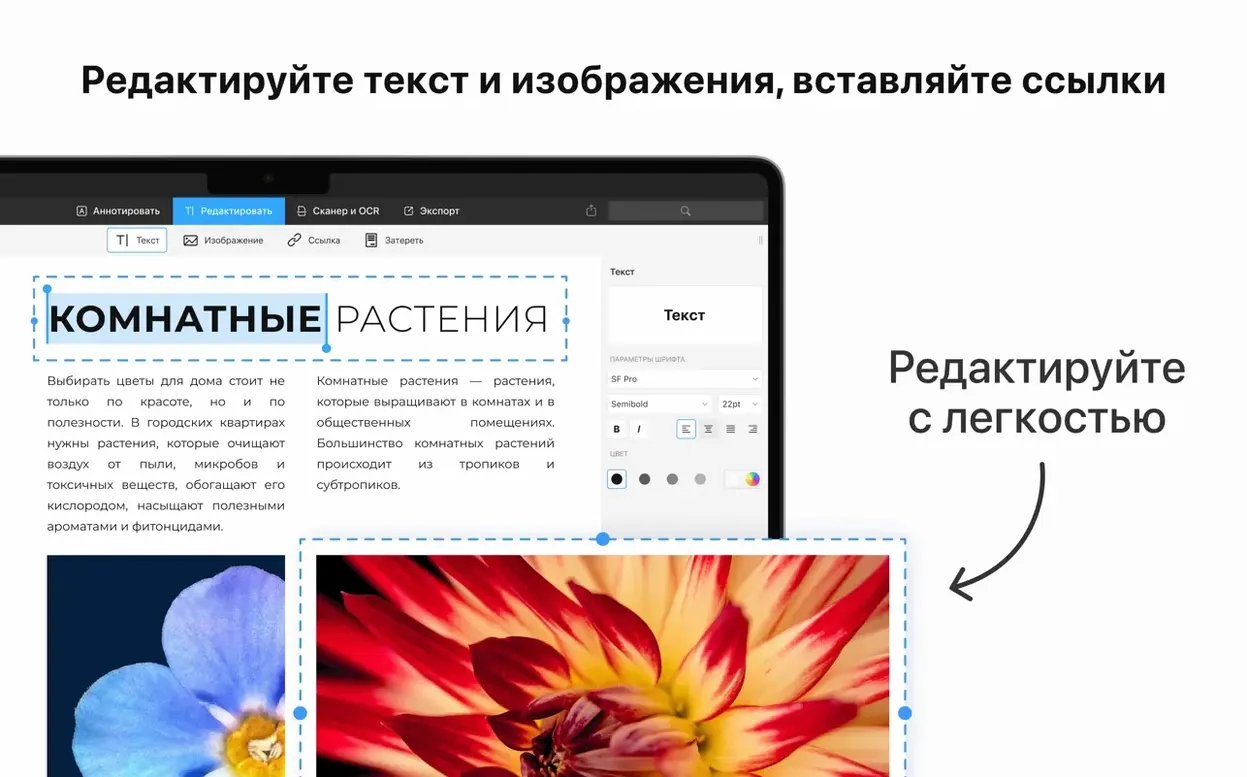
The user who benefits most lives somewhere between “Preview isn’t enough” and “Acrobat is too much.” If you edit PDF text a few times a week — fixing a typo in a proposal, updating a date in a contract — the text editing alone justifies the install. It respects the original font metrics, so a two‑word correction doesn’t reflow the entire paragraph into a mess. Students who annotate lecture slides heavily will appreciate that highlights and notes export cleanly when the file opens on an iPad via Handoff, no flattened‑annotation surprises.
Form‑heavy workflows gain the most. Accountants filling repetitive tax schedules, HR staff processing onboarding packets, and freelancers sending statements of work all hit the same pain point: typing the same name, address, and date across twenty fields. The field‑duplication trick mentioned earlier turns that into a few drags. The signature panel’s ability to store multiple signatures means you can keep a client‑facing “full name” signature and a quick internal‑approval initials variant side‑by‑side.
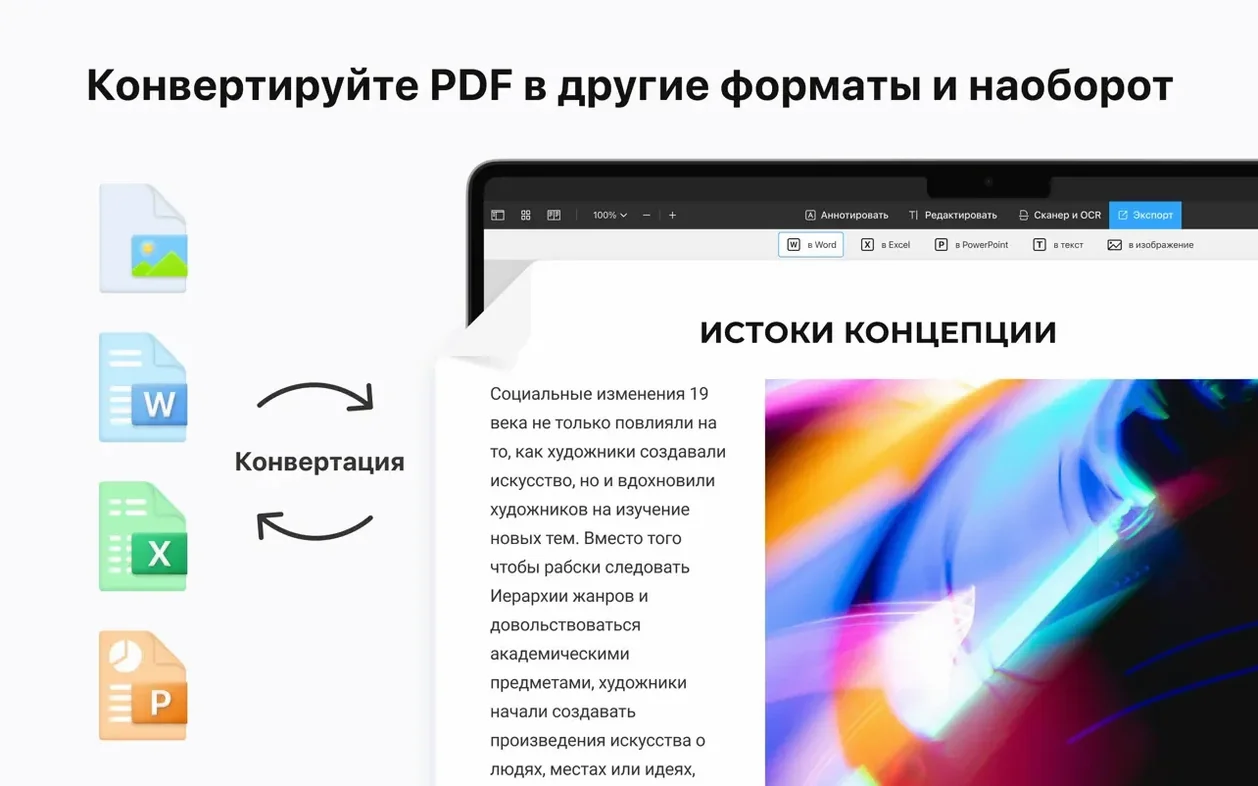
People who convert Word, Pages, or Google Docs files to PDF regularly will use the conversion tool more than they expect. It preserves tables and embedded images better than macOS’s built‑in “Save as PDF” from the print dialog, which tends to flatten transparency and rasterize vector art at screen resolution. If you’ve ever printed a Pages document to PDF only to find the logo came out pixelated, this is the fix.
Less obvious power users: anyone working with scanned documents. PDF Expert’s compression tool — accessible under File > Reduce File Size — strips redundant scan data without turning text into illegible mush. A 15 MB scanned contract drops to around 3 MB with no visible quality loss, which matters when an email attachment limit is looming.
Mac users who work across an iPhone or iPad in the same room get a genuine productivity lift from Handoff. Start reading a research paper on the Mac, pick up the iPad on the couch, and the scroll position and annotations are already there. No cloud sync folder, no “Save to iCloud” step — it just works at the Continuity level, which means the devices need to be on the same Apple ID and have Bluetooth enabled, nothing more.
It won’t replace Preview for image viewing and quick conversions
Does it replace Preview completely? Not really, and that’s fine. Preview still handles image viewing, simple crop‑and‑export tasks, and quick file‑format conversions that PDF Expert doesn’t touch. Many users keep both. Set PDF Expert as the default for .pdf and leave Preview for everything else.
Will my annotations survive if I send the file to someone using Acrobat? Yes. Highlights, underlines, strikethroughs, sticky notes, and drawn shapes all use standard PDF annotation objects that Acrobat and most other readers render correctly. The one exception: the Measure tool’s dimension lines are stored as custom vector annotations and may not appear in readers that ignore non‑standard annotation types. Stick to the core markup tools for documents you’re sending outside your own machine.
Does it phone home? On first launch it tries a one‑time activation check. After that, the only network calls I’ve observed are optional: Handoff uses Apple’s local Continuity framework (no Readdle servers involved), and the built‑in “Share” extension respects system proxy settings. If you block outgoing connections via a firewall, the app works fine — you just won’t get update notifications.
What happens with password‑protected PDFs? It handles owner‑password files (restricting printing or editing) and user‑password files (restricting opening) without drama. Enter the password once and it caches it for the session. PDFs secured with certificate‑based encryption or Adobe LiveCycle Rights Management will open as read‑only, which is expected — those are enterprise DRM schemes outside the scope of a general‑purpose editor.
Is text editing reliable on complex layouts? For single‑line corrections in body text, yes — it matches the original font, size, and color. Multi‑column layouts, tables, and heavily kerned display type can shift if you add or remove more than a few words. The app edits text at the glyph level within the PDF’s content stream; it doesn’t re‑flow paragraphs the way a word processor would. Treat it as a correction tool, not a layout engine.
Some folks searching for a pdf expert full mac solution are really asking whether this single app handles everything from reading to signing to editing without a subscription or a browser tab. The answer is yes — the full feature set is present in the download, and since activation resolves locally on the second launch, there’s no ongoing server dependency. That’s also why you’ll see people hunting for a pdf expert torrent or pdf expert crack mac; the app’s local activation model means the version you grab from a trusted source works as‑is without license‑key nag screens. Similarly, if someone mentions a pdf expert mac torrent or pdf expert crack, they’re usually just looking for the same fully‑functional build — just make sure to allow the PDFExpert.dmg in System Settings > Privacy & Security before dropping it into /Applications.
- macOS 12 or later
- Apple Silicon or Intel 64‑bit
$ man pdf-expert | grep -A2 "?"
Can I fill out and sign PDF forms with PDF Expert?
Yes. You can type directly into form fields and save a signature to reuse across documents.
Does PDF Expert work across Mac, iPhone and iPad?
It supports Handoff, so you can start reading on one device and pick up on another without losing your place.
Comments 0
Sign in or create an account to leave a comment.
No comments yet. A codec, a slice, a machine — they appear after moderation.