Paste for macOS
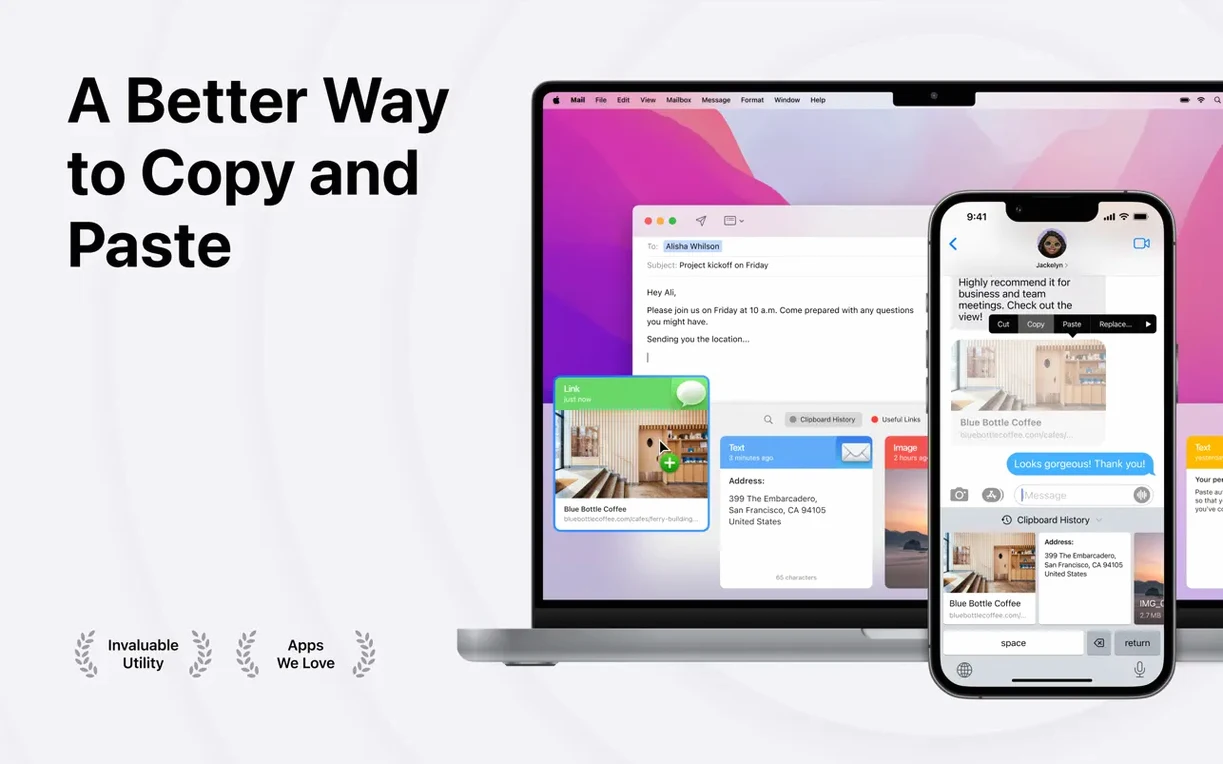
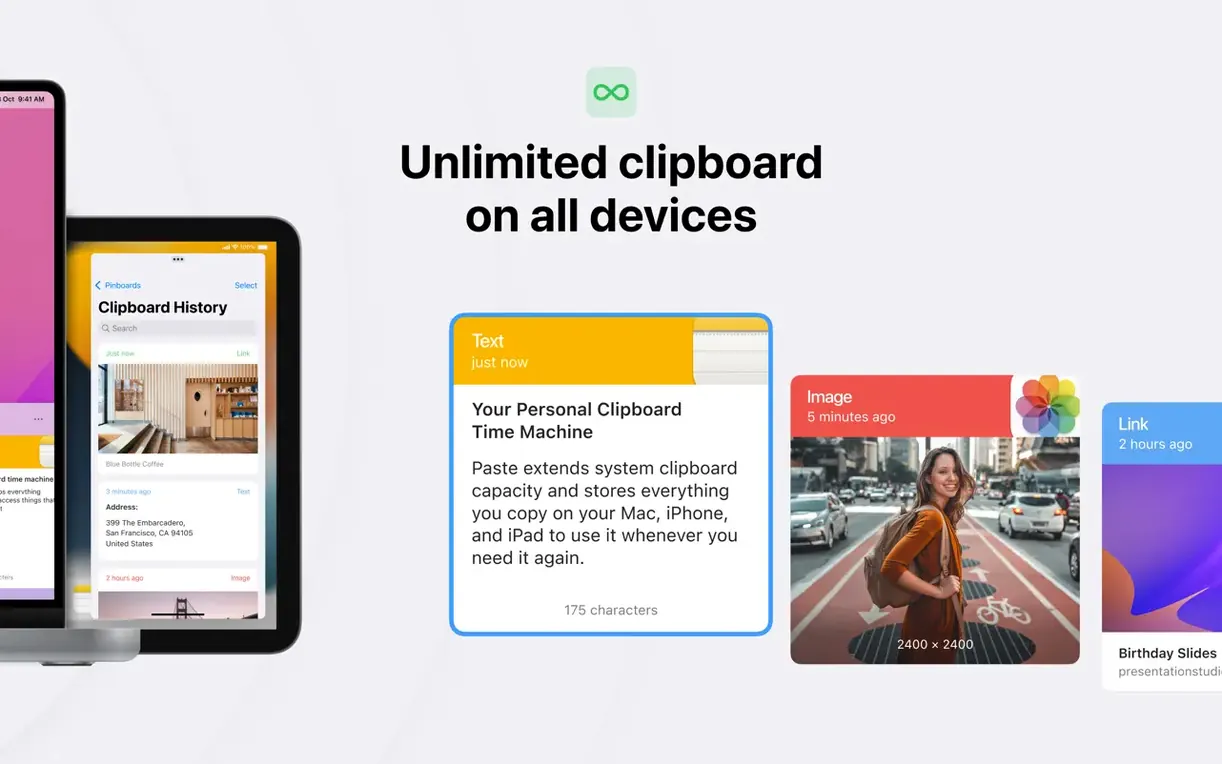
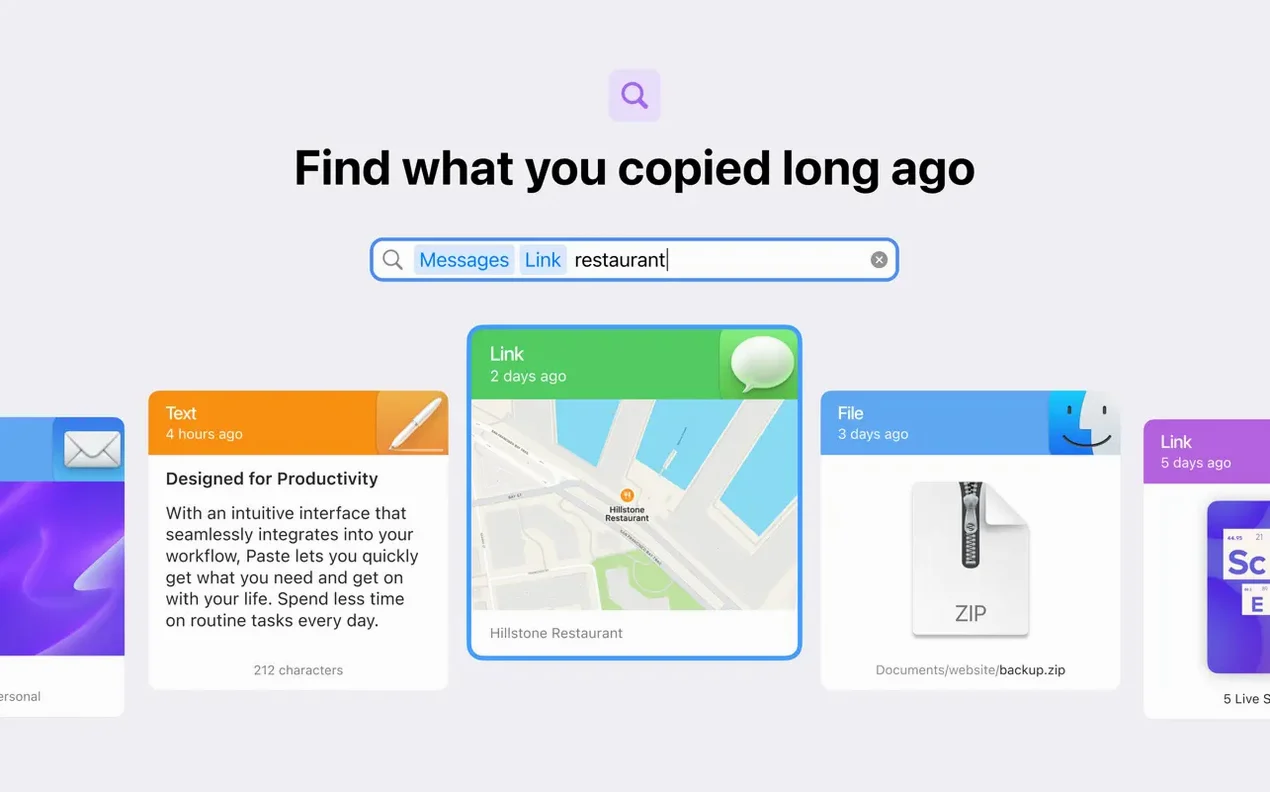
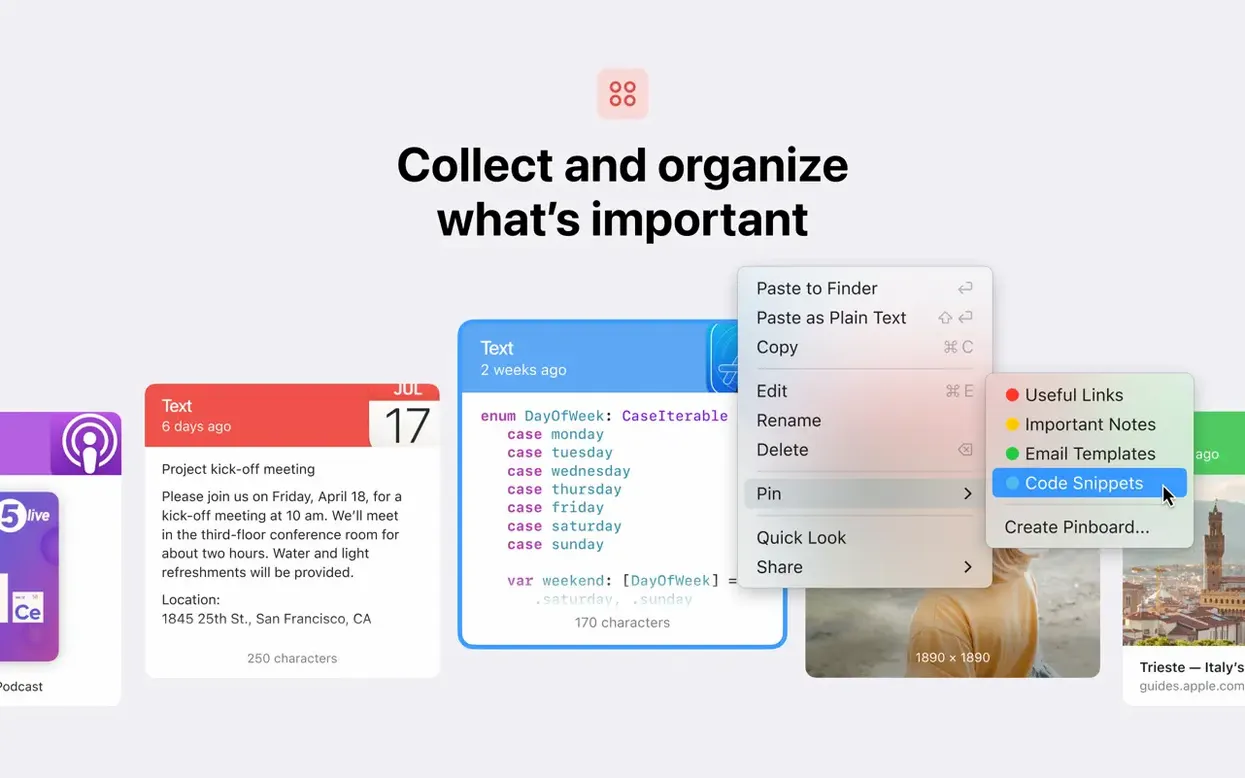
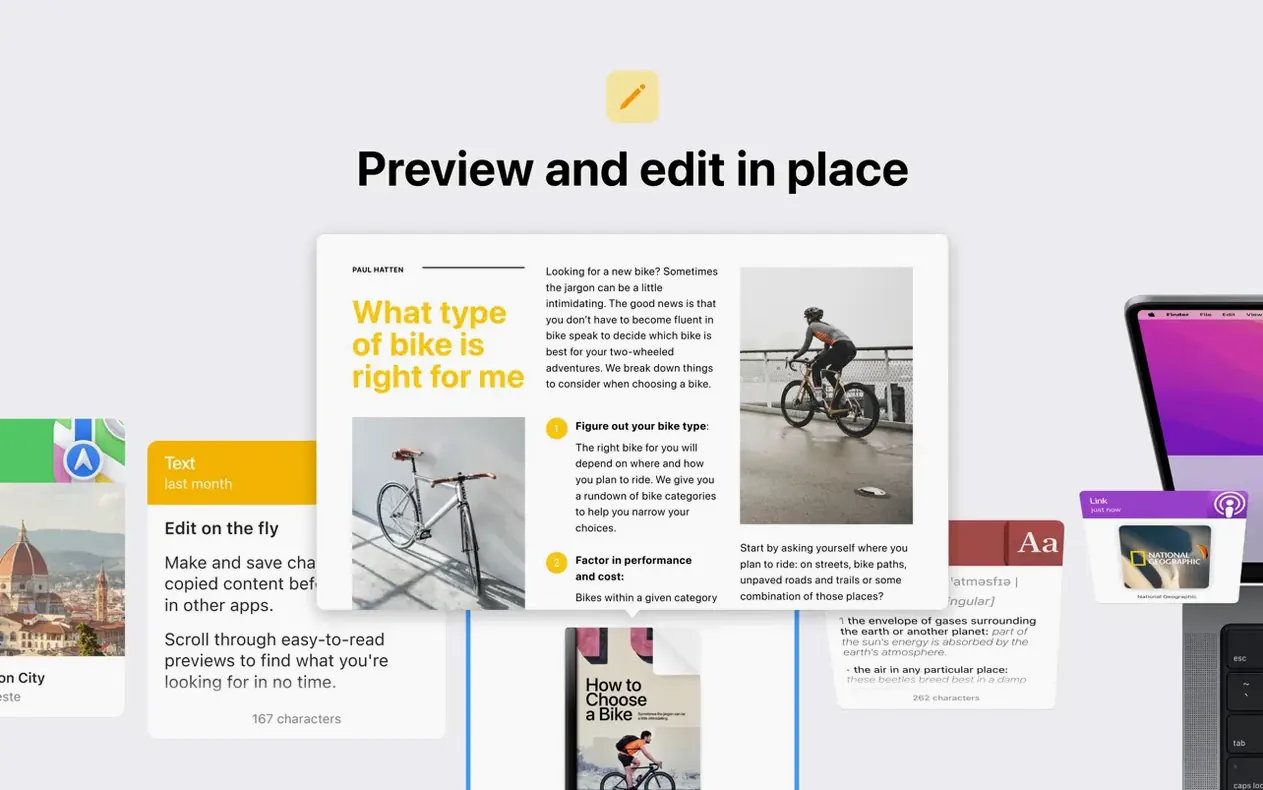
macOS remembers the last thing you copied and forgets everything before it. That works until you copy a link, then an address, and realise the code snippet you need is gone. Paste keeps a running history of your clipboard so you can scroll back and grab anything you copied earlier in the day, the week, or months ago.
What makes it more than a simple clipboard
- Smart search digs through hundreds of copied items instantly. Type a fragment and it surfaces matching text, links, and images without you opening folders.
- Unlimited lists let you organise clips by project, client, or topic. You pin what you need long-term and let the rest flow through.
- Multi-item paste queues several clips and pastes them one after another. Useful for filling forms or assembling boilerplate replies.
- Plain text mode strips formatting on the fly so pasted text matches the destination document instead of dragging along fonts and colours from a web page.
- Return to previous clips steps backward through your copy history with a keyboard shortcut, so you never lose your place.
Does the plain-text mode strip everything to .txt on paste?
Paste stores text, images, links, and files. The plain-text option converts rich content to clean .txt on paste. It runs natively on both Apple Silicon and Intel 64-bit Macs and asks for macOS 13 or later, though macOS 14 is recommended. The interface ships in over twenty languages including Russian, German, Japanese, and both Simplified and Traditional Chinese.
Why did the sync gap between Macs shrink to a second or two?
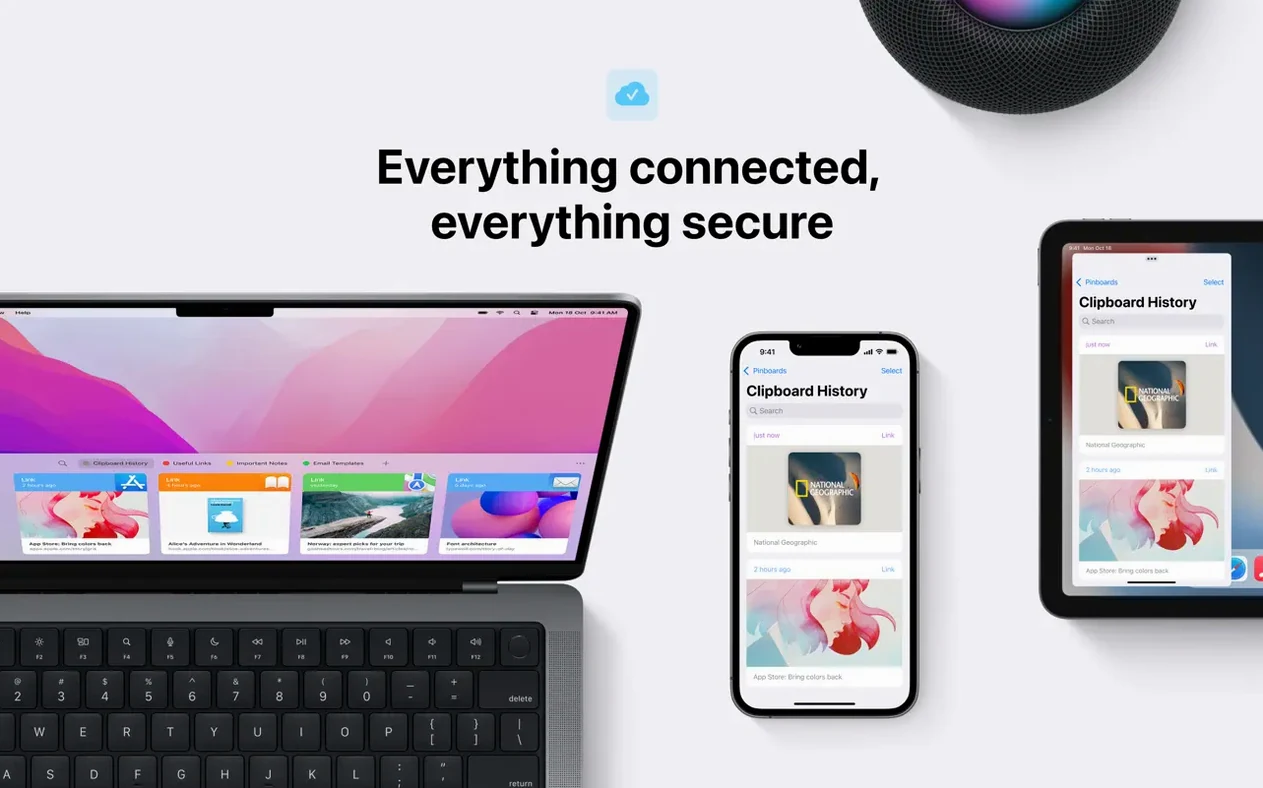
Version 6.6.2 tightened the sync engine considerably. If you work across a MacBook and an iMac, clipboard items now appear on the second machine within a second or two rather than the four-to-five-second lag that crept into earlier 6.x builds. The pinboard sync got the same treatment — pinned clips you set on the Mac show up on an iPad without manually refreshing the list.
Apple Silicon Macs gained a quieter memory footprint. The background process that watches the clipboard used to hover around 90 MB of RAM; the current build idles closer to 60 MB on an M1 or M2, which matters when you run Docker and Xcode side by side. Intel Macs saw less dramatic but still welcome reductions.
Search got fuzzy matching that handles typos. Typing “past mac download” into the search bar when you meant “paste” will still surface the right item if the remaining letters match. The plain-text conversion also improved for CJK scripts — copying from a Japanese web page and pasting into a plain-text editor no longer drops certain kana characters, a bug that frustrated users through most of the 6.5 cycle.
What should you check before installing?
Does it conflict with Universal Clipboard?
They coexist. Universal Clipboard moves one item between your Mac and iPhone via Handoff. Paste captures that same item as it enters the local clipboard and stores it in your history. You can then retrieve it days later even after Universal Clipboard has long since replaced it with something else. Think of Universal Clipboard as the courier and Paste as the filing cabinet.
What happens to copied passwords?
Paste excludes fields marked as secure by macOS — password managers like 1Password and Apple’s own Keychain pass content through a different channel. If you copy a password from a regular text field, however, it lands in your history like any other snippet. You can delete individual items with a swipe or set a rule to ignore certain apps entirely from the preferences pane.
How many months of text fits inside the 500 MB cap?
Text and links are negligible — months of daily use rarely exceed 50 MB. Images and file references bulk up faster. The app caps local storage at a configurable limit; the default is 500 MB. Once you hit it, the oldest unprotected items drop off. Pinned clips and items on protected lists never get purged automatically.
Why remap the history panel shortcut on day one?
Run through the keyboard shortcut setup on day one. The default shortcut for opening the history panel is ⇧⌘V, which feels natural once muscle memory kicks in. If you use a clipboard manager on another platform, you can remap it to match what your fingers already know.
Create two lists during the first session: one called “Temp” for things you need across the next hour, and one called “Snippets” for boilerplate you paste repeatedly — email sign-offs, git commands, support ticket templates. Drag items between lists directly from the popover. Pinning works better for truly permanent material; lists work better for project-scoped collections.
Check the “Exclude apps” list under preferences after a day of use. Password managers, terminal apps, and messaging clients often generate noise you do not need stored. Adding Terminal.app or your SSH client keeps the history lean. You can still copy from them when you want — the exclusion only stops Paste from recording it.
Enable plain-text paste as a secondary shortcut rather than replacing the default paste. ⌥⇧⌘V is a common choice. That way you keep formatted paste for Word documents and plain-text paste for code editors without toggling a setting each time.
If you grabbed the paste mac crack build from an unofficial source, iCloud sync and the sharing features depend on a valid receipt — without it, the app functions as a local-only clipboard history, which is still useful; to unlock the cross-device sync that distinguishes recent versions, make sure the receipt validation passes cleanly on first launch.
Why is the history panel blank after pressing the shortcut?
The history panel does not appear on the shortcut. Check System Settings under Privacy & Security > Accessibility. Paste needs permission to watch keystrokes globally. If the toggle is off, flip it on and restart the app. Sometimes a macOS update resets this without warning.
Images show as blank thumbnails. Paste stores a reference to the image data, not a rendered preview in every case. Dragging the blank thumbnail into a document or onto the desktop often pastes the image correctly regardless. If the image genuinely did not copy, the original app may have placed it on the pasteboard as a promise rather than as raw bitmap data — Photoshop and Figma do this. Copy the image again using a different method, such as “Copy Image” from a browser’s context menu instead of a screenshot tool.
iCloud sync stalls between Mac and iPhone. Both devices need iCloud Drive enabled under the same Apple ID. Paste stores its sync database in a hidden folder inside iCloud Drive; if you turned off iCloud Drive to save space, sync breaks. Re-enable it, open Paste on each device, and wait a few minutes for the handshake. The same applies if you downloaded a paste 6.6.2 disk image and ran it from your Downloads folder instead of copying it to Applications — the sandbox restrictions block iCloud access.
Paste refuses to record anything. This almost always traces back to a permissions gap. Go through the checklist: Accessibility enabled, Input Monitoring enabled if you use custom global shortcuts, and Screen Recording allowed if you capture screenshots into the clipboard. Not every feature needs all three, but a missing permission can silently disable recording. Restart the app after granting each one.
Search returns partial results. Paste indexes text content but not text inside images. If you copied a screenshot of a terminal window, the text in that screenshot is not searchable — only the fact that an image exists with a given timestamp. The workaround is to copy text directly when you know you will need to search for it later. For OCR, you would need a dedicated tool; Paste does not include optical character recognition.
- macOS 13 or later (macOS 14 recommended)
- Apple Silicon or Intel 64-bit processor
$ man paste | grep -A2 "?"
Does Paste keep formatting when I copy from a web page?
By default it preserves rich text and images, but you can toggle plain text mode to strip all formatting and paste only the raw characters.
How far back does the clipboard history go?
Paste stores an unlimited history across as many custom lists as you create, so clips stay available until you delete them.
Comments 0
Sign in or create an account to leave a comment.
No comments yet. A codec, a slice, a machine — they appear after moderation.