Path Finder for macOS
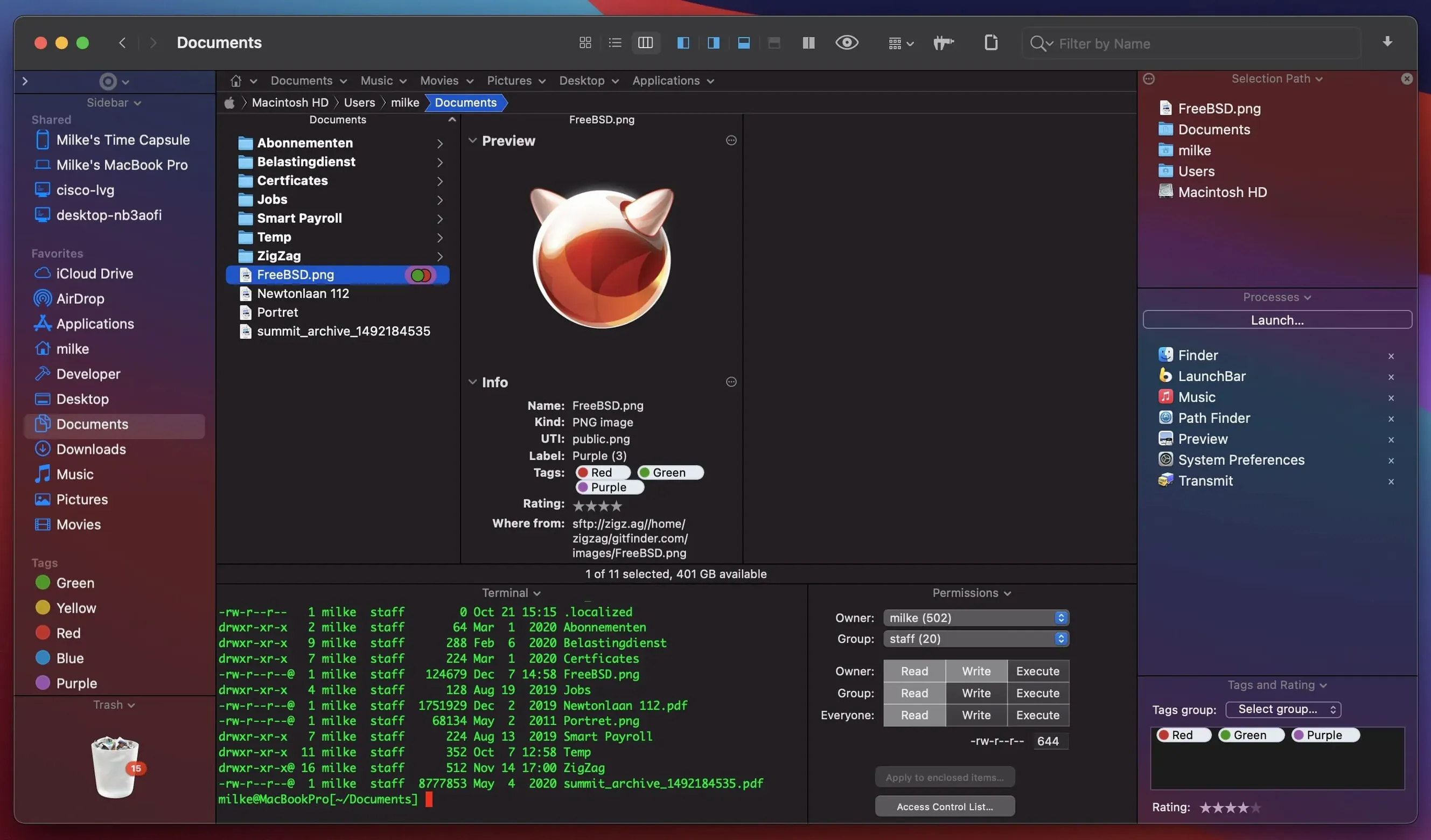
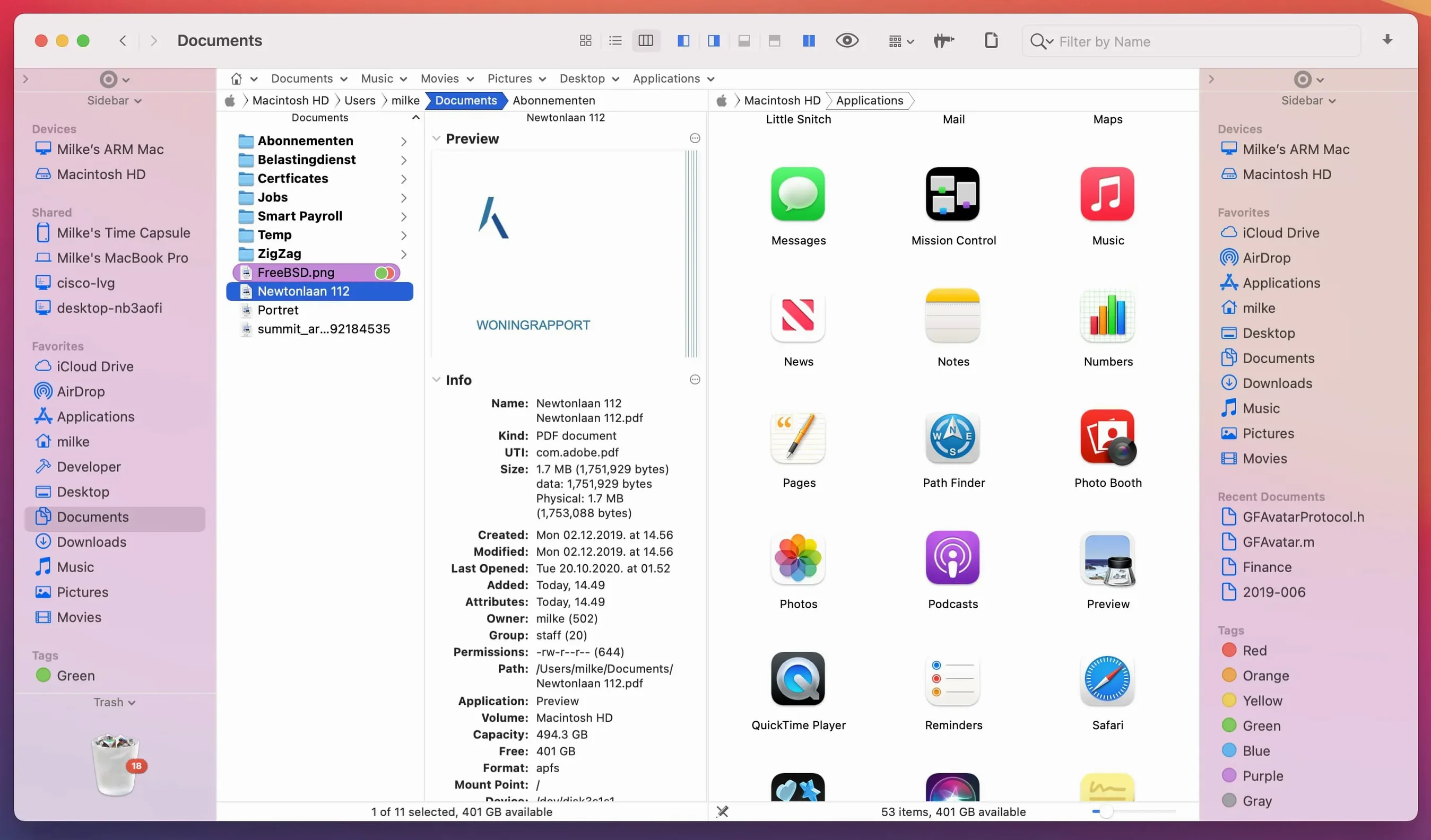
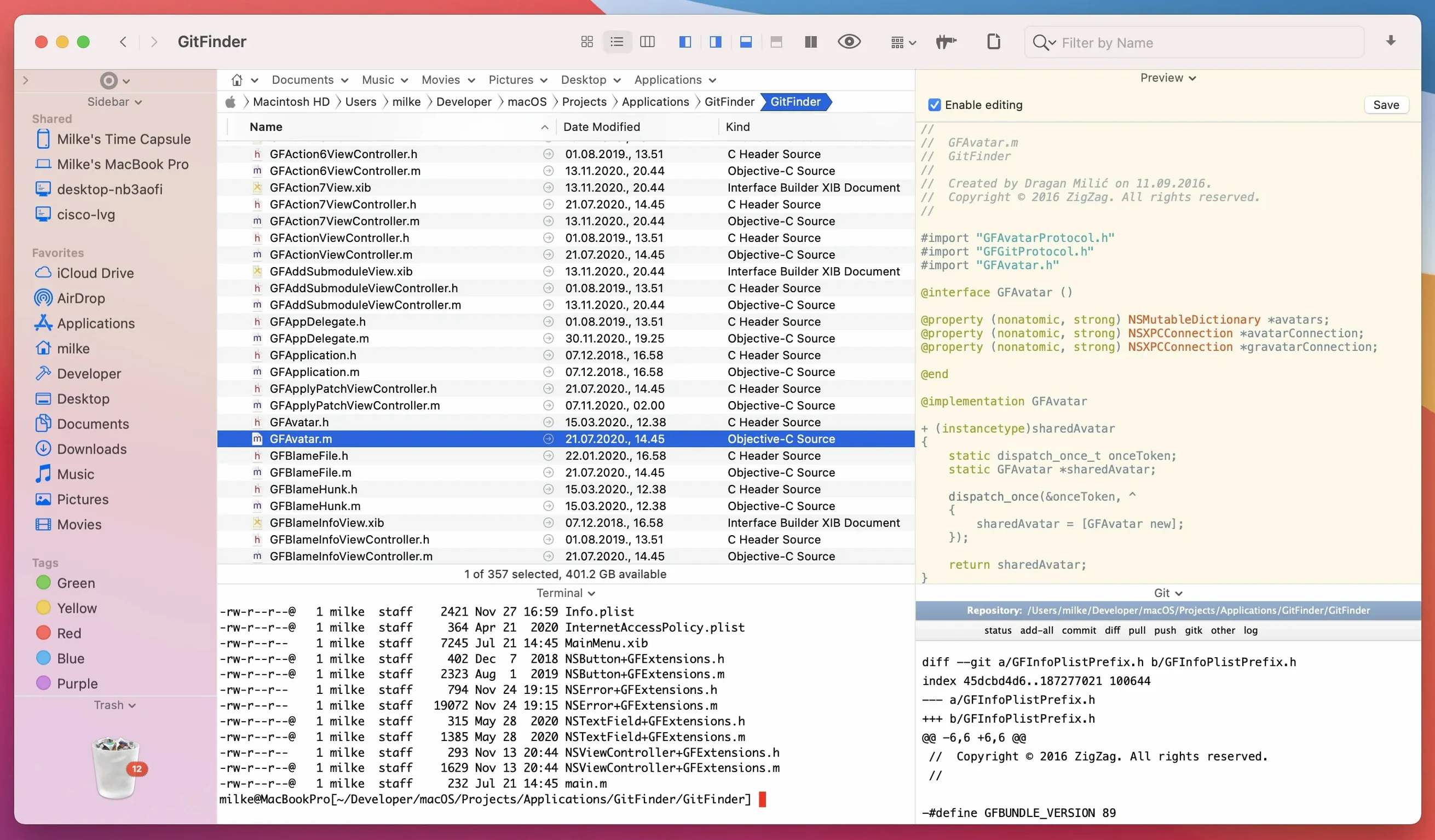
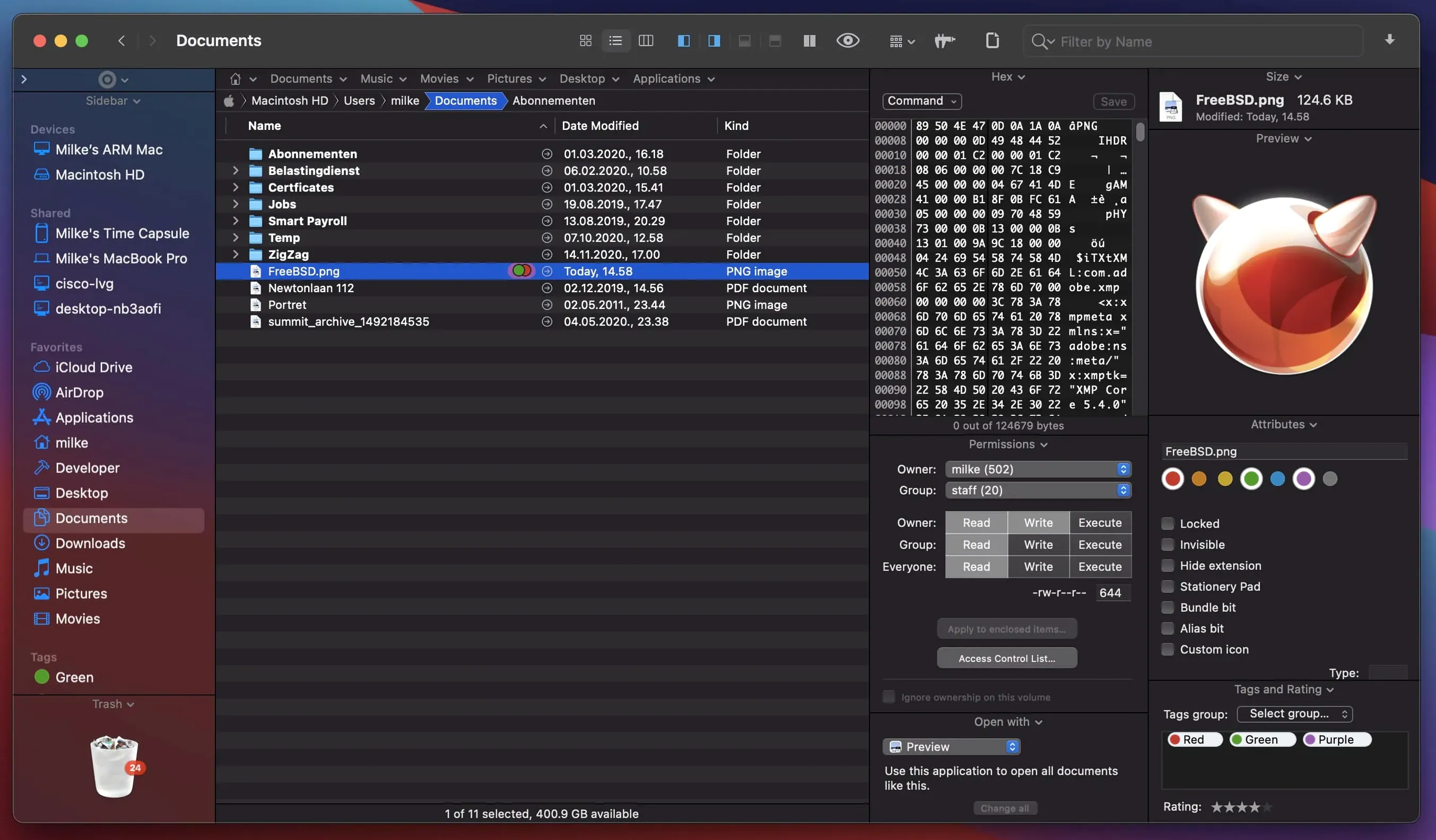
Path Finder is a file manager for macOS that replaces the Finder with dual-pane browsing, tabs and a stack of built-in utilities you actually use. It’s aimed at people who spend their day shuffling files and want the same tools a developer or power user expects — without leaving the file browser.
What makes the file browsing different from Finder?
The dual-pane layout and tabbed interface let you work across locations without spawning a dozen windows. You can bookmark frequently used folders, queue up file operations and browse the file system entirely from the keyboard — arrow keys, type-ahead filtering and hotkey-triggered tools keep your hands off the trackpad.
What built-in modules does it ship with?
Path Finder includes a text editor, image editor, app launcher and an archive tool that handles common compression formats. An FTP client is baked right into the browser, so remote file operations feel like local ones. You can also install and uninstall applications directly from the interface, and there’s a batch rename module that was recently patched to lift a file-count limitation.
Can I work inside .zip files and remote servers in the same pane?
The internal FTP client mounts remote directories inside the same pane you’re working in, and the archive module lets you inspect or extract archives without switching apps. Both are modules — you enable what you need, and they show up as part of the standard browser UI.
Can I customize the keyboard shortcuts?
Yes. Path Finder can change system hotkeys for its own commands, so you’re not locked into whatever the developer chose. Combined with keyboard-driven file browsing, it means you can build a workflow that barely touches the mouse.
Why do ForkLift and Commander One keep entering the conversation?
If you've been digging around for a path finder mac alternative to the stock Finder, you've probably run into ForkLift and Commander One as well. They all tackle the same problem — a Finder that never grew up — but they split the audience along different lines.
ForkLift feels like the clean cousin. Its dual-pane layout is polished, the sync and remote-connection features are strong, and it integrates tightly with the macOS quick-look engine. Where Path Finder pulls ahead is the sheer depth of built-in modules. ForkLift doesn't ship with an image editor, a text editor or an app uninstaller. You get a file manager; Path Finder gives you a file-manipulation workbench. ForkLift's interface is quieter, which some people prefer; Path Finder's is denser and rewards muscle memory over minimalism.
Commander One comes from the orthodox file-manager tradition — two panels, function-key shortcuts burned into your brain, and a Vim-like relationship with the keyboard. Its Pro tier adds FTP, Amazon S3 and WebDAV, but the free version is essentially a very fast local dual-pane browser. Compared to Path Finder, Commander One is leaner and faster to launch, but it doesn't try to be a desktop environment replacement. No process manager, no batch rename (without the Pro pack), no image or text editing inside the browser. If you want a surgical instrument, Commander One fits. If you want a control center, Path Finder still has more buttons.
TotalFinder and XtraFinder used to fill this niche by injecting features directly into the Finder via system extensions, but SIP and macOS architectural changes have made that approach fragile. Path Finder is a standalone app, which means it survives OS updates without the same drama — something worth noting if you've ever lost your dual-pane setup after a point-release.
Does it use my existing Spotlight index for searches?
Path Finder doesn't live in isolation. It hooks into the same Spotlight index the Finder uses, so searches for files by keyword, extension or type return results as fast as they would in a standard search window — sometimes faster, because the filtering UI doesn't animate half of your screen away. If you use Alfred, Raycast or LaunchBar, you can send folder paths straight into Path Finder instead of opening a Finder window, which keeps your launcher and your file browser playing on the same team.
The .dmg-mounting and disc-image conversion tools mean you can stop keeping a separate utility around just for .iso and .cdr files. Right-click a CD, DVD or Blu-ray disc image, and Path Finder can convert it without launching Disk Utility. The built-in app uninstaller scans for preference files and caches after dragging an .app bundle to the trash — not as exhaustive as AppCleaner, but enough for a quick cleanup without breaking focus.
macOS tags and iCloud status icons are fully supported in this release, with recent fixes for color badges and download indicators across Icons, List and Columns views. That matters if you rely on tagged filing systems or keep large files as iCloud-placeholders — the visual feedback now matches what the Finder shows, so you don't lose the metadata layer that Apple's own apps depend on.
What does a dual-pane Tuesday morning actually look like?
Imagine Tuesday morning. You've got a .zip of client assets sitting on the desktop, a remote server that needs updated files, and a folder of screenshots that needs renaming before you send them off.
You open Path Finder. The dual-pane layout restores from last session: the left pane points to ~/Desktop, the right pane to /Volumes/Projects. You hit Cmd-T to open a new tab in the right pane and connect to the client's FTP server — the built-in FTP client logs in with credentials you saved last week, and the remote directory appears inline, looking exactly like a local folder tree.
You select the .zip on the desktop, press Space to preview its contents through the archive module, then drag a subfolder straight from the preview into the FTP tab. The transfer queues in the background. No separate FileZilla window, no bouncing dock icon.
Now the screenshots. You select all 26 PNGs, right-click and open the batch rename module. A previous version capped you at 31 renamed files — that bug is squashed. You set a pattern: client-draft-####, hit preview to confirm the sequence, and apply. Ten seconds, done.
While the FTP transfer finishes, you notice a stray .iso from last month's backup. Right-click, convert to .cdr — Path Finder hands it off to its internal converter, and you go back to dragging the renamed screenshots into a new folder tagged "sent". You never opened Disk Utility, Preview, a separate FTP client or a terminal. That's the session: a series of small, adjacent tasks that the Finder would have bounced to four different apps.
What's the real-world performance like?
On Apple silicon, Path Finder 26.1.9 launches in about two seconds on a cold start — slower than the Finder, but faster than opening three separate utilities. Memory usage sits around 180–220 MB with a dual-pane session, FTP connection and a preview tab open, which is reasonable for what amounts to a file browser plus a collection of editing and transfer tools running in one process.
Scrolling through a directory with thousands of files in List View is smooth; the icon-drawing fixes in this release cleared up a flicker that used to appear when drag-selecting across multiple columns. Drag-and-drop between panes has a snappy slide-back animation on cancellation — not just cosmetic, it gives clear tactile feedback that the operation didn't happen, which is useful when you're moving files quickly and second-guess a drop target.
The batch rename fix for the 31-file limit is the kind of bug you only notice when you process a folder of seasonal photos or log exports and suddenly the operation stalls. In daily use, that means predictable behavior for batches of any size — one less thing to count before running a rename. The label and tag badge fixes also matter: if you color-code folders by project status, the visual signal is reliable again, which keeps the whole two-pane view legible at a glance.
Path Finder isn't a lightweight app, and it doesn't pretend to be. It trades a few hundred megabytes of RAM for the convenience of not context-switching. If you run it all day alongside an IDE, a browser and a VM, it doesn't spike CPU and it doesn't beachball on directory scans. For a file manager that bundles an FTP client
Path Finder 26.1.10 has landed. The full rundown of changes lives in the release notes over at store.cocoatech.io, so point your browser there for the specifics on what got tightened up.
- macOS 13 or later
- Apple Silicon or Intel 64‑bit
$ man path-finder | grep -A2 "?"
Does Path Finder support archive files without extra tools?
Yes, it includes an archive module that creates and extracts common archive formats directly inside the file browser — no separate utility required.
Comments 0
Sign in or create an account to leave a comment.
No comments yet. A codec, a slice, a machine — they appear after moderation.