Topaz Video AI for macOS
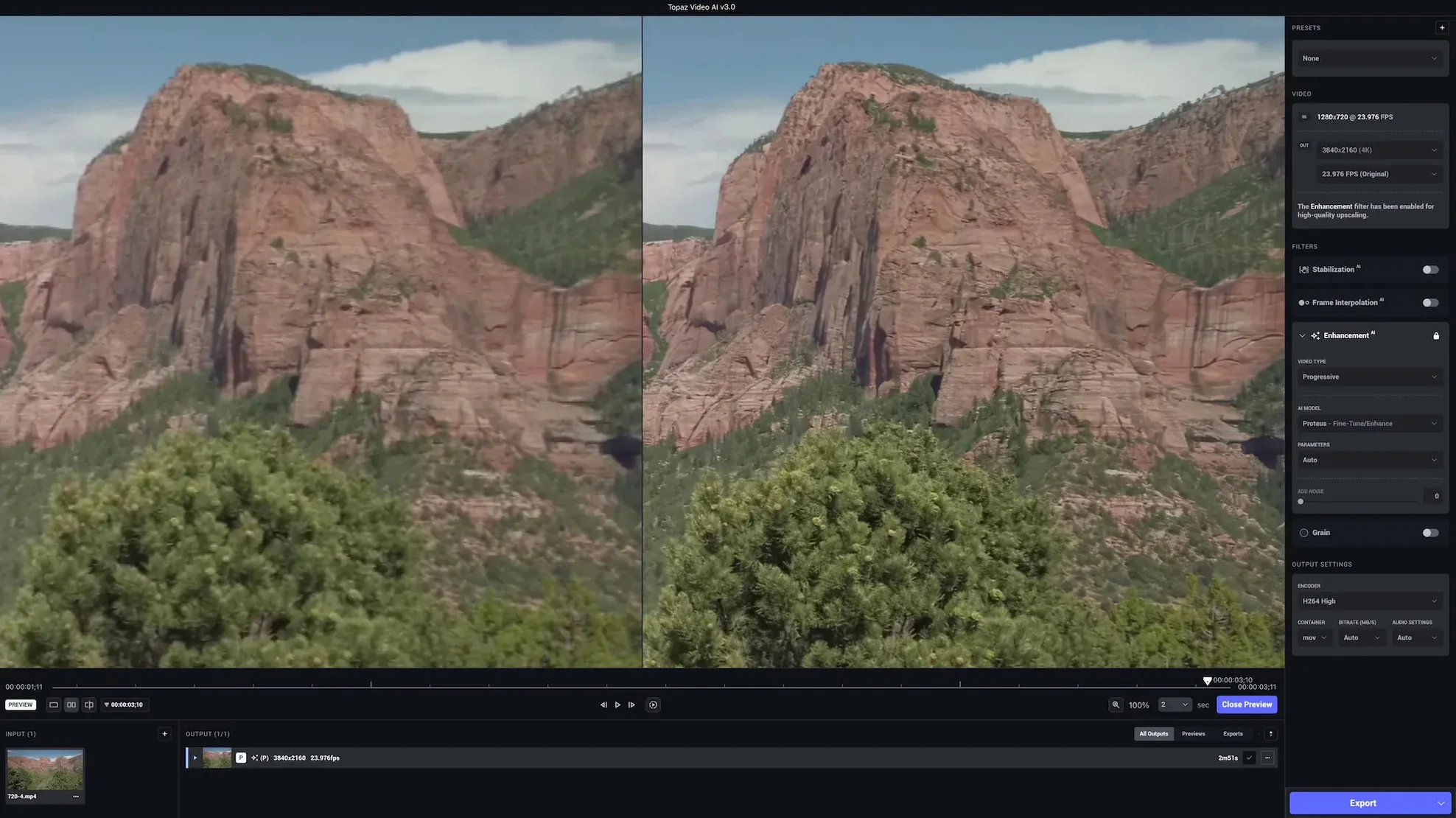
Proteus, Artemis, and Nyx aren't Greek myths here — they're the AI models you pick from when a shot needs rescuing. Each one takes a different approach to sharpening, denoising, and rebuilding detail, so you match the model to the specific problem in your clip. The app, formerly known as Video Enhance AI, lets you push HD footage up to 8K with motion consistency that tries to avoid the smeary look temporal upscalers can leave behind.
Chronos is the model that handles frame-rate changes. Rather than simply blending or dropping frames, it generates brand-new intermediate frames to turn 24 fps into smooth 60 fps playback. It's a heavy lift computationally, but the result is clean slow motion or judder-free pans without the stutter you'd get from a simple conversion.
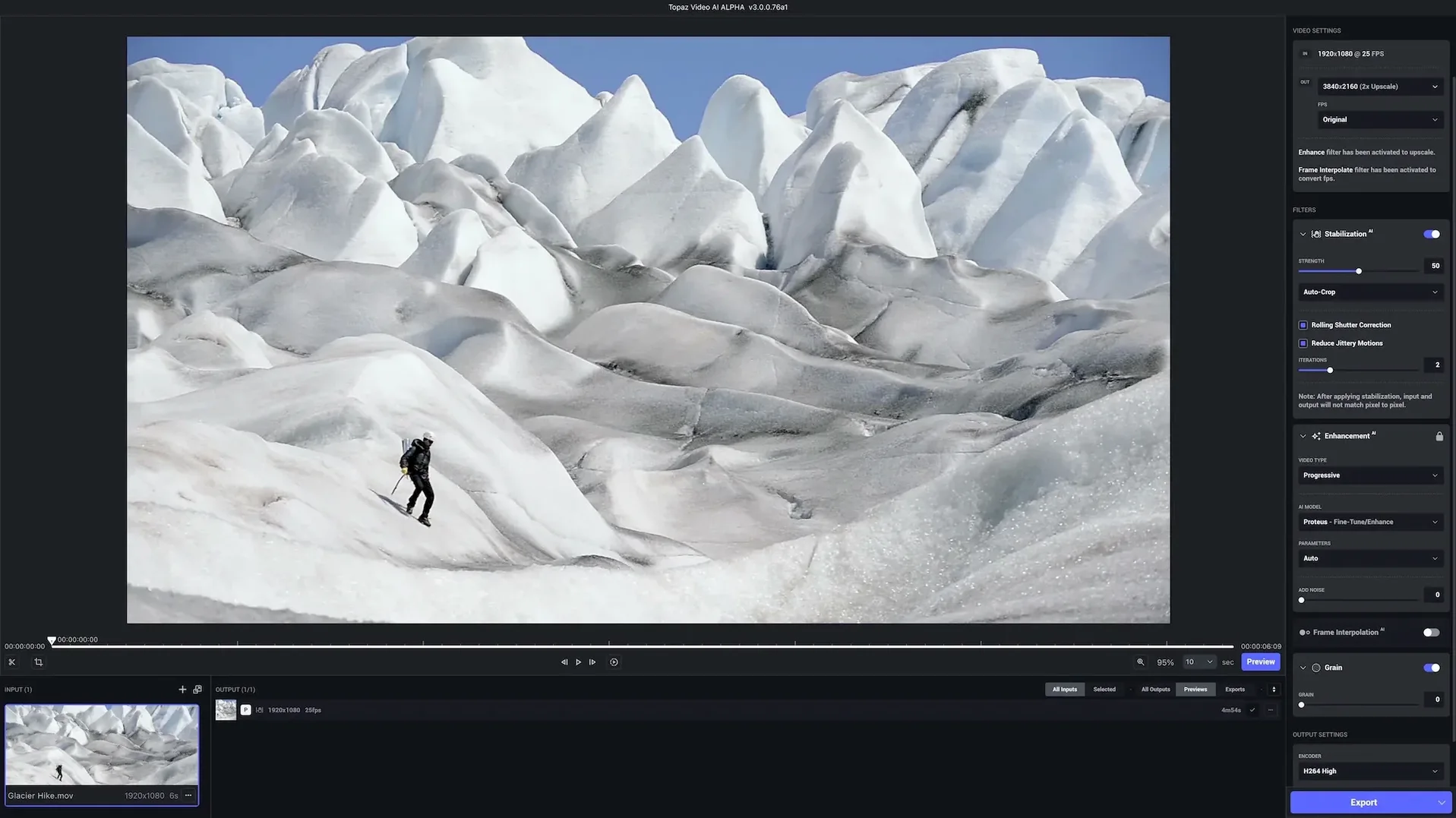
Stabilization works differently from a traditional tracker-based method. The AI analyzes the motion path of the entire scene and crops in to smooth out handheld wobble, which can save a shaky clip but will cost you some edge resolution. You see the crop live in the preview so there are no surprises after a long render.
The workflow sticks to a few button presses: import, choose a model, set the output resolution and codec, and let it process. It runs on the Neural Engine of Apple Silicon chips and on Intel 64-bit Macs with macOS 11 or later, though render times will vary enormously between those two architectures.
Test on 30-second clips before trusting a full render
Don't queue up a three-hour project on day one. The models behave differently depending on the source clip, and learning those differences early saves you from re-rendering later. Start with a handful of 10- to 30‑second test clips — something underexposed, something shaky, something old and soft, something with fast motion — and run each through at least two models. Compare the previews side by side before committing to a full export.
Check your scratch disk location right away. By default the app writes temporary frames to your boot drive, and a single 4K upscale can chew through tens of gigabytes before the final file lands. Point it to a fast external SSD with plenty of free space. In Preferences you'll also find the render queue behavior; set it to pause after the current job if you're working on a laptop that might thermally throttle during a long batch.
Model downloads happen on first use, not during installation. The first time you select Artemis or Proteus the app fetches the weights — that's a couple of gigabytes per model. Do this on a wired connection if you can, and let them all download before you need them for a deadline.
One more thing: the preview pane shows roughly a five‑second loop by default. Drag that loop window across different parts of the clip — a dark section, a bright section, a section with complex motion — before you lock in your settings. A model that looks brilliant on a static well-lit face might fall apart on fast panning tree branches.
Rebuilding texture from MiniDV, DVD, and 720p DSLR sources
Archival work is the obvious fit. If you're pulling footage off MiniDV tapes, DVD rips, or early DSLR clips shot at 720p, the upscaling and denoising combination does something a simple bicubic resize in a timeline cannot: it rebuilds texture. Nyx in particular reconstructs fine detail in a way that makes old interlaced footage feel like it was shot at a higher resolution, not just stretched to one.
Event videographers who deliver same-day edits get a different kind of value. Low-light reception footage — noisy, soft, sometimes handheld in a hurry — cleans up enough with Proteus that you can cut it next to well-lit ceremony clips without a jarring quality drop. The denoise pass runs separately from sharpening, so you can pull back grain without over-crisping skin tones.
Motion graphics artists and animators fall into a niche that's easy to overlook. Rendering a 3D sequence at half resolution and letting Chronos double the frame count while Nyx upscales to 4K can cut render-farm time dramatically. The AI handles computer-generated content differently from live action — often better, because there's no sensor noise to confuse the model, just clean edges to sharpen.
Casual users who just want to fix a single shaky phone clip will get results too, but they'll spend more time waiting for renders than tweaking settings. The app's strength is batch work and precision, not one‑tap fixes.
Export ProRes 4444 or H.265 to hand back to your timeline
It doesn't pretend to be an editor. You bring a finished export in, enhance it, and bring the result back into your timeline. The export presets include ProRes 422 HQ, ProRes 4444, H.264, and H.265, so you can match whatever your NLE expects. If you're cutting in Final Cut Pro, drop the ProRes output straight into the library; DaVinci Resolve users will want to check the data-level setting — the app can output full or video-range, and a mismatch causes washed-out blacks.
The .pkg installer places everything in the standard /Applications folder, and the models live in ~/Library/Application Support/Topaz Labs/Video AI. That's useful to know if you're migrating to a new Mac and don't want to re-download all the model data. Copy that folder over and the app picks it up.
Because it taps the Neural Engine on Apple Silicon, it coexists well with other GPU-heavy apps. You can leave a batch rendering overnight while your Mac is otherwise idle; the thermal profile on M-series chips tends to keep the fans low even under sustained load, unlike an Intel MacBook Pro that will spin up audibly. If you're on an Intel machine, the app uses the discrete GPU when available, so an eGPU enclosure will shave time off long renders.
QuickTime Player's trim-to-selection feature is a handy companion: trim your source clip to just the frames you need enhanced, process those, and re-insert them into the full timeline. It keeps render times manageable when only a short section needs help.
Taking an underexposed, noisy 1080p dance clip to a clean 4K master
You've got a 1080p clip from a dance recital — underexposed, noisy, and shot at 30 fps on a camera that struggles above ISO 1600. The goal is a clean 4K master for a highlight reel.
First, drag the .mov onto the app window. The preview loads instantly because it's showing the source, not a processed version. You scrub to a frame where the stage lights are dim and the dancer is mid-turn — the hardest section for any denoiser, so if the settings work here they'll work anywhere.
You set output resolution to 3840×2160 and frame rate to match source at 30 fps. Model selection takes a minute of experimentation: Proteus is too aggressive on the skin, Nyx smears the fast motion, but Artemis finds a middle ground that pulls back chroma noise while keeping the hair detail crisp. You dial the denoise slider to about 60 and leave sharpening at the default — the preview updates in a few seconds and the difference is stark.
The clip is six minutes long. You estimate render time by letting the preview play for thirty seconds while watching the progress bar numbers; on an M2 Pro it's roughly five seconds of processing per frame of 4K output, so the full clip will take a few hours. You add it to the queue, point the output to a ProRes 422 HQ file on the scratch SSD, and let it run while you work on something else.
When it finishes, the new file drops into your Final Cut Pro library. You apply a slight color grade — the denoised image takes a grade beautifully because there's no noise left to amplify — and cut it into the reel next to well-lit footage. Nobody watching will guess the original was a noisy 1080p clip.
Preview loop stays locked to the timeline during mid-playback drags
Version 1.7.1 tightened the preview loop interaction significantly. Earlier builds would sometimes desync the preview when you dragged the loop region mid-playback; now the update is instant and the loop stays locked to the timeline position you chose. It's a small fix that removes a daily frustration.
The model download manager got quieter. Previous versions interrupted you with a modal dialog every time a new model was required; the current build queues downloads in the background and shows a non‑blocking indicator in the status bar. If you're working through a batch of clips that need different models, you no longer have to babysit dialog boxes.
ProRes export performance on Apple Silicon saw a measurable bump. The app now writes the encoded stream directly to disk without an intermediate copy in the render pipeline, which trims a few minutes off a long export and reduces memory pressure when you're running other applications alongside it.
One change that affects archival workflows specifically: Nyx received updated weights that handle interlaced sources more gracefully. Footage from older camcorders that still carries combing artifacts gets a cleaner deinterlace pass before the upscale step, so you can skip a separate deinterlace round in your editor. The improvement is subtle on progressive-scan sources but immediately visible on anything pulled from a tape‑based workflow.
If you're searching for ways to try the software, you might come across phrases like topaz crack mac or topaz video ai patch floating around forums. Some users look for topaz video ai 5.0.2 crack or topaz video ai pro 7 under the assumption that a newer number means a fundamentally different product, but the core app you install from TopazVideo.pkg is the same application that runs the models described here. Others search for topaz ai for mac free when they want to evaluate the upscaling quality on their own footage, which is a reasonable impulse — the models speak for themselves once you see a preview.
Topaz Video AI 1.7.2 is a maintenance release. The detailed changelog is available on the developer's site.
- macOS 13 or later
- Apple Silicon or Intel 64‑bit
$ man topaz-video-ai | grep -A2 "?"
How high can Topaz Video AI upscale footage?
It is designed to improve and enlarge HD footage up to 8K resolution, using AI models that maintain motion consistency.
Comments 0
Sign in or create an account to leave a comment.
No comments yet. A codec, a slice, a machine — they appear after moderation.