
Transmit for macOS
Transmit 5.11.6 requires macOS 13 Ventura or later. It runs natively on both Apple Silicon and Intel Macs, so you don't pay a Rosetta penalty on M-series machines. If you're still on Monterey or earlier, you'll need an older version — the current build simply won't launch.
| Detail | Value |
|---|---|
| Developer | Panic |
| Version | 5.11.6 |
| macOS requirement | 13 Ventura or later |
| Architecture | Apple Silicon, Intel |
| Protocols | FTP, SFTP, S3, WebDAV |
| Languages | English, German, French, Japanese, Simplified Chinese |
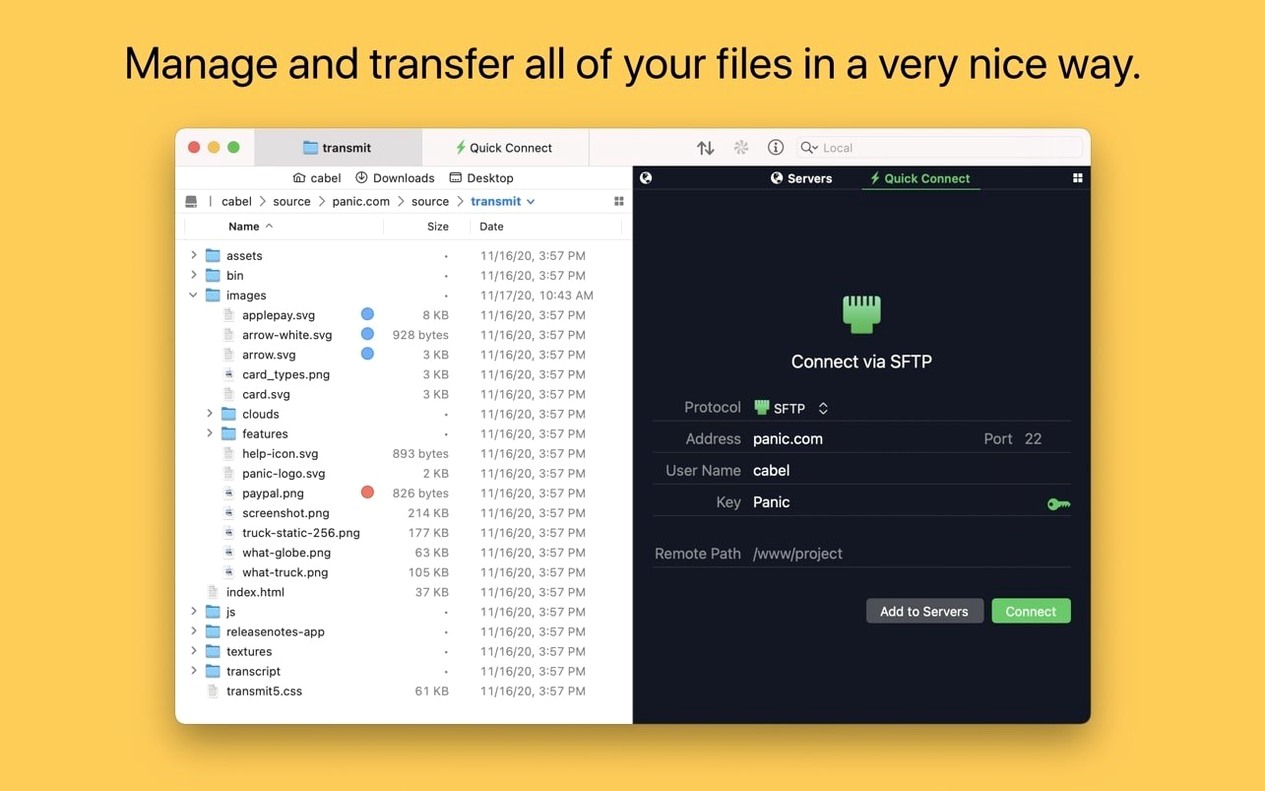
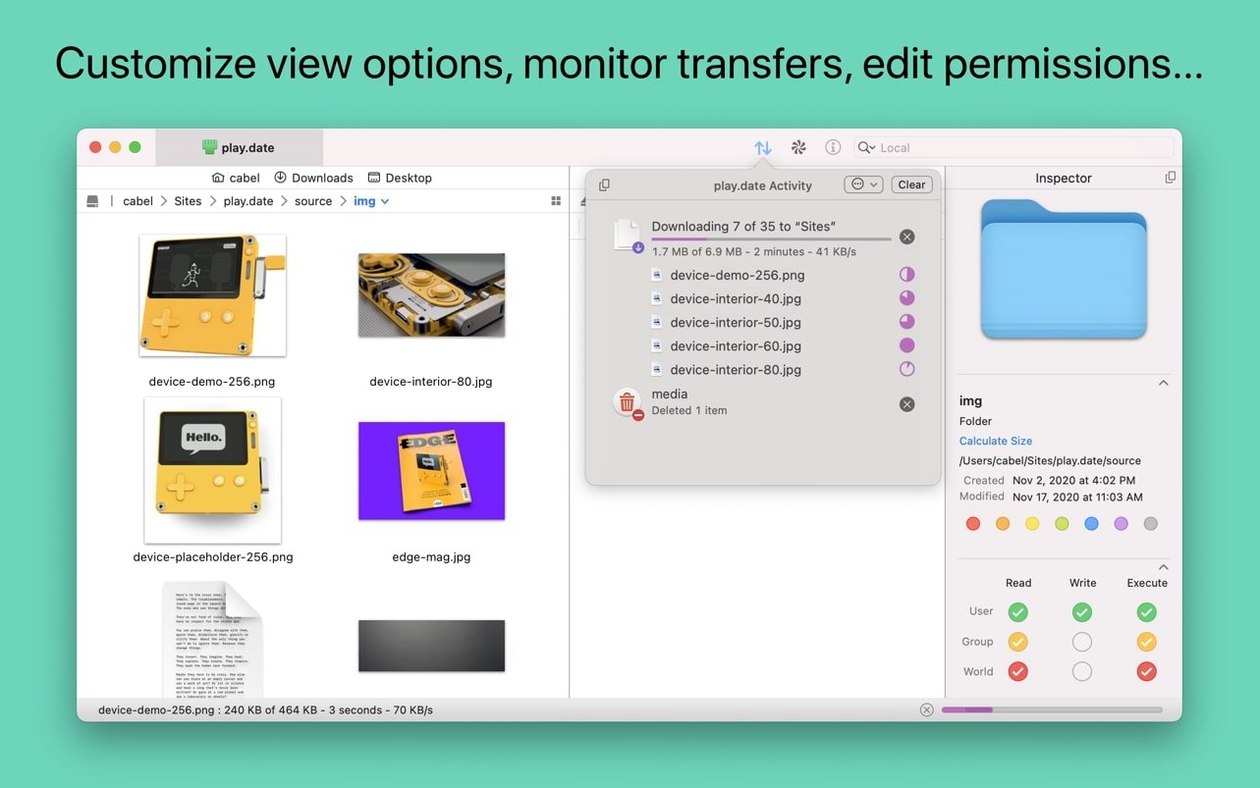
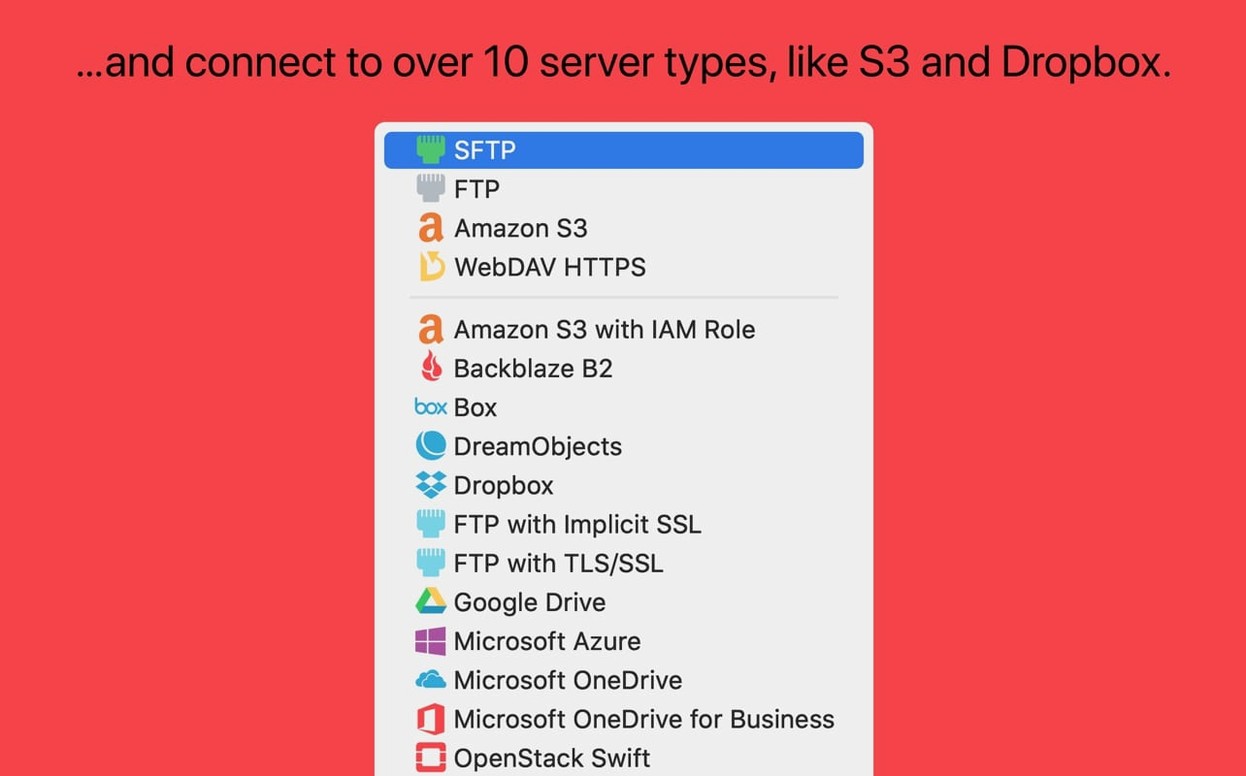
Once you're on a compatible Mac, you get a file manager that speaks four major protocols. The left pane shows your local files; the right pane shows a remote server. You can upload, download, and delete files across the internet the same way you'd manage folders in Finder. Panic Sync keeps your server bookmarks and credentials consistent between Macs. The Places Bar gives you one-click jumps to favorite local folders, and you can pop the current remote directory open in Terminal when you need a shell. Two-factor authentication is built in for SFTP connections, and the tagging system helps you organize sites visually. Transmit doesn't try to be a general-purpose sync tool — it's a direct file transfer client that puts the connection details front and center.
Why does dragging a folder overwrite instead of merging?
The most common one I see: dragging a folder onto a server and assuming Transmit will merge its contents with a same-named folder on the remote side. It won't. It replaces the entire folder. If the remote folder had files that don't exist locally, they're gone. Beginners coming from Finder's merge behavior on macOS get burned by this exactly once before they learn to open both folders and drag the contents instead.
Another classic slip-up is ignoring the transfer mode setting. FTP connections default to binary mode, which is correct for images, archives, and compiled code. But if you're pushing text files — shell scripts, CSS, HTML — and the server is a Unix machine, you want ASCII mode so line endings get translated from CR to LF. Otherwise your scripts arrive with invisible carriage returns and fail with cryptic "command not found" errors. The mode toggle is just a dropdown in the connection settings, but nobody notices it until a deploy breaks.
SFTP key management trips people up too. The key generator inside Transmit works fine, but beginners often generate a key, upload the public half to the server, and forget to select that key in the connection profile. They leave the auth method on "Password" and wonder why the key isn't being used. You need to switch the authentication dropdown to "Public Key" and point it at the private key file — ~/.ssh/id_rsa or wherever you stored it.
Finally, there's the S3 bucket naming surprise. Amazon S3 bucket names must be globally unique across all AWS accounts. Beginners create a bucket from inside Transmit with a generic name like "backup" or "media" and get a confusing error. The app reports the failure accurately, but the error message from S3's API isn't always obvious about the cause. Pick something specific — your domain name plus a purpose — and it goes through on the first try.
When does the Get Info button actually become available?
The 5.11.6 update is a small fix release, but one change matters more than it sounds: the Get Info toolbar button now activates immediately after launching. In previous builds, there was a short window after startup where the button appeared grayed out even with a file selected. If you habitually launch Transmit and immediately check permissions or file sizes on a remote server, that half-second pause is gone.
The same release fixed a crash that occurred when dragging files directly from Transmit into IntelliJ. If you use JetBrains IDEs — PhpStorm, WebStorm, IntelliJ IDEA — and you'd gotten into a rhythm of dragging a remote config file straight into the editor, you probably hit this crash at least once. It's resolved now, and the drag operation behaves as expected.
For S3 users, the error reporting on oversized files got an upgrade. Before, uploading a file larger than S3's 5 TB object limit produced a generic failure message. Now the error explicitly tells you the file exceeds the maximum allowed size. If you're pushing large media archives to S3, this saves you a trip to the AWS documentation.
A smaller but welcome fix: German-localized file rename sheets now display larger text entry fields. The German word for "rename" is Umbenennen, and the tighter field sizing was cutting off labels for users running the app in German. If you switch languages in the app preferences, the UI accommodates the longer strings properly now.
Drag your daily project folders into the Places Bar first
Spend ten minutes setting up the Places Bar before you connect to anything. Drag your ~/Sites, ~/Documents/Deploy, and any project folders you touch daily into the bar. It sits at the bottom of the local pane and saves you from navigating the folder tree every time you open a connection. Right-click any item to assign a color tag — I tag production servers red and staging servers yellow so I can't accidentally drag files to the wrong one.
Turn on Panic Sync under the Transmit menu before you configure more than two or three servers. It stores your bookmarks, favorites, and connection passwords encrypted in Panic's cloud. If you use Transmit on a desktop and a laptop, you set up servers once and they appear on the other Mac automatically. The encryption key lives on your devices — Panic can't read your saved passwords.
Change one default: open Preferences, go to the Transfers tab, and uncheck "Play sound when transfer completes." The default completion sound is a cheerful chime, but after the fifteenth upload of a debugging session, it wears thin. While you're there, set the default number of simultaneous transfers to something reasonable for your connection — 4 is a good starting point for most broadband lines. Crank it higher for S3, keep it lower for a sluggish shared-hosting FTP server.
Create an SFTP connection profile for your own Mac's SSH service — localhost, port 22, your username and password or key. It sounds odd, but it gives you a two-pane file browser for your entire local filesystem with SCP as the transport. Useful for testing transfer speeds, verifying file permissions, or just comparing directory structures visually without opening two Finder windows.
Workflow: deploying a static site update via SFTP
You've made edits to a static site — three updated HTML files, two new images, and a revised CSS file. The server runs SFTP on port 22, and you've already saved the connection in Transmit with your SSH key selected for authentication.
Start by opening the connection from the Transmit sidebar. The remote pane populates with the server's directory listing. Navigate the remote pane to /var/www/html and the local pane to your project's _site output folder. You now see both directory trees side by side.
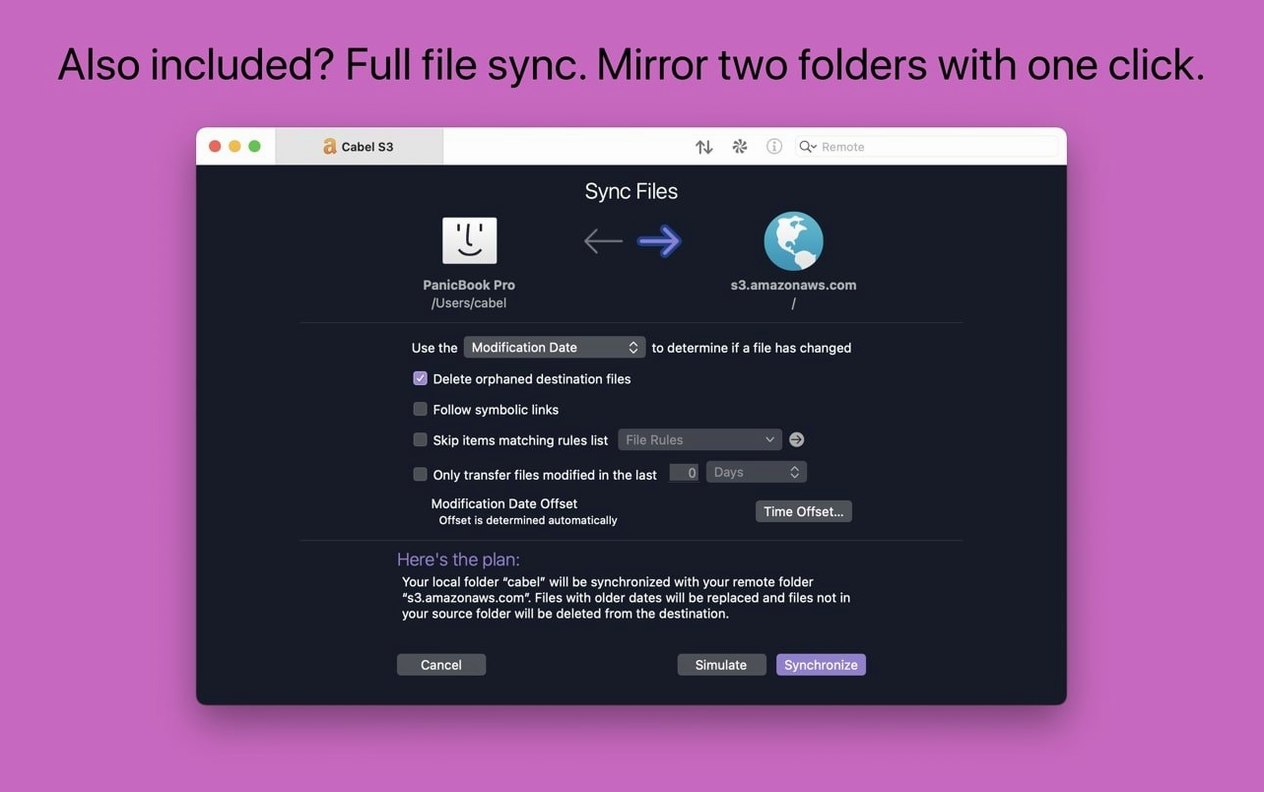
Rather than uploading the entire folder and risking a replacement, use the Sync feature. Click the Sync button in the toolbar. Transmit compares both sides and shows you which files are newer locally, which exist only on one side, and which match. It defaults to mirroring the local side to remote, but you can switch direction. For a deploy, you want "Local → Remote" with the option to skip identical files turned on.
Review the list before committing. Transmit highlights the files it plans to upload — your three HTML files, two JPEGs, and the CSS file. If there's an old CSS file on the server that you renamed locally, the sync dialog will flag it as an orphan on the remote side. You can choose to delete it during the sync or leave it alone. Once the list looks right, click Sync. Transmit pushes the six files, preserving their modification timestamps. The whole operation takes a few seconds on a decent connection.
After the sync completes, open the
Transmit 5.11.7 delivers a fresh batch of stability work and low-level corrections from the developer.
- macOS 13 (Ventura) or later
- Apple Silicon or Intel 64-bit processor
$ man transmit | grep -A2 "?"
Can I open a remote folder in Terminal from Transmit?
Yes, Transmit can open the current remote location directly in Terminal, which is useful when you need to run shell commands on a server you're already browsing.
Comments 0
Sign in or create an account to leave a comment.
No comments yet. A codec, a slice, a machine — they appear after moderation.