
Tower PRO for macOS
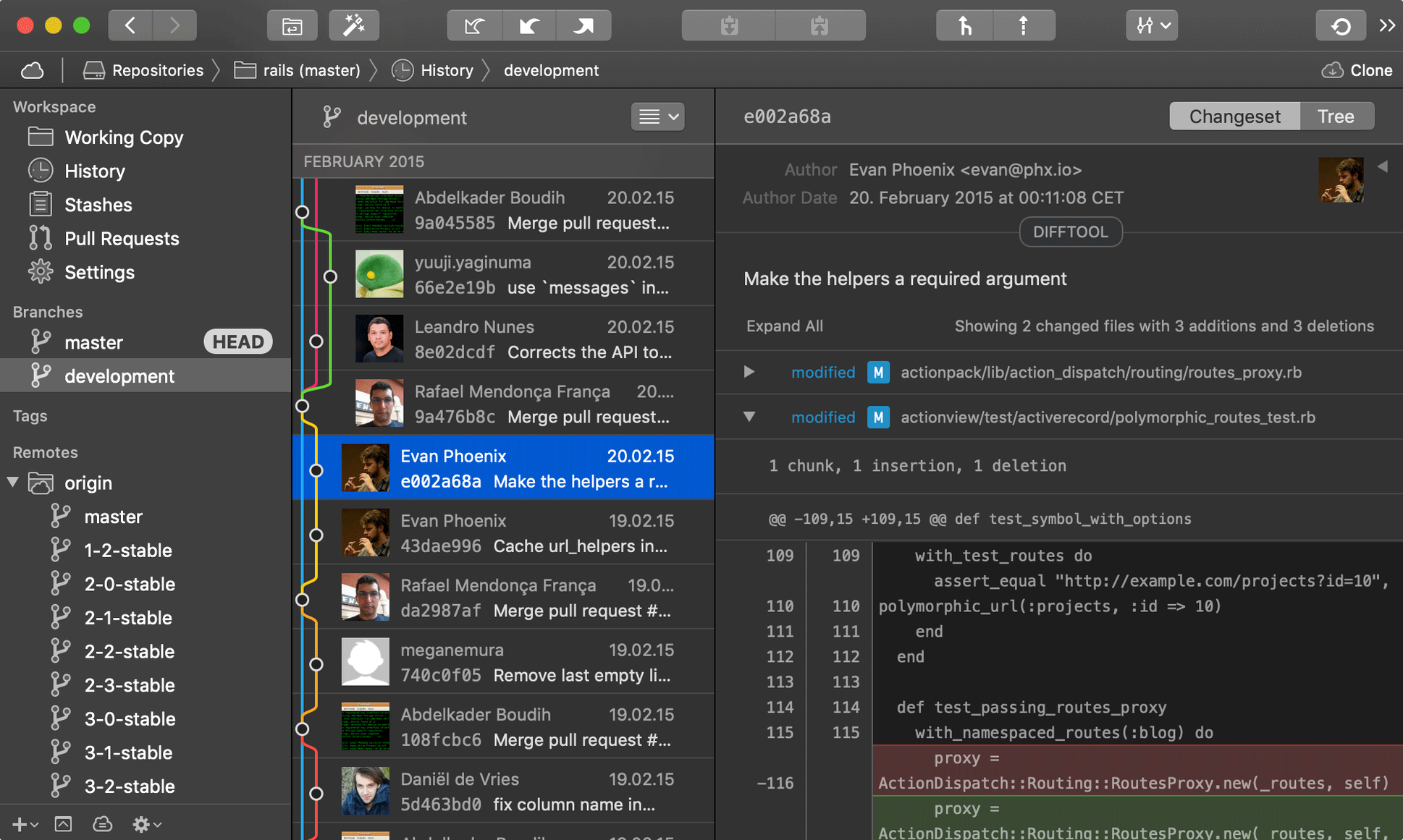
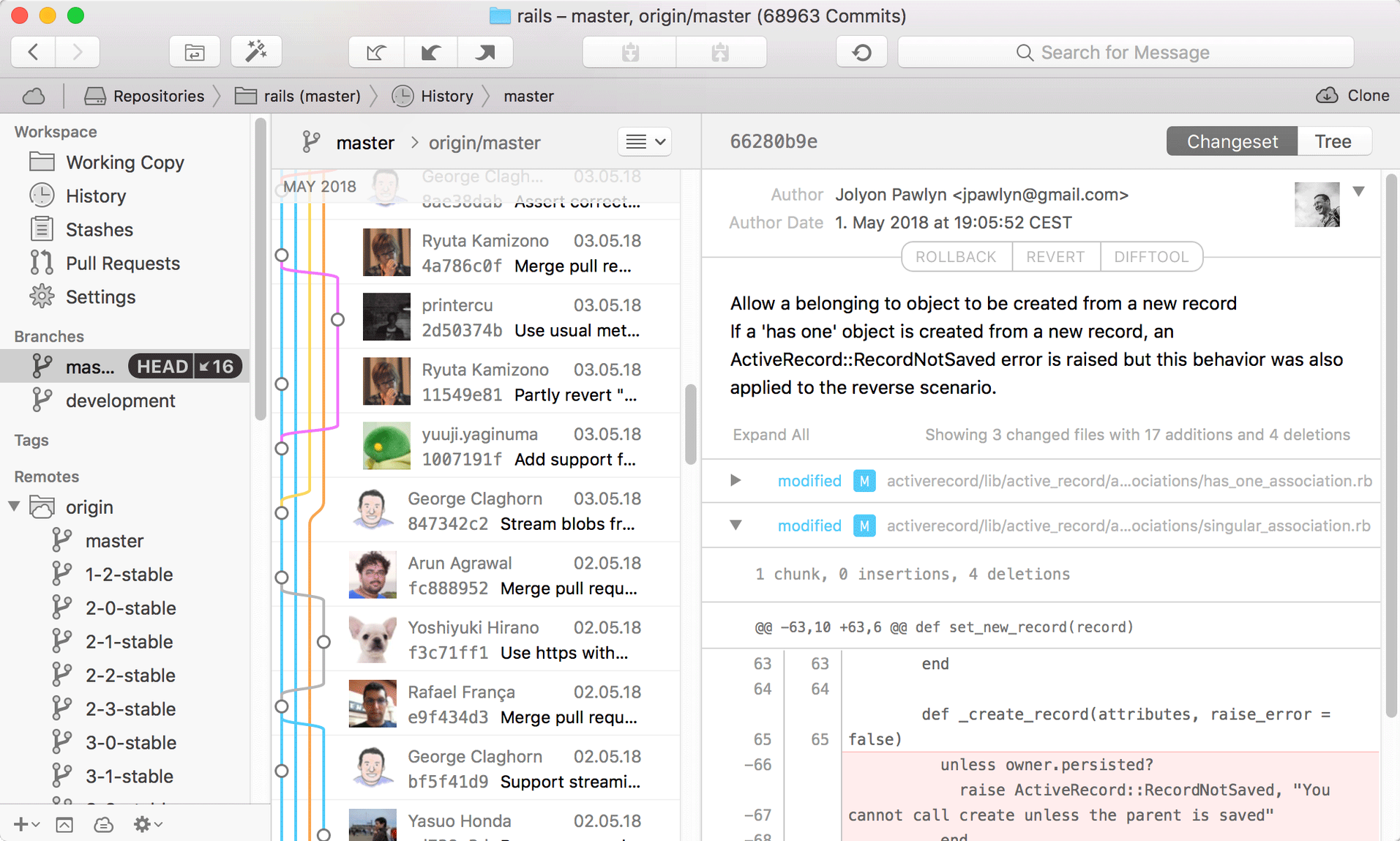
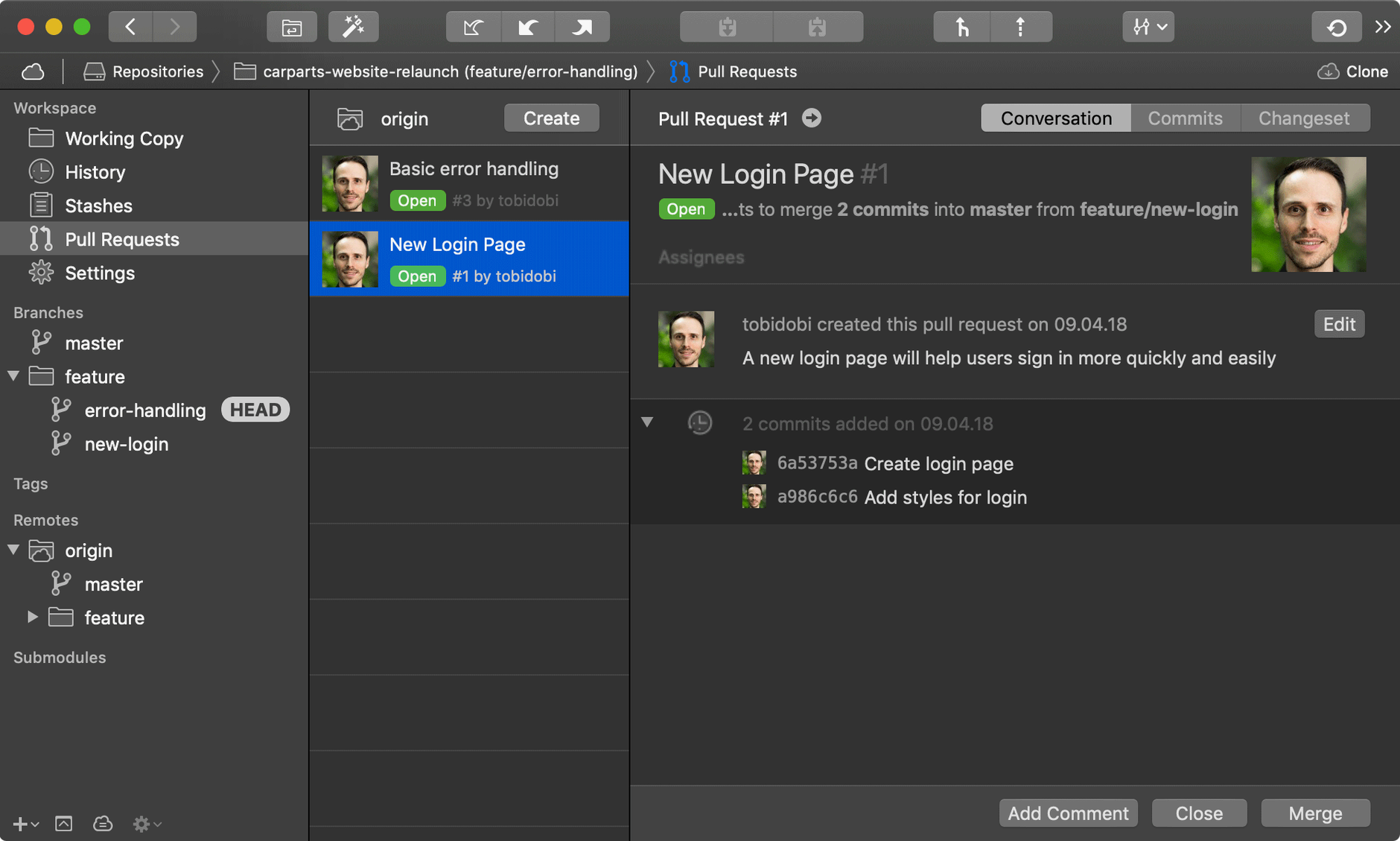
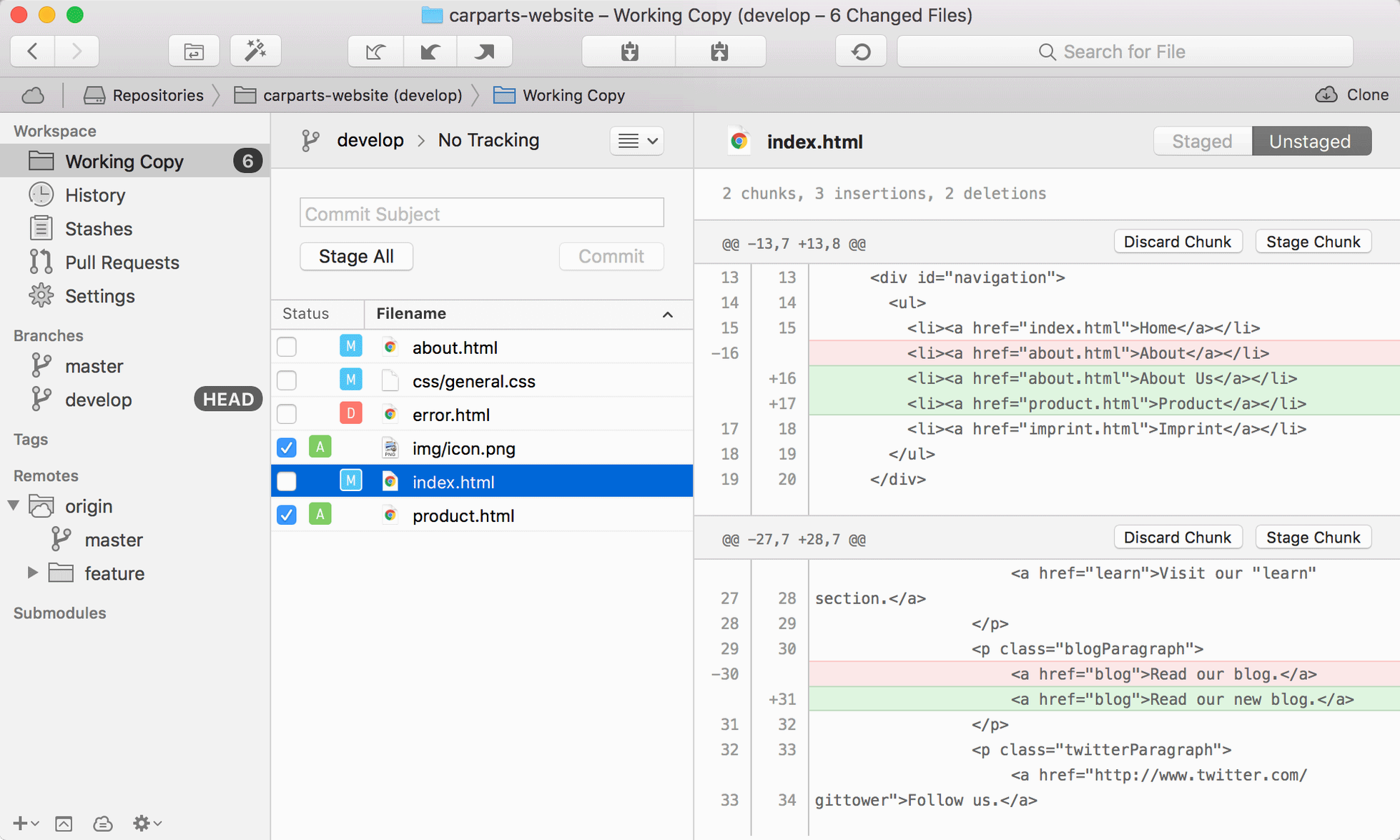
More than 15,000 commits in a repository mean standard Git tools start to feel slow. Tower PRO handles that scale while adding detection logic most clients skip. The interface stays responsive as it matches local branches against merged pull requests from GitHub and GitLab, even when the merge was a squash or a rebase. Here are the deeper tools an experienced user will care about.
- Fully Merged after non-standard merges. A branch receives the Fully Merged badge when Tower confirms it was integrated via a pull request, regardless of whether the hosting service used a squash or rebase merge strategy.
- Submodule support in the UI. Nested repositories show up directly in the sidebar. You can stage, commit, and pull changes inside a submodule without leaving the main working copy.
- Drag-and-drop actions. Cherry-pick a commit by dragging it onto a branch. Reset a branch head by dropping a commit onto it. Merge and rebase operations follow the same pattern.
- Undo that sticks. Most actions—commits, merges, rebases, even branch deletions—can be reversed through the interface. Tower records the reflog steps and replays them safely.
- File history with blame integration. Right-click any file to walk its full history. The blame view ties each line to the originating commit, so tracing a regression is a two-click path.
The app runs natively on Apple Silicon and Intel Macs under macOS 12 and later. The interface language is English. For anyone managing repositories where merge trains and submodules are daily reality, these details shift Tower from a convenience into a productivity tool.
What settings should I change right away?
Open Preferences → General and turn on Prune remote branches automatically. Without it, your local branch list fills with stale references to branches deleted on the remote weeks ago. Next, head to Preferences → Git Config and set your default merge tool and diff tool. Tower ships with sensible defaults, but pointing it at Kaleidoscope or Beyond Compare gives you visual diffs that the blame view can't match for complex conflicts.
One setting that trips up new users: Preferences → Staging lets you switch between one-line staging and the traditional hunk-based view. If you stage by line, enable Show unstaged changes inline—it places the diff of what you haven't staged directly below the staged version, cutting down on panel switching during partial commits.
First days: what saves time
- Clone via service account, not HTTPS. If your team uses self-hosted GitLab or GitHub Enterprise, create a service account inside Tower (Accounts → Add Service Account) before cloning anything. The PRO build authenticates once and reuses the token for all operations, so you skip the credential prompts that interrupt fetch and push.
- Learn the Quick Open shortcut.
⌘⇧Oopens a fuzzy-search dialog across branches, tags, and commits. After three days of using it, you stop browsing the sidebar entirely for navigation. - Stage directly from the file list. Right-click any changed file and choose Stage File. It's faster than dragging chunks around when you know the whole file belongs in the commit.
A branch cleanup workflow, start to finish
Scenario: you shipped a feature, the pull request was squashed on GitHub, and now you want to delete the local branch and verify nothing was lost.
- Switch to the feature branch in the sidebar. If Tower's Fully Merged detection has already scanned it, the branch shows a green badge—no further checks needed.
- Right-click the branch and select Delete Branch. Tower warns if any unpushed commits exist; if the badge is present, you can safely force-delete.
- Open the parent branch (say
main) and press⌘⇧O, then type the first few characters of the squashed commit message. The commit appears with the full diff, confirming the squash preserved your work. - Run Repository → Prune Remotes to scrub the remote tracking reference. That's four steps, no terminal, no reflog archaeology.
For repos where multiple developers merge via rebase, repeat this flow at the end of each sprint. The Fully Merged badge eliminates the "is it safe to delete?" hesitation that otherwise leaves branch lists bloated for months.
- Fully Merged detection now matches local branches against merged pull requests from hosting services such as GitHub and GitLab.
- A branch can receive the Fully Merged badge after squash or rebase merges, not just standard merge commits.
- macOS 12 or later
- Apple Silicon or Intel processor
$ man tower-pro | grep -A2 "?"
How does Tower handle squash and rebase merges?
Tower 17 matches local branches against merged pull requests on GitHub, GitLab, and similar hosting services, and can mark a branch with the Fully Merged badge even when the merge was performed as a squash or rebase.
Comments 0
Sign in or create an account to leave a comment.
No comments yet. A codec, a slice, a machine — they appear after moderation.