Typora for macOS
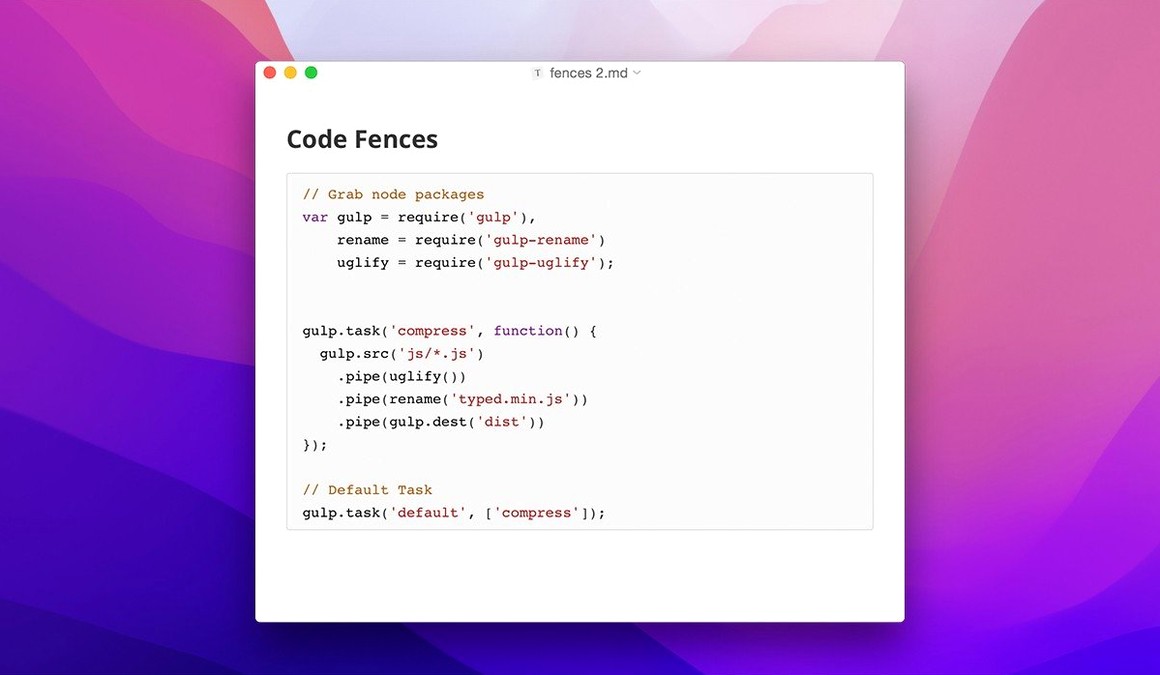
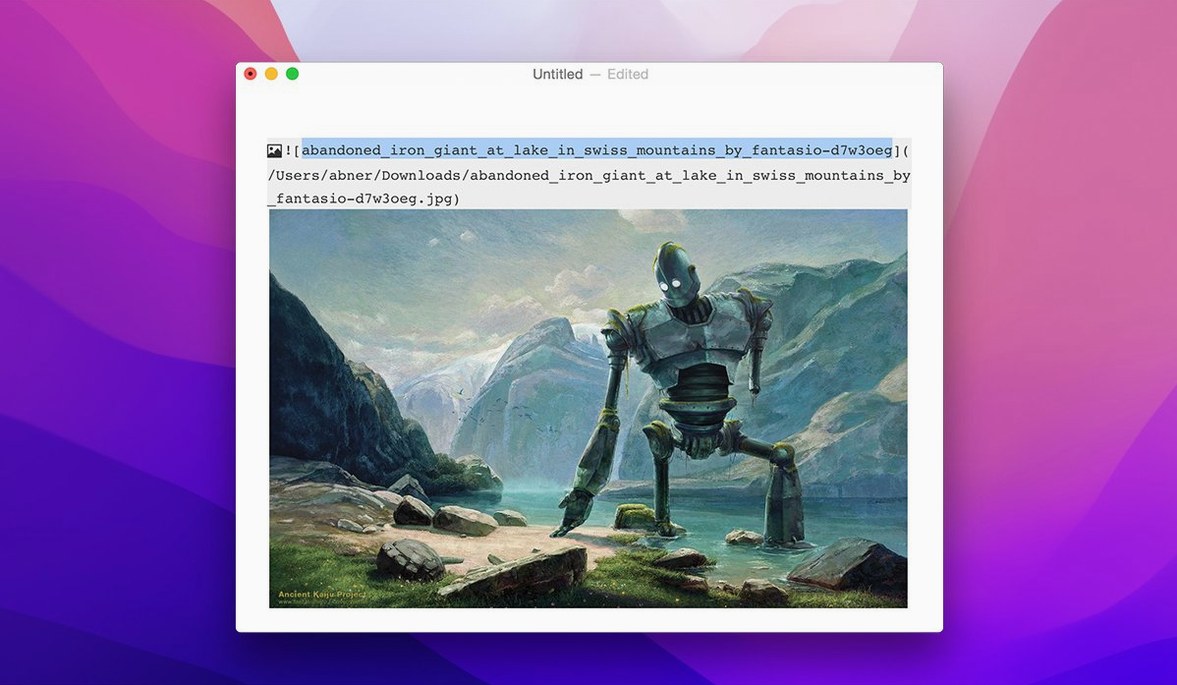
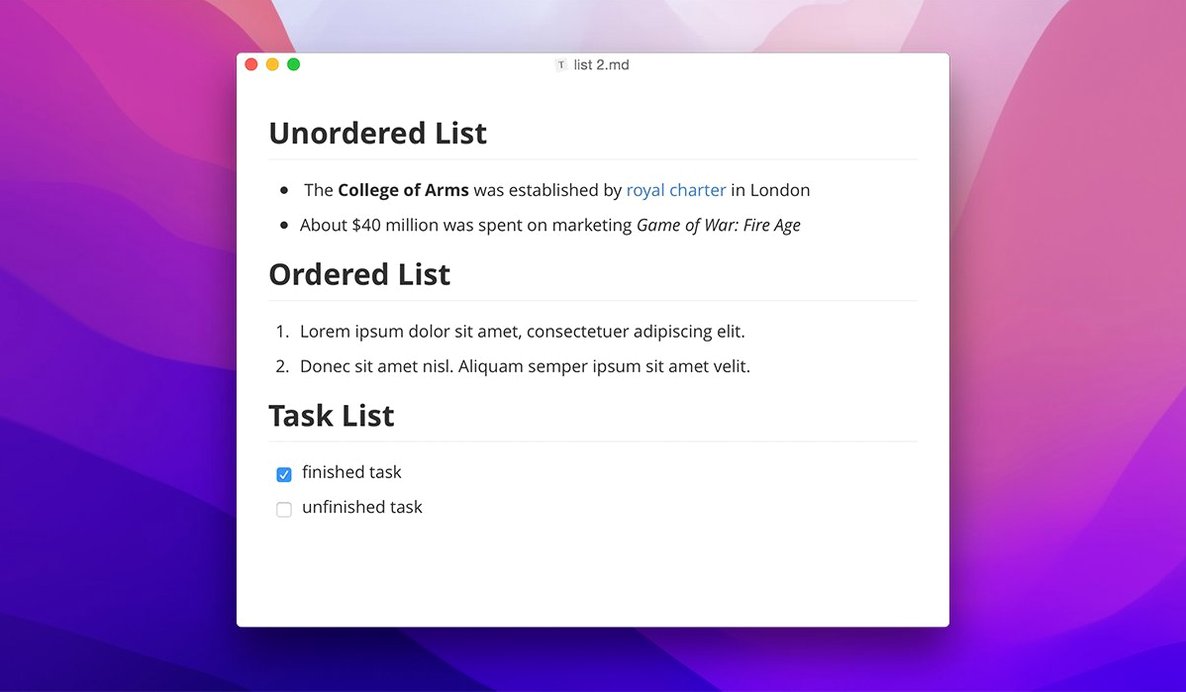
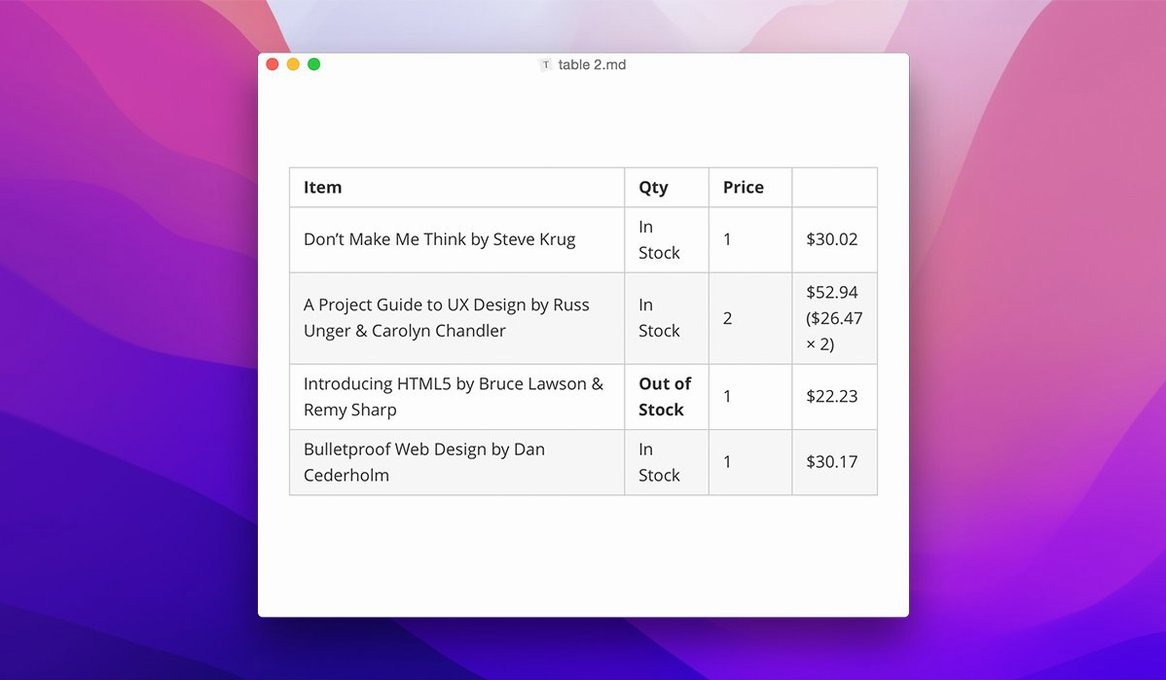
Draft notes next to a terminal window
The floating editor toolbar added in 1.14 keeps bold, italic, and code formatting a single click away without pulling you out of the text. Code fences highlight syntax in the same monospace you would see in a .md file open in VS Code, so quick README edits feel continuous with the rest of your toolchain.
Export a clean PDF for a collaborator
Lightweight export turns a Markdown table and a LaTeX equation into a shareable file without leaving the editor. The 1.14.10 fix for pandoc export from source mode means the path through your existing pandoc setup stays intact.
Style it to match your code editor
Custom CSS themes let you mirror the color scheme and typeface of your terminal or IDE. Context-menu style settings, also new in 1.14, make switching themes a right-click away. The file tree supports keyboard navigation, so moving between chapters of longer documentation feels like moving between tabs in a project pane.
Open a scratch file and watch the hash marks vanish
Resist the urge to tweak every setting on day one. Open a scratch .md file and type a few headings, a code fence, and a table. Watch how the hash marks vanish and the table columns snap into alignment while your cursor is still in the cell. That instant feedback is the muscle memory you want before you write anything real.
On day two, pick a theme. The context-menu style settings introduced in 1.14 let you cycle through installed CSS themes with a right-click — no need to dig through ~/Library/Application Support/abnerworks.Typora/themes/ unless you plan to write one from scratch. If you spend half your day in a dark terminal, grab a dark theme that matches your prompt colors. The contrast adjustment is subtle but makes a two-hour writing session easier on the eyes.
By day three, try the file tree with keyboard navigation turned on. Arrow keys move between notes in the sidebar; Enter opens the selected file. If you keep project documentation spread across a dozen Markdown files in one folder, this turns the sidebar into a lightweight outliner. Enable “show hidden files” and “show non-Markdown files” in the sidebar options — both added in 1.14 — and you can see .gitignore or README.txt right next to your notes without switching to Finder.
How Typora compares with three other Mac Markdown editors
MacDown splits the window: source on the left, preview on the right. It is open-source and fast, but the split-screen model means your eyes flick between raw Markdown and rendered output. Typora collapses that gap. The trade-off is that MacDown gives you full access to the raw source at all times, which some developers prefer when writing link-heavy documents with custom attributes. Typora hides the syntax markers but still lets you drop into source mode with a keyboard shortcut — and the 1.14.10 fix for pandoc export from source mode means you can write in source view and still hand off to pandoc without a hitch.
iA Writer focuses on a single font, a single color scheme, and a sentence-level focus mode. It is opinionated about minimalism. Typora is less strict: it lets you run custom CSS, add a floating toolbar, and keep a file tree visible. A writer who wants zero visual decisions will prefer iA Writer. Someone who edits a Jekyll blog on the side and needs quick access to YAML front matter, syntax-highlighted code blocks, and a folder of drafts will find Typora more practical.
Obsidian is a different beast — a graph-based knowledge base with plugins, backlinks, and a plugin ecosystem that can turn it into a task manager or a Zettelkasten. Typora does not try to be any of that. It opens a single folder as a file tree, edits plain .md files, and stays out of your way. Obsidian users often keep Typora around as an external editor for long-form writing inside an Obsidian vault, because Typora’s WYSIWYG rendering of tables and LaTeX is smoother for sustained prose work than Obsidian’s live-preview mode.
README.md with nested lists and a shell block renders inline
Technical writers and open-source maintainers who live in plain-text documentation. A README.md with nested lists, a compatibility table, and a fenced block of shell commands renders inline while you type. The floating toolbar keeps formatting at hand without a menu dive, and the file tree with keyboard navigation makes hopping between CHANGELOG.md, CONTRIBUTING.md, and a dozen issue-notes files feel like moving between buffers in a text editor.
Students writing lab reports with LaTeX equations. Inline math between $$ delimiters renders as you type — no compile step, no separate preview. Export to PDF with pandoc gives a clean handout for a supervisor. The 31 interface languages lower the friction for non-native English speakers who want to write in their own language while using English technical terms in code blocks.
People who draft blog posts in Markdown for static-site generators. Typora handles YAML front matter gracefully, syntax-highlights code blocks in the language you specify, and exports to HTML when you need a quick copy-paste into a CMS. The custom CSS support means you can preview the post in a theme that approximates your site’s typography without leaving the editor.
Launches in under two seconds on Apple Silicon and idles around 120 MB
The app launches in under two seconds on an Apple Silicon Mac and idles at roughly 120–160 MB of memory with a dozen Markdown files open. That figure climbs when you load documents heavy with LaTeX or large tables, but it drops back once those files are closed. CPU usage stays flat during typing — there is no background indexing or file-watching beyond the open folder, so it does not compete with a running webpack dev server or a Docker container for cycles.
Stability on version 1.14.10 has been uneventful in the right way. The welcome-panel clipping fix squashed a minor visual glitch that appeared on some macOS installs, and the pandoc export path correction removed a regression that could break export workflows after an update. No beachballs during autosave, no crashes when dragging files between folders in the sidebar, and the editor handles a 20,000-word draft with embedded images as smoothly as a one-paragraph scratch note.
For a Mac application built on Electron — the .dmg bundles a Chromium runtime — it stays surprisingly lean. It does not spawn renderer processes for each open tab the way a browser-based editor would, because it runs a single window with a single document context. The trade-off is that you won’t get split panes or tabbed editing inside one window, but the file-tree sidebar and quick ⌘P file switching make the single-window model feel fast rather than cramped.
The developer hasn't published a detailed changelog for this version, so the visible feature set looks unchanged. Under the surface, 1.14.15 likely ships the usual round of rendering fixes, stability tweaks, and compatibility adjustments for recent macOS releases — the kind of maintenance update that keeps the Markdown preview rock-solid.
- macOS 10.13.6 or later
- Apple Silicon and Intel 64-bit native
$ man typora | grep -A2 "?"
Does Typora run natively on Apple Silicon?
Yes, version 1.14.10 supports both ARM and 64-bit Intel Macs, running natively on Apple Silicon without Rosetta.
What export formats does Typora support?
Typora offers lightweight export to formats like PDF and HTML, and can use pandoc for additional output options from source mode.
Can I use my own CSS in Typora?
Yes, Typora supports custom CSS themes, and you can switch between them quickly using the context-menu style settings introduced in version 1.14.
Comments 0
Sign in or create an account to leave a comment.
No comments yet. A codec, a slice, a machine — they appear after moderation.