UPDF 2 - AI-Powered PDF Editor for macOS
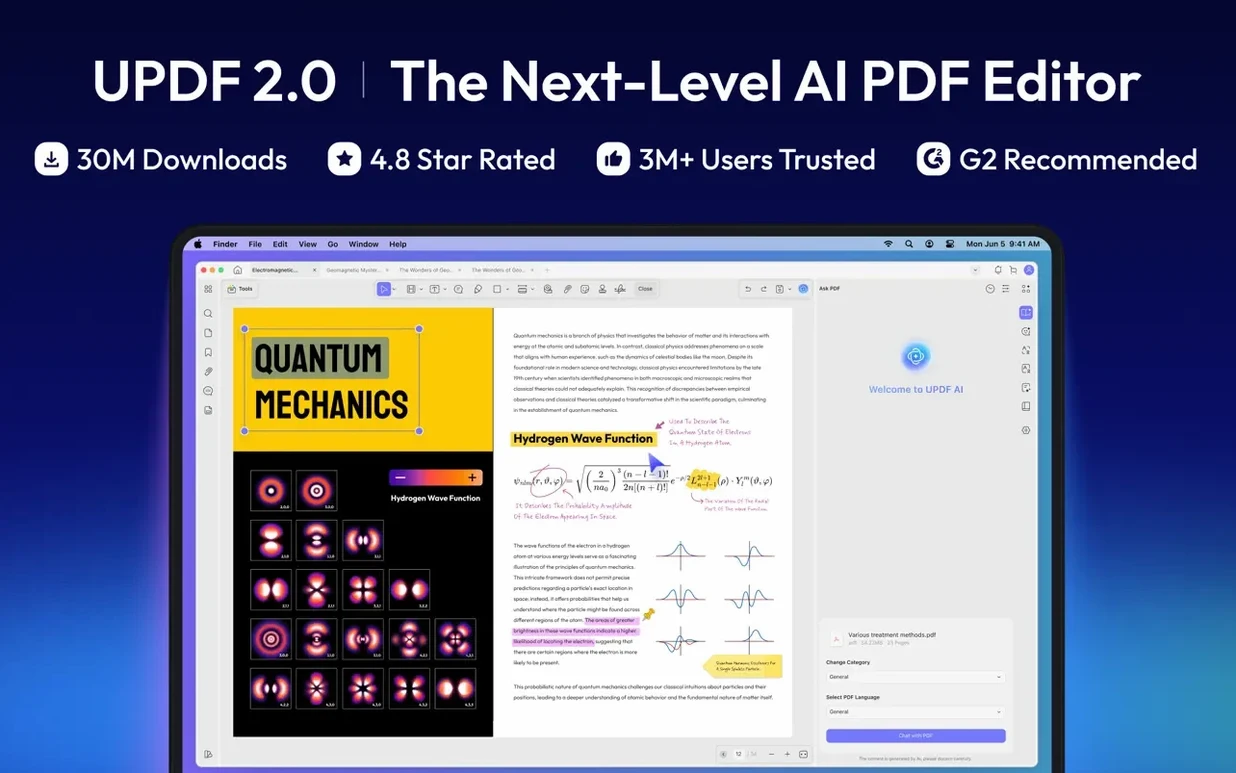
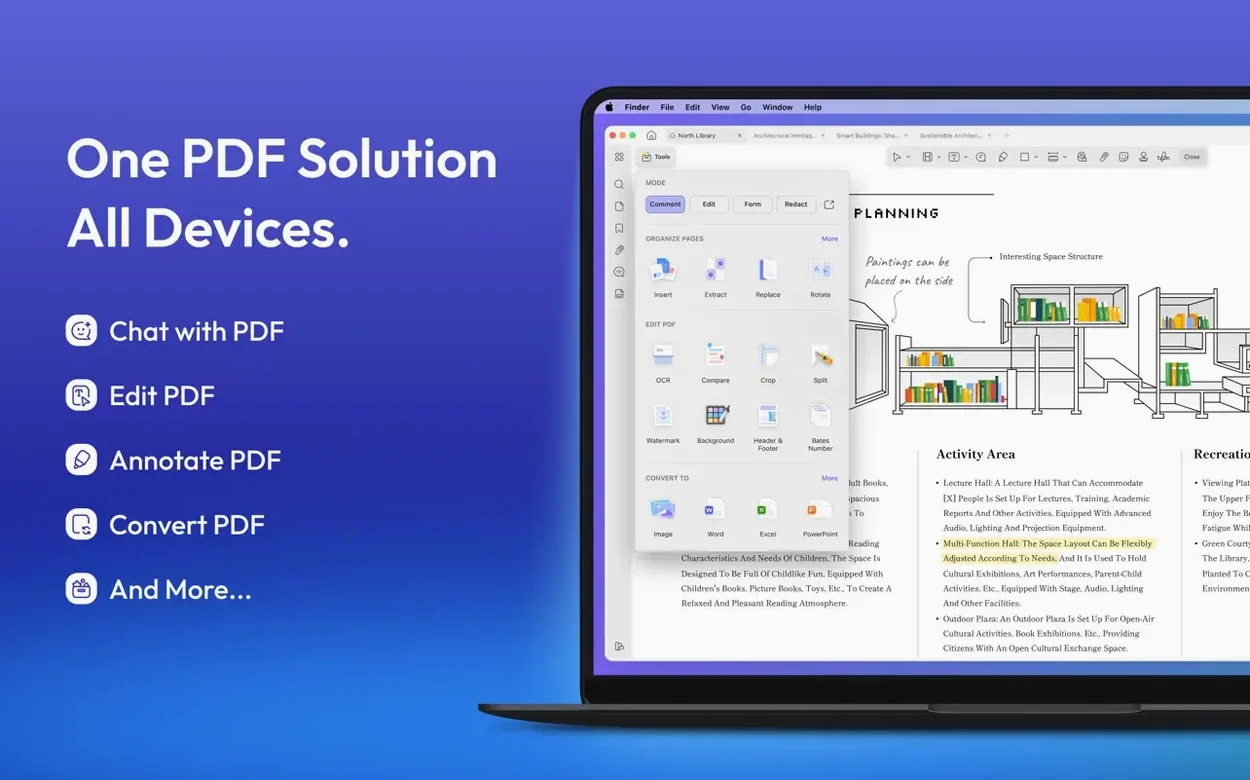
UPDF 2 runs on anything from an Intel Mac on macOS 11 Big Sur up through the latest Apple Silicon machines. Here are three realistic things you can do with it.
Mark up a contract and sign it
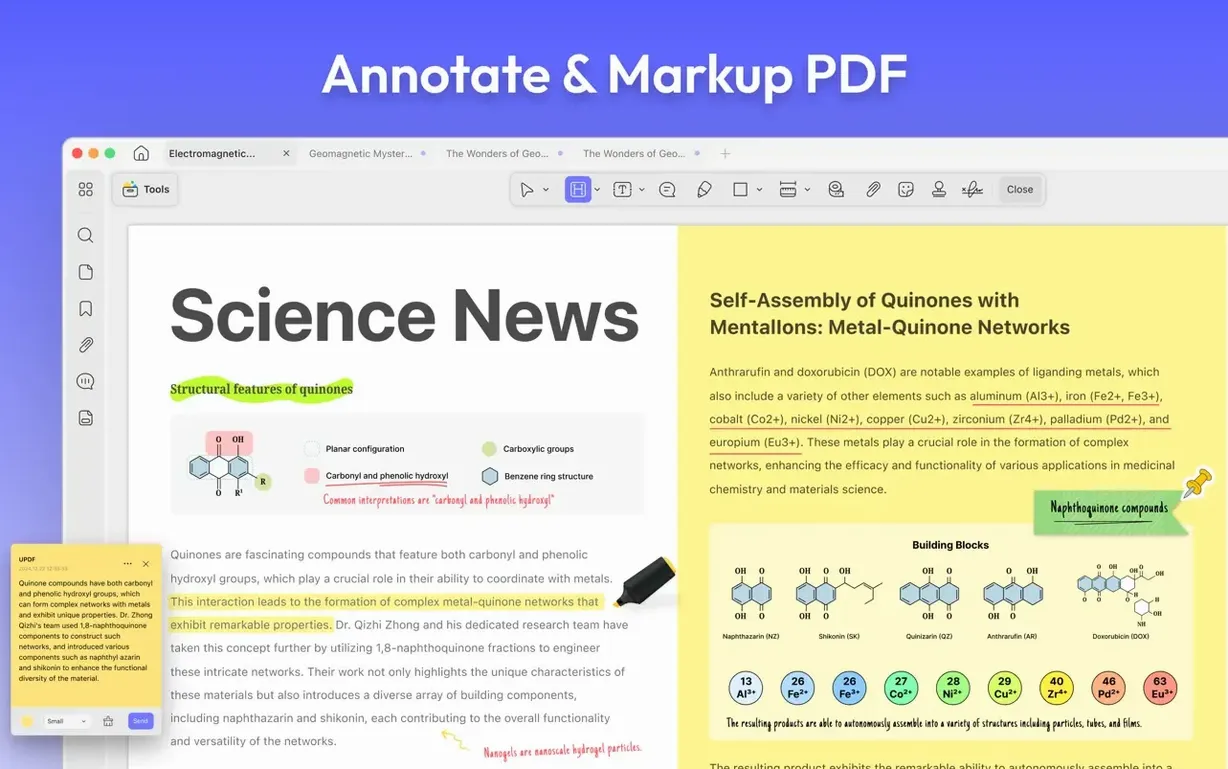
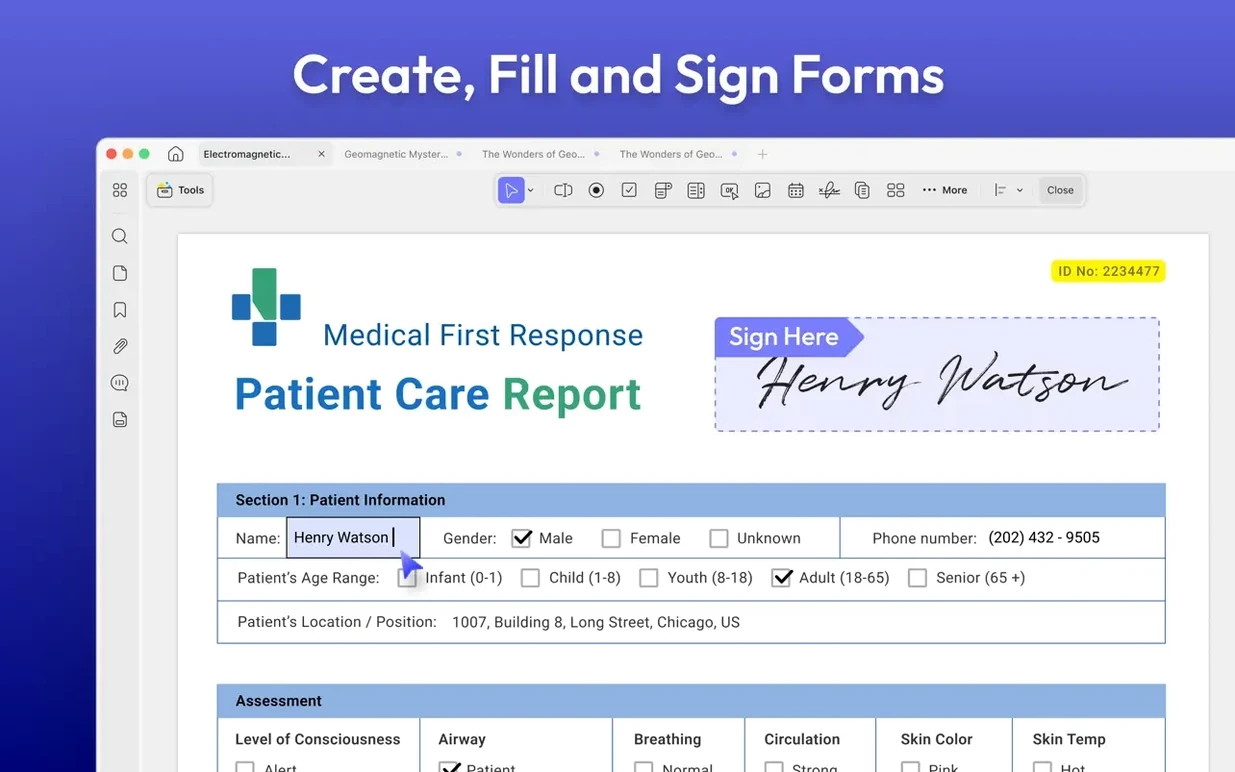
Open a PDF, then pull callouts, text boxes, and shapes from the annotation toolbar. Stamps and stickers are one click away. When you are ready to close the deal, drop in a signature, add password protection for opening and editing, and save.
Extract and replace a diagram
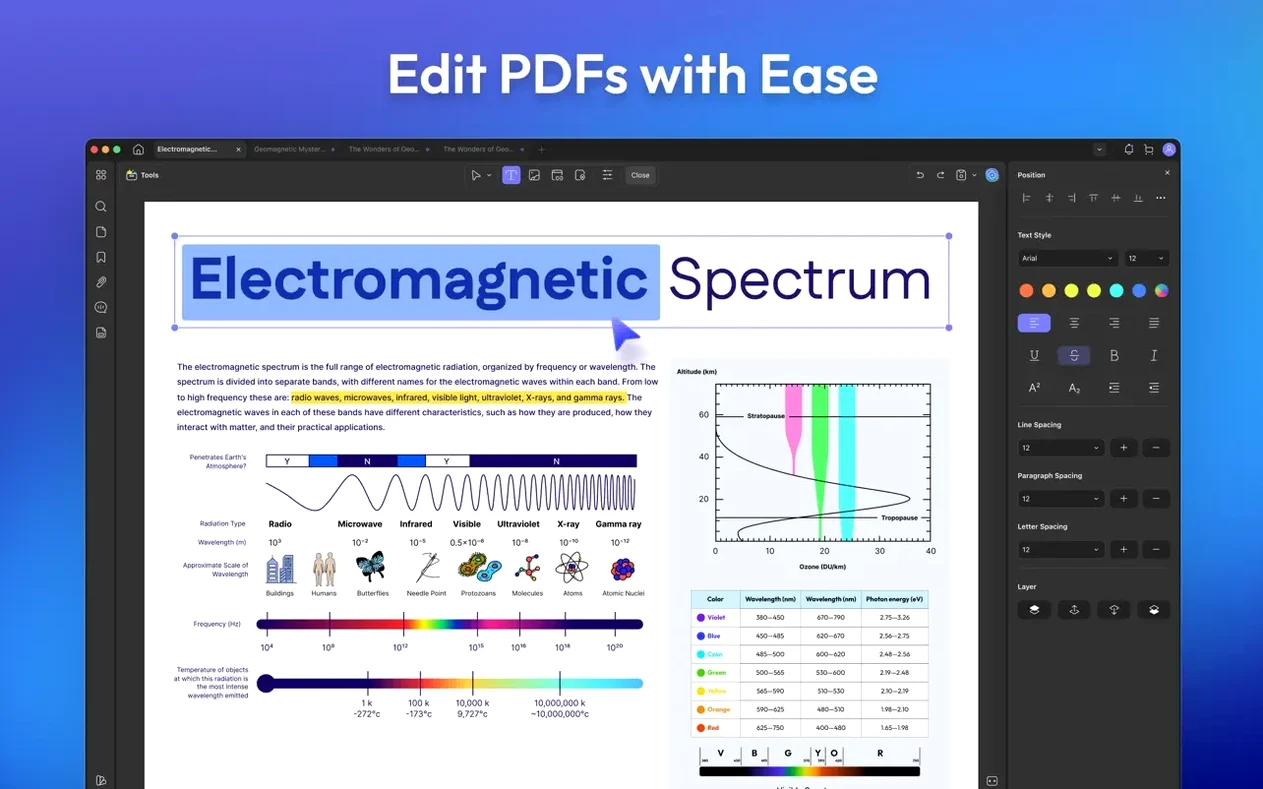
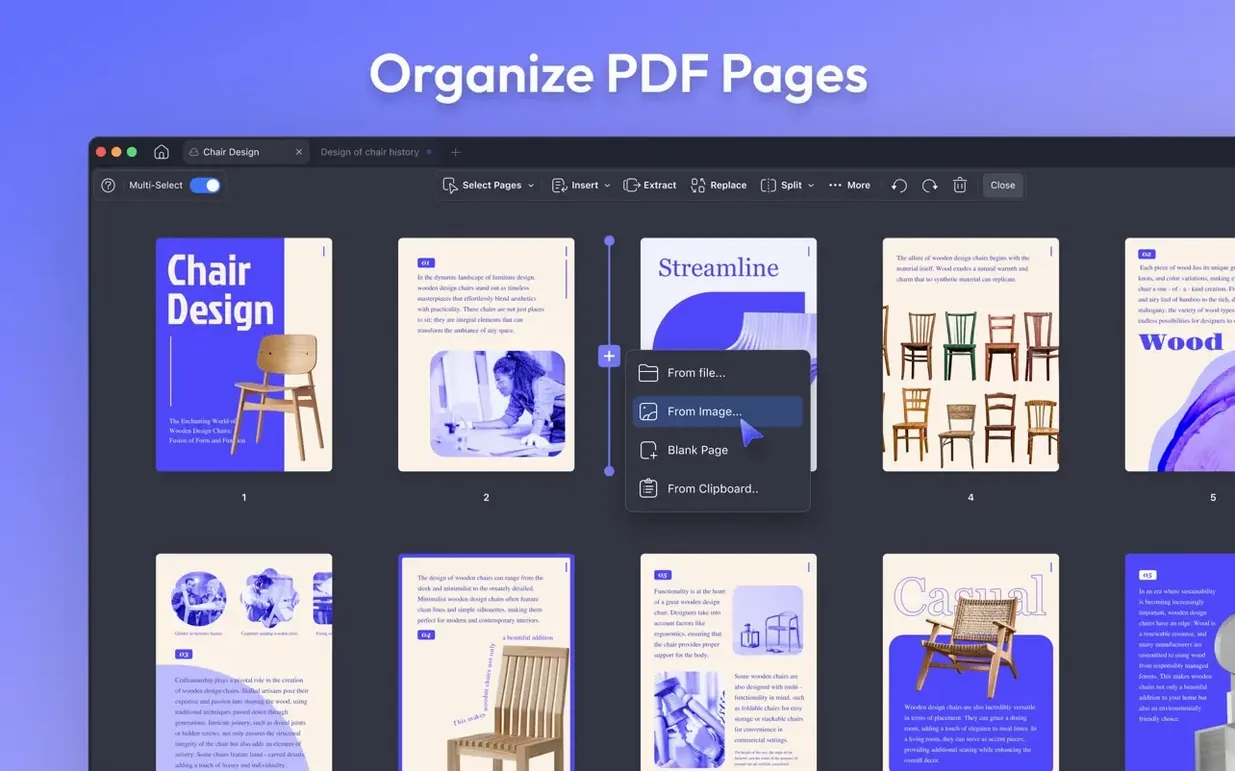
Right-click an embedded image and crop it, rotate it with the new custom-rotation control, or export it. Delete the old one, insert a fresh diagram from the clipboard, and resize it to fit — no second app needed.
Ask the PDF a question
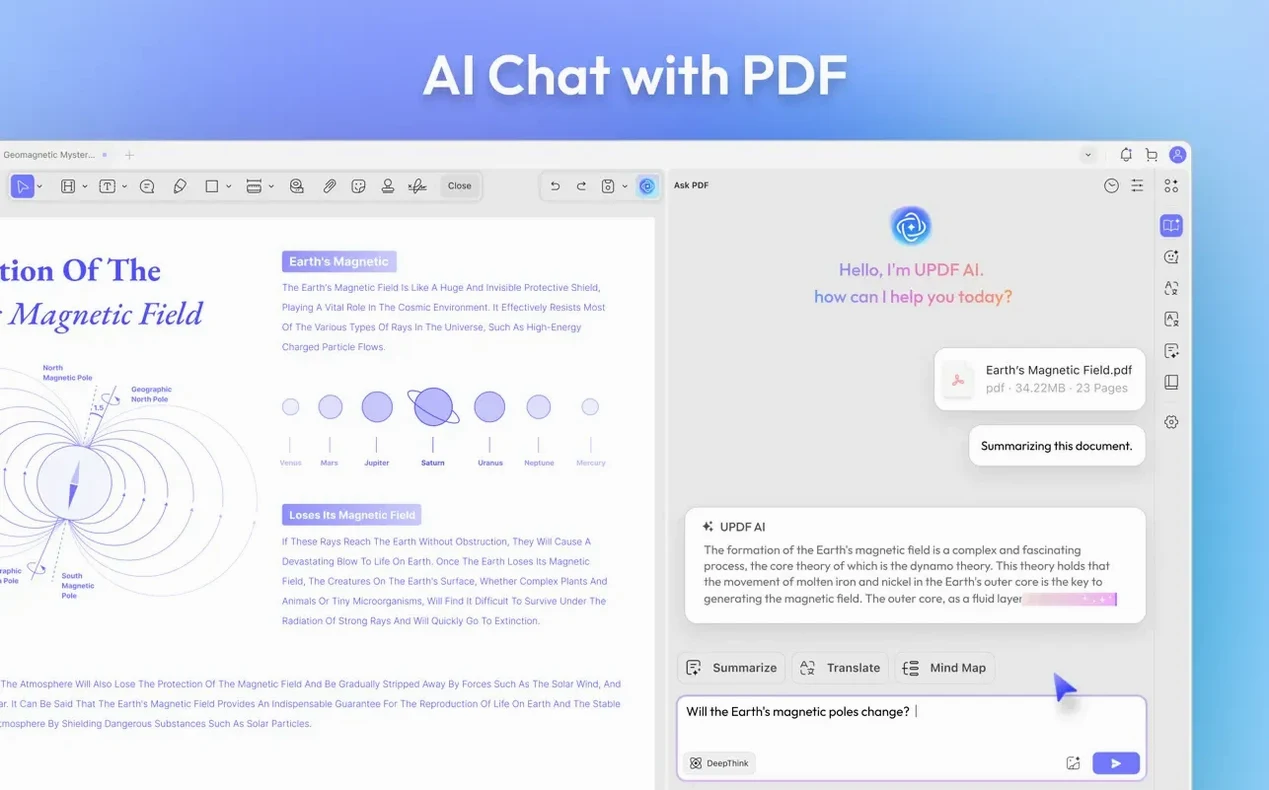
Open the AI chat pane, point it at a dense report, and ask for a summary or a translation into French. It reads the file and answers in plain sentences, which saves you from skimming twenty pages of legalese.
A half-hour in a research assistant's day
Imagine a grad student prepping for a literature review. They have eight PDFs from different journals, three of them scanned and one in German. They drag all eight onto the batch processor, select DOCX as the target, and let OCR handle the scanned pages while they grab coffee. Back at the desk, they open the AI chat pane on the German paper, ask for an English summary, and paste the key paragraph straight into their notes. The whole sequence — clean text extraction, translation, and a rough draft of citations — fits inside a single lunch break, and they never launched a separate OCR tool or translation tab.
First days: small habits that pay off
After you install the .dmg and drag the app into /Applications, spend ten minutes setting up a few things that most people only discover months later.
- Pin your stamp palette. If you annotate the same kind of documents repeatedly — approval stamps, "draft" watermarks — drag your three or four most-used stamps into the favorites row. It shaves a few seconds off every markup pass.
- Decide on your default page view early. Single-page mode works for reading on a laptop screen. Two-page mode with the first page alone makes sense for bound reports. Switching later is easy, but training your eyes to one layout from the start keeps your workflow predictable.
- Learn the right-click menu on images. Replace, crop, rotate, and extract all live there. The custom rotation introduced in 2.5.6 gives you degree-level control without opening a separate image editor, which matters when a diagram arrives at a weird 2.3° tilt from a scanned page.
- Set a password policy. If your work involves client files, decide whether you will use the open password, the permissions password, or both. Turning on the editing-and-printing restriction early stops you from accidentally sending an unprotected draft.
Three mistakes beginners make
Most new users trip over the same few assumptions about what a PDF editor can and cannot do. Here is what to watch for in the first week.
Treating a scanned page like born-digital text. Scanned documents are images until you run OCR. If you try to highlight a sentence on an un-OCRed scan, you will draw a colored rectangle over a picture — and the text underneath will not be selectable later. Always run text recognition on scanned files before you start annotating.
Converting a heavily formatted PDF to DOCX and expecting a clone. Tables with merged cells, multi-column layouts, and custom fonts rarely survive conversion pixel-perfect. The resulting Word file will need cleanup. If you only need a few paragraphs, try copying them directly from the PDF view instead of converting the whole document.
Ignoring the bookmark pane during long reading sessions. The app can read text aloud via text-to-speech and supports bookmarks, so you can mark sections as you go and resume listening later. Beginners often treat the software as a static viewer and miss that it can function like a rough-and-ready audiobook for dense material.
- Custom rotation for images and text — no more fixed 90-degree jumps.
- Split across documents when batch printing double-sided PDFs.
- Toggles for PDF/A and digital signature detection in the document settings.
- Multi-select delete in the Comment and Form lists.
- Manual crop-box adjustment in Remove White Margins mode.
- macOS 11 or later
- Apple Silicon and Intel Macs
$ man updf-2-ai-powered-pdf-editor | grep -A2 "?"
Can UPDF 2 read a PDF aloud?
Yes, it includes text-to-speech so you can listen to a document while doing something else.
Comments 0
Sign in or create an account to leave a comment.
No comments yet. A codec, a slice, a machine — they appear after moderation.