
Vector Magic for macOS
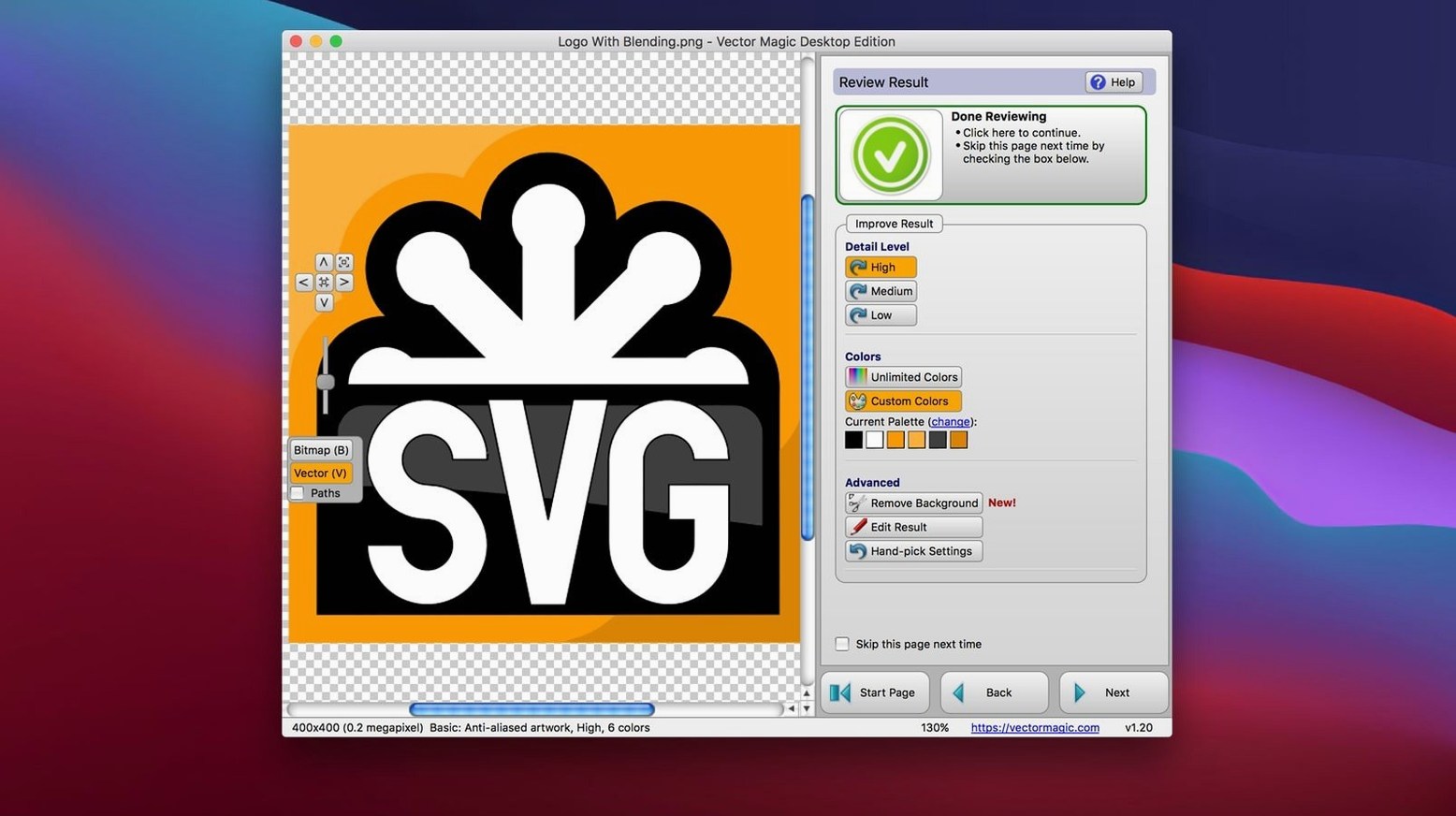
Double-click the Separation control and the whole trace changes. Manual Mode in Vector Magic 1.20 gives you a single slider that decides how aggressively it breaks a color gradient into distinct shapes, and watching the preview update gives you the kind of direct feedback an automatic pass can't match. I was working from a flat photograph of a badge — lots of metallic gold bleeding into dark shadows — and the Fully Automatic pass made a mushy twelve-color mess. Switching to Manual Mode let me drag the detail level back until the outline snapped cleanly around the shield.
What you can feed it and what you get back
- Input: JPEG, GIF, PNG, BMP, TIFF and PSD. The Desktop Edition reads them all offline.
- Hard caps: 10.0 MB file size, 10.0 megapixels maximum image dimensions.
- Output: EPS, SVG, PDF, AI, DXF and EMF. It also writes a rasterized PNG if you need a quick preview.
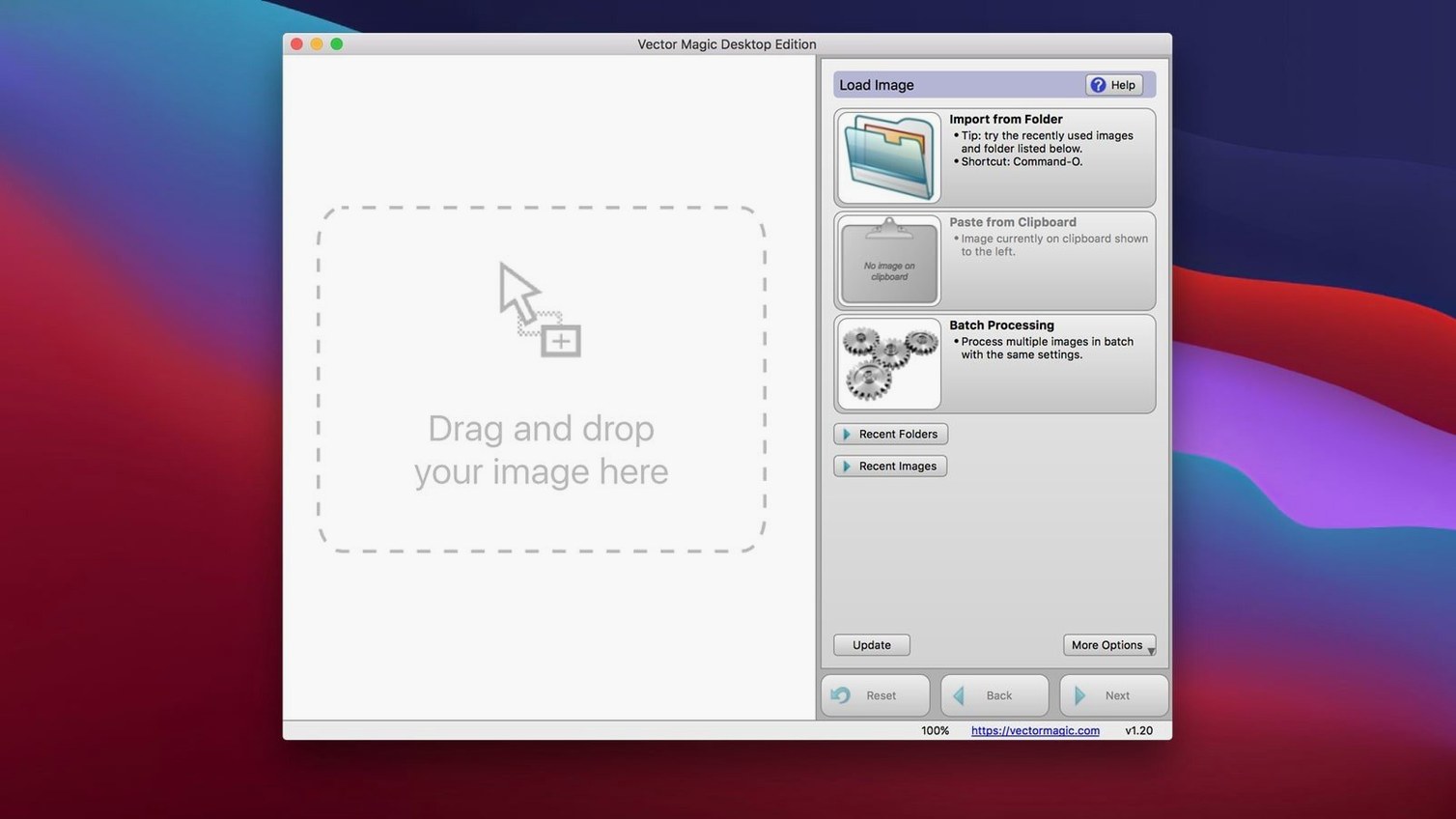
- Drag-and-drop and copy-paste work directly with Illustrator and CorelDRAW — no export-import dance.
One cleanup tool that matters
Before you even touch the vectorization, the built-in background removal saves you from tracing unwanted pixels. Drop a product shot with a busy backdrop, paint out the background, then trace. The result is a clean silhouette that imports into layout software without a clipping path.
Flip two preferences before your second session
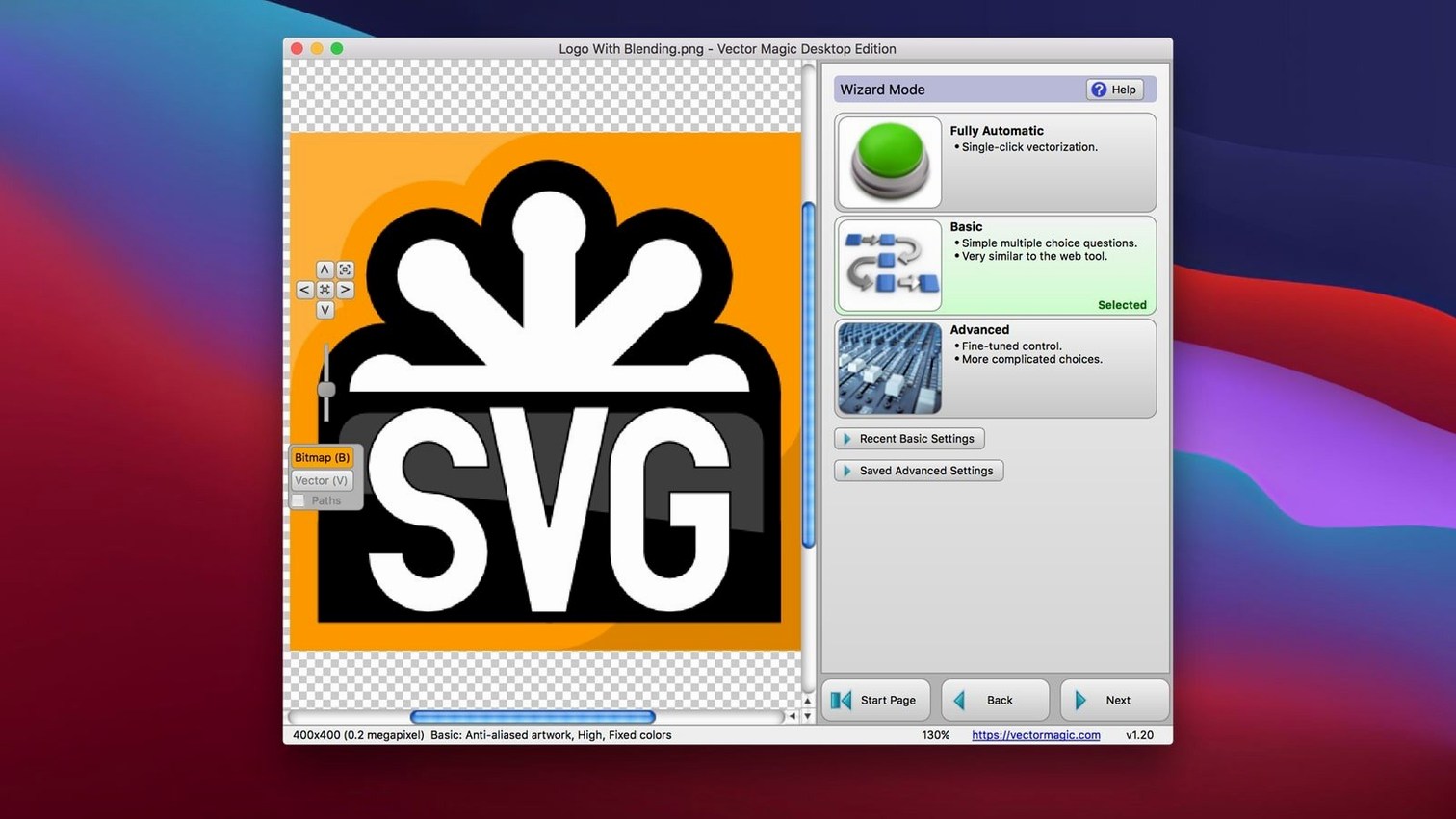
Out of the box, Vector Magic defaults to Fully Automatic mode, and for a quick test that's fine. But if you plan to use it for real work, two preferences are worth flipping before your second session.
First, open the Vector Magic menu and uncheck Open grouped shapes as single object if you use Illustrator or any vector app where you want individual color patches to land on their own layers. When the checkbox is on, a traced illustration lands as one compound path. That's tidy, but it makes recoloring a single leaf on a traced plant a chore. Turning it off gives you separate objects per color, which is closer to what manual tracers expect.
Second, in the same preferences pane, bump the Undo memory slider up one notch from the default. Manual Mode edits — splitting a segment, merging two shapes — are fast and easy to overshoot, and the extra undo depth saves you from hitting Reset more than you need to. The memory footprint is trivial on any Intel Mac from the last decade.
A smaller but handy tweak: set the default output format to EPS or SVG depending on your pipeline. The UI remembers your last choice per session, but setting it in preferences means one less dropdown to reach for every time you drag a new image in.
The copy-paste bridge and other quiet integrations
Vector Magic 1.20 is a 64-bit Intel app that runs on everything from OS X 10.7 up through current macOS releases, and it integrates with the system in a few quiet ways that save clicks.
Copy-paste is the fastest bridge. Trace a bitmap in Vector Magic, hit Cmd+C, switch to Illustrator or CorelDRAW, and Cmd+V drops the vectors straight onto the artboard — no intermediate file, no EPS sitting on your desktop. The clipboard carries actual vector data, so scaling and editing are intact. The same path works in reverse: copy a raster from Photoshop, paste it into Vector Magic, trace, copy back.
Drag-and-drop is just as direct. Drag a JPEG from Finder onto the Vector Magic icon in the Dock to open it. Drag an EPS out of the preview window and drop it onto a folder or into a layout app like InDesign. The Desktop Edition works entirely offline, so none of this touches a network.
For batch work, macOS Services integration is absent, but the batch processing panel inside the app handles folders of images without fuss. Point it at a folder of PNGs, set the output directory and format, and let it run. It respects the same 10 MB / 10 MP caps per image, so pre-check your folder for oversized files if you plan to walk away.
A start-to-finish workflow: scanned ink drawing to clean SVG
I had a scanned ink drawing of a tree — 600 dpi grayscale TIFF, pencil smudges around the margins, ink lines that thinned where the nib lifted. The goal was a two-color SVG for a screen-printing stencil.
- Pre-clean in-app. Opened the TIFF in Vector Magic. Before touching the trace buttons, I used the background removal brush to wipe the smudgy paper texture. The brush is large by default; I shrank it with the bracket keys and painted out only the worst spots. Left a few seconds of work, not perfection.
- Manual Mode with two colors. Switched to Manual Mode and set the palette to two colors. The preview showed the ink as one shape and the remaining paper as a second. The slider for detail level sat around 40% — high enough to catch the thin branch tips, low enough to ignore faint pencil.
- Segment editing for the weak spots. Zoomed into a branch where the ink had broken. Right-clicked the gap, chose Split Segment, and nudged the endpoint to bridge the line. Three gaps total, each fixed in under thirty seconds. The segment edit tools are crude compared to a full vector editor, but for mending a trace they're exactly the right tool.
- Export and verify. Saved as SVG, opened in Illustrator. The paths were clean; the two colors mapped to two filled shapes. No stray nodes outside the tree silhouette. The SVG was under 200 KB — small enough to email to the printer without a second thought.
The whole process, from opening the scan to saving the SVG, ran inside Vector Magic alone. I never opened Photoshop, never ran Illustrator's Image Trace, and never fought with threshold sliders.
Resize the background brush with bracket keys
A few things I only noticed after a couple of weeks of regular use:
- The bracket keys [ and ] resize the background removal brush. No preferences panel, no toolbar dropdown — just tap to shrink or grow. Works the same for the segment-editing cursor.
- Double-clicking a color swatch in the preview palette lets you change the output color directly, before export. If the tracer assigned a muddy brown to what should be a warm red, you can fix it right there instead of waiting until you open the file in another app.
- Spacebar-drag pans the preview when you're zoomed in. Standard for image editing, but easy to forget in a vector app.
- The batch processor remembers the last output folder per session, but it also respects the naming pattern of your input files. If your PNGs are named
icon-01,icon-02and so on, the output EPS files keep the same base names. - The built-in help is offline and searchable —
Cmd+Shift+/drops you into a search field. It covers every control in Manual Mode with short, practical explanations, not just feature lists.
Feed it three test images before you trace anything real
Mount the .dmg and move Vector Magic to your Applications folder — the installer is a simple drag, not a .pkg. Launch it, and before you trace anything real, feed it three test images: a flat logo with two solid colors, a photograph with a gradient, and a line drawing. Watch how each one behaves in Fully Automatic versus Manual. The flat logo will trace perfectly either way; the gradient will teach you what the Separation slider actually does; the line drawing will show you where segment editing is worth your time.
If you use Illustrator, keep both apps open for the first few projects and paste results back and forth. You'll quickly learn which problems Vector Magic solves best — photographs of flat-color artwork, scanned sketches, low-resolution logos — and which are better handled by Illustrator's own tools. Vector Magic excels when the source is a bitmap that already wants to look like a vector; photographs with complex textures will still need manual simplification.
The 10 MB / 10 MP limits are generous for logos, icons and scanned line art, but if you work with high-resolution photography, resize your source image before dragging it in. A 24-megapixel raw TIFF is over the cap; a downsampled 3000-pixel JPEG from the same photo is not, and the trace quality loss is negligible for most use cases.
Finally, if you've been searching for a vector magic mac crack or a vectormagic torrent that works offline, the Desktop Edition already runs without a network connection — no browser upload, no subscription ping — so the app you download here does what the torrents promise. The same goes for anyone hunting a vector magic crack 1.20 keygen or a vector magic torrent: the offline desktop build handles everything locally, which is the reason people look for those in the first place. No uploads, no login windows, just a trace engine that runs on your own Mac.
- OS X 10.7 or later
- Intel 64‑bit processor
- Maximum file size: 10.0 MB
- Maximum image size: 10.0 megapixels
$ man vector-magic | grep -A2 "?"
Does the desktop app need an internet connection?
No, the Desktop Edition converts images entirely offline, so you can trace files without sending them to a server.
What is the maximum image size Vector Magic can handle?
The app supports images up to 10.0 megapixels, and individual files cannot exceed a 10.0 MB size limit.
Comments 0
Sign in or create an account to leave a comment.
No comments yet. A codec, a slice, a machine — they appear after moderation.