VideoByte BD-DVD Ripper for macOS
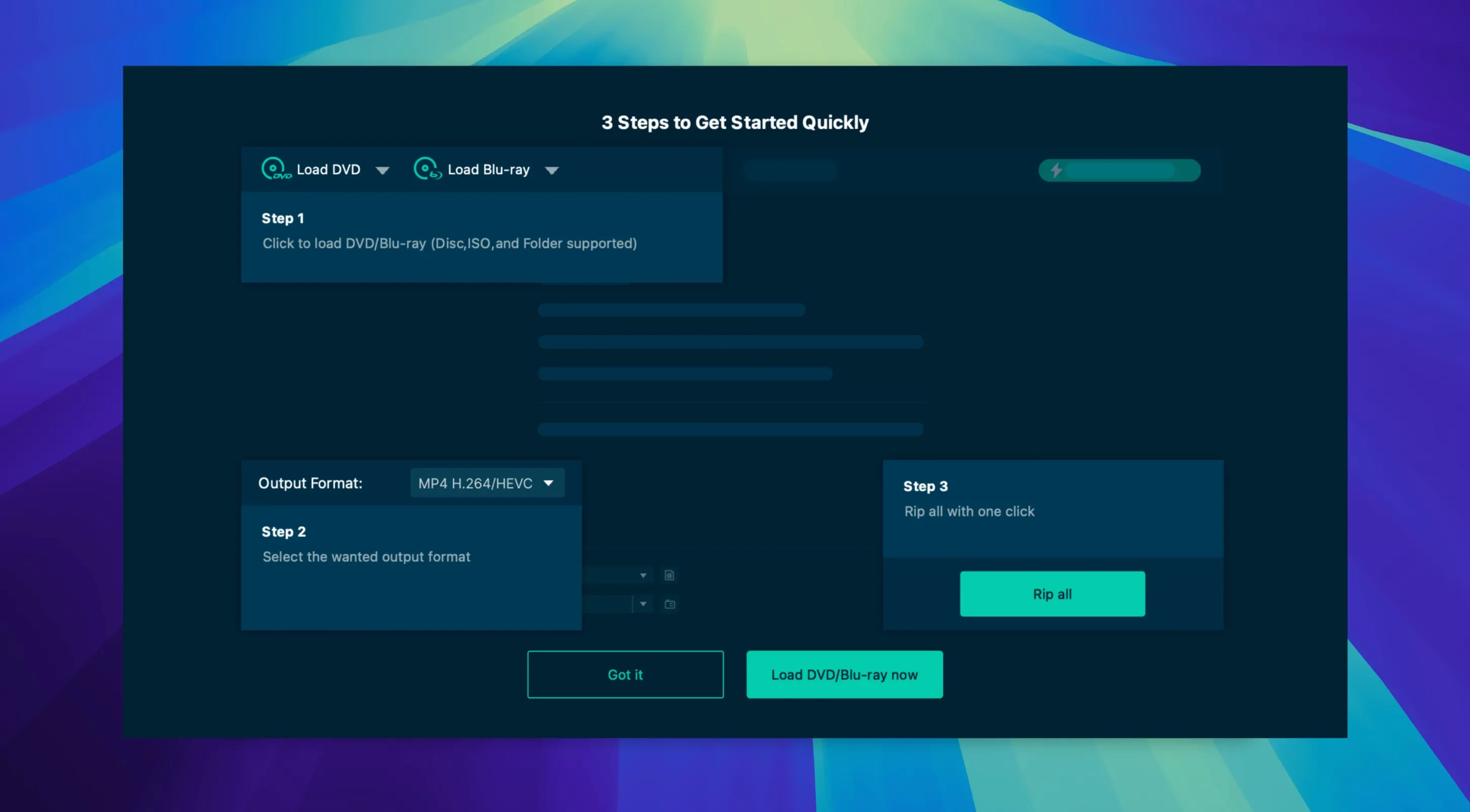
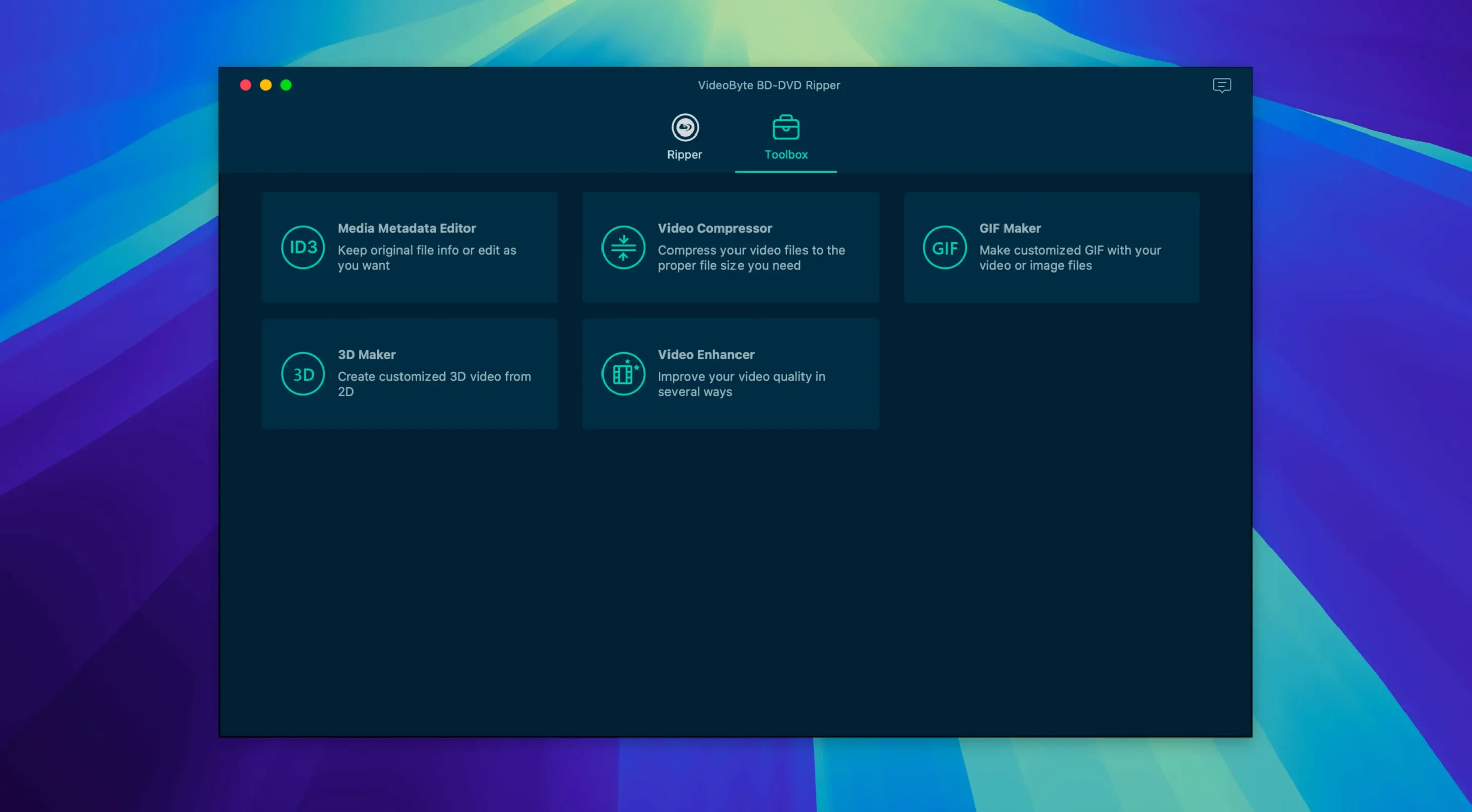
If you remember the old HandBrake workflow, VideoByte BD-DVD Ripper scratches a similar itch — but with broader optical disc support and a much larger preset library. It takes a commercial Blu-ray or DVD, a BDMV folder sitting on a drive, or an ISO you made years ago, and turns it into a plain video or audio file your Mac can play anywhere.
Rip a disc to an MP4 you can actually use
Pick a title from the disc, choose an output profile from the 300-plus presets (standard MP4, device-specific flavors, audio-only extraction), and let it run. You can keep original audio streams and subtitles intact, which matters if you archive foreign-language films.
Convert a folder or ISO without the physical disc
Already ripped a BDMV or VIDEO_TS folder to your drive? Point the app at it and transcode straight from the file tree — no disc drive needed for that run.
Lean on hardware acceleration for big jobs
On Intel machines the app taps NVIDIA, Intel Quick Sync, and AMD acceleration to push frames through the encoder faster than a pure software pipeline would.
Whose travel DVD collection finally gets a digital life
People with a shelf full of region-locked DVDs or Blu-rays they bought while traveling tend to find the disc-handling side most useful. The CSS/BD+ stripping means you aren't stuck re-purchasing a digital copy just because your MacBook no longer has an optical drive — rip once on a machine that has one, store the MKV on a NAS, done.
Home media server builders are another natural fit. If you run Plex or Jellyfin, you know the pain of inconsistent folder structures and codec mismatches. VideoByte BD-DVD Ripper's preset library gives you a clean, uniform MP4 or MKV every time, with subtitles muxed in rather than floating as orphaned SRT files. Parents archiving kids' DVDs before the discs get scratched beyond recognition also appreciate the one-click device presets — pick the iPad preset and hand it over without a second thought.
On the flip side, if all you do is transcode files you already have (no discs, no ISOs), a simpler tool may suffice. The disc-focused workflow — title selection, angle choice, audio track mapping — adds steps that are only worth it when you're working from physical or full-disc backups.
What to do when a disc shows zero-length titles
Disc doesn't mount or shows zero-length titles. This usually means a protection layer wasn't fully negotiated. Eject the disc, quit the app, reinsert, and let macOS settle for a few seconds before launching the ripper again. For stubborn Blu-rays, try ripping to an ISO first with a dedicated decryption tool, then feed the ISO to VideoByte BD-DVD Ripper — that sidesteps the real-time decryption step entirely.
Audio and video drift apart on longer titles. This crops up most often with concert discs or TV series discs where chapters don't align to clean GOP boundaries. Switch the output container from MP4 to MKV — Matroska handles variable frame rate better — and disable hardware acceleration for that encode. The software encoder path is slower but fixes sync issues more often than not.
Subtitles render as garbled characters. Check whether the source subtitle track is a bitmap (VobSub/PGS) or text-based. The app passes bitmap subs through as burn-in or muxed tracks without OCR, so what looks garbled in a text preview is actually an image stream displayed wrong by your preview tool. Burn them in if your player doesn't handle PGS in MKV.
Some users hunting for a videobyte mac solution run into confusion between this version and the DVD-only sibling — make sure you grabbed the BD-DVD ripper if Blu-ray is non-negotiable. And if you're tempted by a videobyte bd-dvd ripper crack or videobyte torrent floating around, TNT builds often trip Gatekeeper in interesting ways — just be ready to manually allow the app in Security & Privacy preferences, especially across macOS point updates.
Drag an ISO straight in without mounting it first
- Drag-and-drop ISO loading. You don't need to mount an ISO in Finder first — just drag the
.isofile straight into the source area and the app parses the file system internally. - Per-title output naming. When ripping a TV series disc, you can set a naming template that appends the title number, saving you from renaming fifteen
Title_01.mp4files later. - Filter preview on a single frame. The trim and crop tools let you scrub to a representative frame and apply adjustments while seeing the result instantly, which beats guessing crop coordinates by pixel count.
- Keyframe-only cutting. The trim tool snaps to keyframes by default, which means no re-encoding at cut points — the output stays clean and fast.
- Profile search. The preset menu has a type-ahead filter. Typing "samsung" narrows 300-plus entries to the half-dozen Samsung presets in under a second.
First few days: a practical checklist
- Test with a short DVD first. Before feeding it a 40 GB Blu-ray, rip a 5-minute DVD chapter. This confirms your output path, preset choice, and subtitle configuration without waiting an hour to spot a mistake.
- Pin your go-to presets. After you find the MP4 or MKV preset that works across your devices, star it. You'll reach for the same profile on 90% of jobs.
- Check the audio track mapping every time. Many discs default to a commentary track or a descriptive audio stream as Track 1. The app shows you which is which — spend five seconds confirming before you hit Start.
- Set a dedicated output folder. Create something like
~/Movies/_Ripsand point the app there. Without it, rips scatter across your desktop, and finding the one you just encoded becomes friction you don't need. - Decide on burn-in vs. soft subs early. If you watch on an Apple TV or an older smart TV, burn in forced subtitles (the ones that translate alien dialogue, for instance). If you watch in VLC or Infuse, soft subs give you more flexibility later. Changing this after a two-hour encode is a quiet kind of grief — lock it in on day one.
Once you settle into a rhythm — and especially once you stop retrying discs that need a dvd ripper torrent workaround — the app fades into the background and just does its job. Most encodes finish unattended, and the hardware acceleration keeps fan noise reasonable even on older Intel Macs.
- OS X 10.10 or later
- Intel processor (no native Apple Silicon binary listed)
- Interface languages: English, German, French, Japanese
$ man videobyte-bd-dvd-ripper | grep -A2 "?"
What source formats does it actually read?
It handles physical Blu-ray and DVD discs, plus BDMV folders, VIDEO_TS folders, and ISO disc images you have already stored on your Mac.
Is this the same app as VideoByte DVD Ripper?
No — VideoByte DVD Ripper is a separate, DVD-only product. BD-DVD Ripper covers both Blu-ray and DVD in one tool.
Comments 0
Sign in or create an account to leave a comment.
No comments yet. A codec, a slice, a machine — they appear after moderation.