
VMware Fusion Pro for macOS
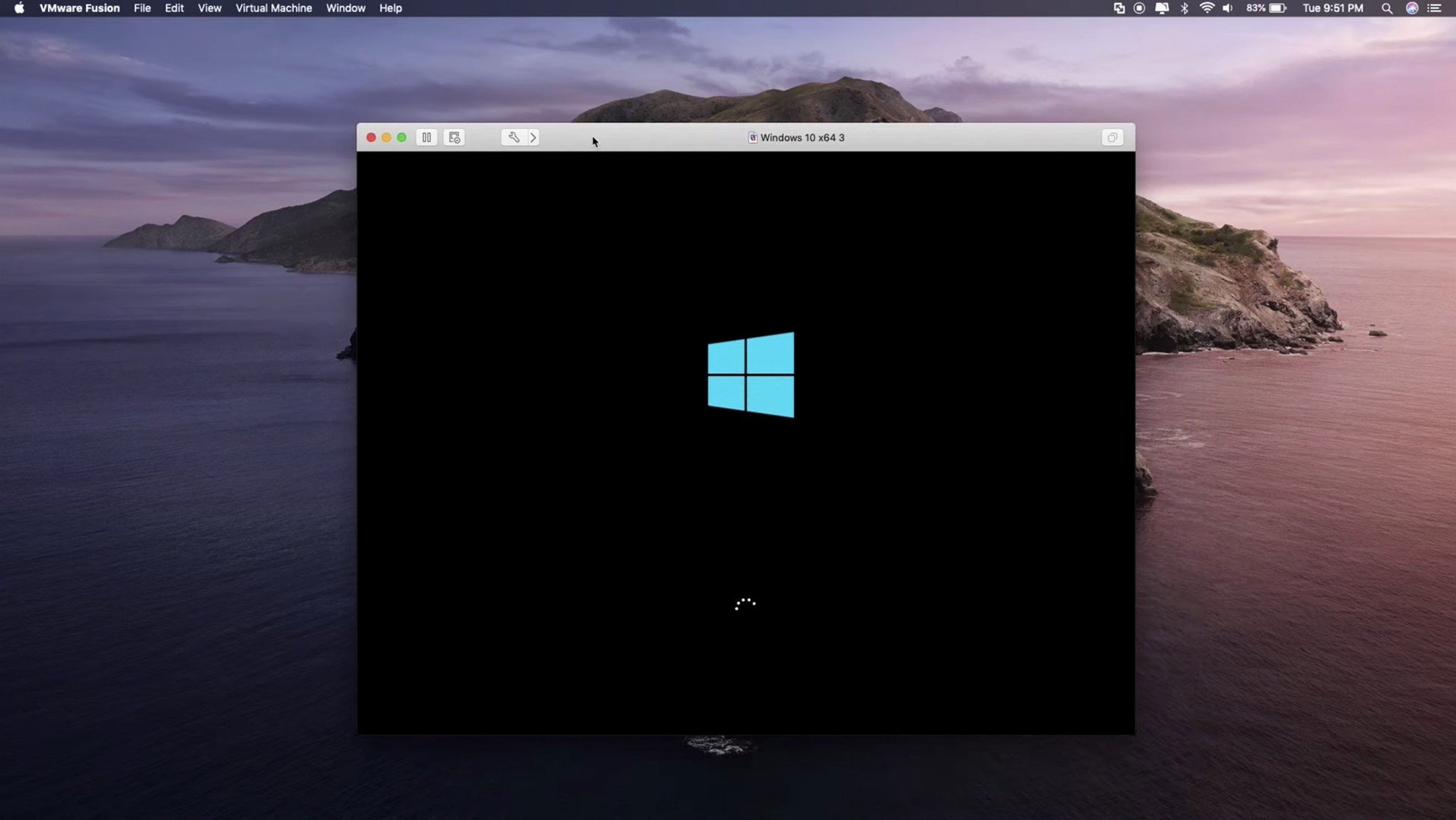
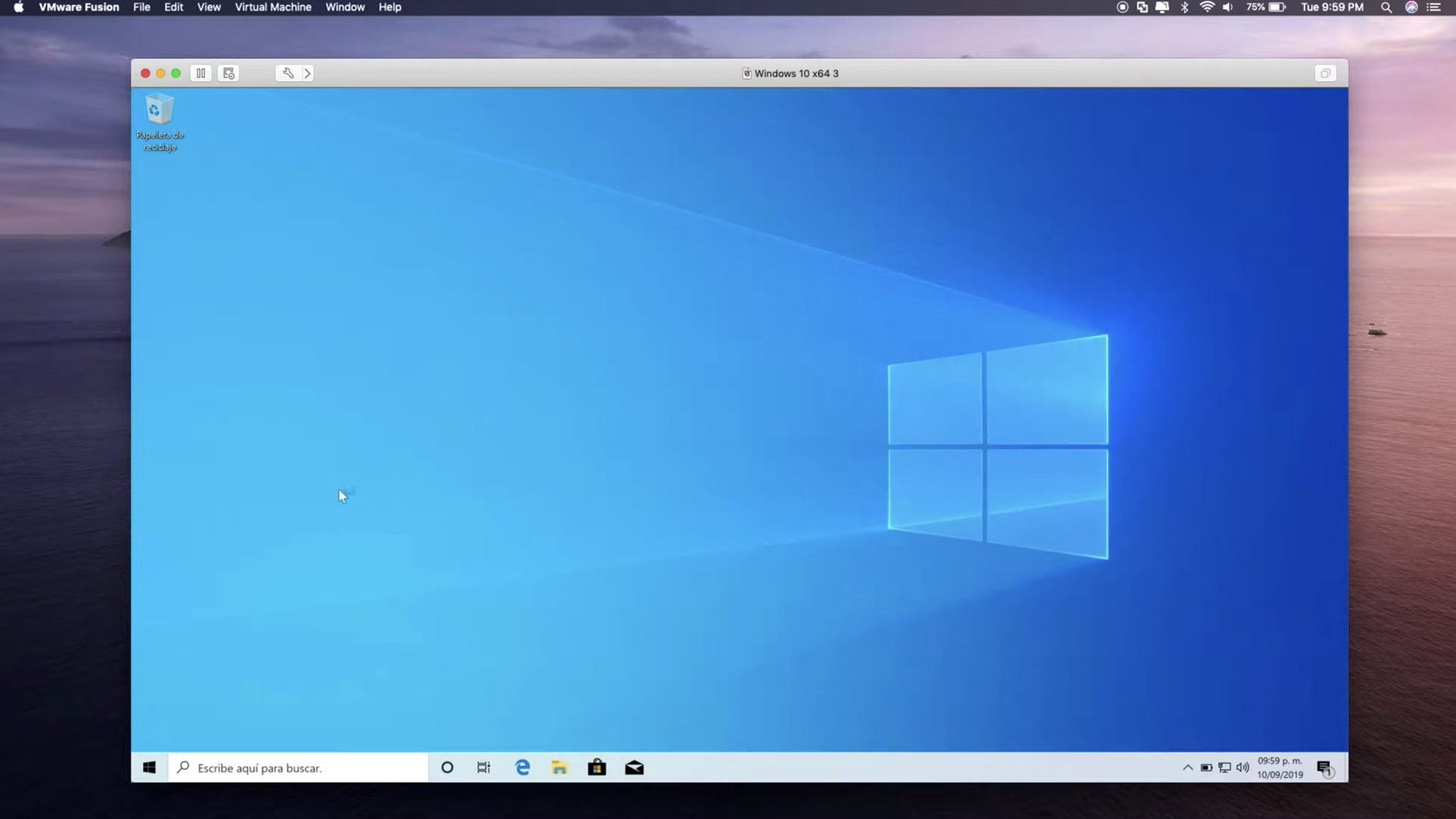
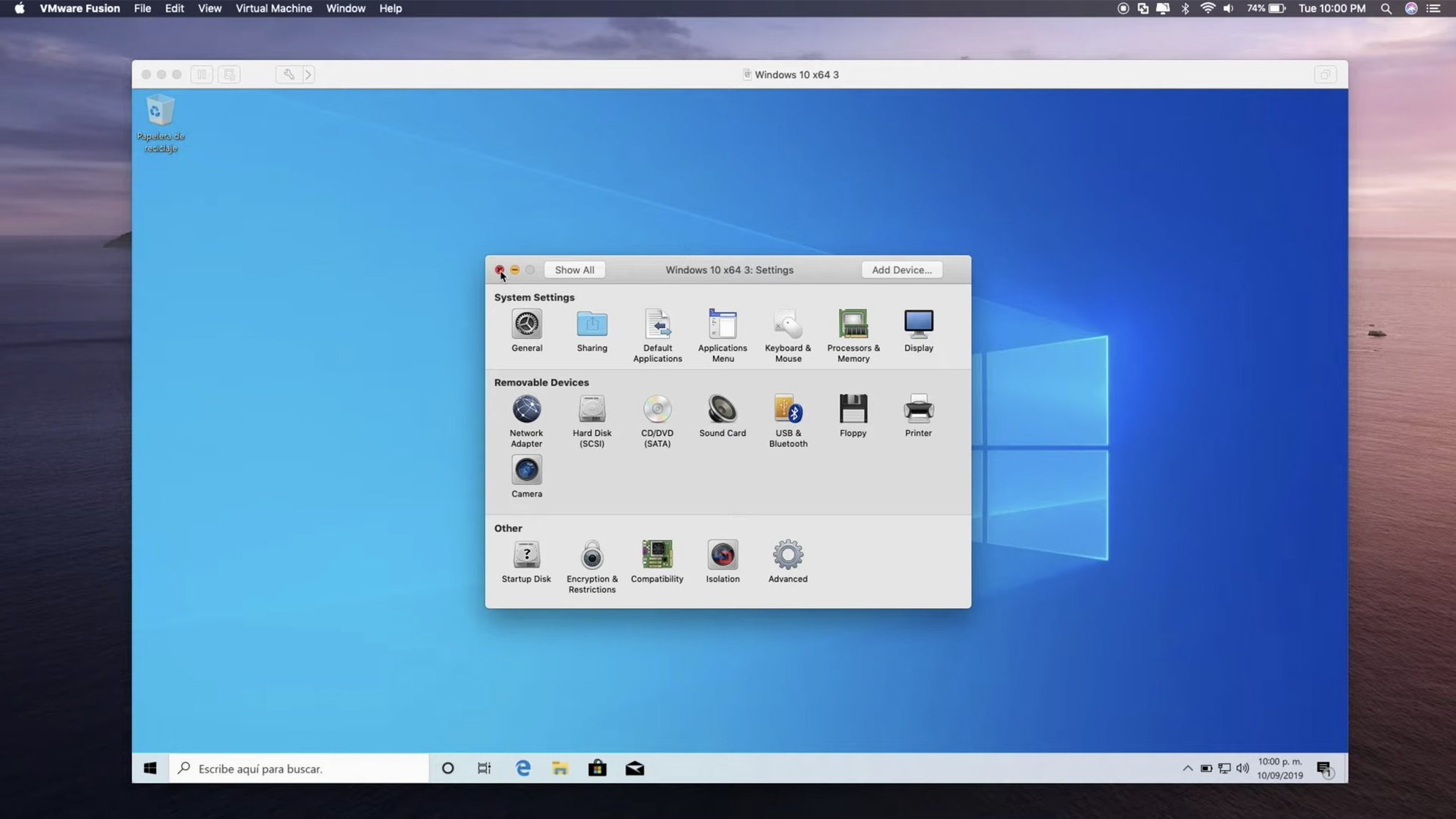
When you need to run Windows, Linux, or another OS alongside macOS without rebooting, a desktop hypervisor is the tool for the job. VMware Fusion Pro does that by creating virtual machines that share your Mac’s hardware—letting you test software, run legacy apps, or connect to enterprise environments from a single machine.
Running Windows 10 VMs with DirectX 11 hardware acceleration
- Running Windows 10 VMs with DirectX 11 hardware acceleration for moderately demanding graphics work.
- Connecting to ARM-based ESX hosts remotely, a capability added in the 26H1 release.
- Developers working with OCI containers via the command-line interface.
- Anyone needing a broad range of guest OS support, including the newest Linux distributions like Ubuntu 26.04 LTS and Fedora 44.
- Machines with an eGPU, which Fusion Pro can leverage for additional graphics horsepower.
Requires macOS 13 or later, locking out older Macs
- Requires macOS 13 or later, so older Macs stuck on macOS 12 Monterey or earlier are out of luck.
- The interface is English-only, which may be a hurdle in some workflows.
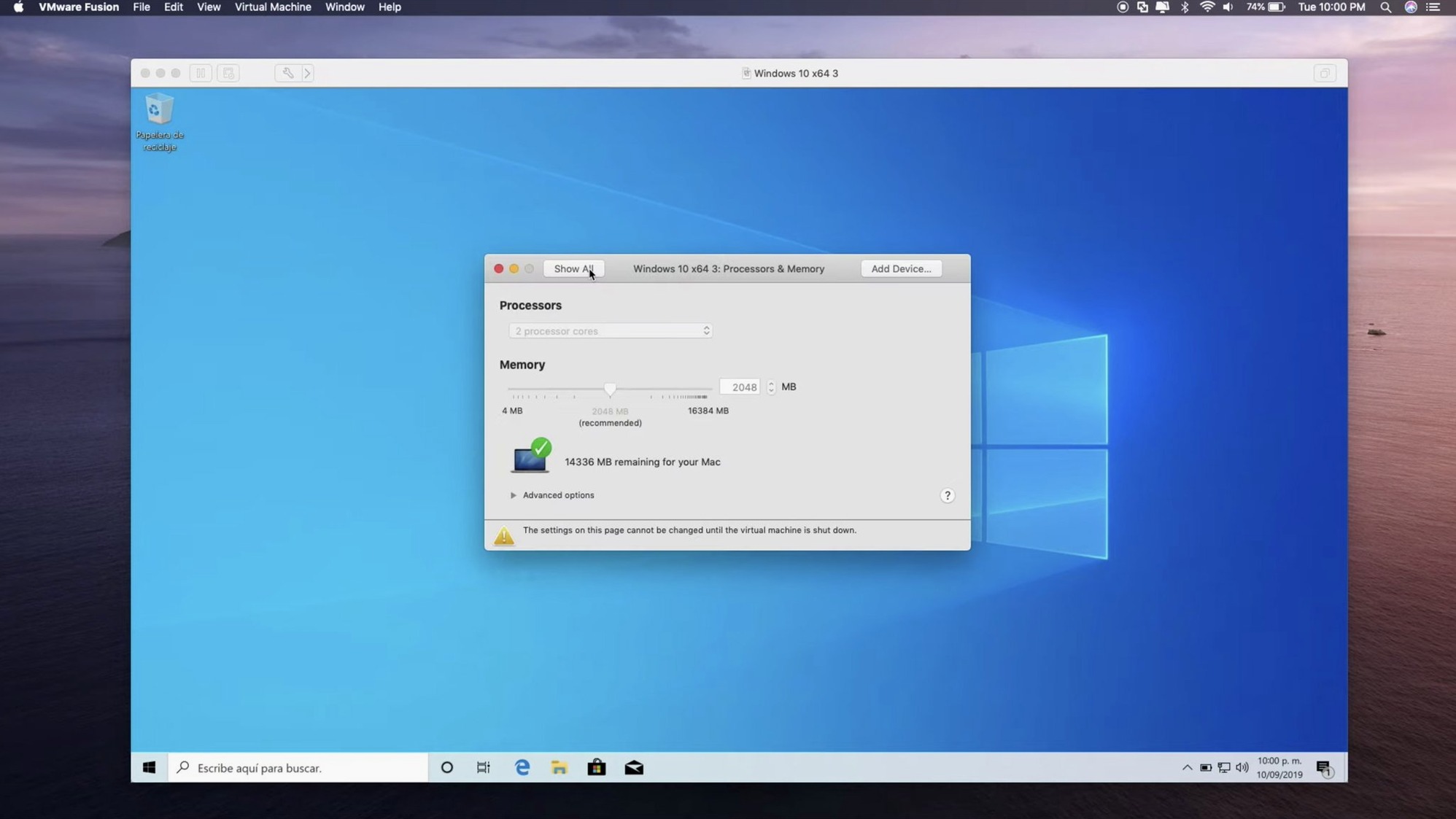
- Virtualization performance depends heavily on your Mac’s RAM and CPU cores; an under-specced machine will feel the pinch running a modern guest OS.
- Windows 11 ARM is the natural fit for Apple Silicon Macs, and while it works, it’s not the same as running x86 Windows natively.
Setting up a local Kubernetes test cluster
Let’s walk through a concrete scenario. You’re prototyping a microservices setup and want a disposable Kubernetes cluster without reaching for a cloud provider. Fusion Pro bundles a command-line tool that talks to local kind clusters, so you can spin up a multi-node environment inside a Linux VM and tear it down in seconds.
Start by creating a new VM from the Ubuntu 26.04 LTS template—the 26H1 release added explicit guest support for it, so the VMware Tools integration is smooth right from the install. Give the VM at least 4 CPU cores and 8 GB of RAM; Kubernetes control plane components get hungry. Once the OS is up, install Docker and kind inside the guest, then drop back to your Mac terminal. Fusion Pro’s vmrun utility lets you script the rest:
- Clone a snapshot of the clean Ubuntu VM so you always have a rollback point:
vmrun snapshot /path/to/Ubuntu.vmwarevm "base-install". - Run a script inside the guest that creates a three-node
kindcluster:vmrun runScriptInGuest /path/to/Ubuntu.vmwarevm /bin/bash /home/user/setup-cluster.sh. - Forward port 6443 from the guest to your Mac so
kubectlon the macOS side can reach the API server. VMware’s virtual network editor handles this under the NAT settings. - When you’re done testing, revert to the snapshot. No leftover config, no dangling containers.
The OCI container support built into Fusion Pro means you could skip the Docker-in-VM step entirely for simpler workloads—the vctl CLI pulls and runs containers directly against the hypervisor’s runtime, though kind specifically wants a Docker socket, so the nested approach above is the path of least resistance for full cluster simulation.
Where Fusion Pro fits in a Mac workflow
Fusion Pro doesn’t live in isolation. It slots into several toolchains and macOS integration points that make it more than just a window running another OS.
Drag-and-drop and shared folders
You can drag files between the macOS Finder and a Windows or Linux guest. Underneath, Fusion Pro uses a virtual filesystem channel—on Linux guests it presents as a FUSE mount, on Windows it shows up as a network drive mapped to \\vmware-host\Shared Folders. For automated workflows, shared folders are scriptable through vmrun, so a build pipeline on the Mac side can drop artifacts directly into a Windows VM’s test harness.
Networking with other Mac apps
Fusion’s virtual networks bridge to your Mac’s physical interfaces. A database server running in a Fedora 44 guest on the bridged network is reachable from your Mac’s database GUI at the guest’s IP—no port forwarding needed. The NAT mode, meanwhile, keeps the guest isolated while still allowing outbound internet access, which pairs well with proxy tools like Charles or mitmproxy running on the macOS side for inspecting traffic.
Time Machine and snapshots
Fusion Pro’s VM bundles sit as regular .vmwarevm packages on your Mac’s drive. Time Machine backs them up like any other large file, but the smart move is to exclude the VM bundle from Time Machine and rely on Fusion’s own snapshot manager instead. Each snapshot stores only the delta from the base disk, so you can chain multiple known-good states—pre-update, post-toolchain-install, final working config—without multiplying disk usage by the number of backups.
Who clicks with Fusion Pro the most
Not every Mac user needs a full desktop hypervisor. The people who get the most mileage out of Fusion Pro tend to fall into a few camps.
Developers targeting heterogeneous environments. If your CI pipeline runs on x86 Linux servers but your workstation is an Apple Silicon MacBook Pro, Fusion Pro gives you a local ARM Linux VM for quick smoke tests before you push to the build farm. The new guest support for SUSE Linux Enterprise 16 and openSUSE 16.0 matters here—some enterprise shops standardize on SUSE, and having a matching local environment catches packaging quirks early.
QA testers and IT admins. The ability to connect to ARM-based ESX hosts from your Mac means you can manage a mixed-architecture vSphere cluster without leaving your desk. The VM creation and last power-on timestamps added in 26H1 seem minor, but in a compliance context they become audit trail data—you know exactly when a test environment was provisioned and last used before decommissioning it.
Students and researchers. FreeBSD 15.0 guest support opens up a playground for OS coursework. Pair that with USB 3.1 passthrough for hardware experiments, and a single Mac becomes a lab bench for kernel hacking without dedicated physical machines.
How three desktop hypervisors compare
VMware Fusion Pro doesn’t exist in a vacuum. Parallels Desktop and UTM are the two names that come up most often when Mac users shop for virtualization.
VMware Fusion Pro vs. Parallels Desktop
Both run Windows and Linux VMs on Apple Silicon and Intel Macs, both support DirectX 11 in Windows guests, and both offer USB passthrough. The philosophical split shows in the details. Parallels leans hard into macOS integration—Coherence mode blends Windows app windows directly into the macOS desktop, and the Windows-on-ARM installation wizard fetches and configures the Microsoft insider build for you in a few clicks. Fusion Pro expects you to bring your own ISO and handle the guest OS setup yourself, which is less automated but more transparent. Fusion Pro’s edge is the enterprise tie-in: remote ESX host connections, OCI container support via vctl, and the snapshot scripting through vmrun are things Parallels doesn’t prioritize in the same way.
VMware Fusion Pro vs. UTM
UTM wraps QEMU in a clean macOS-native interface and is free and open source. It emulates architectures Fusion Pro won’t touch—old PPC Mac OS, SPARC, MIPS—because it leans on QEMU’s full system emulation rather than hardware-accelerated virtualization. The trade-off is speed: UTM’s emulation mode is orders of magnitude slower than Fusion Pro’s hypervisor-backed VMs for same-architecture guests. If you need to boot an ancient macOS 9 image once a year, UTM is the better fit. For daily-driving Windows 10 with DirectX acceleration or running a local Kubernetes cluster at near-native speed, Fusion Pro’s paravirtualized drivers and GPU support pull ahead.
VMware Fusion Pro vs. VirtualBox
VirtualBox still runs on Intel Macs but offers no Apple Silicon host support beyond developer previews that have lagged for years. On an Intel Mac it’s a capable hypervisor with a snapshot system and extension pack for USB 3.0 passthrough. Fusion Pro surpasses it in graphics acceleration—VirtualBox tops out at DirectX 10 with experimental drivers—and in the polish of the guest tools. The vmrun automation in Fusion Pro also feels more mature than VirtualBox’s VBoxManage for headless scripting, especially when you start chaining snapshots and network configuration steps in a CI context.
- VM creation and last power-on time are now timestamped, so you can sort a crowded VM library by age or recent activity.
- Remote connections to ARM-based ESX hosts are supported, opening up modern vSphere environments from a Mac.
- Guest OS support expands to cover Ubuntu 26.04 LTS, Fedora 43, Fedora 44, SUSE Linux Enterprise 16, openSUSE 16.0, and FreeBSD 15.0.
- macOS: macOS 13 or later
- Architecture: Apple Silicon and Intel
Comments 0
Sign in or create an account to leave a comment.
No comments yet. A codec, a slice, a machine — they appear after moderation.