WALTR PRO for macOS
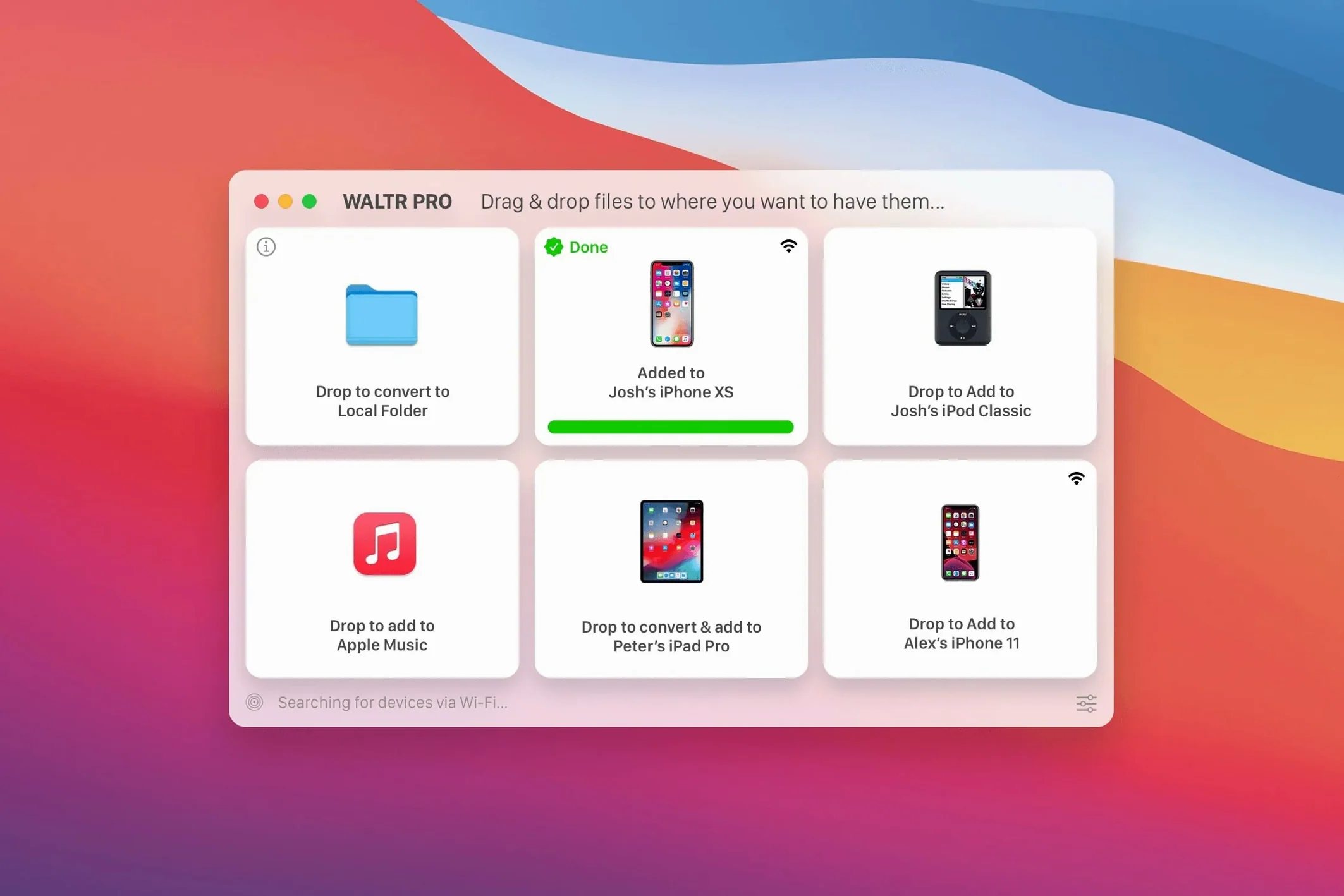
WALTR PRO is for anyone who has ever sighed at the thought of digging out a Lightning cable just to push an MKV file onto an iPad. It targets people who want to drag and drop music, videos, or books onto an Apple device and have them just work, without iTunes syncing away existing files.
- Connect your iPhone, iPad, or iPod to the same Wi-Fi network as your Mac. The app detects it automatically.
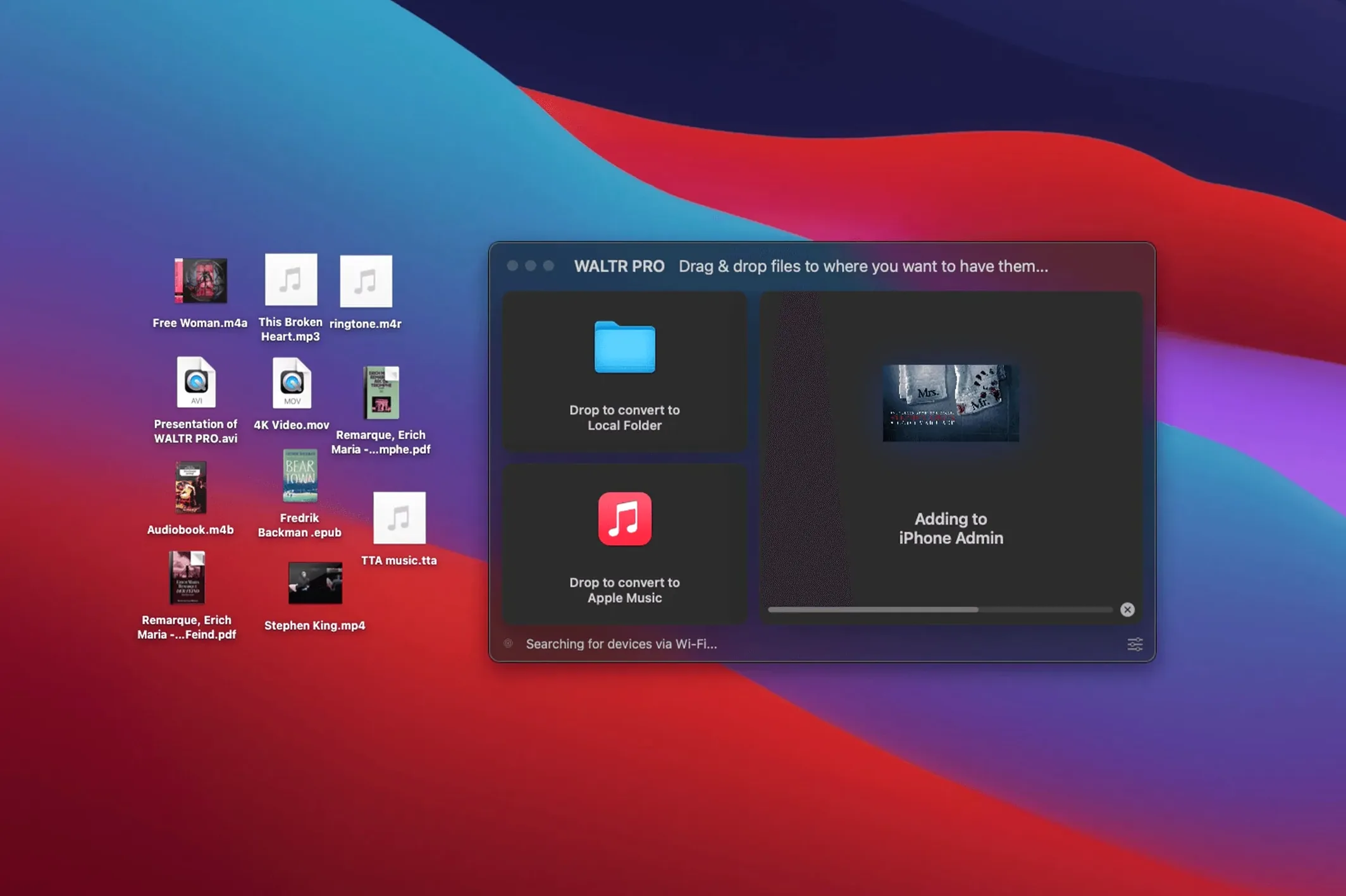
- Drag a file onto the main window. It accepts a huge range of oddball formats—FLAC, MKV, CUE, EPUB—and pushes them straight to the stock Music, TV, or Books app.
- The file lands ready to play. There is no step three.
What happens technically is a silent content resolution step. The app recognizes the media type and the destination app, so an MKV lands in the TV app as a playable video, not a stuck file. It runs natively on Apple silicon and 64-bit Intel hardware from a drag-to-/Applications install. This release, 4.0.122, needs macOS 10.13 or later and keeps the interface in English.
Test a tricky MKV or old AVI before trusting your whole library
Don't just throw your entire media folder at it and walk away. Spend the first day or two testing a handful of tricky files—an MKV with embedded subtitles, a CUE-anchored FLAC album, an old AVI from a decade ago. Watch what WALTR PRO does with each one on the destination device. If the subtitles burn in cleanly and the CUE sheet splits into proper tracks inside the Music app, you know you can trust it with the rest of your library. On the flip side, if a specific encode gives you trouble, you'll spot it early instead of discovering it on a flight with no Wi‑Fi.
Also worth doing early: open the app while your iPhone's Music library is empty, then after a few transfers, and note how WALTR PRO avoids obliterating existing playlists. It appends, it doesn't sync. That's the whole point—but confirming it with a small test set will save you that tiny moment of panic the first time you drag a big folder over.
The wireless dance
Wi‑Fi transfer is the default everyone wants, but the first time it doesn't see your iPad, toggle Wi‑Fi off and on again on the iOS device. Not on the Mac—on the iPad or iPhone. That forces a fresh broadcast of the Bonjour service WALTR PRO looks for. Once it connects, it tends to stay connected across sleep/wake cycles, but the initial handshake benefits from a clean slate.
Why device discovery now completes in seconds instead of minutes
Version 4 brought a rewritten device‑discovery layer. Before that, you'd occasionally stare at "Waiting for device" for long enough to doubt your network. The 4.0 line—including this 4.0.122 build—switched to a faster handshake that finds iPhones and iPads in under five seconds on a healthy home network. For everyday use, that means you no longer develop a habit of refreshing the app while you wait; you drop a file and it just starts.
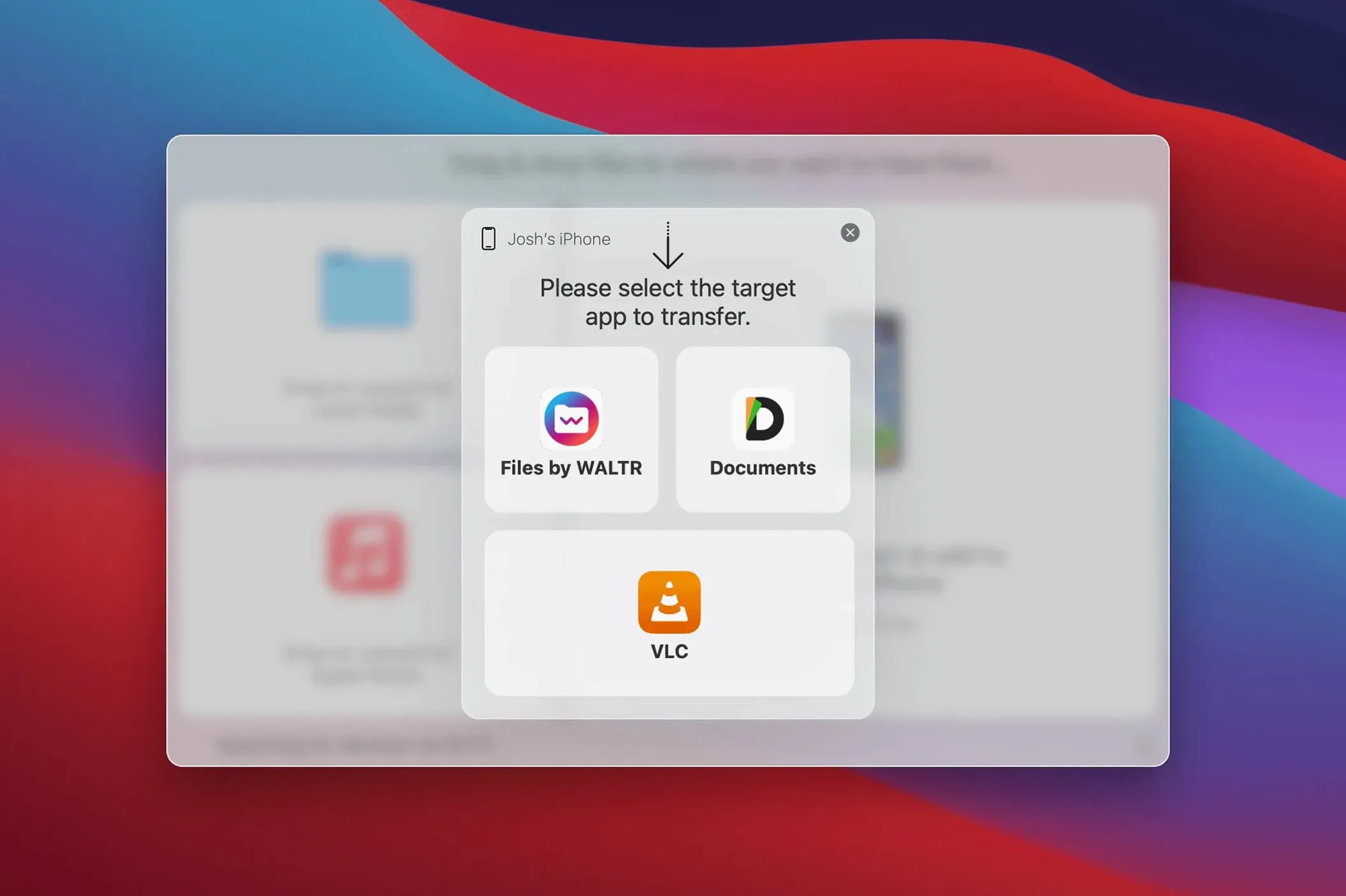
Another practical change is how the app now handles EPUB and PDF files. Earlier versions pushed them only to a generic file area; recent updates route them directly to the Books app, so they appear on the shelf rather than buried in a file browser. If you sideload technical PDFs or DRM‑free books, that change alone makes the app behave like a proper conduit instead of a thumb drive.
Softorino also quietly improved CUE sheet parsing. Albums that used to arrive as one long track with no breaks now split correctly, with metadata intact, in the stock Music app. If you have a collection of live sets or DJ mixes in FLAC+CUE, this version finally treats them as the artist intended.
Drag files to the menu bar icon without opening the main window
- Drag onto the menu bar icon. You don't need the full window open. Drag any supported file onto the WALTR PRO icon in the menu bar, and it sends it to the last connected device. Great when you're in the middle of something else.
- Multiple files, one gesture. Select seven tracks in Finder, drag once. They queue sequentially. No batch dialog, no confirmation per file—they just line up and transfer.
- M4R ringtone handling. Drop an
.m4rfile (under 40 seconds, as iOS expects) and it lands in the Ringtones section, not in Music. No renaming, no manual placement. - Wi‑Fi fallback to USB. If your network is flaky, plug in the cable. WALTR PRO doesn't complain—it just switches transport silently. The same drag‑and‑drop motion works either way.
Which settings should I tweak first?
Open Preferences right after the first successful transfer. The defaults are sane, but two things deserve immediate attention.
First, check Output Quality for video. WALTR PRO can transcode on the fly when a format isn't natively playable on iOS. The default balances file size and quality, but if you're transferring a film you'll watch on a 12.9‑inch iPad Pro, bump the quality slider up. The conversion takes a bit longer, but you'll avoid compression artifacts on a big screen. Conversely, if you're loading up a kids' show for a long car ride on an iPhone SE, the default is fine—or you can drop it lower to save space.
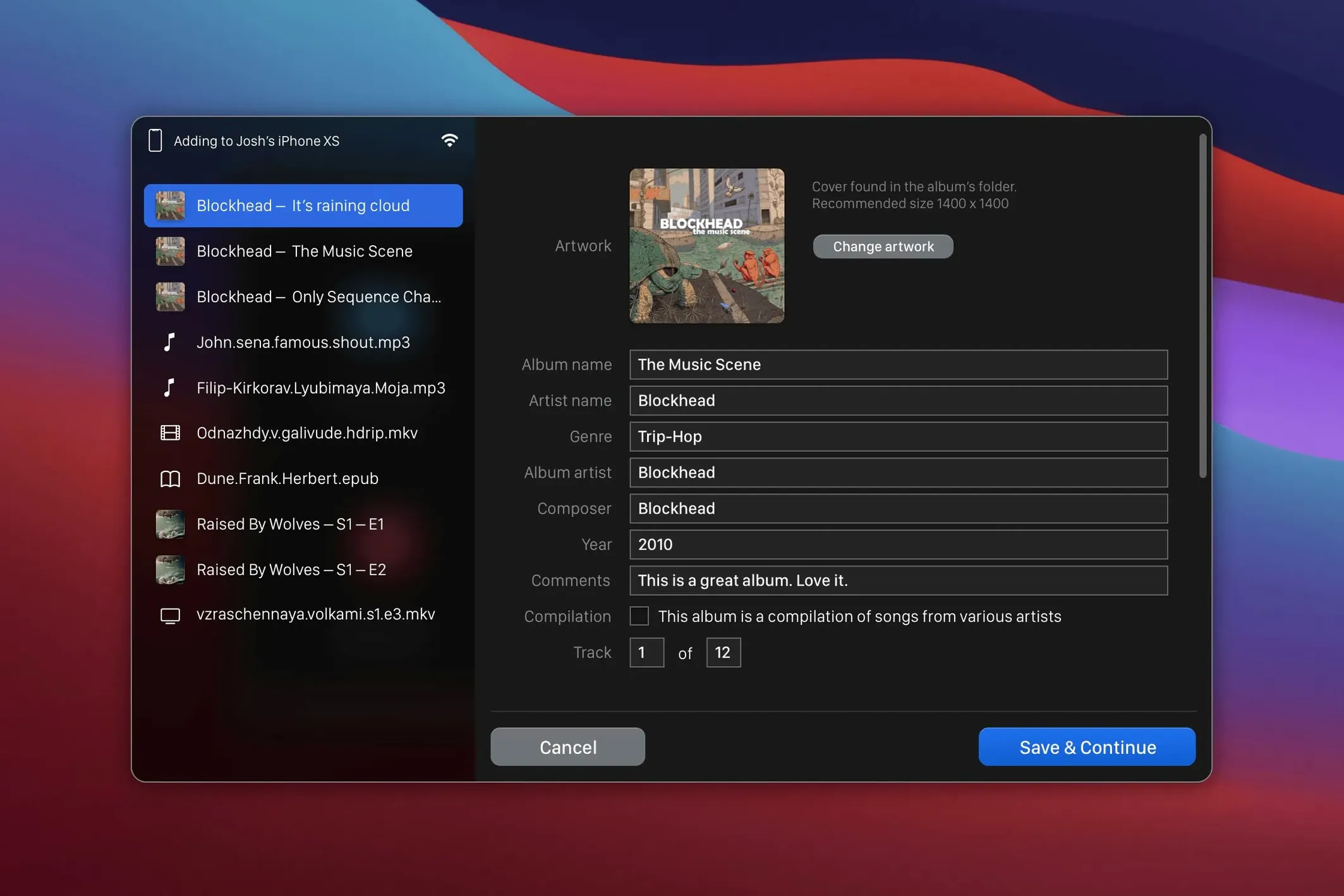
Second, look at the metadata extraction toggle. When it's on, WALTR PRO pulls artist, album, and artwork from the file itself and applies it on the iOS side. If your files are tagged well, leave it on and your Music app stays tidy. If your collection is a mess of inconsistently named MP3s—say, from a waltr pro free download binge that left you with no liner notes—turn it off and manage metadata manually; otherwise you'll get garbled track names on the device.
Beyond those, there's not much to configure, and that's by design. The app's job is to get out of the way. A few people hunting for waltr pro crack or a waltr pro torrent will find the full feature set intact in this release, and once it's running, the Preferences pane is about five toggles total. Setting those two—quality and metadata—covers 90% of the daily decisions.
- macOS 10.13 or later
- Intel 64-bit or Apple silicon Mac
Comments 0
Sign in or create an account to leave a comment.
No comments yet. A codec, a slice, a machine — they appear after moderation.