VueScan Pro for macOS
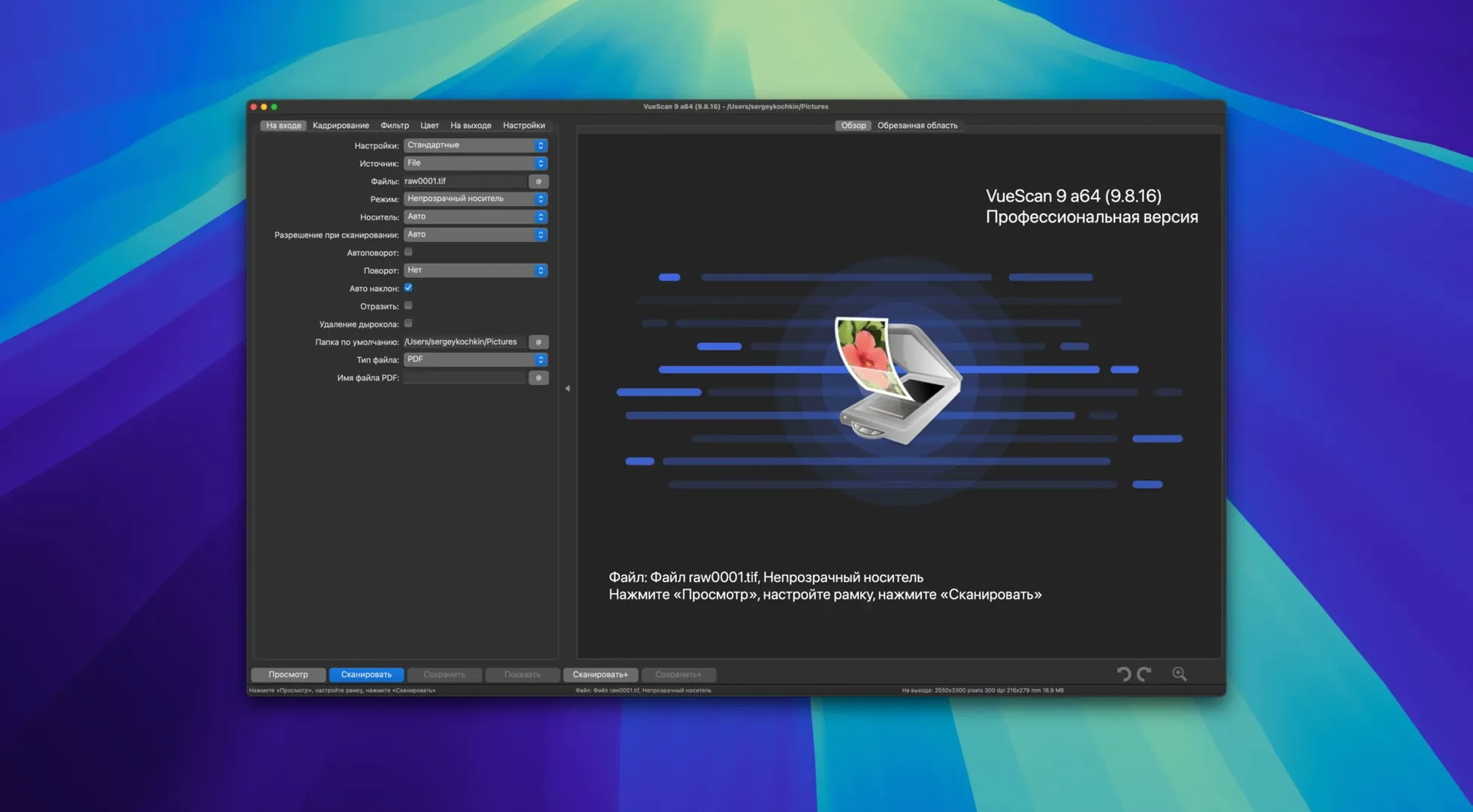
Universal binary on Apple Silicon and Intel from Catalina onward
Version 9.8.57 runs natively on both Apple Silicon and 64-bit Intel Macs. You need macOS 10.15 (Catalina) or later. The binary ships as a universal build, so Rosetta 2 won't get involved on M-series machines.
Supplies its own drivers for scanners Apple abandoned
VueScan Pro bypasses the built-in macOS scanner drivers and supplies its own scanning engine for a long list of models. You get full manual and automatic control over exposure, color correction, maximum color depth, and output file formats. It can work straight from the scanner's internal color depth, so you aren't stuck with whatever Image Capture decides to hand you.
What filters and cleanup tools are included?
The current release includes grain reduction, unsharp masking, and color cast removal. Version 9.8.57 also improved the quality of AI-assisted touch-up and added batch processing for colorize and super-resolution, so you can run those corrections across multiple scans in one go rather than tweaking frame by frame.
What file-naming tricks does it have?
You can now use varying increments in file names, like file001+2.jpg. That gives you fine-grained control over sequences without renaming everything by hand after a long scanning session.
Switch Media to 'Image' to preview film as a positive
Plenty of VueScan Pro's best helpers live in plain sight but get overlooked during the first few sessions. The Input tab has a Media drop‑down that defaults to “Color photo.” If you flip it to “Image” instead, the preview skips the scanner’s own contrast adjustments and hands you a flat, linear starting point — useful when you plan to do the heavy tonal work in another app later. Next to it, the Bits per pixel control is worth a glance: choosing “48-bit RGB” or “64-bit RGBI” here locks in the full color depth before the scan reaches the filters, even on older Epson and Canon flatbeds that report 24-bit through Image Capture.
On the Output tab, the TIFF compression setting can toggle between None, LZW, and ZIP. The ZIP option inside VueScan produces valid TIFFs that a few older DAM tools struggle with, so if you are handing files to a library that predates macOS Catalina, LZW is the safer pick. Another quiet feature sits in the Crop tab: the Auto offset checkbox. When you scan a stack of photos on a flatbed, it nudges the crop box slightly per frame, compensating for the slight shifts that happen when you close and reopen the lid between sheets.
Under the Prefs tab, the External viewer field lets you point VueScan to a raw‑developer of your choice. Set it to /Applications/RawTherapee.app or any editor that understands .dng, and the “View” button on the Scan tab will open the raw file there instead of Preview. It is a tiny hook, but it saves the round‑trip of hunting through Finder every time you want to inspect a 64-bit infrared scan at full resolution.
Lock exposure and focus before your first real scan
Out of the box, VueScan Pro tries to be a universal scanner driver, which means a few defaults lean conservative. Before your first real project, open the Prefs tab and check Lock exposure and Lock focus if your scanner supports them. Leaving exposure unlocked between preview and final scan can shift the histogram just enough to ruin a carefully placed black point on a dense negative.
On the Color tab, switch Color balance from “Auto” to “Manual” early on. Auto balancing works well for snapshots, but it drifts when you scan a whole roll of the same film stock under the same lighting. Manual mode with a saved profile — accessed through the File menu’s Save settings command — keeps frame‑to‑frame consistency across a batch. While you are there, set Output color space to “ProPhoto RGB” or “Adobe RGB” rather than sRGB. VueScan will tag the profile inside the file; you can always convert down later for the web, but you cannot recover gamut you never captured.
If your scanner has an infrared channel — common on Nikon Coolscan and later Epson Perfection models — turn on Infrared clean on the Filter tab and set it to “Light.” The default “Medium” can soften grain structure on fine‑grained black‑and‑white stock. The 9.8.57 improvements to AI‑assisted touch‑up work alongside the IR pass, so you can keep the IR setting subtle and let the touch‑up handle the last few dust specks after the scan.
Wakes a Nikon LS‑50 that macOS no longer sees
An archival scanning afternoon usually starts with a shoebox of old Kodachrome slides and a Nikon LS‑50 connected over USB. VueScan Pro wakes the scanner even when macOS has long forgotten it exists — the driver comes from Hamrick’s own device‑description files, not from the OS. After launching the app, the first step is a preview scan with the Media type set to “Slide” and the bits per pixel at 64‑bit RGBI to pull the infrared channel along.
The preview renders quickly, a strip of thumbnails down the left side. I drag the crop marquee over the first slide and lock exposure, then nudge the white‑point slider until the highlight detail in a bright sky just holds without clipping. The histogram on the Color tab gives me per‑channel confirmation; a tiny spike at the right edge means I back off two points. I save those settings as a profile called Kodachrome‑archival so the whole batch inherits them.
With one slide dialed in, I select all frames inside the batch, check Scan to file on the Output tab, and point the folder path to ~/Scans/2026‑08‑slides/ — the new date‑and‑time substitution string in 9.8.57 handles the timestamp in the directory name automatically. File names use the new varying‑increment syntax: slide001+1.tif gives me zero‑padded three‑digit numbering. I set TIFF compression to ZIP, hit the Scan button, and walk away for a coffee. Twenty minutes later, forty‑eight 64‑bit RGBI TIFFs sit in the folder, infrared‑cleaned and color‑balanced, ready for the raw developer.
SilverFast locks you to one scanner; VueScan follows you across models
SilverFast Ai Studio covers much of the same ground for film scanners, and its NegaFix module often produces a better starting inversion of color negatives than VueScan’s generic negative profile. But SilverFast ties itself to specific scanner models and requires a separate license for each device you own. VueScan Pro follows you across every scanner you plug in — today’s Epson V850, tomorrow’s old Minolta Dimage Scan Dual that you found at a garage sale. That one‑license‑fits‑all approach matters when you maintain a small fleet of aging hardware that no current macOS driver would touch otherwise.
Image Capture, the built‑in macOS app, handshakes with any ICA‑compatible scanner and demands zero configuration. That is where the advantages end. Image Capture locks you to 8‑bit per channel output, offers no infrared cleaning, and gives you a single TIFF or JPEG format with no control over compression. It is fine for a quick letter‑sized document; for a 35 mm negative you intend to print, it leaves half the scanner’s capability unused. VueScan Pro bridges the gap between “not working at all” and “full raw pipeline” for scanners that Apple stopped supporting years ago.
At the other end of the spectrum, the proprietary Canon and Epson scan utilities still ship with current consumer flatbeds. Their interfaces are friendlier for a newcomer, and they sometimes activate hardware features — like Epson’s Digital ICE chipset — that VueScan accesses through its own infrared routines instead. The difference emerges with transparency work: the OEM tools rarely give you per‑channel curve control, multi‑pass averaging, or the ability to save scanner raw data as .dng for deferred processing. Those are exactly the features that turn a driver into a digitization workstation, and they are where VueScan Pro pulls ahead of the free bundled software.
180 MB idle, under three seconds to launch on an M1 Air
On an M1 MacBook Air with 16 GB of RAM, VueScan 9.8.57 launches in under three seconds and sits at around 180 MB of memory while idle. A 64‑bit RGBI scan of a 35 mm slide at 4000 dpi pushes the working set to roughly 1.2 GB during the scan itself, then drops back quickly once the file writes to disk. The universal binary keeps the process entirely on the performance cores; Activity Monitor shows near‑zero CPU time on the efficiency cluster during a batch job, which points to clean threading in Hamrick’s backend.
Stability has been uneventful across a mixture of USB‑C and Thunderbolt‑to‑USB‑A dongles. The 9.8.57 improvements to USB scanner support on macOS seem to have smoothed over the occasional disconnects that earlier builds showed when waking a scanner from sleep. I have run eight‑hour slide‑archiving sessions without a single crash or dropped frame. The app’s autosave behavior catches settings in ~/Library/Preferences/com.hamrick.vuescan.plist, so even if you force‑quit mid‑batch, re‑opening the app restores the scan queue and the last‑used profile.
Battery impact is modest for a tool that keeps a USB scanner powered. A two‑hour batch of 120 medium‑format negatives pulls the MacBook Air from full charge to roughly 65 percent, which aligns with the scanner drawing bus power. The fans stay silent; the thermal profile is closer to a long Lightroom import than to a video render.
Search patterns like vuescan crack or vuescan torrent suggest some users try to bypass the license, and the macOS build checks integrity through its code‑signing and a device‑based activation that survives system updates. Those who pull a vuescan mac torrent can get an older build that lacks the USB improvements and the new batch colorize support, so to talk to a modern Brother or Epson scanner without kernel panics you'll want to verify the version you're running matches the latest device‑support notes from Hamrick.
VueScan Pro 9.8.59 ships with a fresh batch of under-the-hood corrections that keep scanner communication steady.
- macOS 10.15 (Catalina) or later
- Runs natively on Apple Silicon
Comments 0
Sign in or create an account to leave a comment.
No comments yet. A codec, a slice, a machine — they appear after moderation.