Wallspace for macOS
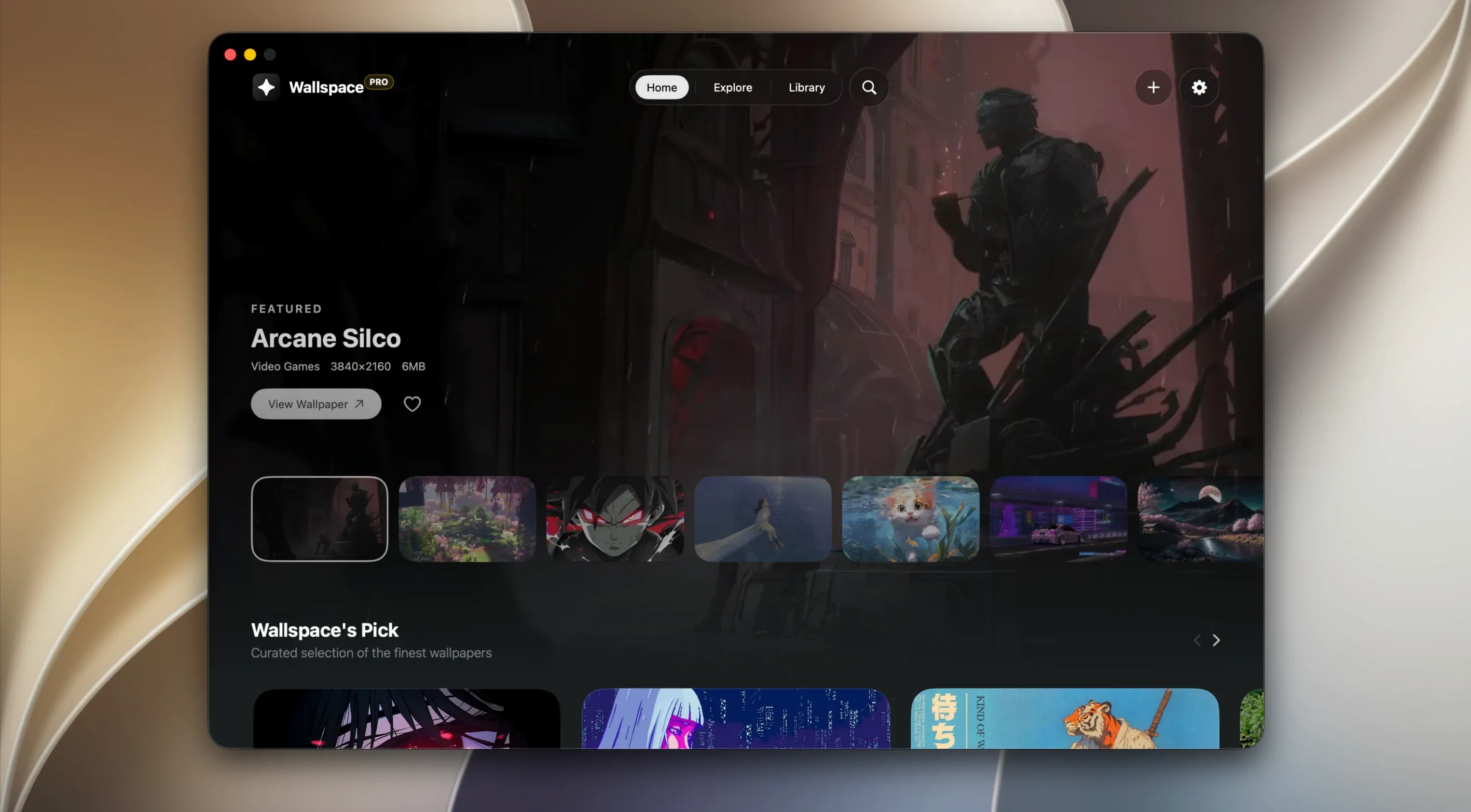
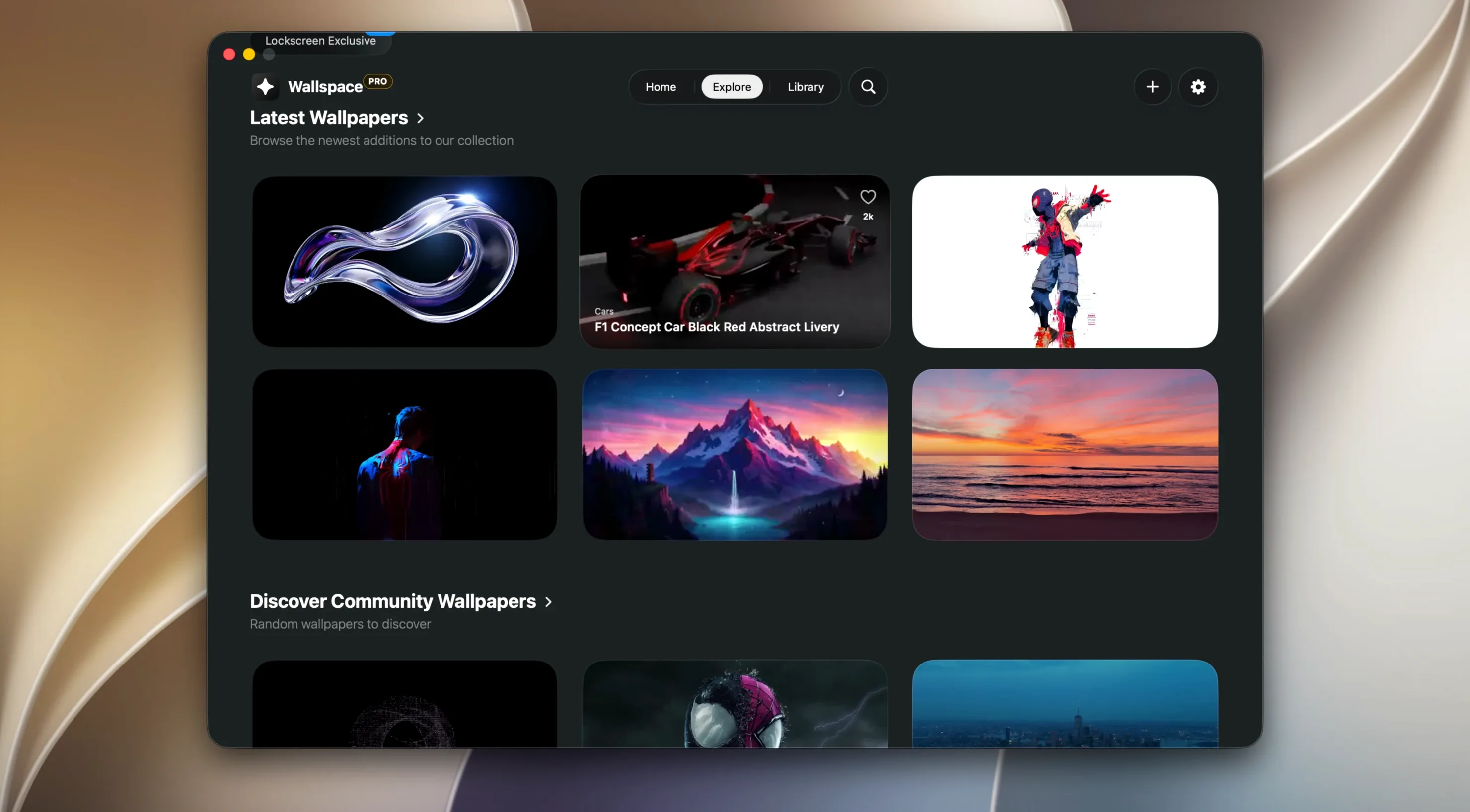
Staring at a static desktop background gets old fast. macOS has never shipped with a built-in way to set video or animated scenes as wallpaper, so your screen sits frozen until you open an app that moves. Wallspace fills that gap with live wallpapers that play on the desktop and the lock screen.
Set a live wallpaper on the desktop
Launch Wallspace, point it at a video file, and the desktop comes alive. Playback is hardware-accelerated, tapping the GPU to keep CPU use under 2% in the background. The app is written in Swift and leans on Apple system APIs, so it feels like a native extension of macOS rather than something bolted on.
Sync wallpapers across every display
Plugged into multiple monitors? You can mirror one live wallpaper across all of them or assign a different scene to each connected display. The multi-display plumbing uses Apple’s own APIs, which means no janky window tricks — just proper per-screen handling.
Extend the wallpaper to the lock screen
Wallspace pushes the same live scene to the lock screen, so the motion continues right where the desktop left off when the Mac wakes. It’s a small touch that makes the machine feel more cohesive between locked and unlocked states.
No account needed, and offline playback for your own MP4s
Does it need an account or an internet connection? No login, no sign-up. The curated wallpaper library needs a connection to browse and pull down new scenes, but any MP4 you already have on disk plays offline. The app itself never phones home to activate or verify anything.
Will it drain the battery when I’m unplugged? It can be told not to. A toggle pauses playback automatically on battery power. Another pauses when the CPU is busy, so Wallspace steps aside during renders, compiles, or anything that pushes the fans. When you’re back on mains power, the wallpaper resumes without touching a button.
I found a download wallspace for mac — what do I actually get? You get a disk image. Inside is the app bundle, built for Apple Silicon with no Intel slice. Drag it to Applications, launch from Launchpad, and macOS 15 hands it the native video pipeline. That’s the whole setup.
First-day tweaks that pay off
After dragging the app into /Applications, launch it and head straight to the playback preferences. Set the pause-on-battery switch right away if you use a MacBook — it’s off by default, and you’ll notice the difference the first time you work from a café. On a desktop Mac, leave it running and check Activity Monitor once; the GPU handles the heavy lifting, and CPU usually hovers around 1%.
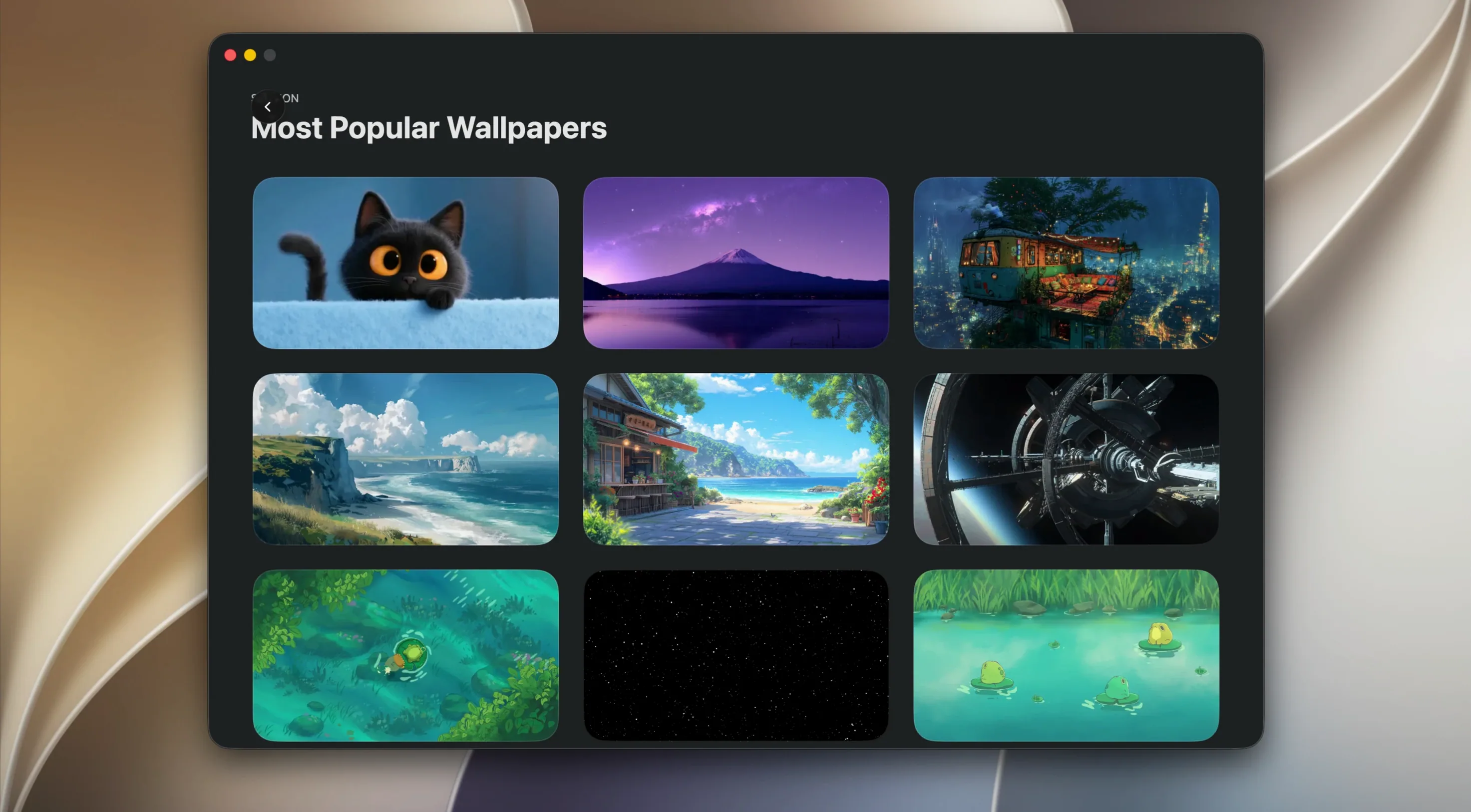
The AI search is worth a few minutes of playful prodding. Type a phrase like “rain on a cabin window at dusk” and watch what surfaces from the built-in 4K library. The results aren’t generic — they pull from over a thousand curated clips, and the search parses mood and scene descriptors rather than just tags. It’s the quickest way to build a rotation of wallpapers you’ll actually keep.
If you already have a folder of MP4 loops from another tool or a Wallspace Mac crack you grabbed earlier, point Wallspace at that folder without converting a thing. The app reads standard H.264 and HEVC files directly, so your existing collection slots in with zero re-encoding.
Right-click the menu bar icon to pause for a screen share
The menu bar icon hides a pause control that’s faster than opening the main window. Right-click it to stop playback for a meeting or a screen share, then click again to resume. On multi-display rigs, hold Option while choosing a wallpaper to apply it only to the display where the window sits — no need to open the full display manager.
- Official support expanded to cover macOS 15 through macOS 26.
- Version 1.5.1 is now available as a Homebrew Cask record for easier installs via the terminal.
- macOS 15 or later
- Apple Silicon Mac
- Background CPU use stated as under 2%
Comments 0
Sign in or create an account to leave a comment.
No comments yet. A codec, a slice, a machine — they appear after moderation.