Winclone Pro for macOS
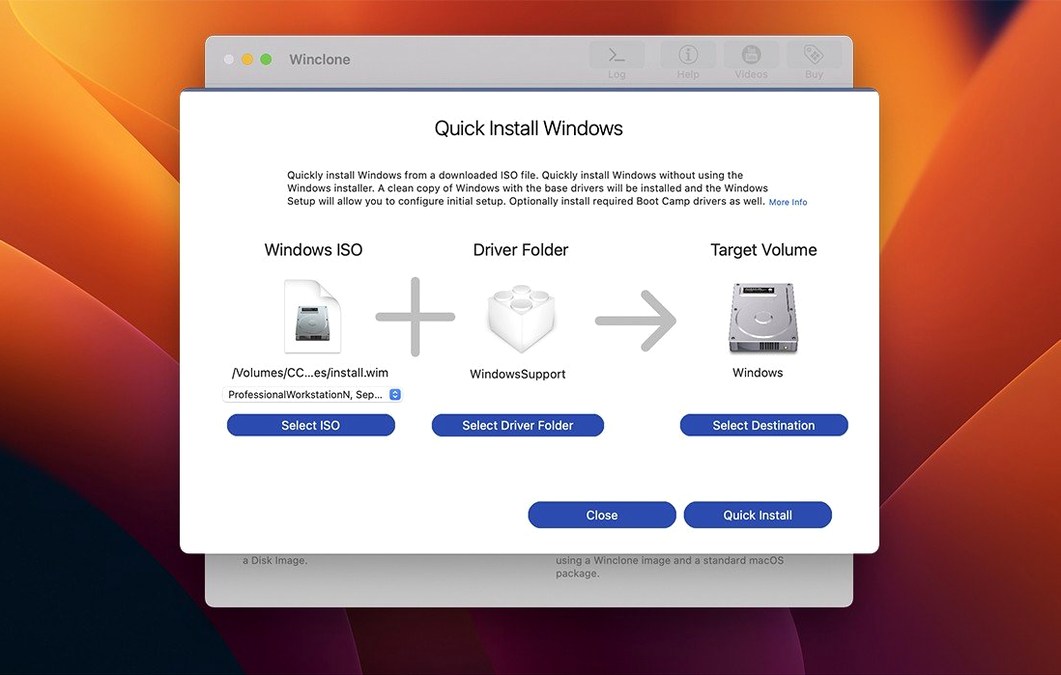
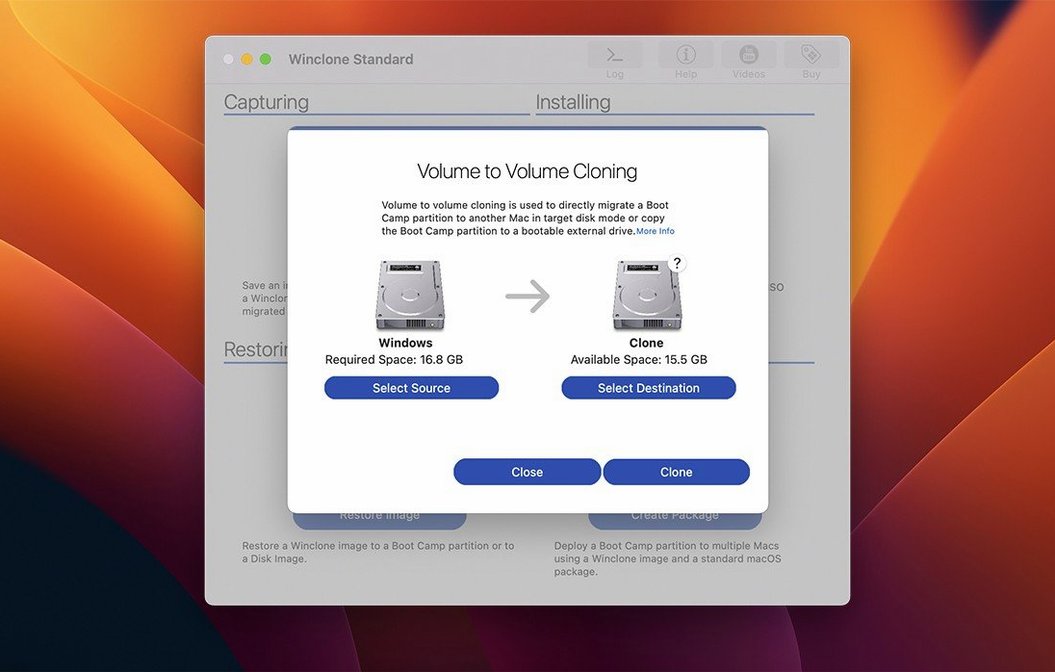
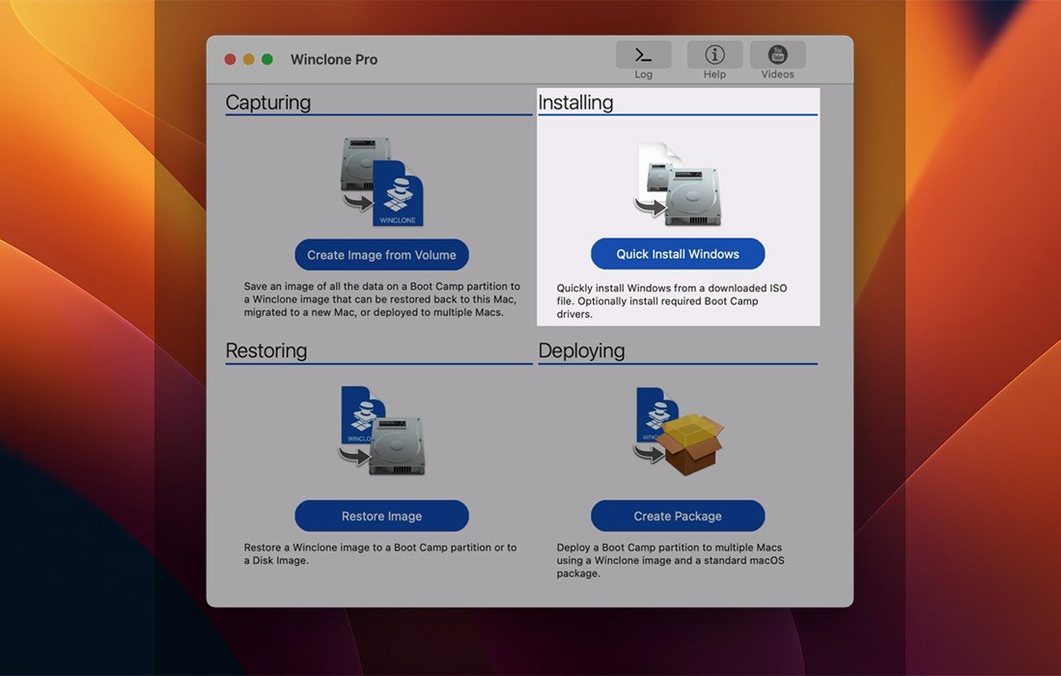
Systems administrators managing Mac labs, IT staff prepping dual-boot workstations, and anyone who relies on a precisely configured Boot Camp environment are the core audience for Winclone Pro. The tool makes a block-level clone of a Windows partition, letting you back up an entire working install or push a master image to multiple machines.
Boot Camp safety net and fleet imaging
- Creating a safety net before a major Windows update or driver change.
- Migrating a Boot Camp partition to a larger drive on the same Mac.
- Deploying identical Windows images across a fleet of Intel Macs in an education or business setting.
- Shrinking or expanding the NTFS file system during a restore to fit different target volumes.
Intel Macs only — no Apple silicon path
- Requires an Intel Mac — there is no Apple silicon support because Boot Camp itself is absent on Apple silicon.
- Restoring an image to an attached volume depends on the specific hardware and the Windows version in the clone.
- System Integrity Protection must be disabled before installation, which is a deliberate trade-off for its low-level partitioning access.
Where Winclone Pro sits between Disk Utility and deployment tools
Winclone Pro doesn't work in a vacuum. In a deployment workflow, it often sits between Disk Utility and something like Apple Remote Desktop or a simple USB restore drive. A common pattern: you use Disk Utility to wipe the target drive, partition it with a clean macOS volume, then hand control to Winclone Pro to carve out the Boot Camp slice and lay down the Windows image.
The package-installer feature ties directly into macOS Installer workflows. When you create a .pkg from a Winclone image, you're essentially making a self-contained Boot Camp deployment package that can run alongside zero-touch provisioning tools. Some IT teams drop these packages into Imagr or Munki workflows, though the image still needs an Intel Mac to land on — the package doesn't magically conjure a Boot Camp environment on Apple silicon.
It also respects network storage protocols. Saving images directly to an SMB-mounted share or an AFP volume means you can maintain one golden image on a central server and pull it down to any lab machine. The incremental imaging feature earns its keep here: after the initial full clone, subsequent backups only write changed blocks, which keeps network traffic manageable in a shared environment.
SIP blocks disk access before install
I see the same handful of errors pop up in support threads. The biggest one: not disabling SIP before install. The installer itself won't fail with a clear error — it just won't get the low-level disk access it needs, and subsequent clone or restore operations will stall or produce cryptic failures. Disable SIP, install, then you can re-enable it; Winclone only needs those privileges for the block-level disk operations during cloning, not for everyday use.
Another classic: trying to restore a Windows 10 EFI image onto a Mac that shipped with Windows 7-era legacy BIOS Boot Camp support. The GPT and MBR records have to agree with what the firmware expects. Winclone detects and reports inconsistent GPT and MBR boot records — pay attention to that warning. If you ignore it and proceed, you get a partition that the Mac firmware simply skips during startup.
Restoring to an external drive without checking the Windows version in the image is also a trap. Not every Windows build supports booting from external media, and even supported configurations depend on the specific USB controller and firmware revision of the target Mac. Test the image on an internal partition first, then experiment with external restores.
A subtler mistake: assuming the .winclone image is a file-level backup you can browse. It's a block-level image. You can't double-click it and pull out individual files. If you need file-level access later, you're restoring the image to a partition.
A deployment workflow, start to finish
Here's a practical scenario: you've got a lab of twelve identical Intel iMacs, and you need each one running the same Windows 10 configuration with specific scientific software, drivers, and a locked-down local user account.
- Build the reference machine. Use Boot Camp Assistant on one Mac to create a clean Windows partition. Install Windows 10, all drivers from Boot Camp Support Software, the scientific applications, and configure the user account. Run Windows Update until it's current. Sysprep the install if you plan to use deployment tools later — Winclone doesn't require it, but it's good practice for Windows domain joins.
- Create the master image in Winclone Pro. Boot back to macOS. Open Winclone, select the Boot Camp partition, and choose to save the image. For a lab deployment, save it to a network share or a fast external SSD formatted as APFS. Name it something descriptive:
Lab-Win10-Fall2025.winclone. The progress bar and completion percentage will give you an accurate read on how long to wait — a full 60 GB partition takes a while. - Optionally, shrink the file system. Before finalizing the image, use the shrink option in Winclone to trim the NTFS volume down to its actual used space plus a comfortable buffer. This saves storage and speeds up subsequent restores. A 60 GB partition with only 35 GB of data can become a 40 GB image.
- Restore to the target machines. On each lab iMac, connect the drive or mount the network share. Open Winclone, point it at
Lab-Win10-Fall2025.winclone, and select the internal drive as the destination. Winclone will create the Boot Camp partition and restore the image in one operation. The sound notification at the end lets you move to the next machine without staring at the screen. - Verify and adjust. Boot one machine into Windows to confirm drivers loaded correctly. If the target drive is a different capacity than the reference machine, use the expand option during restore to grow the NTFS volume to fill the available space. No need to touch Disk Utility for resizing afterwards.
Sound alerts let you monitor a dozen machines by ear
The sound notification seems trivial until you're managing a dozen machines at once. A successful chime versus a failure beep means you can glance at the screen only when something went wrong. The in-app links to support resources are genuinely useful too — Twocanoes keeps their documentation current, and the link opens in your default browser without hunting through a help menu.
The incremental image creation is easy to overlook. When you create a follow-up image of the same Boot Camp partition, Winclone only writes changed blocks if you point it at an existing full image. This dramatically speeds up routine backups. If you're iterating on a Windows configuration over several days — tweaking drivers, testing software — you can capture each checkpoint without waiting for a full clone every time.
One shortcut I appreciate: the interface shows estimated completion time and percentage during both clone and restore operations. The estimate adjusts as the transfer progresses, so it's more reliable than a linear progress bar that sits at 80% for twenty minutes. It's a small quality-of-life feature, but it makes scheduling around large image transfers predictable.
If you're looking for a winclone download to test this on an old Intel Mac, the installer arrives as a .dmg that expects the standard drag-to-Applications routine. Builds floating around as a winclone torrent or a winclone cracked variant may need you to manually verify that the package-installer feature is present and that the version includes the Tahoe compatibility fixes. The genuine 10.5 build includes the GPT/MBR detection improvements and the verified Tahoe support, which matter if you're still running a Catalina-or-newer Intel setup. A winclone 10 license key or winclone crack search can surface builds where you'll want to confirm the signature ties directly to the features that make incremental imaging and package creation work.
- Updated OS requirements for current macOS releases.
- Verified Tahoe compatibility.
- macOS 10.15 or later
- Intel processor
Comments 0
Sign in or create an account to leave a comment.
No comments yet. A codec, a slice, a machine — they appear after moderation.