WidgetWall for macOS
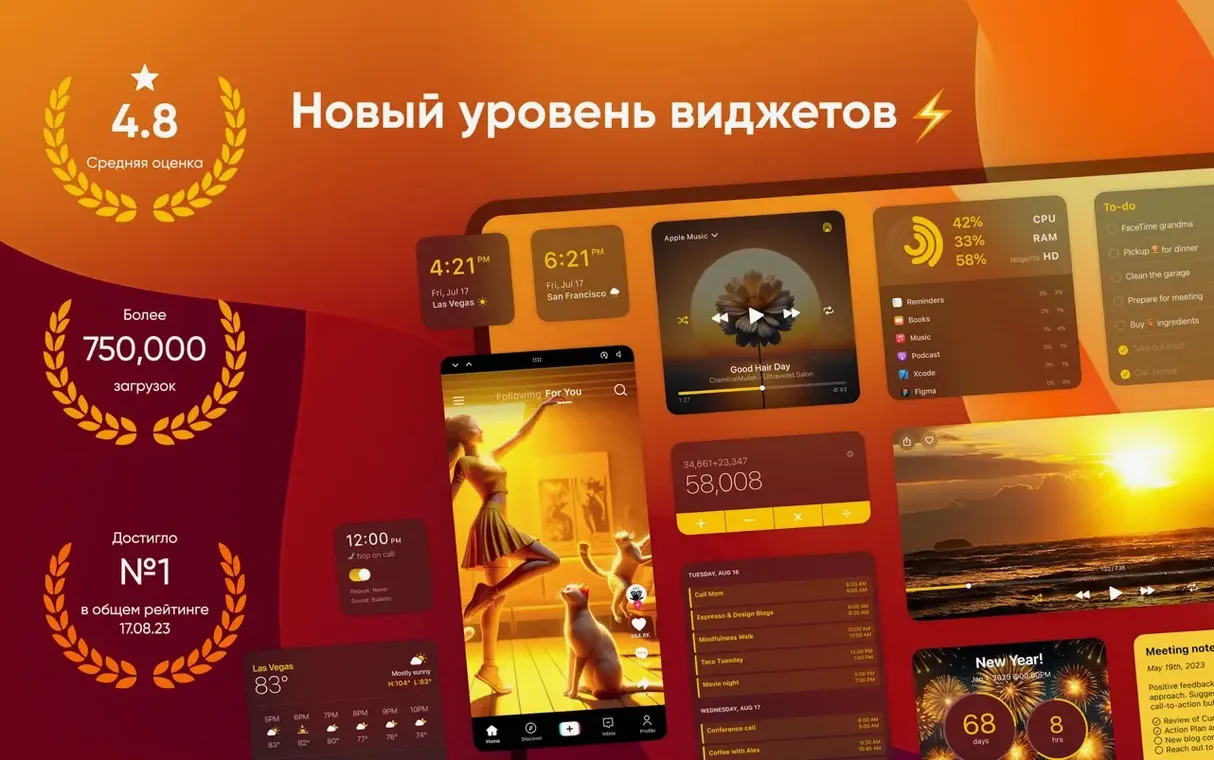
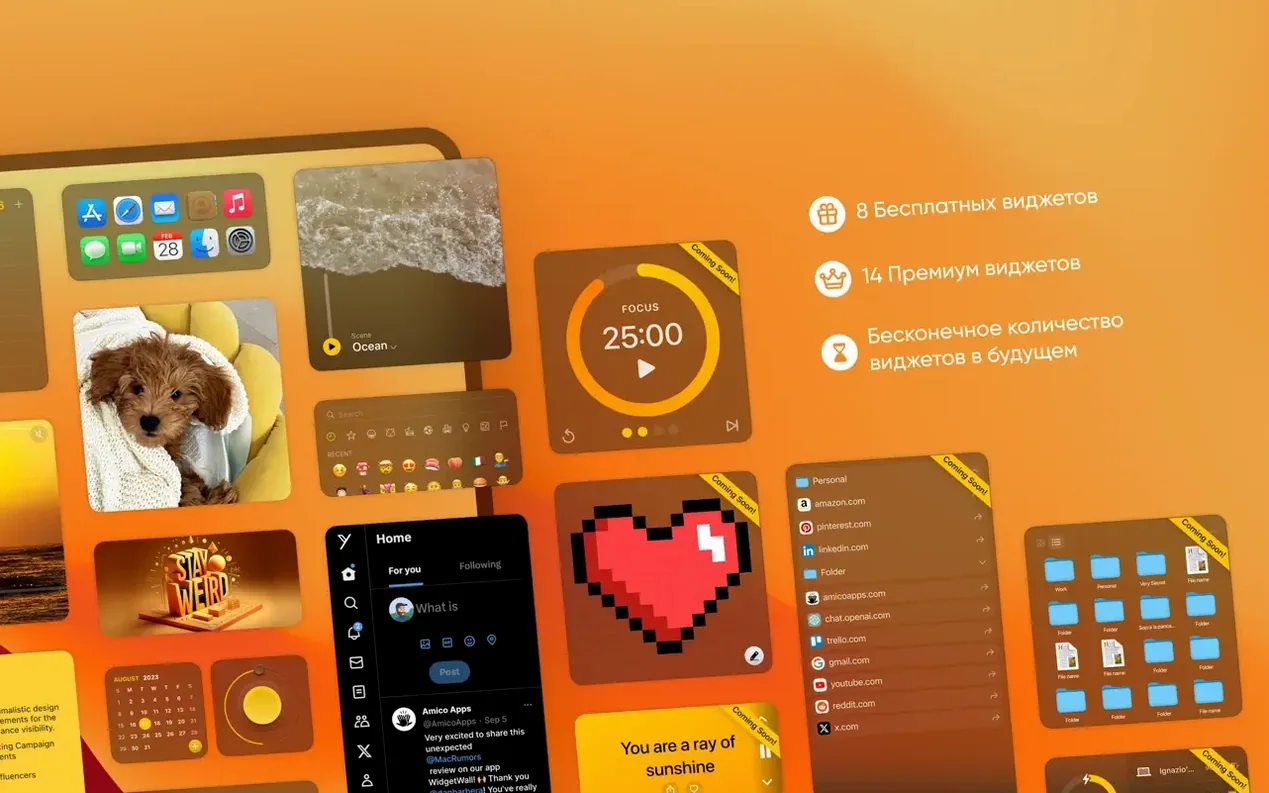
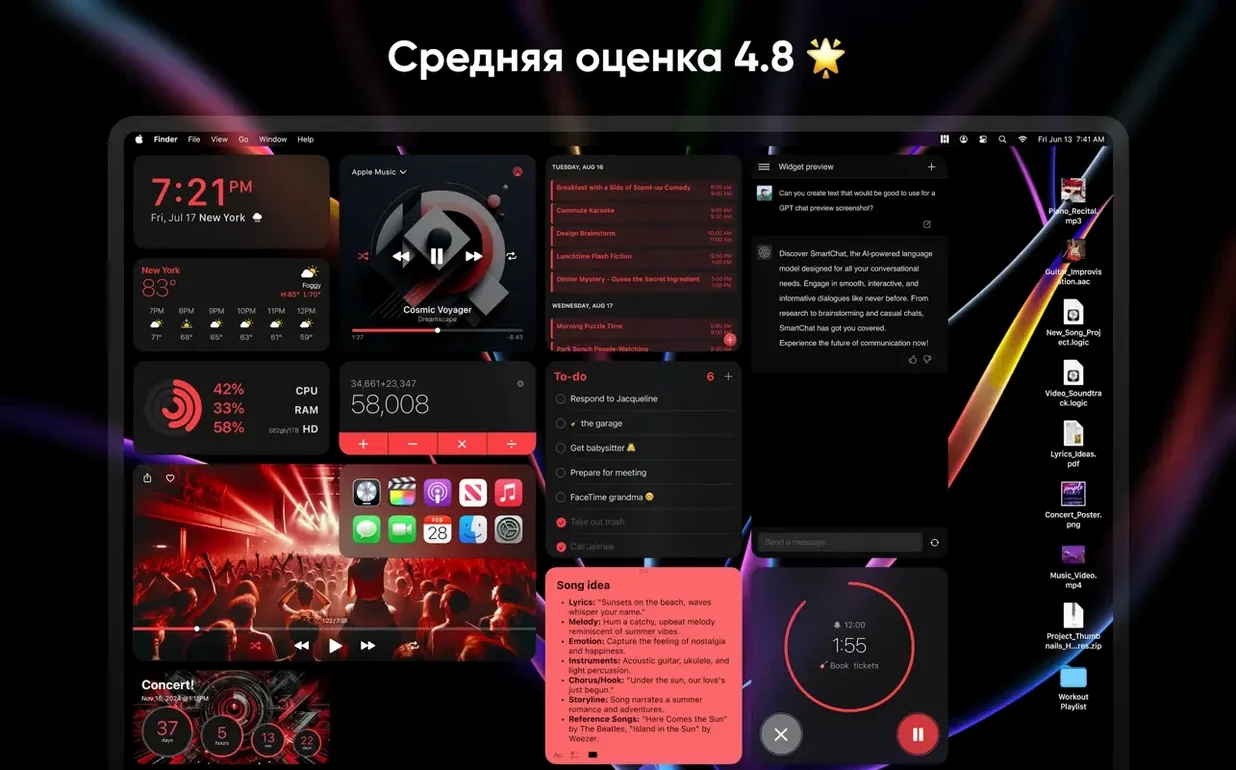
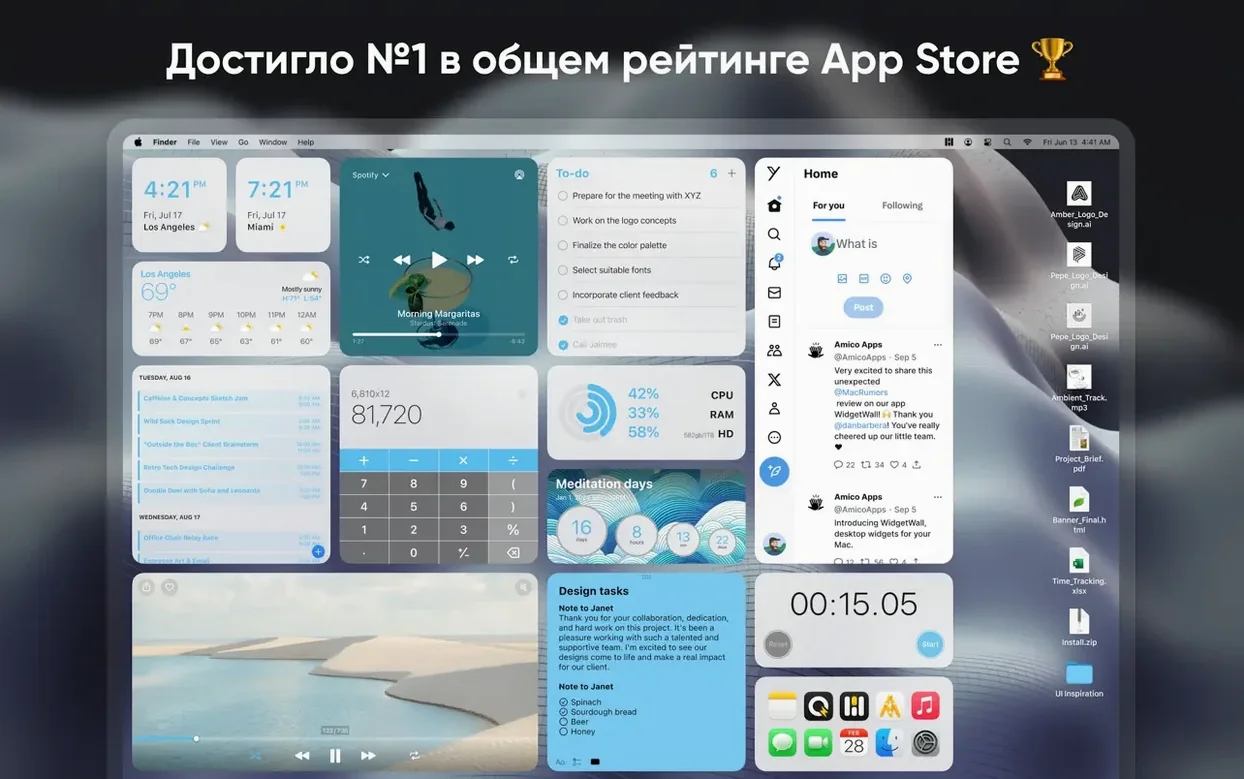
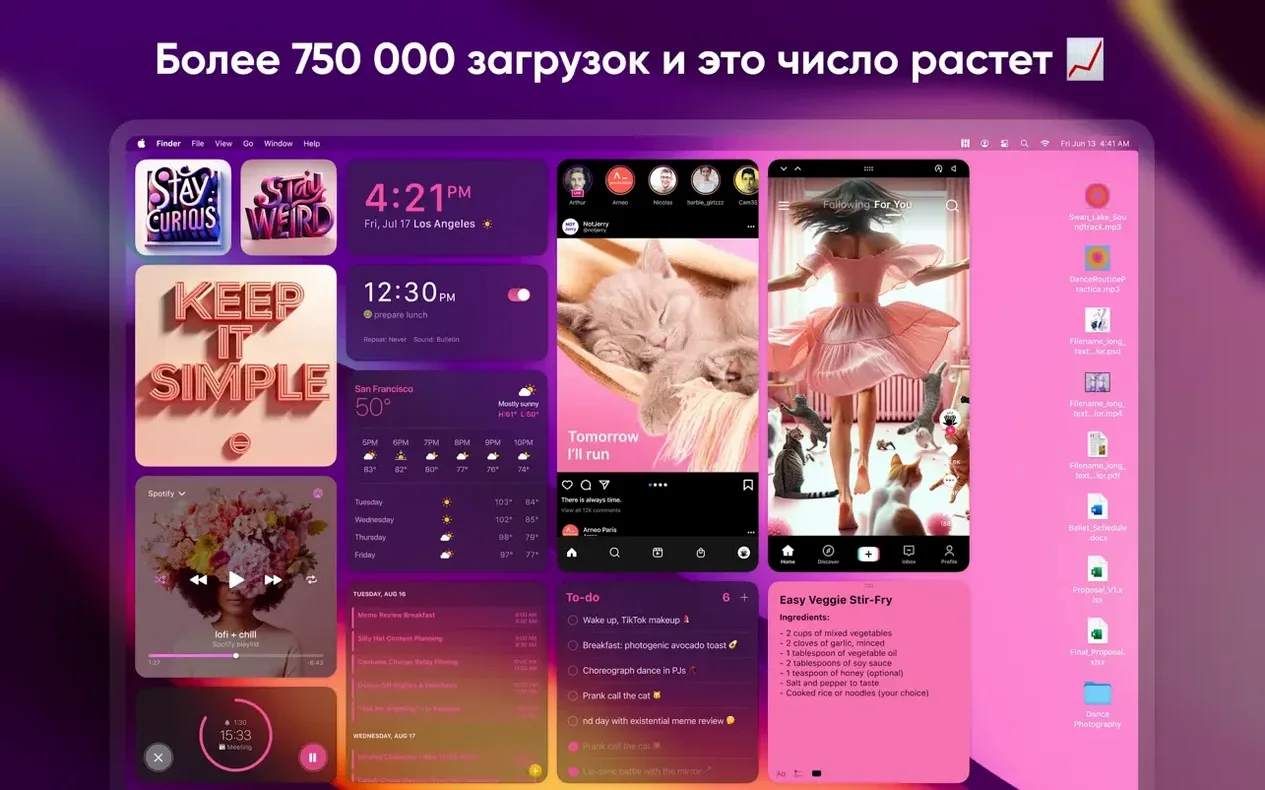
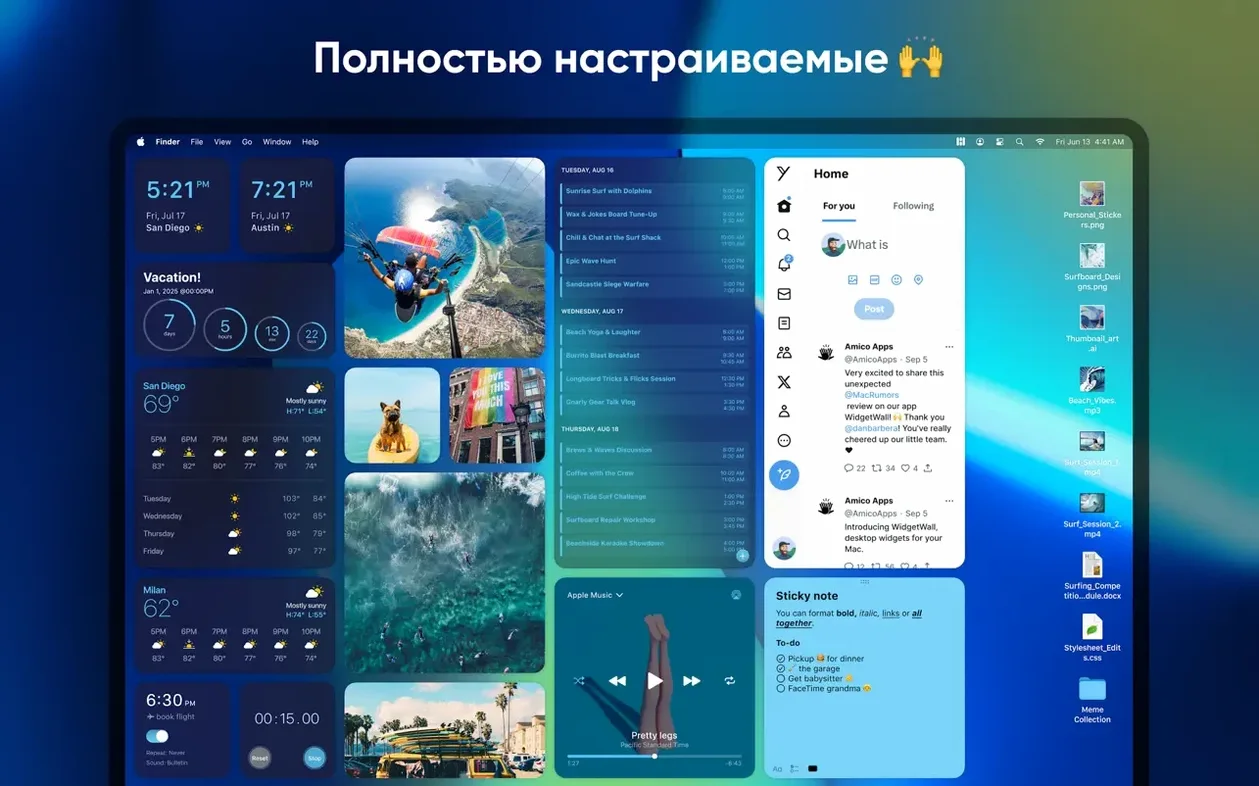
If you've ever used the built-in widgets in the Notification Center on your Mac, WidgetWall feels like someone finally pulled them out of the sidebar and let them live directly on your desktop. It's a standalone app by Amico Apps LLC that layers clock, calendar, sticky notes, and a couple dozen other utility widgets right onto your wallpaper.
Pomodoro timer, calculator, and notes pinned to your desktop
- Keeping a Pomodoro timer, calculator, or notes always visible without opening a separate app
- Light system monitoring with the Stats widget
- Quickly launching apps or checking the weather from the desktop
Only positions on the desktop layer and includes stickers
- Requires macOS 12 or later on an Intel 64-bit or Apple Silicon Mac
- Widgets come in small, medium, and large sizes, but positioning is limited to the desktop layer
- The collection includes playful items like stickers and an emoji browser alongside practical tools
A clock and weather panel appear the moment it launches
I drag the WidgetWall icon into /Applications, launch it from Spotlight, and the desktop shifts immediately—a clock appears in the upper right, a small weather panel settles near the menu bar, and a confetti burst animation plays once before settling down. No setup wizard, no onboarding slides. The app just starts placing its default set.
First thing I do is prune. I right-click the confetti widget and remove it, then resize the clock from medium to small by grabbing the corner handle. The calendar widget sits too far left, so I drag it toward the center—it snaps loosely to an invisible grid, not pixel-perfect but close enough that things look intentional. I add a Pomodoro timer from the widget picker and place it below the clock. Twenty-five minutes later it chimes with a gentle alert sound, and I realize I've been writing without checking my phone once. That's the loop: add something useful, reposition it once, then forget the app is running.
Pulls tasks from Apple Reminders so phone additions appear instantly
WidgetWall doesn't replace system apps—it borrows from them. The Reminders widget pulls from Apple's Reminders database, so a task I add on my phone shows up on the desktop within seconds. Calendar reads the same .caldav or iCloud calendars the system uses. Music widget hooks into the now-playing track from the Music app, showing album art and a scrubber bar. These aren't separate data silos; they're windows into the same stores macOS already maintains.
Where it gets interesting is with Quick Notes and Stage Manager. With Stage Manager active, WidgetWall's desktop layer sits behind the active window group, so widgets stay visible but don't steal clicks. Hot Corners work fine—flick the pointer to a corner to reveal the desktop and all widgets are there waiting. If you use cmd+opt+H to hide other apps, WidgetWall ignores that command and keeps displaying. It's aware of Spaces too: widgets are per-desktop, so you can have work timers on one Space and a TikTok feed widget on another.
Stats widget shows CPU, memory, and network at a glance
The Stats widget makes WidgetWall surprisingly useful for developers and anyone monitoring system resources. It shows CPU load, memory pressure, and network throughput in a compact panel—not as detailed as htop in a terminal, but glanceable. Students running Pomodoro sessions alongside a browser and a notes app get the timer always in view without a separate window to manage. The Calculator widget saves about three keystrokes over launching Spotlight, which sounds trivial until you've used it fifty times in a session.
Creative professionals might appreciate the White Noise widget paired with the Music controller—ambient sounds from one, playback control from the other, neither requiring a window switch. The TikTok widget is an odd inclusion, more entertainment than productivity, but streamers or social media managers juggling platforms might keep it on a secondary Space. WidgetWall also installs an App Shortcuts widget that acts like a compact launcher—useful for people who dislike crowded Docks but don't want to memorize every Spotlight abbreviation.
Around 120–180 MB of memory with a dozen static widgets
On an Apple Silicon Mac, WidgetWall sits around 120–180 MB of memory with a dozen active widgets. CPU draw is negligible when static widgets like Clock or Calendar dominate the layout; animated widgets like Video or Confetti push it higher, into the 4–7% range on an M-series efficiency core. It's not nothing, but it's comparable to having a couple of Safari tabs open. The process list shows a single WidgetWall entry—no helper daemons, no background agents left running after quit.
Stability over a full workday holds up. I left it running through sleep-wake cycles, display disconnects, and a macOS minor update. One crash occurred when resizing a Photos widget with a very large local library selected, but the app relaunched with the same widget layout intact and the problematic widget disabled. The widget wall download free approach means you install once and everything works without accounts or sign-ins, which keeps startup time under two seconds cold, essentially instant warm. If you're searching for widgetwall download mac, you'll find the disk image straightforward—mount, drag, done.
Disk footprint after a few days of use settled at roughly 90 MB for the app bundle itself plus some cached widget data in ~/Library/Application Support/WidgetWall. If you're doing a widget wall download on a Mac with limited storage, that's light. The app respects macOS energy settings and pauses animated widgets when on battery if the system is in Low Power mode, though this isn't a user-facing toggle—it follows the system preference.
- macOS 12 (Monterey) or later
- Apple Silicon (M1, M2, M3) or Intel 64-bit processor
$ man widgetwall | grep -A2 "?"
Does WidgetWall run on Apple Silicon Macs?
Yes, WidgetWall runs natively on both Apple Silicon and Intel 64-bit Macs, as long as you're on macOS 12 Monterey or later.
What kinds of widgets are included?
The app includes a wide mix: Clock, Calculator, Photos, Stopwatch, Timer, App Shortcuts, Video, White Noise, Pomodoro Timer, Alarm, Countdown Timer, Countup Timer, Emoji Browser, TikTok, Weather, Stats, Music, Calendar, Reminders, Notes, Browser, and Confetti.
Can I resize the widgets?
Yes, each widget is available in three sizes—small, medium, and large—so you can fit them into different spots on your desktop.
Comments 0
Sign in or create an account to leave a comment.
No comments yet. A codec, a slice, a machine — they appear after moderation.