Wipr for macOS
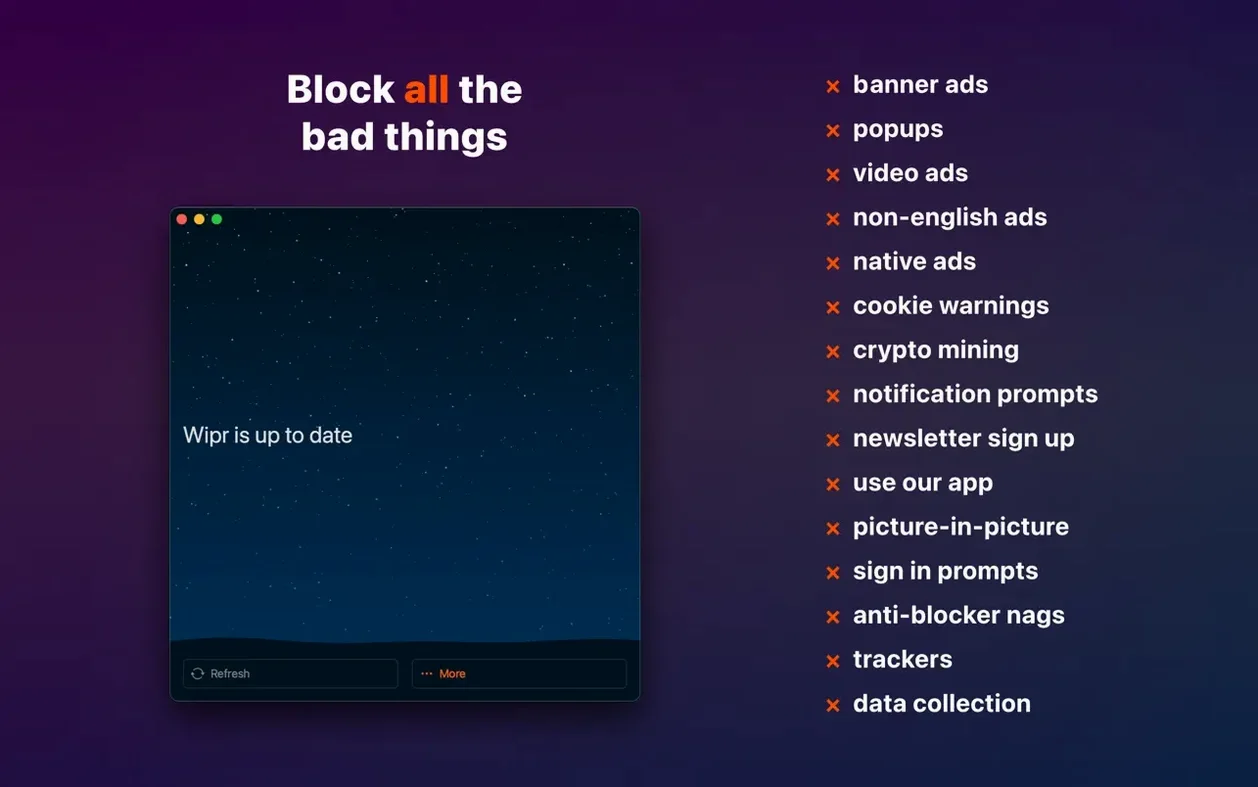
Version 2.38 landed with two changes worth knowing about. Wipr Extra got improvements on many websites, which means the extension's extra blocklist rules now catch more of what slips past the base filter. Accessibility also got attention in this release.
If you're considering Wipr 2, here's the installation path from start to finish.
- Download the disk image and mount it in Finder.
- Drag the Wipr 2 app onto the Applications folder alias inside the mounted volume.
- Open Launchpad once the copy completes and launch it from there.
- Follow the prompt to disable SIP if your system requires it for full blocking.
Wipr 2 runs on Apple Silicon and Intel 64-bit Macs. It also carries over to iPhone, iPad, and Vision Pro, so the same blocklist covers you across devices. The main draws are fewer ads, fewer popups, and cookie warnings gone — plus faster page loads since less data gets downloaded. Tracker blocking is built into the same engine.
How does Wipr 2 compare with other Safari content blockers?
Three names come up regularly in the same conversation: 1Blocker, AdGuard for Safari, and Wipr 2. They solve the same problem in notably different ways.
1Blocker gives you a control panel full of toggle switches — you decide exactly which categories of content to block, down to custom CSS rules and per-site settings. That flexibility is real, but so is the setup time. Wipr 2 takes the opposite approach: you install it, you enable it in Safari, and you walk away. There is no dashboard to tweak because the blocklist updates itself twice a week and the engine decides what to apply. If you enjoy fine-tuning rules, 1Blocker is the better fit. If you want to forget the blocker exists, Wipr 2 wins.
AdGuard for Safari sits somewhere in the middle. It ships with a broader feature set — DNS filtering, a network extension, and an advanced rules editor — but that also means more surfaces for things to break. AdGuard uses a combination of Content Blocker API rules and its own network filtering, which can occasionally conflict with other extensions or VPNs. Wipr 2 sticks strictly to the Content Blocker API, which keeps its footprint small and its compatibility predictable. The trade-off is that AdGuard can block in-app ads system-wide on iOS; Wipr 2 cannot, because it lives entirely inside Safari's extension sandbox.
Where Wipr 2 pulls ahead is maintenance burden. Both 1Blocker and AdGuard ask you to make decisions about filter lists and update schedules. Wipr 2 ships with a single curated blocklist compiled from multiple sources and refreshed on a fixed cadence. That matters when you set it up on a family member's Mac and never want to hear about it again.
The SIP prompt that confuses every new user
The biggest source of confusion is the SIP prompt. On some macOS setups, Wipr 2 asks you to disable System Integrity Protection for full blocking capability. This happens because certain advanced blocklist features need write access to protected directories. The prompt explains what to do — reboot into Recovery Mode, open Terminal, run csrutil disable — but it is worth understanding that this is optional. Wipr 2 blocks ads and trackers without touching SIP. Disabling it only unlocks Wipr Extra enhancements on specific sites. If you are uncomfortable lowering SIP, skip the step and the extension still works.
Another common issue: after installing Wipr 2, some sites break. A login form disappears, a video refuses to play, a checkout button goes missing. The fix sequence is simple. Open Safari, click the Wipr 2 icon in the toolbar, and toggle the extension off for that site. Reload the page. If that solves it, leave the site-specific exception in place. The twice-weekly blocklist updates often resolve these false positives on their own, so you can revisit the exception a week later and re-enable blocking.
Users who migrate from the legacy Wipr app sometimes end up with both extensions enabled. That can cause double-processing of requests and visibly slower page loads. Check Safari Settings → Extensions and make sure only Wipr 2 is active; uninstall the old Wipr entirely if it is still listed.
A less obvious snag: Wipr 2 does not block YouTube ads inside Safari as reliably as it blocks ads elsewhere. This is not a bug in Wipr 2 — it is a consequence of how YouTube serves ads from the same domains as video content. No pure Content Blocker API extension handles YouTube perfectly. The workaround is practical: use a dedicated YouTube frontend or accept that some pre-roll ads will slip through.
Safari-only minimalists who never want to tweak a list
Three groups benefit disproportionately from how Wipr 2 is built.
Safari-first users who do not want to think about blocking. If Safari is your only browser and you have never opened a filter list editor, Wipr 2 matches your habits exactly. You enable it once and the blocklist evolves without you. The app never interrupts with a notification, a nag screen, or a prompt to review a new rule. That silence is the feature.
People managing Macs for less technical users. A parent, a partner, a colleague who clicks through every popup and ends up on pages full of blinking banners — Wipr 2 installed and enabled in Safari cuts down a surprising amount of support calls. There is nothing for them to configure incorrectly, and the twice-weekly updates keep the blocklist current without their involvement. Combine it with a wipr 2 download from the developer's site and a drag-to-Applications install, and the whole setup takes under a minute.
Privacy-conscious users who want a lightweight stack. Every extension you add to Safari increases the browser's attack surface and memory footprint. Wipr 2 does one job through one API and loads a single, compiled blocklist. Compared to extensions that bundle a JavaScript engine or run a local proxy, Wipr 2 adds minimal overhead. If you are already running a VPN and a password manager, a lightweight content blocker keeps your Safari extension list tight.
A specific workflow: blocking cookie notices and trackers on a news site
Here is a concrete walkthrough using Wipr 2 on a European news site — the kind that greets you with a full-screen cookie consent wall and a dozen trackers behind the scenes.
You open the article link in Safari. Without Wipr 2, the page loads a cookie banner asking you to accept or customize dozens of tracking purposes. Behind that banner, the site's JavaScript fires off requests to ad exchanges, analytics services, and social media embeds. Page load time on a cold cache is often six to ten seconds.
With Wipr 2 enabled, the cookie wall never renders. The extension's blocklist matches the consent management platform's domains and drops those requests before the JavaScript executes. The same pass catches calls to the major tracker networks embedded in the page. The article text and images load directly, usually in under three seconds. You scroll and read without ever seeing a consent prompt.
If a particular element survives the blocklist — say, a newsletter popup that appears after ten seconds on the page — you tap the Wipr 2 icon in Safari's toolbar. The menu shows the extension's status for the current domain. Toggling it off reloads the page with all blocking lifted, which is useful if the popup is actually a required age gate. Once you have finished on that domain, toggle it back on. The exception stays until you clear Safari's extension settings.
Behind the scenes, the blocklist that made this work was fetched from the developer's update server within the last three days. Wipr 2 checks for updates twice a week, so the rules adapt as sites change their consent providers. You did not need to open the app, approve anything, or read a changelog. The entire workflow from opening the article to finishing it involved no interaction with the blocker at all — and that is the design goal.
- Wipr Extra improvements on many websites
- Accessibility improvements
- macOS 10.13 or later
- Apple Silicon or Intel 64-bit Mac
- Interface language: English
Comments 0
Sign in or create an account to leave a comment.
No comments yet. A codec, a slice, a machine — they appear after moderation.