WinZip Mac Pro for macOS
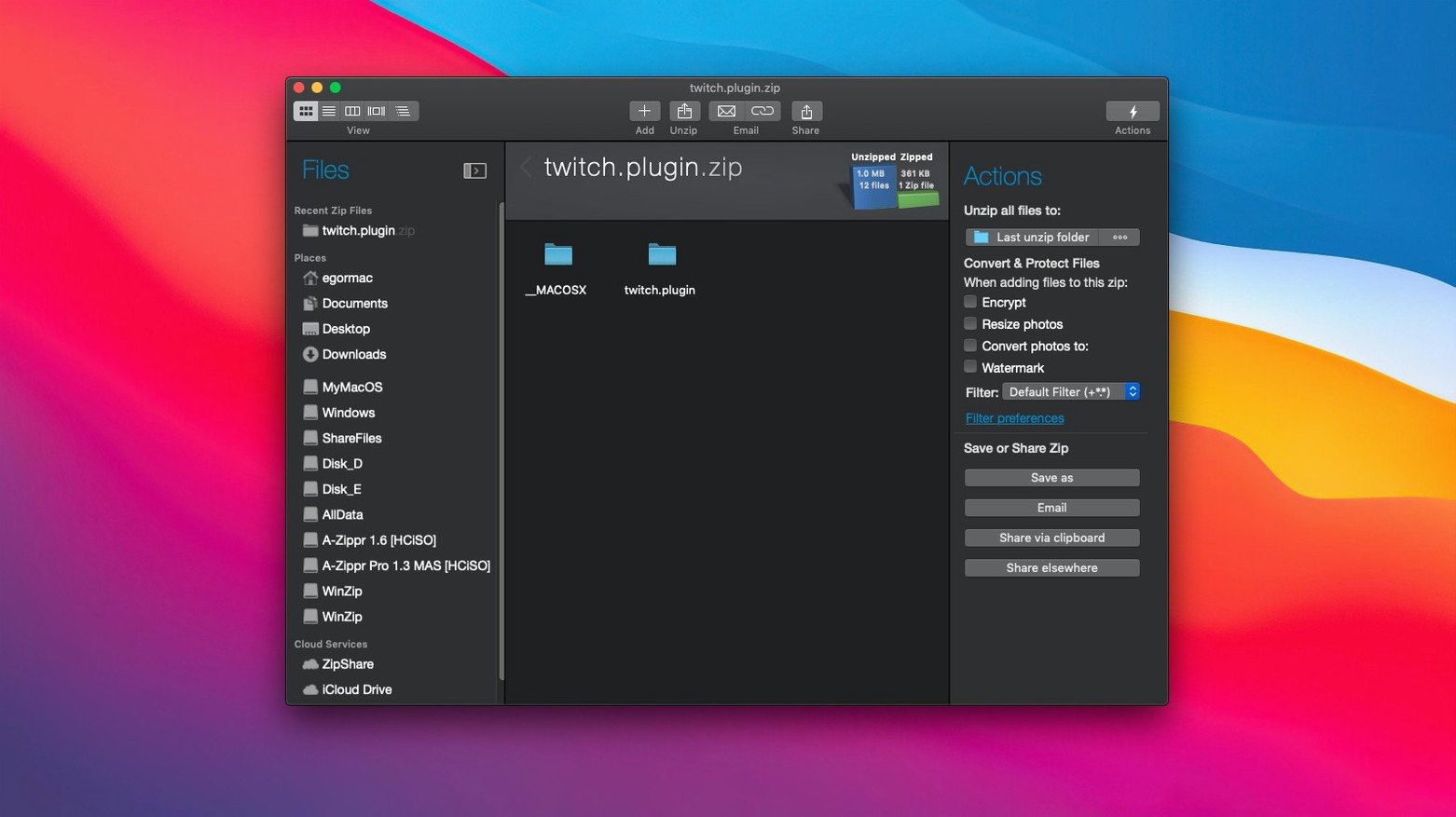
You have a folder of old project archives — some are RAR, a few are 7Z, and one is a LHA file you haven't opened since 2006. You need to send them to a colleague, but you want everything in one standard format, compressed enough to email, without hunting down a different extractor for each format. That is the kind of tangle WinZip Mac Pro was built to unknot.
| Detail | Info |
|---|---|
| Current version | 12.0.7282 |
| macOS requirement | macOS 10.15 or later |
| Architecture | Apple silicon and Intel 64-bit |
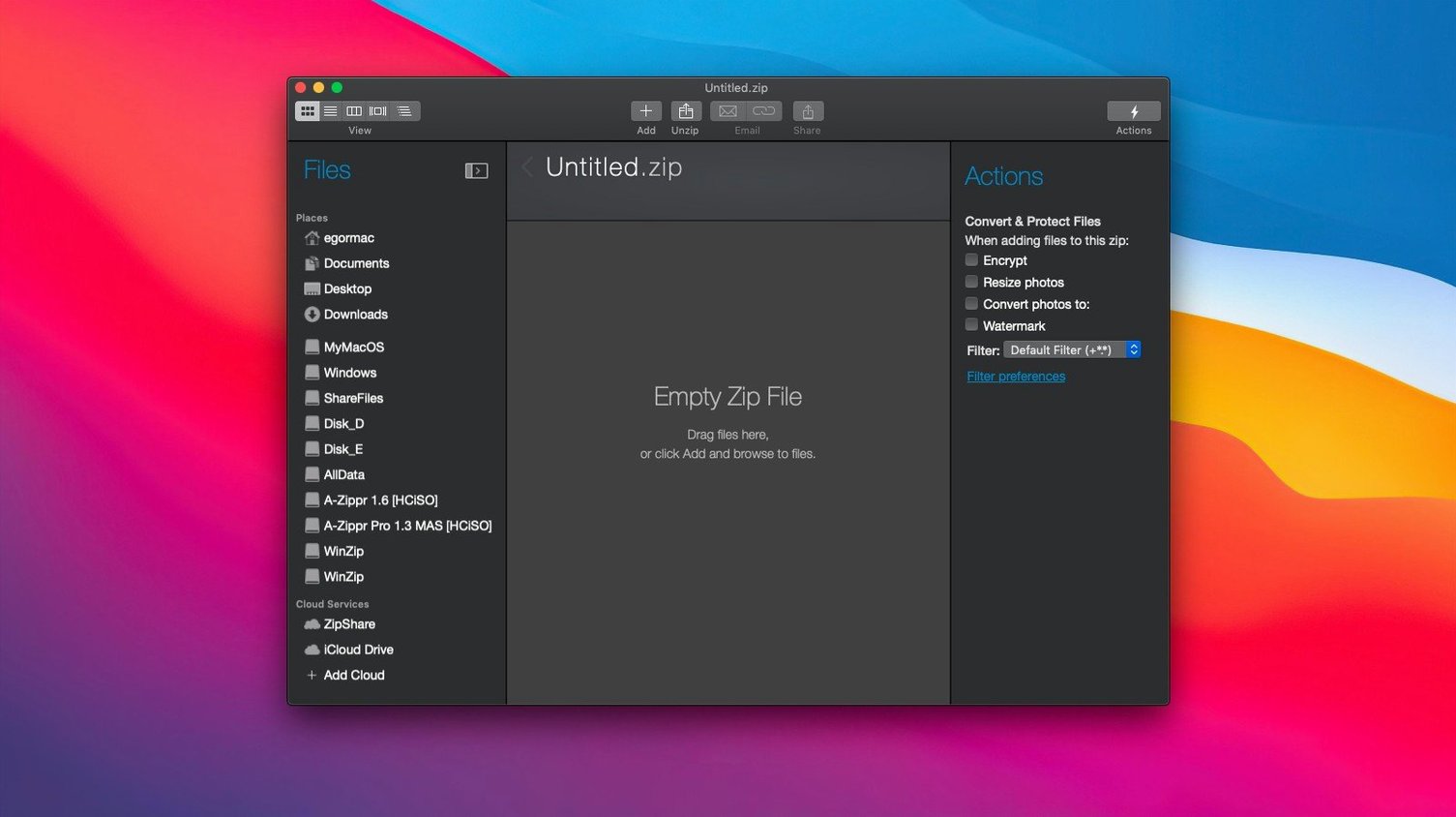
Fire it up, drag in that mess of files, and the app can instantly convert LZH, RAR, 7Z, TAR, GZ, BZ, XZ, and a handful of other formats straight into Zip or ZipX — no intermediate extraction step required. The duplicate file detection quietly flags copies so you don't bloat the output. A macOS-native interface replaces the older cross-platform look, and the whole operation taps the processor properly on both Intel and Apple silicon machines. You end up with a single, encrypted Zip file that slashes the disk footprint and is ready to share.
A Tuesday morning handoff: encrypted Zip from a .7z and loose tarballs
Say it's Tuesday morning and a client has sent over project_assets.7z plus four loose .tar.gz log bundles. You need one encrypted Zip to hand off to the legal team, and it has to live in a shared Dropbox folder. Here's how the next three minutes play out.
- Drag everything onto the window. You grab the 7Z from your Downloads, the tarballs from Documents, and drop them in. WinZip reads all five without a single extractor prompt.
- Spot the duplicates. A small warning badge appears — the
license.txtinside the 7Z matches one buried in the second tarball. You uncheck the copy. No sense emailing it twice. - Pick ZipX with AES-256. From the format dropdown you choose ZipX, set a password, and tick the encryption checkbox. The compression slider stays on "better" because you care more about size than speed for an email attachment.
- Send it straight to Dropbox. Instead of saving locally and then uploading, you hit the cloud destination, select the
/Legal/Closed casesfolder in Dropbox, and save. One step, done. - Clipboard the password. You copy the password you typed, paste it into a separate Signal message to your colleague, and move on.
The whole thing runs natively — the .pkg installs a universal binary, so the compression threads spread across the efficiency and performance cores without a hitch. The interface doesn't stutter when you drag 40 items at once, and the progress bar actually tells you which file it's working on right now, not just a vague percentage.
Three Mac archivers, three different shoulders of the problem
Three tools tend to come up in conversation: the built-in Archive Utility, Keka, and BetterZip. They overlap, but they aim at different shoulders of the same problem.
Archive Utility. It's free, it's already on your Mac, and it handles Zip, GZ, and tar. It does nothing else. No encryption, no format conversion, no cloud destinations, no duplicate detection. If you only ever receive plain Zip files and never create anything protected, it's fine. The moment you need to open a RAR or produce an encrypted archive, you're downloading something else. WinZip Mac Pro starts where Archive Utility stops.
Keka. Keka reads and writes a staggering list of formats, including 7Z and RAR, and supports AES-256 encryption. It's donation-supported, lightweight, and beloved by developers. The gap is in workflow integration. Keka sits in the Dock or menu bar and does one-shot compression and extraction. It doesn't connect to cloud services, doesn't detect duplicates within an archive, and won't convert between formats without extracting everything first. If you need a fast compressor, Keka is great. If you need a file-handling hub that talks to Dropbox and iCloud Drive directly, you'll feel the difference.
BetterZip. This is the closest comparison. BetterZip lets you peek inside archives without extracting, edit contents, apply filters, and use strong encryption. It also supports AppleScript, which WinZip Mac Pro does not. Where WinZip pulls ahead is batch format conversion and the direct cloud connections. BetterZip expects you to manage files locally; WinZip lets you pull from iCloud, compress, and save back to iCloud in one motion. If you script archive tasks, BetterZip earns its place. If you spend your day wrangling mixed-format archives and sharing the results, WinZip feels more direct.
Switch default compression to ZipX for modern recipients
Out of the box, the app works, but a few tweaks make it feel more like yours.
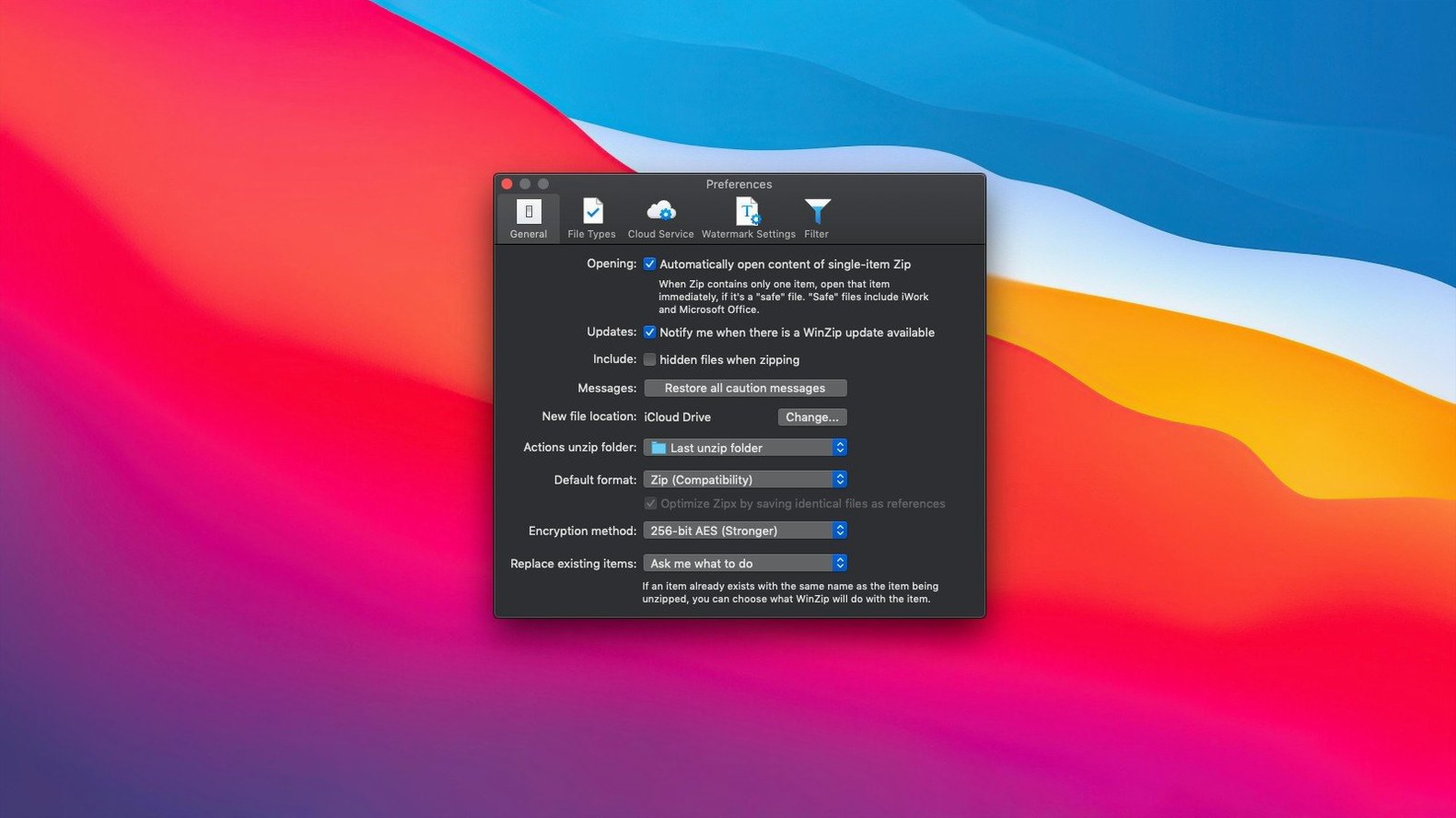
- Default compression format. The factory setting is standard Zip. Switch it to ZipX if your recipients are on modern systems — better compression, Unicode filenames, and AES encryption support baked in. If you often exchange files with Windows users still on old builds, keep it on Zip for compatibility.
- Encryption preset. Turn on "Always prompt for password" if you routinely encrypt client work. It's too easy to send an unencrypted archive by muscle memory. The setting lives under Preferences > Compression, not in the main window, so it's easy to miss.
- Cloud service connections. Sign into iCloud Drive, Dropbox, or Google Drive from the Preferences pane. Once connected, the save dialog shows them as first-class destinations. Without this step, you're still dragging files to Finder folders and then waiting for sync — it works, but you lose the single-step workflow.
- Duplicate detection threshold. By default it flags exact byte-for-byte matches. You can set it to also catch files with the same name and size but different timestamps. Useful if you've shuffled projects between drives and Finder sprinkled new dates on everything.
Paste files straight into a new archive from Finder
WinZip Mac Pro doesn't try to replace Finder — it extends it. Drag a file from Finder into the app, or copy a file in Finder and paste it straight into a new archive using the Mac clipboard support. The reverse works too: you can copy a file out of an archive and paste it into an email or a Finder folder without extracting the whole thing first. Mail.app and Outlook both accept the pasted file as an attachment, though Mail will still prompt about size limits on its own.
With cloud services, the integration is deeper than it first appears. When you save directly to iCloud Drive, the file lands in the ~/Library/Mobile Documents tree just as if you'd put it there yourself, so any other Mac signed into the same Apple Account sees it immediately. Dropbox and Google Drive work the same way through their respective sync engines. Because the app writes a full temporary working copy during conversion, you'll want some free local space even when your destination is cloud-only — a 2 GB tarball being converted to ZipX will touch your SSD before it lands in the cloud.
Spotlight indexes the resulting archives without complaint. You can search for a filename inside a Zip or ZipX right from the Finder search field, though you can't yet search inside the archive contents without opening the app. If you use Time Machine, the archives you create are backed up normally — the encrypted ones won't leak their contents to the backup, but the file itself is captured, password protection and all.
- Version 12.0.7282 is the current release.
- macOS 10.15 or later
- Apple silicon or Intel 64-bit processor
- Interface: English
$ man winzip-mac-pro | grep -A2 "?"
What archive formats can WinZip Mac Pro convert to Zip?
It can instantly convert LZH, LHA, RAR, 7Z, TAR, Z, GZ, TAZ, TGZ, BZ, XZ, and Z files into Zip or ZipX archives.
Comments 0
Sign in or create an account to leave a comment.
No comments yet. A codec, a slice, a machine — they appear after moderation.