VideoProc Converter AI for macOS
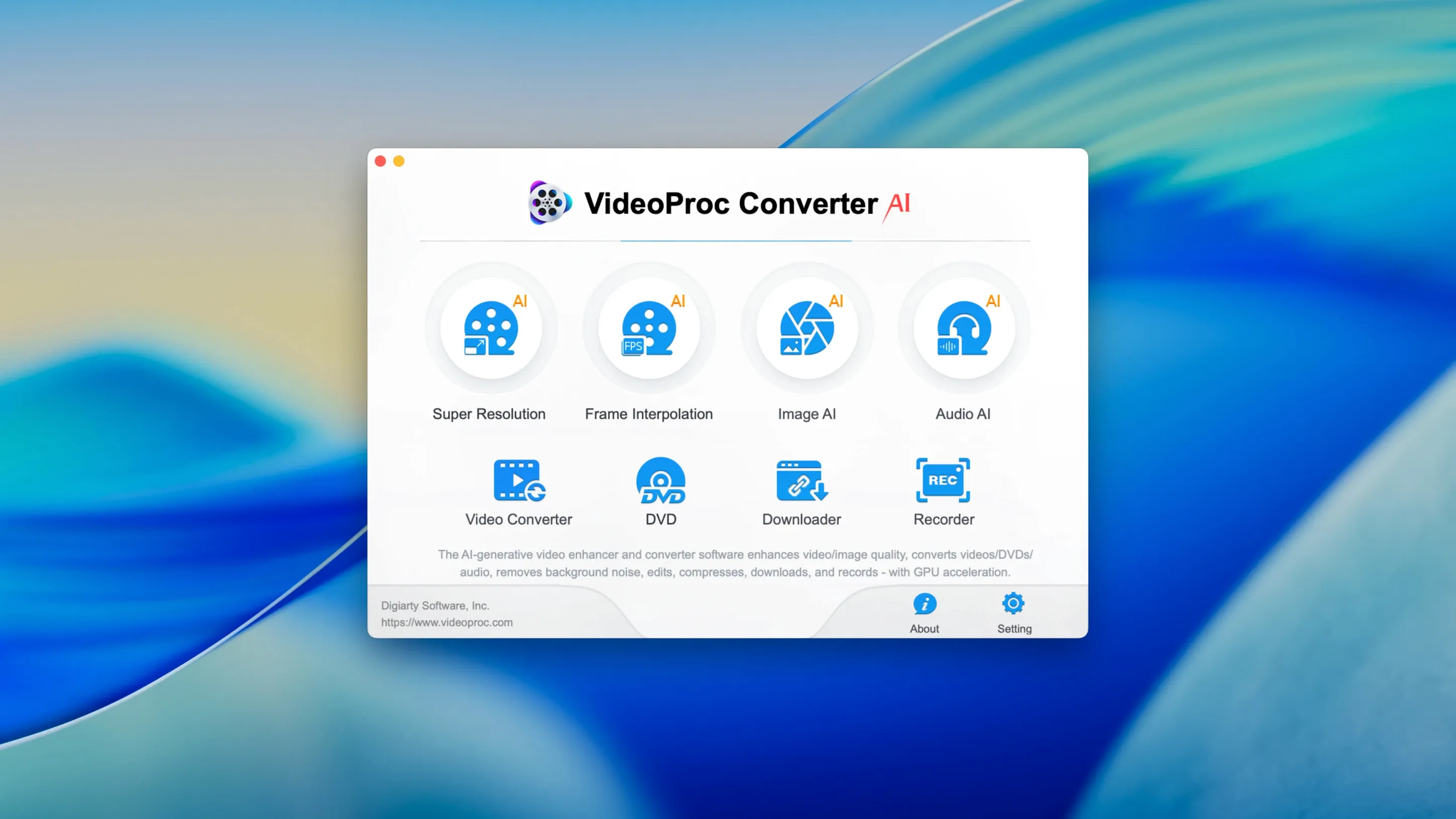
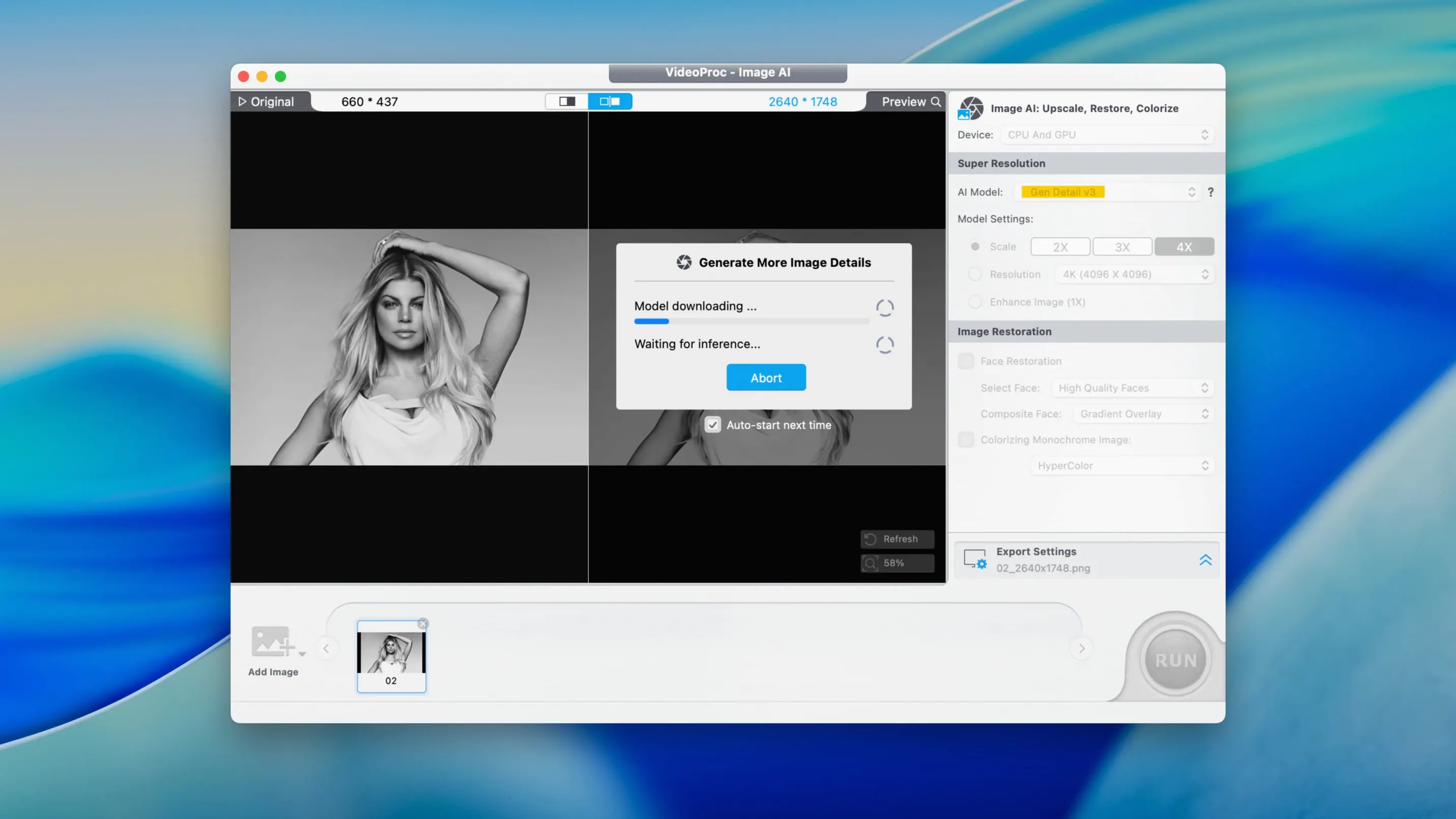
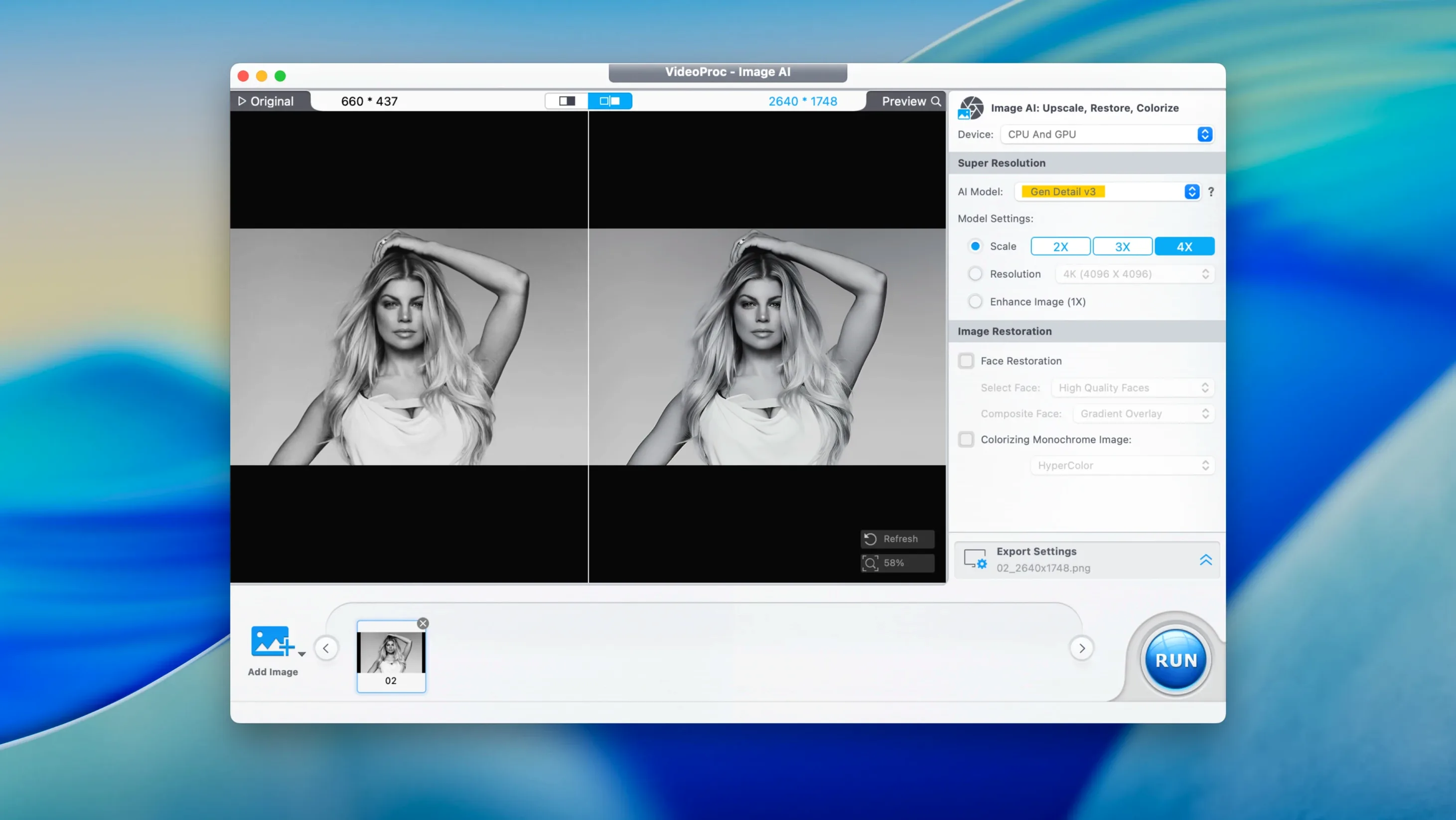
AI Super Resolution upscaling to 8K. That's the feature that signals what this app is about now. VideoProc Converter AI bundles conversion, compression, downloading, recording, and editing into a single Mac app, with a growing set of AI-driven enhancement tools sitting alongside the older format-conversion engine.
Good for:
- Converting between 4K, 8K, HDR, HEVC, ProRes, MP4, MOV, MKV, and AVI — the format list runs past a thousand containers and codecs.
- Shrinking video files by up to 90% with the compression engine, while keeping visible quality loss low.
- Recording from a webcam, including external cameras plugged into the Mac.
- Fine-tuning audio tracks: volume, bitrate, and sampling rate are all adjustable.
- Applying color corrections — brightness, contrast, saturation — without leaving the app.
Keep in mind:
- The AI upscaling to 4K or 8K is computationally heavy. An Apple Silicon Mac will handle it far more comfortably than an Intel machine, though the app runs on both architectures.
- The Downloader module got attention in version 8.12, but its real-world capture rate still depends on the source site's countermeasures.
- Version 8.12 trimmed the installer footprint and added macOS 27 and iPhone 18 support — small, practical housekeeping rather than a feature overhaul.
The cleanup station before your main editor
VideoProc Converter AI isn't trying to replace Final Cut Pro or DaVinci Resolve — it slots in earlier in the chain, or off to the side. Think of it as the prep and cleanup station. You pull footage from a mix of sources, get it into a consistent format, knock out noise or shake, maybe upscale old 480p clips so they don't look embarrassingly soft next to 4K phone footage, then hand the result off to a timeline editor.
On disk, the app installs to /Applications like any drag-and-drop Mac program. It registers itself for common media types during first launch, so double-clicking an .mkv or .avi can open it directly into VideoProc rather than QuickTime Player — handy if you work with formats Apple's built-in player won't touch. The Downloader module adds a browser-adjacent workflow: paste a URL, pick a format and resolution, and the app pulls the stream without needing a separate rip tool.
macOS integration is practical rather than flashy. The recording modules tap into the system's camera and microphone privacy prompts, so the first time you use screen or webcam recording, macOS will ask for permission — exactly as it would with QuickTime or OBS. Hardware acceleration talks to Metal, Intel Quick Sync, and the Apple Silicon media engines, which means encoding jobs stay off the CPU cores when the codec allows it. If you're compressing a big HEVC file on an M-series Mac, the progress bar moves noticeably faster than on a software-only encoder.
A half-day with a travel vlogger's footage
Imagine someone who shoots on a GoPro during the day, grabs drone clips from a second SD card, and records voiceover snippets on their phone in the evening. By the end of a trip, they've got a pile of .mp4 files at 4K 60fps, some .mov drone shots at 30fps, and a handful of .m4a voice memos. The timeline editor they use expects everything in 24fps ProRes, and the drone footage has noticeable sensor noise in the shadows.
They open VideoProc Converter AI and batch-load the GoPro and drone clips. The drone files get a pass through the AI denoiser — it's not magic, but it cleans up the chroma speckling enough that the dark forest shots look usable. All clips get a frame-rate conversion to 24fps, and the output codec is set to ProRes 422. The phone audio extracts straight to 48kHz WAV so it syncs cleanly later. While the batch runs, they paste a few YouTube URLs into the Downloader to grab royalty-free background music, pulling just the audio streams as AAC. By lunch, everything is in one format, in one folder, ready to cut.
Smooth slow motion from 0.1x to 2x without frame duplication
A few conveniences that aren't advertised on the feature list but matter in daily use:
- The speed controls run from 0.1x to 2x, and the interpolation isn't simple frame duplication — slow motion stays reasonably smooth at 0.25x if the source frame rate is high enough.
- Right-clicking a file in the queue lets you duplicate the job with all the same settings, then swap the output format. Useful when you need both an archival ProRes master and a compressed H.265 preview copy.
- The subtitle overlay tool accepts
.srtand.assfiles and burns them into the video stream — no separate muxing step needed. - Audio extraction works on a per-stream basis. If your source has multiple audio tracks, you can pull just the commentary track and leave the others behind.
- The compression slider has a live preview window that updates as you drag. It's a small 3-second sample, but it saves you from encoding an entire 40-minute file only to find the bitrate was too aggressive.
Enable hardware acceleration for Apple Silicon first
After dragging the app to /Applications and launching it once, a few configuration steps make the experience smoother.
Hardware acceleration. Open Preferences and confirm that hardware acceleration is enabled for your chipset. On Apple Silicon, the app should detect the Media Engine automatically. On Intel Macs with a discrete GPU, check that it's using the right encoder — occasionally the default picks the integrated GPU when the discrete one would be faster.
Output folder hygiene. The app defaults to saving output alongside the source files. If you're working from an external drive, that's fine. If you're converting files from your desktop, create a dedicated output folder — something like ~/Movies/VideoProc Output — so you're not hunting through a cluttered desktop later. There's a setting for this in Preferences under the General tab.
The Downloader's analysis phase. When you paste a URL, the app spends a few seconds analyzing available streams. Don't interrupt it. Closing the dialog mid-analysis can leave a partially cached manifest that causes the next attempt to stall. If that happens, clearing the Downloader's temporary folder (the path is shown in Preferences) resolves it.
AI upscaling expectations. The Super Resolution model works best on clean source material — reasonably sharp 480p or 720p footage. Feeding it a badly compressed, blocky 240p clip won't produce a miracle. Run a quick 10-second test segment before queuing an hour-long file. The preview render gives a realistic sense of what the final output will look like.
Presets for repeat jobs. If you regularly convert for a specific device — say, an iPad Pro at 120fps — set up the parameters once and save a custom preset. It'll appear in the device list alongside the built-in profiles, and you won't have to remember bitrate ceilings or pixel dimensions each time.
VideoProc Converter AI rewards a little upfront organization. Spend ten minutes setting output paths and testing AI parameters on short clips, and the queue-based workflow becomes genuinely hands-off for the rest of the week.
- macOS 10.15 (Catalina) or later
- Apple Silicon or Intel 64-bit
$ man videoproc-converter-ai | grep -A2 "?"
What formats does VideoProc Converter AI support?
It handles over 1,000 formats and codecs, including 4K, 8K, HDR, HEVC, ProRes, MP4, MOV, MKV, and AVI.
Does it run natively on Apple Silicon?
Yes, the app is a 64-bit universal binary that runs natively on both Apple Silicon and Intel Macs from macOS 10.15 onward.
Can it reduce video file sizes without ruining quality?
Its compression engine can cut file sizes by up to 90% while keeping quality loss reasonably low, and you can adjust bitrate and codec parameters manually for finer control.
Comments 0
Sign in or create an account to leave a comment.
No comments yet. A codec, a slice, a machine — they appear after moderation.