Wondershare UniConverter for macOS
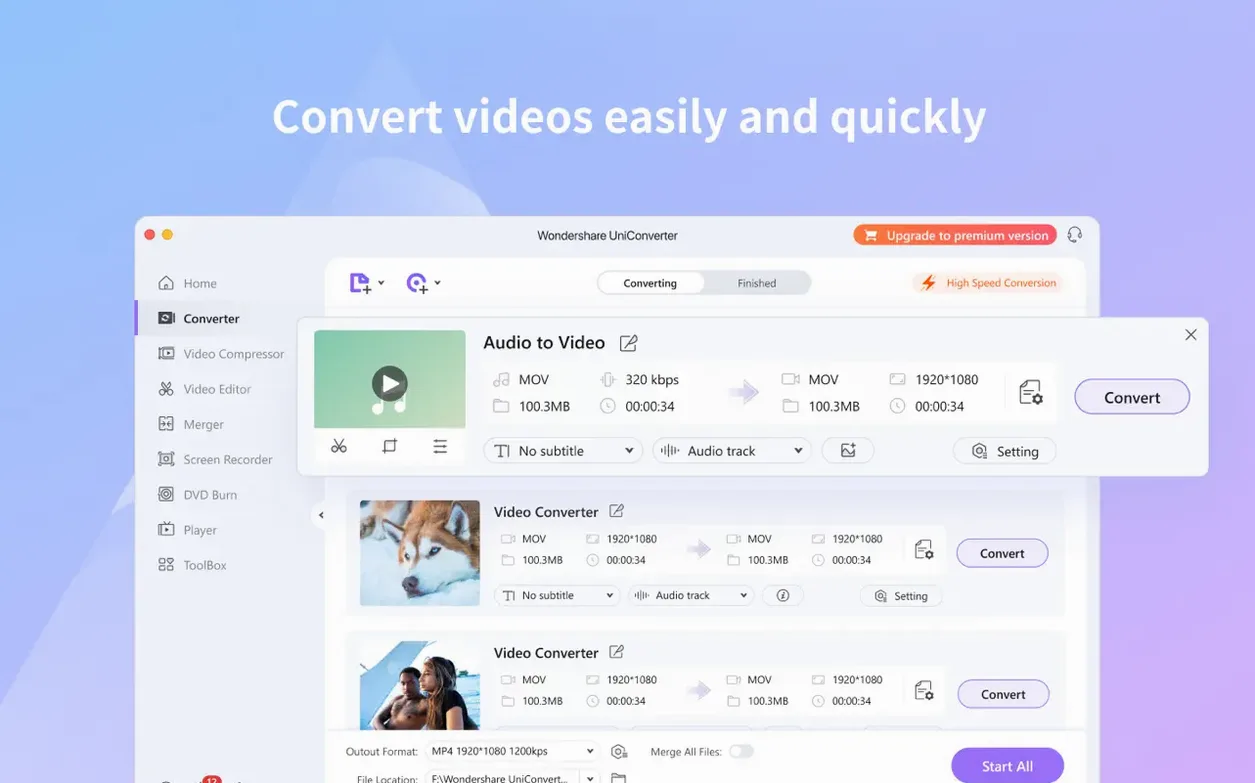
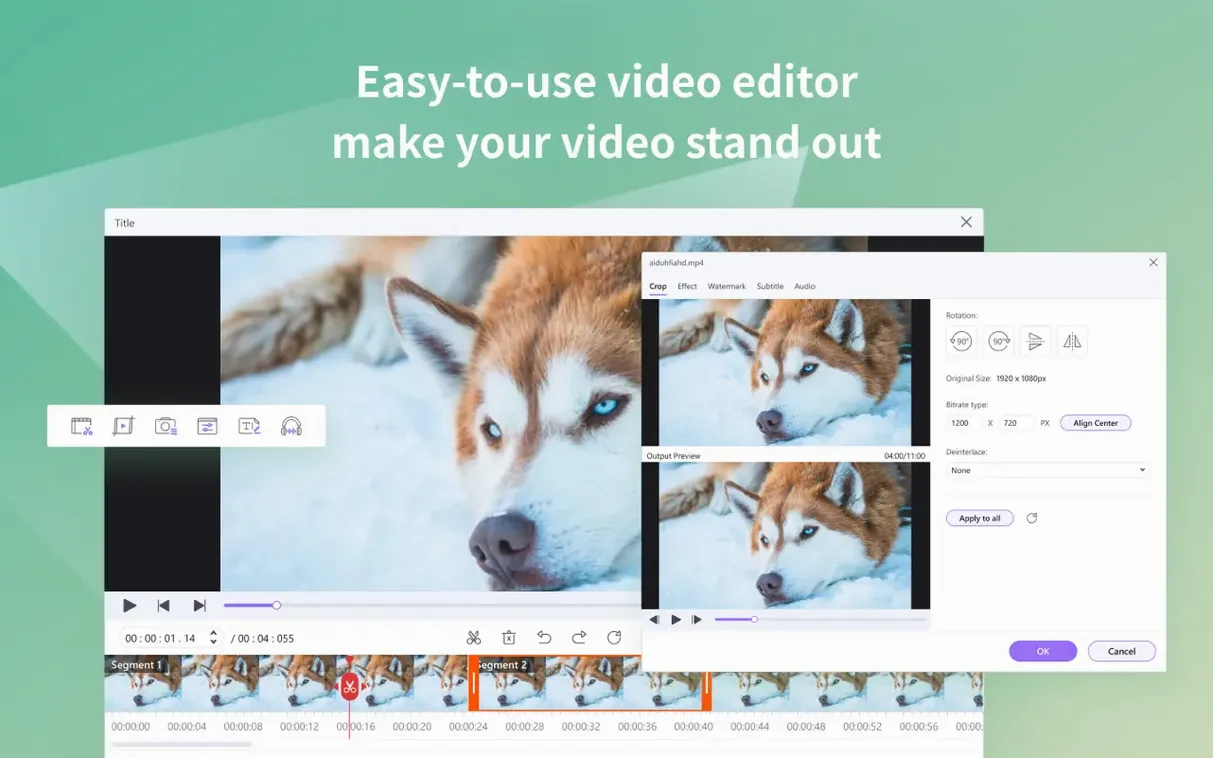
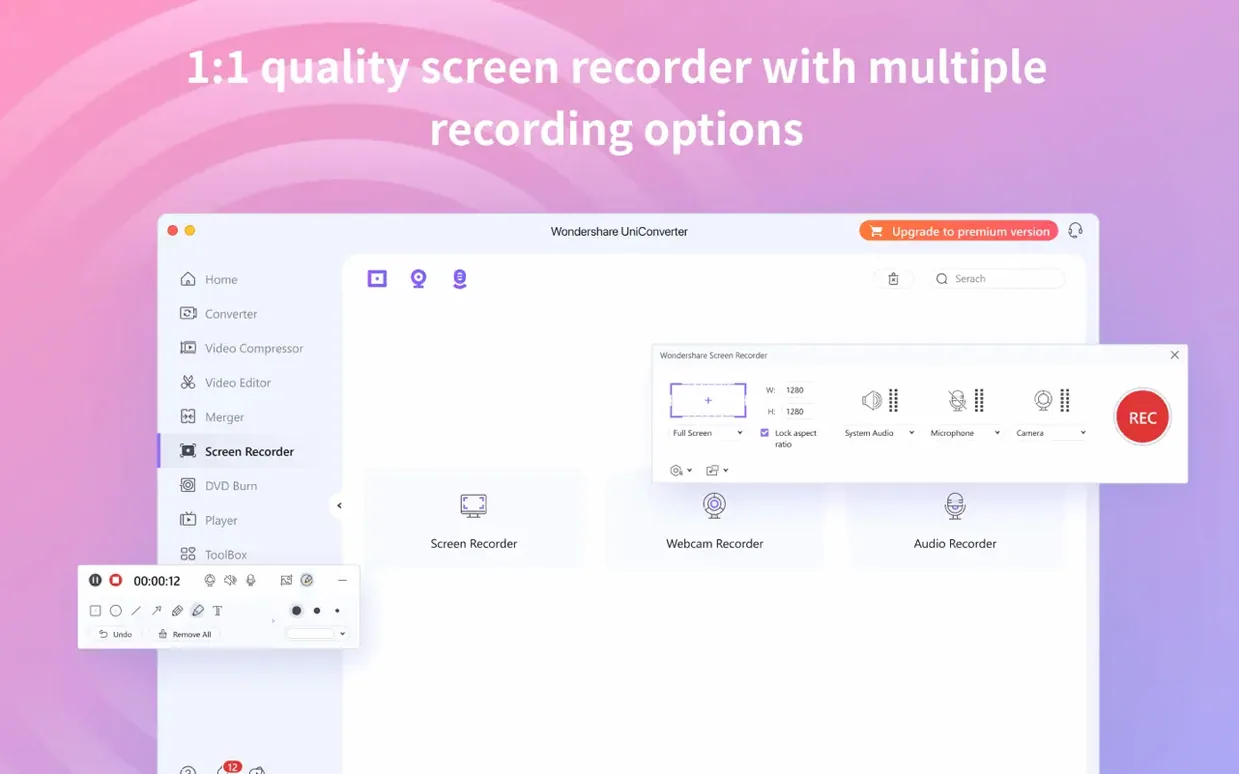
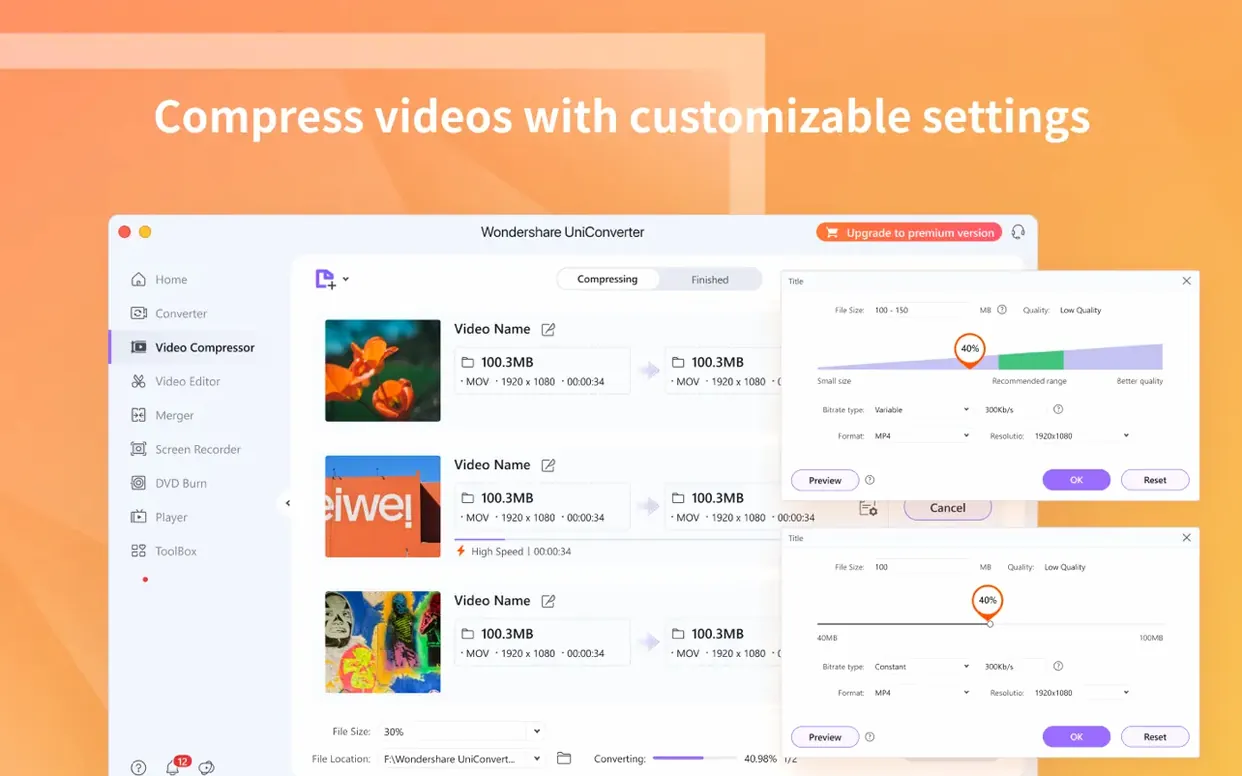
UniConverter is a media conversion engine with a surprisingly deep toolkit bolted onto the side. Beyond the obvious format-shifting, there are utilities here that solve very specific, technical problems for a Mac workflow. The codec library stands out—it plugs native codec support directly into iMovie and Final Cut Pro, so you can work with formats those editors wouldn't normally touch without an intermediate transcode step. That alone can save someone editing mixed-source footage a lot of time.
The conversion core itself handles modern standards properly. It processes HEVC/H.265 with hardware acceleration where available, and keeps 4K resolution intact throughout the pipeline. One less common feature is the 2D-to-3D converter, which generates stereoscopic video from flat footage—a niche tool, but properly implemented with adjustable depth settings. For file surgery, the segmenter can split a single video into multiple clips by chapter, duration, or file size, while the merger stitches disparate files back together without re-encoding when the formats match perfectly.
Metadata handling goes deeper than you'd expect. When transferring converted files to an iTunes library, it can extract and update metadata fields so your media doesn't end up as a pile of “Unknown Artist” entries. The DRM removal module handles protected files that would otherwise refuse to play outside their original ecosystem, though it operates strictly on content you already own a license for. There's even a wireless transfer system that pushes finished videos to iOS and Android devices over Wi-Fi, bypassing USB cables entirely.
For anyone building a video pipeline on a Mac, these are the tools that turn a simple converter into something that earns a permanent spot in the Applications folder.
How does UniConverter fit into a real Mac workflow?
Most video tools on macOS live in their own silo. UniConverter bridges several of them. The codec library integration with iMovie and Final Cut Pro is the obvious one—drop a .mkv with an obscure audio stream into Final Cut and it simply opens, no intermediate conversion step required. That's because the app installs native QuickTime components that Apple's own frameworks pick up automatically.
Less obvious is how it interacts with the Finder and iTunes. When you set a converted file's destination to your iTunes media folder, UniConverter can write artist, album, and genre metadata into the output. iTunes (or the Music app on newer systems) reads that metadata on import, so a batch of music videos lands properly tagged. The wireless transfer feature also hooks into the local network stack cleanly—the app spins up a temporary HTTP server that iOS and Android devices connect to through a browser or QR code, which keeps the transfer off iCloud and away from AirDrop compatibility headaches.
For DVD workflows, the app reads directly from /Volumes/ when you insert a disc, decrypting on the fly. The resulting files can be routed into the converter pipeline, or the audio extracted and saved as .m4a or .mp3 for archive purposes. It's not flashy integration, but it's the kind that saves you opening four different utilities.
How do HandBrake’s limits push you toward a paid all-in-one?
HandBrake is the open-source benchmark for video transcoding on Mac. It's free, scriptable, and its encoding engine is genuinely excellent. But HandBrake stops at encoding—there's no built-in downloader, no DVD burning, no editor, and no codec injection into Apple's video frameworks. If all you need is x264 or x265 encodes with fine-grained control, HandBrake is the sharper tool. If you need the Swiss army knife, UniConverter covers more ground.
Permute, from the Charlie Monroe team, is the streamlined alternative. It does format conversion, audio extraction, and basic image conversion inside a drag-and-drop interface that feels entirely Mac-native. Its Apple Silicon support is solid, and it integrates with the Services menu. Where Permute stays minimal, UniConverter piles on features: DVD handling, online video downloading, metadata editing, and the editor module. Permute is faster to launch and simpler to live with day-to-day, but it won't help you rip a DVD or download a YouTube playlist.
VideoProc Converter (formerly MacX Video Converter Pro) is the closest direct competitor. It also does format conversion, DVD handling, downloading, and screen recording. VideoProc leans heavily on hardware acceleration, particularly Intel Quick Sync and Apple's VideoToolbox, for speed. UniConverter's interface is more polished, and its integration with iMovie and Final Cut is more explicit—VideoProc doesn't install system-level codec components the same way. Both handle 4K and HEVC well, but the workflow philosophy differs: VideoProc optimizes for speed and batch processing, while UniConverter builds a broader toolkit around the conversion core.
Does native Apple Silicon support cut your HEVC encode times noticeably?
The jump to Universal binary support—covering both ARM (Apple Silicon) and 64-bit Intel in a single bundle—is the practical headline. On an M1 or M2 Mac, the app no longer runs under Rosetta 2, so HEVC encodes that used to tax the CPU now stay cool and finish noticeably faster. The listed compatibility floor dropping to OS X 10.11 actually reflects the continued dual-architecture build: the ARM slice targets newer systems, while the Intel slice remains backward-compatible for older hardware still in service.
The Gatekeeper situation changed with recent macOS releases. The .dmg mounting step now requires a Terminal command to bypass the notarization checks Apple tightened in Ventura and Sonoma. That's not a UniConverter-specific quirk—it's the pattern for many unsigned or self-signed app bundles. The practical effect is an extra ten seconds during installation, after which the app behaves normally.
What hasn't changed, but matters daily, is the batch queue behavior. Recent builds keep the queue processing stable even when you feed it mixed sources—a .ts file from a DVR, a .webm downloaded from a browser, and a DVD rip, all in the same batch. Older versions sometimes choked on codec mismatches mid-queue. The current build handles that gracefully, skipping genuinely broken files and flagging them rather than stalling.
Can the codec library rescue a tricky .mkv import in Final Cut Pro?
Start by letting the codec library do its job. After dragging the app to /Applications/, open Final Cut Pro or iMovie and try importing a format that normally gives you trouble—a .mkv with FLAC audio, or a .avi using a codec Apple never shipped. If it opens without complaint, the integration is working. No configuration needed; the components register themselves on first launch.
Second, run a small test batch before committing a hundred-file queue. Pick three files of different source formats, set the output to a format you actually use—say, HEVC in an MP4 container for archival—and watch the queue panel. Check that hardware acceleration kicks in (the encode speed will be visibly higher than a software-only pass). If something looks off, the preferences pane has a toggle for hardware acceleration under the conversion settings.
Third, test the wireless transfer once. Connect your iPhone or Android device to the same Wi-Fi network, hit the transfer button, and scan the QR code. The first transfer takes a moment to establish the handshake, but subsequent ones are faster. This is worth confirming works before you actually need it for a large file on a deadline.
Finally, if you plan to use the downloader module, set your preferred download folder early—the default dumps everything into the UniConverter documents directory, which can get messy fast. A dedicated ~/Downloads/UniConverter folder keeps things sane. The same goes for the DVD ripping module: pick an output format in settings so you're not prompted every time you insert a disc.
- Extends compatibility back to OS X 10.11 El Capitan, covering older Intel Macs still in service.
- Now a universal binary with native support for both Apple Silicon and 64-bit Intel processors.
- OS X 10.11 or later
- Apple Silicon or 64-bit Intel processor
Comments 0
Sign in or create an account to leave a comment.
No comments yet. A codec, a slice, a machine — they appear after moderation.