
XMind Pro for macOS
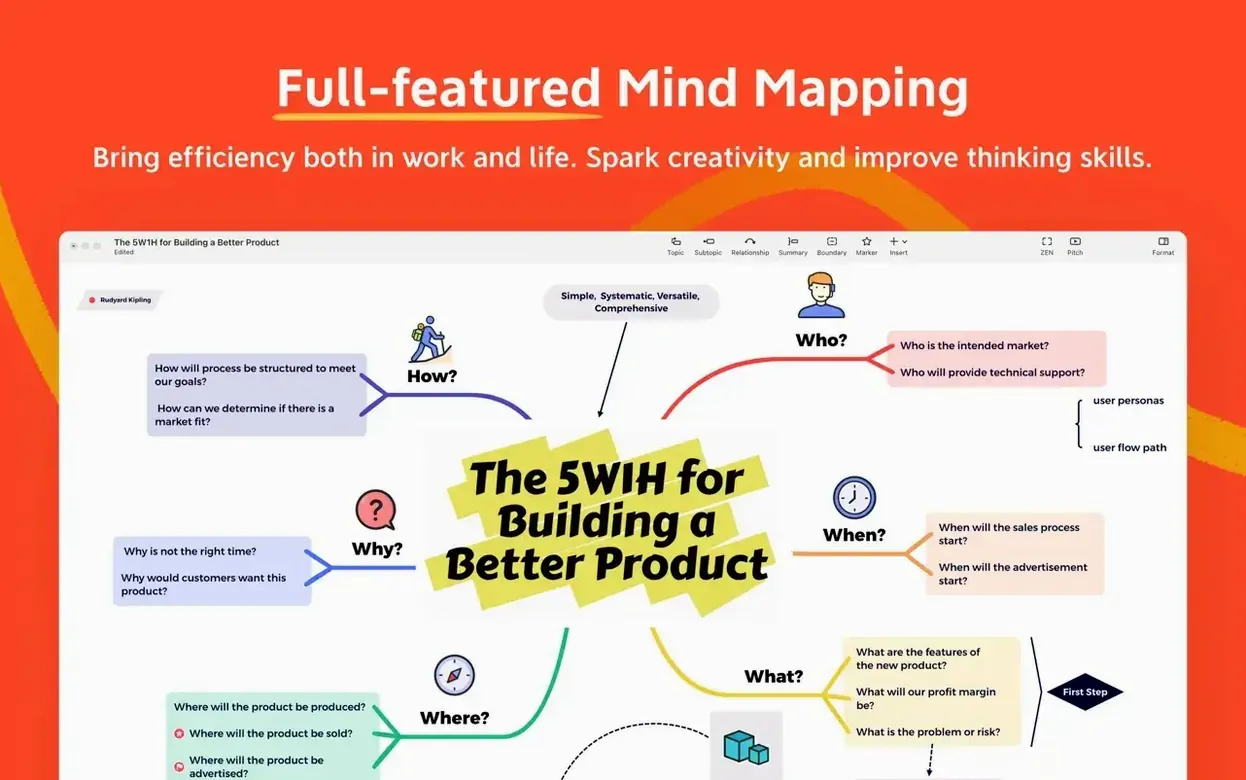



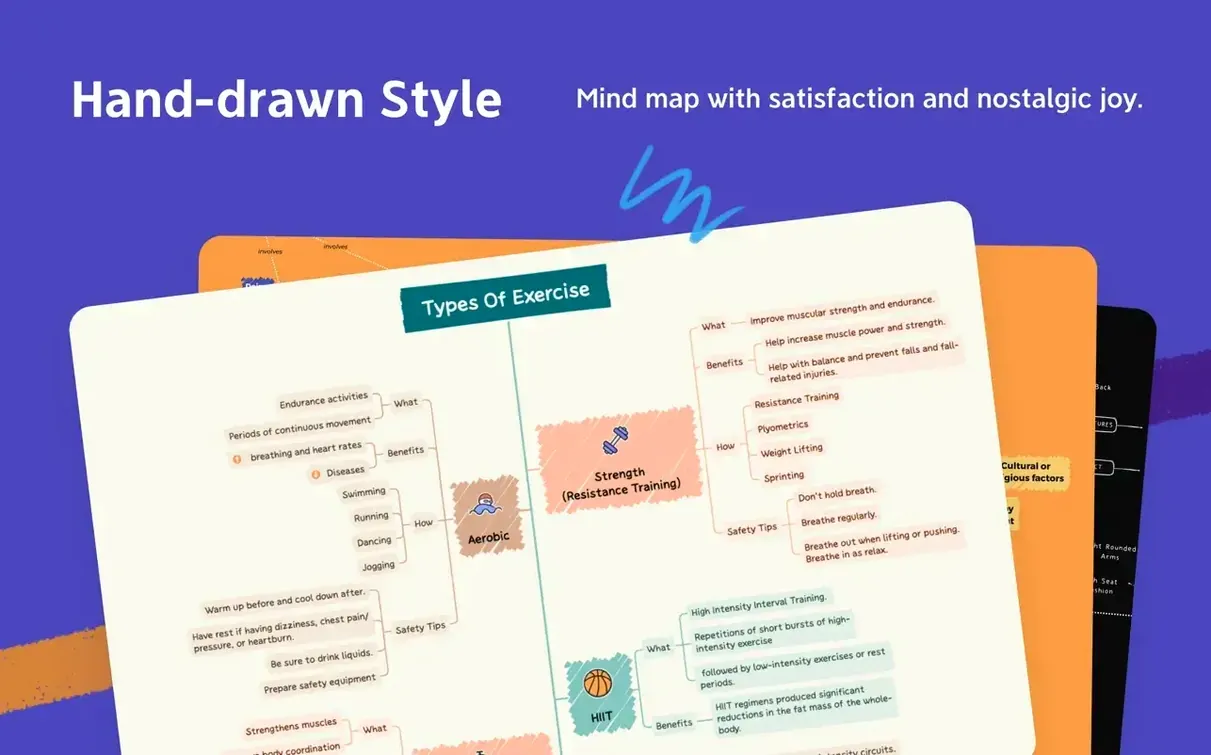

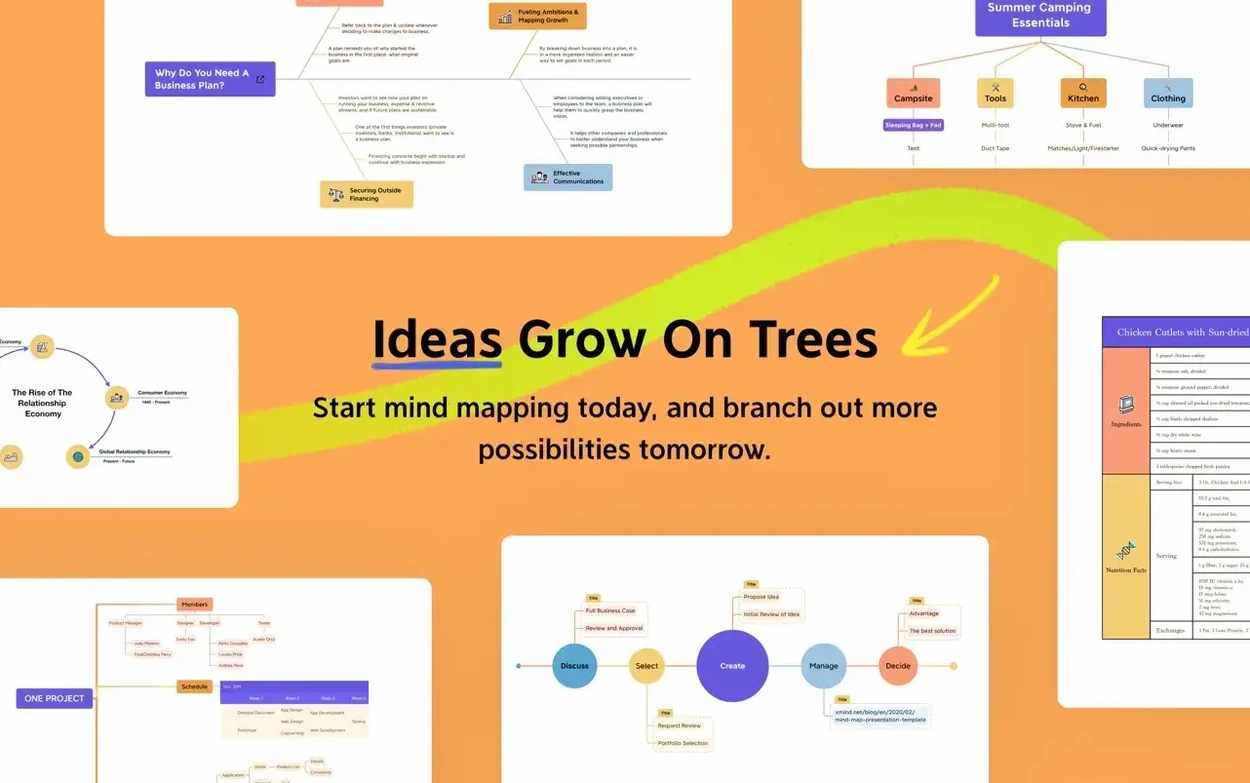
You've just walked out of a two-hour planning meeting and the whiteboard is a mess of arrows, sticky notes, and half-formed ideas. Before any of it fades, you open XMind on your Mac to turn that chaos into a structured map. The first thing to know is whether it will actually launch. XMind Pro 26.04.01337 requires macOS 11 (Big Sur) or newer and is a native binary for both Apple Silicon and Intel 64-bit Macs.
- Builds maps for knowledge management, meeting outlines, task tracking, and time blocking.
- Runs as a native app on Apple Silicon and Intel 64-bit Macs.
- Interface is localized into 13 languages, including Japanese, Russian, French, and Simplified Chinese.
- Imports files from FreeMind, so you can bring in older mind maps without rebuilding them.
How would a grad student use it for a thesis chapter?
Imagine a linguistics PhD candidate staring at three months of interview transcripts and a half-written outline. She creates a central node called Chapter 3: Code-switching patterns and branches out with the themes she spotted during fieldwork. Each theme node gets sub-branches for participant quotes, existing literature, and her own analysis notes. She uses the tree diagram structure because her argument has a clear hierarchy — claims, sub-claims, evidence. Halfway through, she switches to the logic chart layout for one tricky section where two theories contradict each other, mapping out which researcher said what and where her data supports or challenges them. By the end of the afternoon, she has a complete skeleton she can export as Markdown and drop straight into her LaTeX editor. The whole thing lives in a single .xmind file she backs up alongside her Zotero library. No paper scraps, no forgotten connections.
Why do long node labels stall your map?
The FreeMind import isn't a perfect mirror
When you pull in a .mm file from FreeMind, the basic node structure and text content come across cleanly. What gets lost are custom icons, some older style settings, and any HTML formatting embedded in notes. If your FreeMind maps lean heavily on visual markers, you will need to reapply them inside XMind. A quick fix is to plan ahead: strip out custom icons in FreeMind first, use plain text notes, then restyle once the import is done. The relationships between nodes usually survive the trip, which is what matters for the argument structure.
Performance with giant maps
Mind maps with thousands of nodes can feel sluggish on older Intel Macs, especially when the outline view is open alongside the canvas. Closing the outline panel helps. If you still notice delays, break the project into separate .xmind files and link them via hyperlinked nodes — XMind lets you point a node to another file on disk, so you can navigate between maps without keeping everything in memory at once.
Collaboration confusion
XMind supports collaboration, but it is not Google Docs-style live editing. You share a file, someone else opens it, makes changes, and sends it back. Two people editing the same file simultaneously will end up with conflicting versions. The cleanest workflow is to treat the .xmind file like a document you pass around with clear turn-taking, or use a cloud folder that syncs after each person closes the file.
Start with 'Product launch Q3'—then just press Tab
You launch XMind and pick the blank canvas. A single central topic appears, labeled Central Topic. You double-click, type Product launch Q3, and hit Return. The tab key adds a child node — Budget. Another tab creates a sibling, Timeline. You keep tabbing and typing until you have ten high-level branches. The map looks flat, so you select Budget, right-click, and start adding sub-nodes: Design, Manufacturing, Marketing spend. Each gets a number you will fill in later.
Now you want structure. You open the layout panel and switch from the default mind map to a tree diagram. The branches snap into a clean left-to-right hierarchy. Timeline feels like a separate concern, so you drag it off and give it its own floating root with a connector line back to the main topic. You add boundary boxes around the budgeting group and drop in relationship arrows between Marketing spend and a node under Timeline called Campaign launch date. Color-coding is next: all budget nodes get a green marker, timeline nodes get blue.
Before the meeting, you switch to presentation mode. XMind steps through each branch level by level, and you walk the team through the structure without them seeing the cluttered full map. Afterwards, you export the file as PNG for the project wiki and save a copy as launch_plan_v2.xmind. The whole session took under forty minutes, and the map is already more useful than the spreadsheet you were fighting with last week.
Keywords on nodes, paragraphs in the notes panel
The most common mistake is treating every node as a sentence. XMind works best when nodes are short labels — keywords, not paragraphs. Long text belongs in the notes panel attached to each node, not in the node itself. Maps with full sentences become unreadable fast, especially when you zoom out.
Another one: ignoring the structure switcher. New users often stick with the default mind map layout for everything, even when a logic chart or an Ishikawa diagram would make the information clearer. If you are mapping cause and effect, switch to the fishbone. If you are comparing options, try the table layout. The layout is not just decoration — it changes how you and your collaborators read the connections.
Finally, people forget that relationships and boundaries exist. Dragging a connection arrow between two unrelated branches takes two seconds and saves someone else from guessing why those nodes are linked. Boundaries, summaries, and callouts are all in the toolbar for a reason. Maps that use only parent-child hierarchy are missing half the tool's vocabulary.
Once you confirm your system is on the list, you are getting a brainstorming tool that sits comfortably on modern Mac hardware without Rosetta overhead.
- macOS 11 (Big Sur) or later
- Apple Silicon or Intel 64-bit processor
$ man xmind-pro | grep -A2 "?"
Can XMind open FreeMind files?
Yes, XMind Pro is compatible with the FreeMind format, which lets you import existing.mm mind maps directly.
Comments 0
Sign in or create an account to leave a comment.
No comments yet. A codec, a slice, a machine — they appear after moderation.