Audio Hijack for macOS
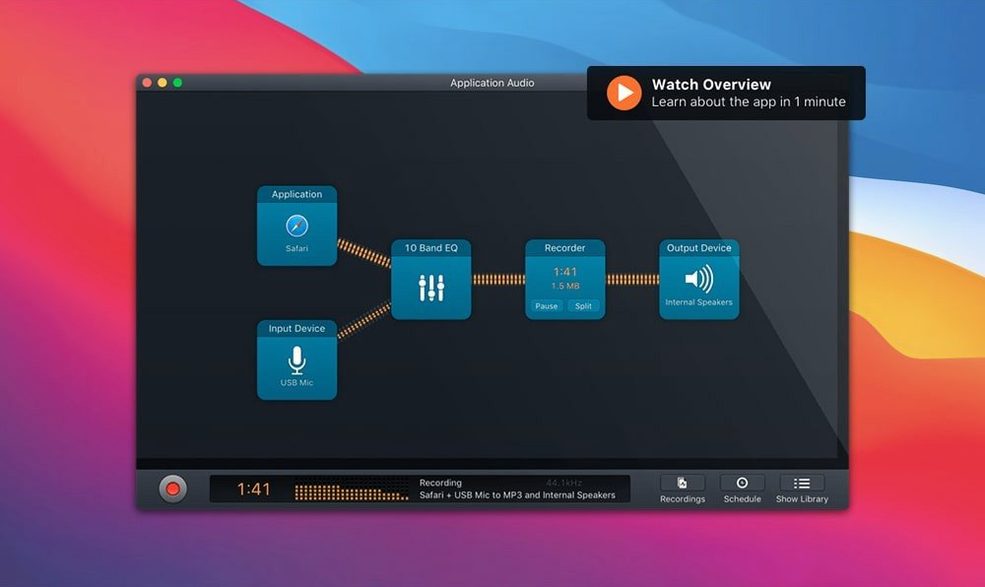
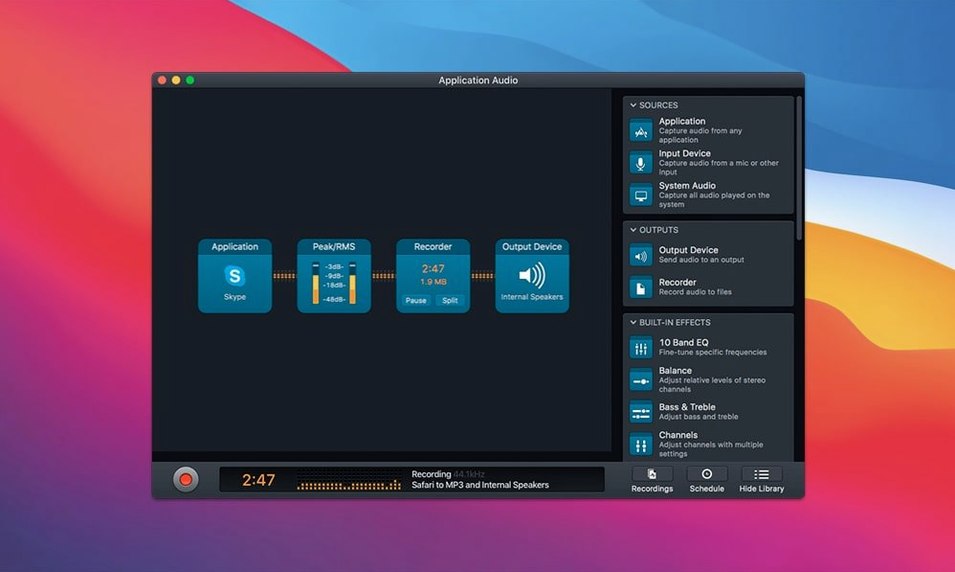
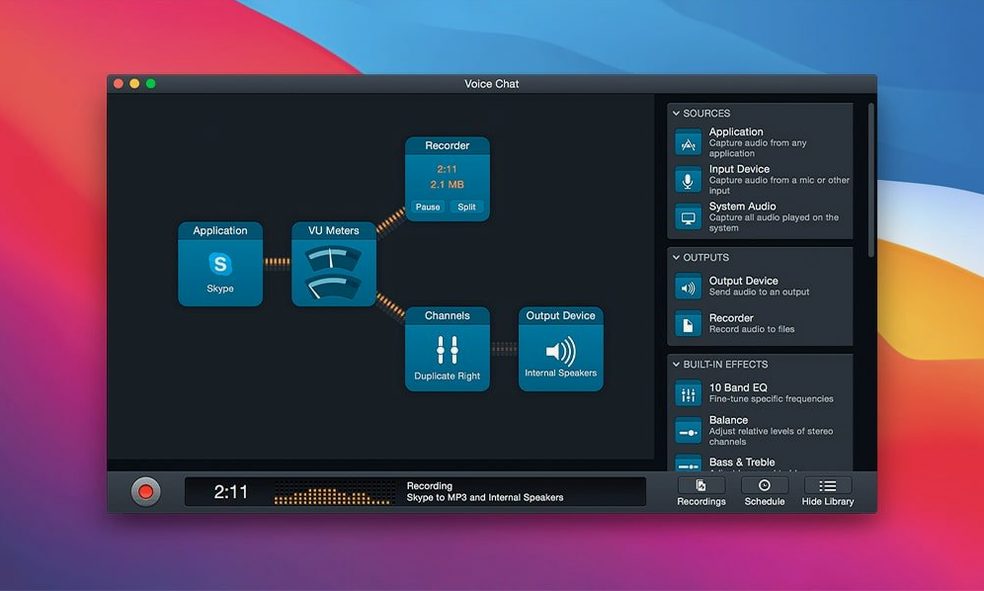
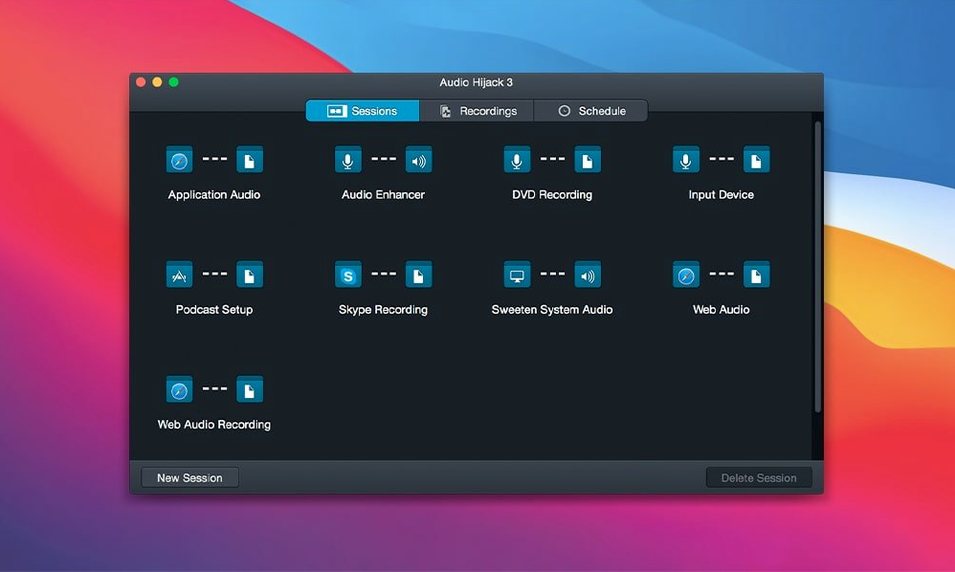
Version 4.6.0 arrived on August 27, 2026, and the first thing you notice is macOS 27 (Golden Gate) support. Less visible but just as meaningful: the built-in Transcribe block now offers a Recommended transcription model, and the Whisper.cpp backend jumped from 1.7.4 to 1.9.2. If you use the transcription features, that means a quieter upgrade path for the engine doing the actual work.
What makes Audio Hijack interesting next to your other tools isn't that it records — it's what it can grab. It sits between your apps and the system audio output, so anything producing sound on your Mac is fair game. That includes Safari tabs, Music, Skype calls, FaceTime, and any app that sends audio through Core Audio.
Grabbing streaming audio and piping it through noise repair
- Grabbing a streaming concert or radio show from Safari and saving it as an
.mp3or.aiff - Recording both sides of a FaceTime or Skype call without external hardware
- Running live audio through Denoise, Declick, or Dehum filters before it hits the file — useful for cleaning up old tape transfers or noisy VoIP
- Quick setups via templates, so you aren't rebuilding a pipeline every time
No Windows version and a block interface that rewards reading
- macOS only — there is no Windows or iOS version
- The block-based interface is powerful but takes a few minutes to read if you're used to a simple record button
Changing the default save folder before you record anything real
Out of the box, Audio Hijack saves recordings to your ~/Music/Audio Hijack folder. I move that to a dedicated directory inside ~/Documents straight away — keeping project files and raw audio together saves headaches later. Head to the General preferences and set your default recording folder before you build anything.
The default output format is .mp3 at 128 kbps. For voice calls and quick captures that's fine, but if you're digitizing vinyl or recording a music stream, switch the Recorder block to .flac or a 256 kbps .aac. You'll find the format picker inside the Recorder block's inspector — click the block, then look for the Format pop-up menu. The app remembers this per-session, so set it once and save the session as a template.
Another one people miss: the Silence Monitor block. Drop it before the Recorder block, set a threshold around -45 dB, and tell it to split files on silence. For long recordings — archiving a radio show, capturing a multi-hour stream — this gives you track-like chunks instead of one giant file you have to slice by hand later.
If you use the Transcribe block, open its settings and confirm the model is set to Recommended rather than a manually pinned older model. The 1.9.2 Whisper.cpp backend in version 4.6.0 runs noticeably cooler on Apple Silicon than 1.7.4 did, and the Recommended model tends to pick the right balance of speed and accuracy for your hardware without you benchmarking anything.
Building a remote VoIP interview rig without external hardware
Podcasters who record remote interviews over VoIP are the obvious crowd. You drop an Application source pointed at FaceTime or Skype, add a Voice Input source for your own mic, pipe both through a volume-balancing block, and you've got a local multichannel recording without touching a web service. No sync drift, no cloud processing — two clean tracks on your drive.
Audio archivists digitizing old formats get a toolchain in one window. Feed a USB turntable or tape deck into a physical input block, chain it through Denoise, Declick, and Dehum in that order, then hit Record. The filters run in real time, so the file you end up with is already cleaned. That saves a round trip through a separate editor for basic restoration.
Language learners and journalists who need transcripts of conversations will find the Transcribe block genuinely useful now. Processing stays local — nothing goes to a cloud API — and with the 1.9.2 backend, an hour of clear speech transcribes in roughly ten minutes on an M-series chip. The text lands as a .txt or .srt file alongside your audio.
Music collectors grabbing high-quality streams from Safari or the Music app benefit from the lossless pipeline. Set the Recorder block to .flac, route the application audio through a Peak Limiter to catch any clipping, and you're pulling bit-perfect captures of whatever the source app is playing. No re-encoding, no generation loss.
Idle sessions sit under two percent CPU on Apple Silicon
Audio Hijack runs as a thin layer over Core Audio and Audio Unit hosting. On an Apple Silicon Mac, idle sessions with no processing blocks sit under two percent CPU. Adding Denoise, Dehum, and a Recorder block pushes that to maybe six to eight percent on an M1, a little less on an M2 or M3. The Transcribe block is the heavy lifter — during transcription you'll see a spike to forty or fifty percent for a few minutes, then it drops back to idle. The app never pinned my swap or caused a kernel task spike in a week of daily use, which isn't true of every real-time audio tool.
Memory use is modest. A complex session with six blocks and a live transcription sitting in RAM hovers around 300 to 400 MB. Without transcription, it's under 200 MB. The app releases memory cleanly when you close a session — no slow leak I could trigger.
Stability on macOS 27 has been uneventful in the good way. I left a session running overnight capturing a twelve-hour internet radio stream, and the file was intact, no dropouts, no crash log. The only quirk I've seen is that if you hot-plug a USB audio interface while a session is live, the Input block sometimes needs a manual reselection — the app doesn't always chase the device ID switch automatically. Save your session, unplug, replug, reopen — it picks up fine.
Loopback routes sound between apps but doesn't record or process
Loopback (also from Rogue Amoeba) gets compared to Audio Hijack a lot, but they solve different problems. Loopback creates virtual audio devices that route sound between apps; it doesn't record, process, or transcribe. If you need a persistent virtual cable that Discord and OBS both see, Loopback is the tool. If you need timed recordings with effects and file output, Audio Hijack is the one. Plenty of people run both — Loopback as the plumbing, Audio Hijack as the capture and processing layer.
Piezo is Rogue Amoeba's simpler recorder — one app, one click, one file. It's great for a quick grab, but it won't chain multiple sources, apply real-time filters, or transcribe. If you find yourself opening Audio Hijack and building a one-block session every time, Piezo might feel faster. The moment you want Denoise or a split-file threshold, you're back in Audio Hijack territory.
OBS Studio records system audio and microphones together, and it's free. For screen recording with audio, it's hard to beat. But OBS mixes everything to a single stereo track — separating a caller from your own voice after the fact means editing a flattened waveform. Audio Hijack records each source block to its own file or channel when you set up split-channel routing, which gives you a lot more control in post. Different jobs: OBS for video with audio, Audio Hijack for audio with processing and separation.
- Adds support for macOS 27 (Golden Gate)
- Updates the built-in Transcribe block with a Recommended transcription model
- Updates the Whisper.cpp backend from 1.7.4 to 1.9.2
- macOS 14.4 or later
- Apple Silicon and Intel Macs
$ man audio-hijack | grep -A2 "?"
Can Audio Hijack record calls from Skype and FaceTime?
Yes. It captures audio from individual apps, so you can set a block to grab the output of Skype or FaceTime and record both sides of the conversation.
Comments 0
Sign in or create an account to leave a comment.
No comments yet. A codec, a slice, a machine — they appear after moderation.