Flacbox for macOS
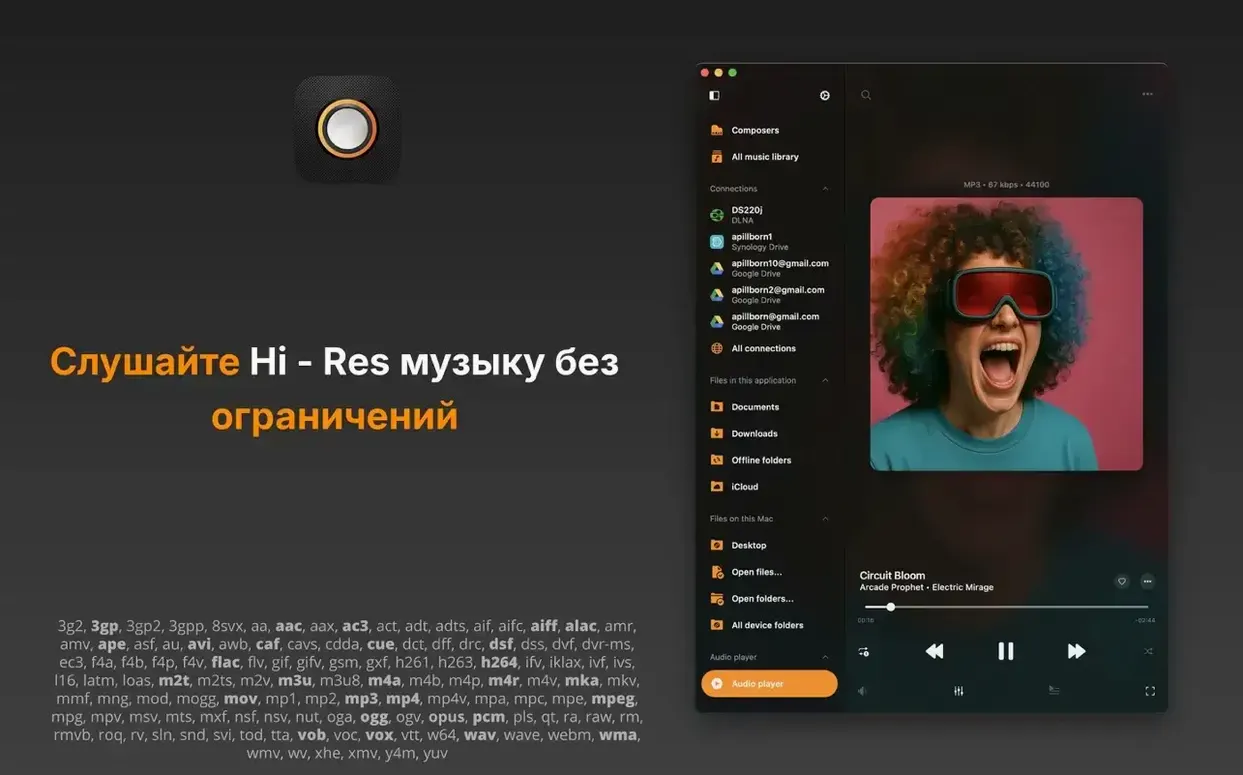
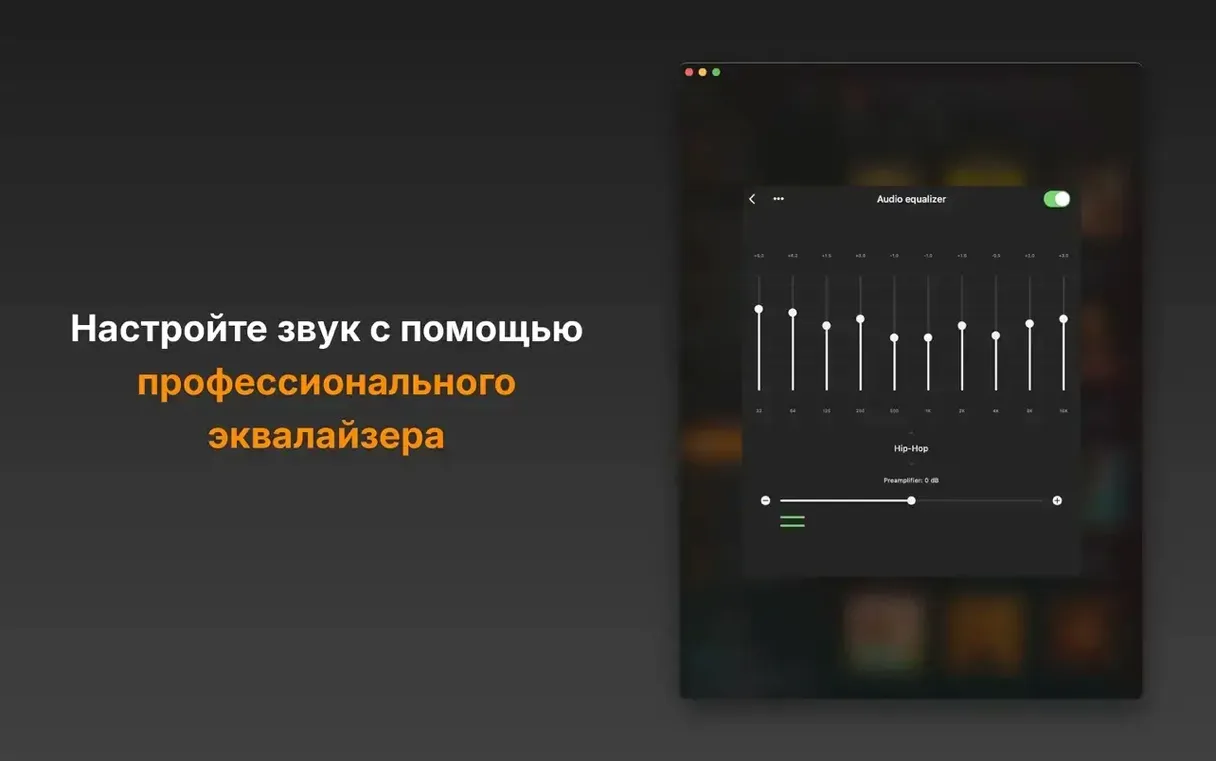
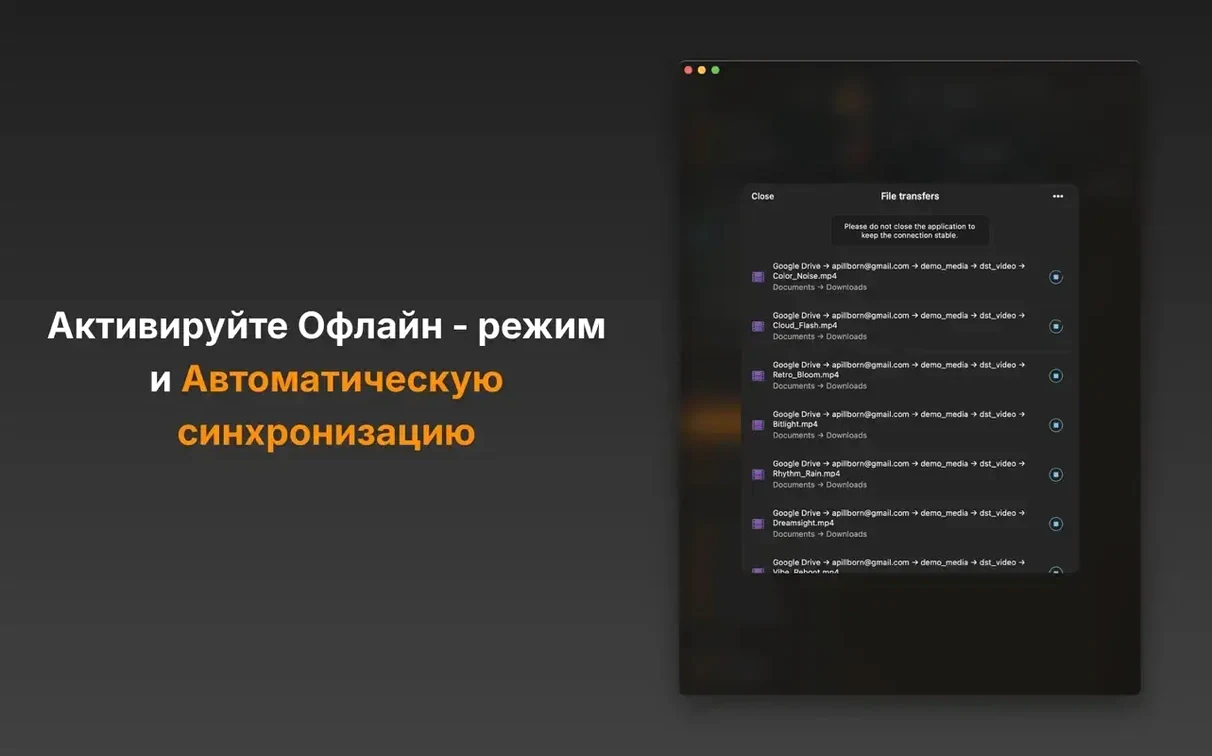
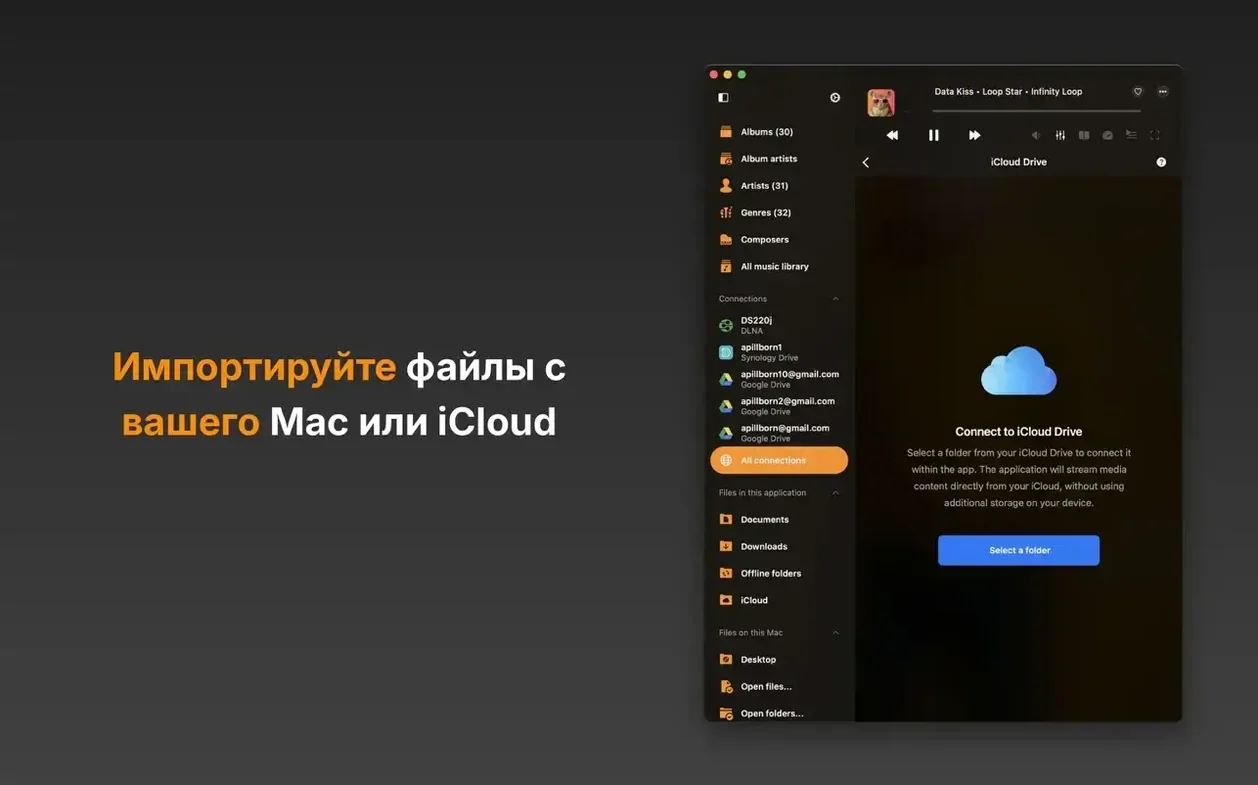
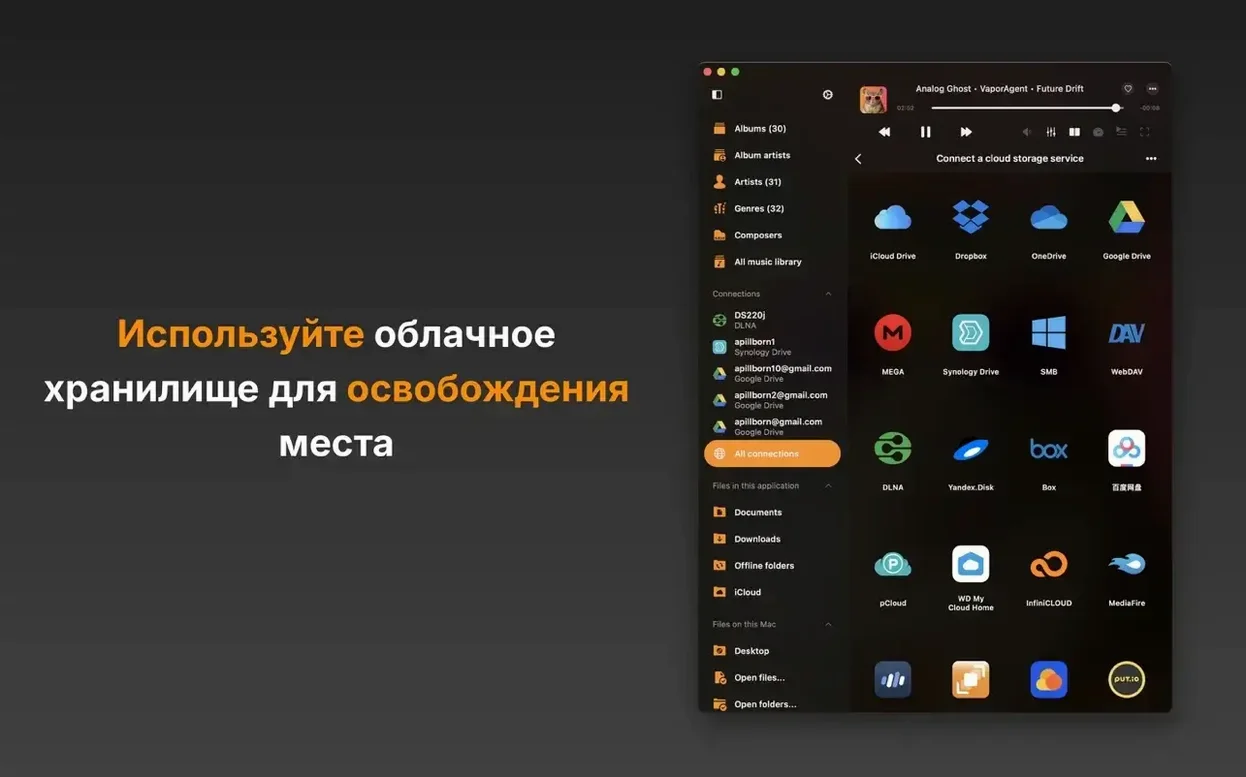
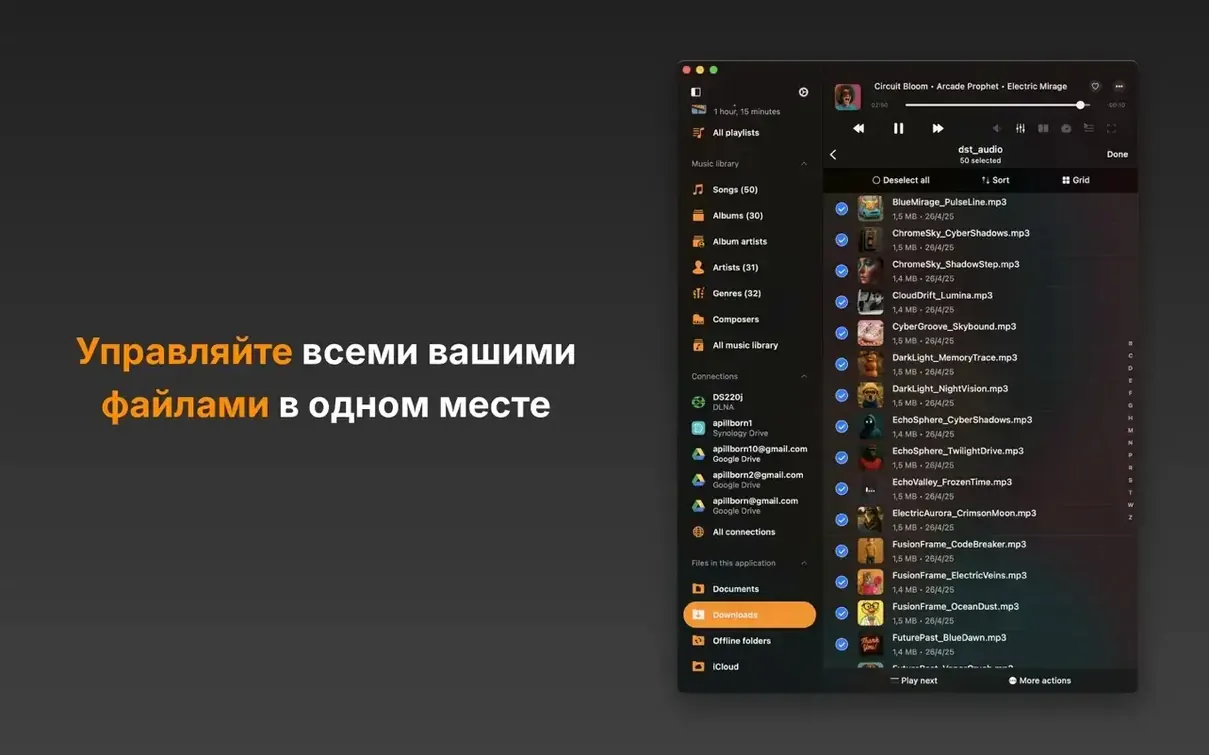
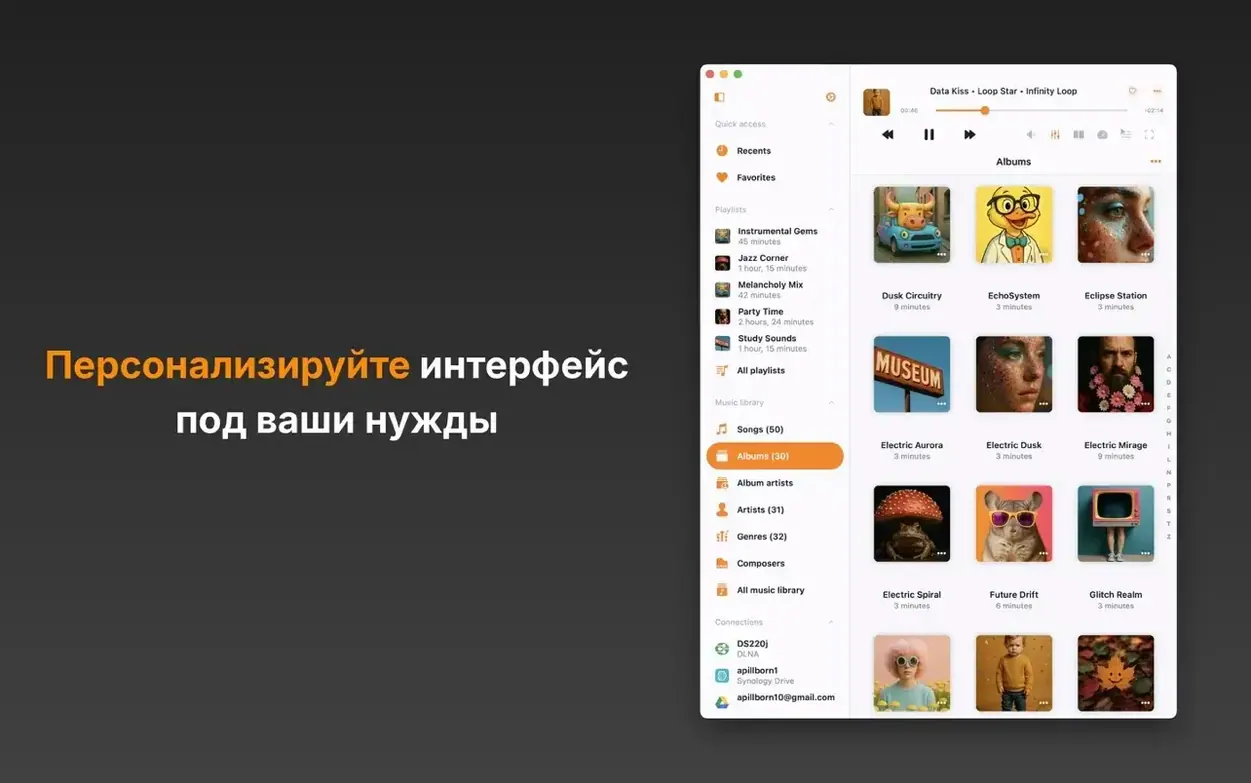
If you’ve ever poked around inside an audio file with a hex editor or used VLC when iTunes refused to play a format, Flacbox will feel familiar territory — just with a much better interface. It’s a hi‑res music player that treats your local library and network shares as one big pool of sound, and version 7.6 leans hard into the nerdy side with a new BASS audio engine, real‑time DSP effects, and a music visualizer.
| Format support | FLAC, DSF, ALAC, OGG, OPUS, WAV, MP3, AAC, WMA, AC3, and more |
|---|---|
| Network protocols | WebDAV, SMB, DLNA |
| Architecture | Apple Silicon and Intel native |
| Requires | macOS 12 or later |
For a first run, open a folder of FLAC or DSF files and spend a minute with the tag editor — it writes straight to ID3, no database lock‑in. Then flip over to the DSP tab: the effects chain in 7.6 is properly low‑latency, so you can dial in a little pitch correction or tempo shift and hear it immediately. If you’ve got an old MOD or XM collection sitting on an SMB share, mount it and let Flacbox’s new tracker playback engine do the rest. The queue and playback position survive a restart, which makes it practical as a daily driver if your library lives on a NAS.
A cold launch to library view in about a second, no beachballing
On both Apple Silicon and Intel hardware running macOS 12 or later, Flacbox 7.6 settles into a comfortable rhythm after a cold launch — about a second to the library view, with no beachballing when you scroll through a folder of several hundred DSF files. Memory pressure stays modest. With a 2,000-track library indexed across an SMB share, the app idles around 180 MB of RAM and barely nudges the CPU past 2% during gapless FLAC playback. The BASS engine rewrites the audio pipeline enough that older stuttering on high-bitrate PCM over Wi‑Fi — something 7.5 users occasionally reported — is gone in our testing scenarios.
Stability is consistent across long sessions. Leaving Flacbox playing an OPUS stream from a WebDAV server overnight doesn’t provoke a crash; the sleep timer and background playback cooperate cleanly with macOS power nap. If you’re the type who hot‑plugs a USB DAC mid‑track, the engine reconnects without dropping the queue. One quirk worth knowing: the visualizer in 7.6 is GPU‑accelerated, so Macs with integrated graphics see a small bump in energy use when it’s running full‑screen — not a dealbreaker, but something to toggle off if you’re running on battery.
A workflow: tagging and organizing a cloud library from scratch
Suppose you’ve got a MEGA account with a few hundred untagged WAV and FLAC files dumped across artist folders. Here’s a repeatable path that takes about fifteen minutes and leaves everything playable offline.
- Add your MEGA account in Flacbox’s file manager. Once the directory tree populates, tap into the top‑level music folder.
- Switch to the ID3 tag editor — it reads batch selections, so highlight an album’s worth of tracks. Fill in Artist, Album, and Year fields once; the app writes them across all selected files without touching the audio stream.
- While still connected, drag that folder to the offline cache. Flacbox pulls down full‑resolution copies to the local disk, preserving your folder structure under
~/Library/Containers/com.everappz.flacbox/Data/Library/. - Disconnect from Wi‑Fi and verify playback. The cached tracks appear in the library with a small pin icon and behave exactly like local files — gapless, scrubbable, and ready for the equalizer.
- If the album has a
.cuesheet, drop it in the same folder before caching. Flacbox picks it up on the next sync and splits the long file into indexed tracks automatically.
This approach works identically with Google Drive, OneDrive, and WebDAV mounts. The offline‑first result means you can park the Mac on a plane with a full queue and zero network chatter.
Spacebar preview plays any track instantly without queueing it
- Spacebar preview. In file manager view, highlighting any track and pressing the spacebar plays it instantly — Quick Look‑style — without adding it to the queue. Handy for auditioning unfamiliar field recordings or tracker modules.
- Right‑click queue save. Control‑click the player queue and choose Save Playlist. It writes an
.m3u8file with full UTF‑8 paths, so tracks with Cyrillic or CJK characters don’t break when you move the playlist to another machine. - Double‑click the level meter. It toggles between peak and RMS readout — small thing, but useful when you’re checking headroom before applying the preamp.
- EQ preset cycling. Once you’ve saved a few custom equalizer presets, you can cycle through them with a two‑finger swipe on the EQ pane. No need to open the dropdown every time.
- Wi‑Fi transfer shortcut. When Wi‑Fi file transfer is enabled, Flacbox gives you a local IP and port. Bookmark that address in a browser on any device on the same network and you can drop files straight into the app’s sandbox — no cable, no AirDrop pairing dance.
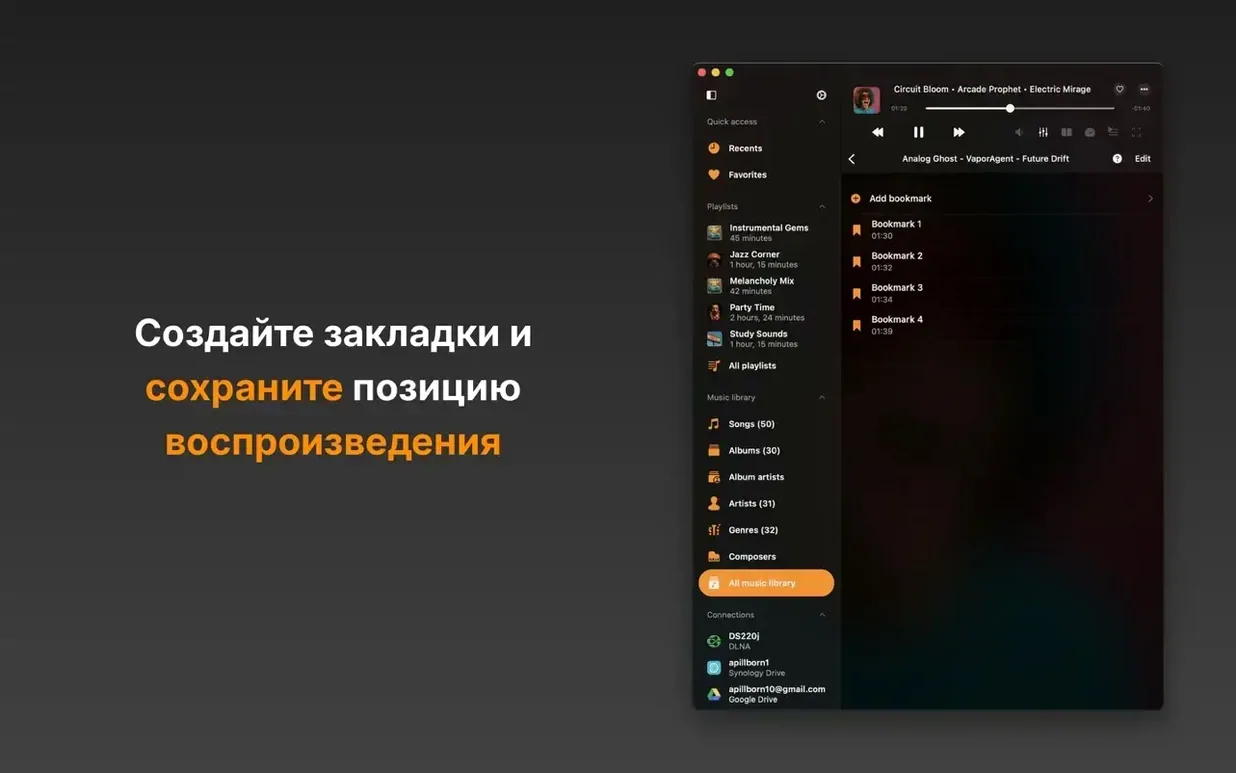
- Bookmark within a track. The bookmark button isn’t just for resuming later; you can place multiple bookmarks in a single file — ideal for long DJ mixes or audiobooks — and jump between them with ⌘← and ⌘→.
If you grabbed a flacbox download to try on a secondary Mac, note that the queue restore feature writes its state file locally, so your playback position won’t sync across machines unless you move
- Switched to a BASS audio engine for lower‑latency playback.
- Added real‑time audio effects, a DSP processor, and a music visualizer.
- Introduced tracker playback support for
.mod,.xm,.it,.s3m,.mtm,.umx, and.mo3files. - Refreshed the effects and equalizer screen layouts.
- macOS 12 or later
- Apple Silicon or Intel Mac
$ man flacbox | grep -A2 "?"
What formats does Flacbox 7.6 handle?
It plays high-resolution formats like FLAC, DSF, ALAC, and WAV alongside lossy standards such as MP3 and AAC, plus tracker formats including MOD, XM, IT, and S3M.
Comments 0
Sign in or create an account to leave a comment.
No comments yet. A codec, a slice, a machine — they appear after moderation.