Swinsian for macOS
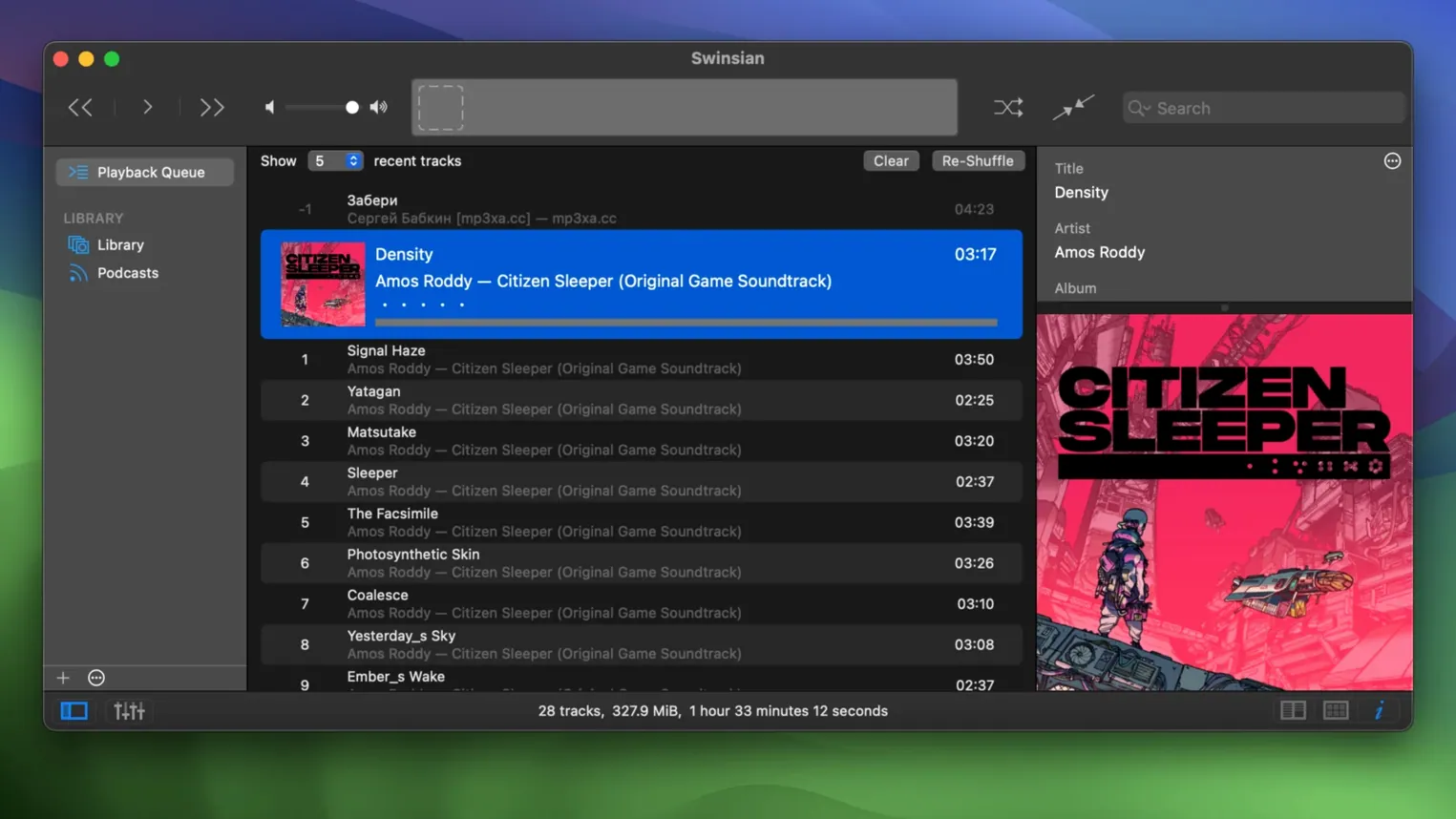
Swinsian 3 requires macOS 10.13 or later and ships as a universal binary, so it runs natively on both Apple Silicon and Intel Macs. That broad compatibility makes it a practical citizen in a mixed-ecosystem setup: your library lives on the file system, and Swinsian watches it directly instead of imposing its own database structure.
Point it at a folder of FLACs and it tracks changes automatically
Where the Music app abstracts the file system away, Swinsian leans into it. Point it at a folder of FLAC, ALAC, or Ogg Vorbis files and it tracks changes automatically. If you already manage your collection with something like Yate or Metadatics for batch tagging, Swinsian picks up the updated metadata without re-importing. It also imports an existing iTunes or Music library, so the transition doesn't orphan your play counts or ratings. For automation, AppleScript control lets it hand off track info to other apps in a workflow, and the duplicate finder helps when multiple tools have left overlapping copies in different folders.
Downloads episodes to a folder you specify, then stops at local files
Swinsian's podcast support is deliberately simple: it downloads new episodes to a folder you specify. There's no cloud sync or subscription marketplace, just a set of local audio files. That makes it the kind of tool you'd pair with a standalone chapter-mark editor or a script that renames files for an offline archive. The format list—WAV, AIFF, DSF, APE, Opus, and more—means it handles the high-resolution or niche-codec files that often trip up general-purpose players.
Going from a messy folder to a clean, playable library
Say you've got a directory called ~/Music/Incoming full of FLACs with inconsistent tags, some duplicates from a prior swinsian download experiment, and a few cue‑sheet albums that never split properly. Here's a real workflow you can run end‑to‑end without leaving the app.
First, add that folder to Swinsian's watched list under Preferences > Library. The moment you do, every track appears in the library, sorted by its current tags—or by filename where tags are missing. Next, open the Complete Tags window (⌘Y) and sort by album artist; this is where you really notice the 3.0.8 fix for sorting in that view. Select the block of tracks that clearly belong together, then use Edit > Find & Replace in Tags. A regular expression like ^(\d{1,2})\s[-]\s can strip leading track numbers from the title field in one pass, something that would take ten minutes of manual editing in another player.
For the cue‑sheet albums: right‑click the master FLAC and choose View Cue Sheet to check the embedded metadata. If it looks correct, Swinsian handles gapless playback natively, so you don't actually need to split the file unless you want per‑track files for a portable device. Run the duplicate finder next—it's under Library—and sort by size and checksum. Delete the lower‑bitrate copies right from the results table. Finally, switch to the art grid, click each album missing cover art, and let Swinsian fetch the artwork. The whole process from folder to finished library takes under five minutes once you know the sequence.
Small shortcuts worth memorizing
Global keyboard shortcuts live in Preferences > General, and they work even when Swinsian isn't the frontmost app. Set a combo for Play/Pause and another for Show/Hide Player—you will use these hundreds of times. The shortcut for Show Current Track (default ⌘J) is equally useful when you've scrolled deep into a large library and want to snap back to what's playing.
Less obvious is the search field's support for regular expressions. Type bitrate:>=320 to see only high‑bitrate files, or kind:flac artist:broadcast to narrow results instantly. This works in both the main library view and inside smart playlist rules. Speaking of smart playlists: one rule I keep is Date Added is in the last 3 days AND Play Count is 0, which catches new arrivals I haven't heard yet. Right‑click any playlist and choose Open in Separate Window—now you can drag tracks between windows, which is handy when you're curating a DJ set while keeping the full library visible.
Notifications deserve a mention because you can fine‑tune them in Preferences > Notifications to show album art. If you're running swinsian mac in a dark room, uncheck Use album art as background in the art grid view to reduce visual noise. The equalizer—switchable between 10‑band and 31‑band—stores its presets per‑output device when Remember EQ settings for each output is checked, which saves you from re‑tuning when you swap between headphones and speakers.
It watches folders and reads tags but never renames your files
Does it mess with the files I already have? No. Swinsian watches folders and reads tags, but it never renames, moves, or reorganizes files unless you explicitly tell it to in the tag editor's file‑renaming panel. Your folder structure stays exactly as you left it.
Can I use it alongside the Music app? Yes. Many people keep both. Import the Music library once, then let Swinsian watch the same media folder. The two apps coexist because they don't share a database. Just be aware that play counts and ratings won't sync between them after the initial import.
What happens if I have tracks that came from a Swinsian torrent or other mixed sources? The library doesn't care about provenance. If the file plays in any of the supported formats—FLAC, MP3, AAC, ALAC, Ogg Vorbis, WMA, WAV, Opus, AC3, AIFF, MusePack, DSF, APE—it appears. Files that are corrupt or in unsupported container formats simply show a playback error; they won't lock up the interface.
Does a Swinsian crack affect stability? The app's engineering doesn't depend on any external service for core playback. Folder watching, tag parsing, and audio output are self‑contained. The feature that reaches the network—podcast downloads and album‑art fetching—uses straightforward HTTP requests you can inspect via a proxy if you're curious.
- macOS 10.13 or later
- Apple Silicon or Intel 64-bit
$ man swinsian | grep -A2 "?"
What audio formats does Swinsian 3 handle?
It plays FLAC, MP3, AAC, ALAC, Ogg Vorbis, WMA, WAV, Opus, AC3, AIFF, MusePack, DSF, and APE files with gapless playback.
Can Swinsian import my existing iTunes library?
Yes, it can import an iTunes or Music library directly, preserving metadata like play counts and ratings.
Does Swinsian 3 support AppleScript?
It does, so you can control playback and query track information from scripts or other automation tools.
Comments 0
Sign in or create an account to leave a comment.
No comments yet. A codec, a slice, a machine — they appear after moderation.