Traktor Pro for macOS
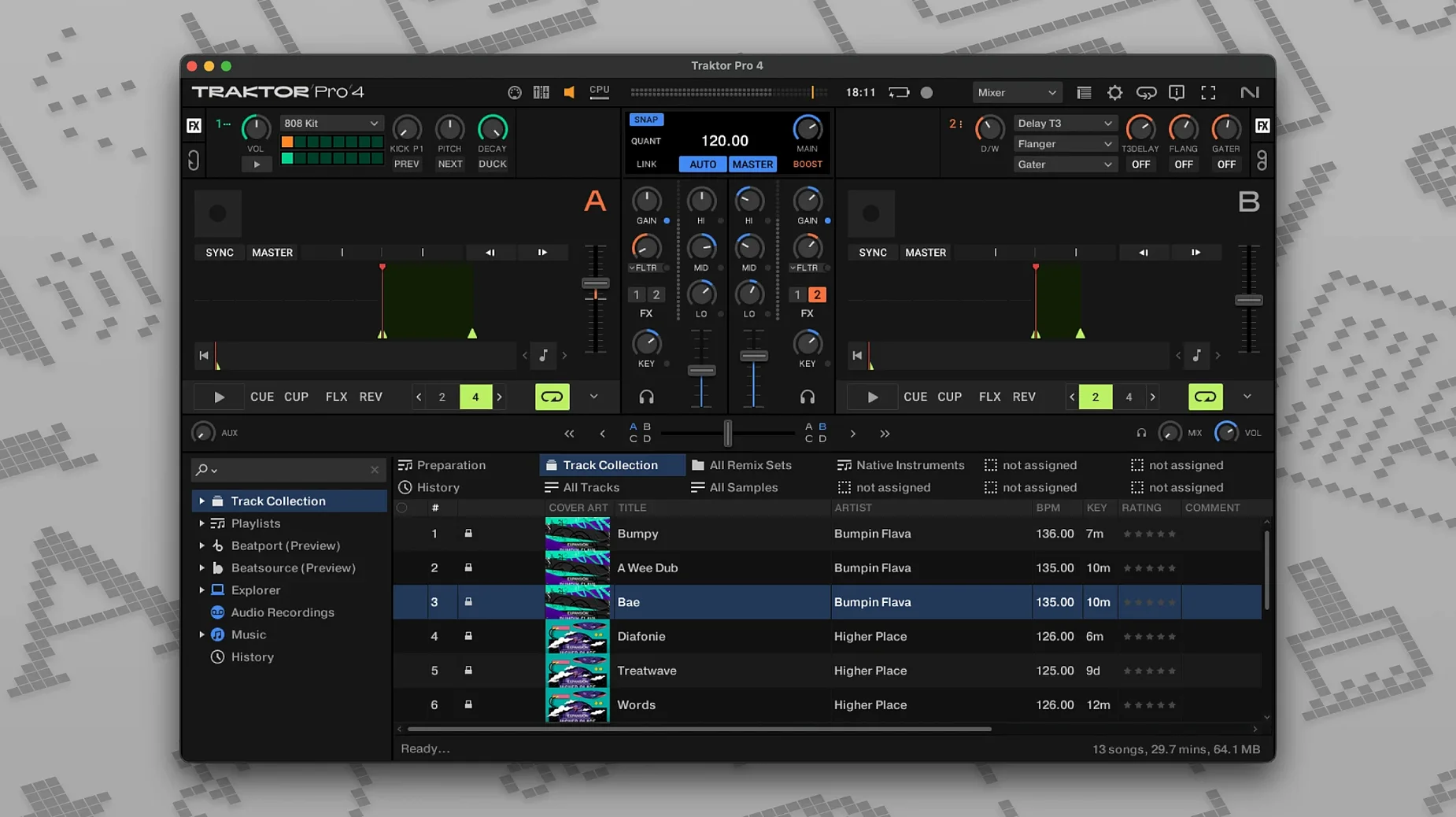
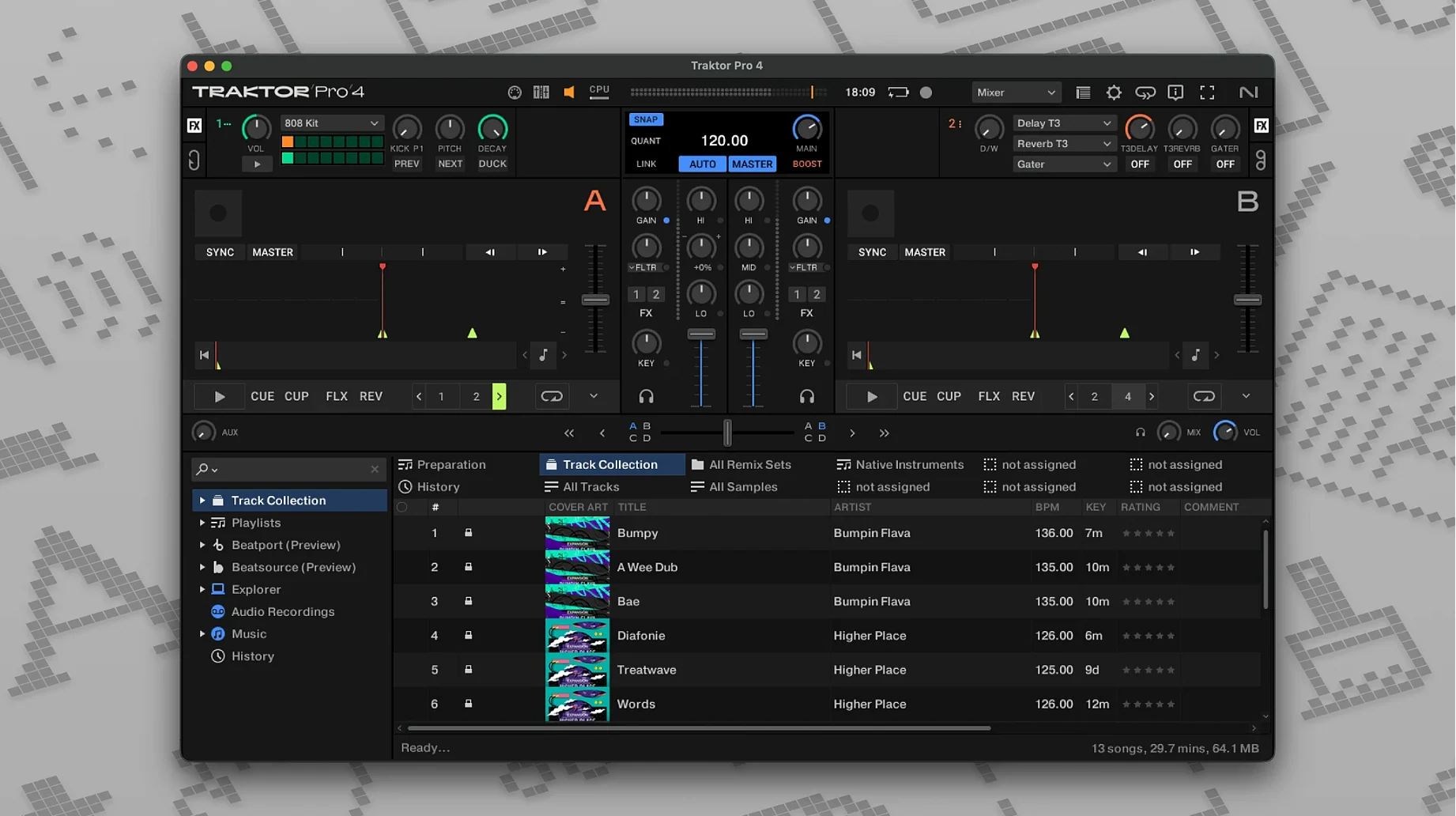
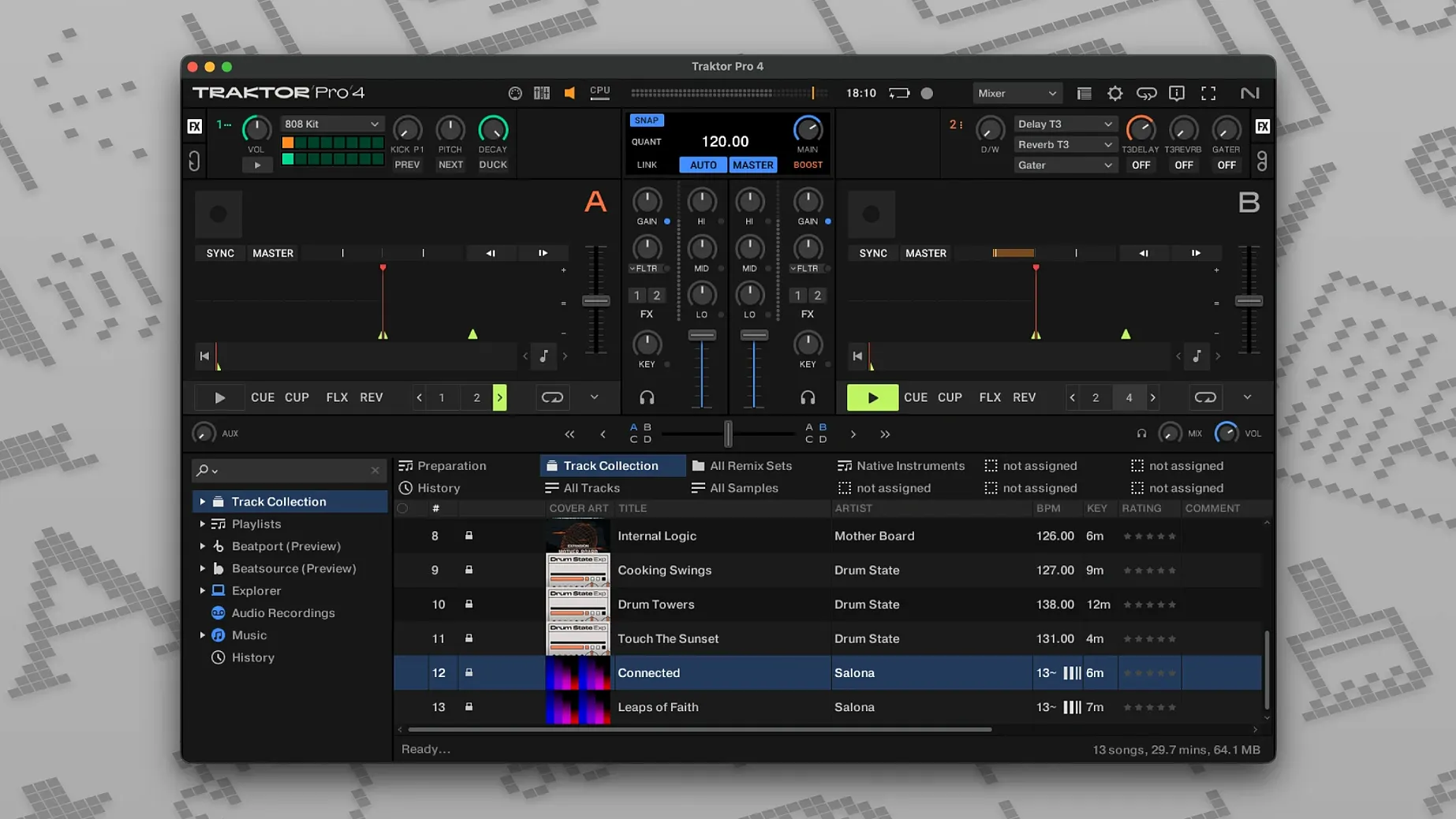
Version 4.5.1.21 keeps the same four-deck layout Traktor has used for years, running natively on both Intel and Apple Silicon Macs. The engine underneath still talks OSC and MIDI Clock to sync with other software, and the interface language remains English.
Runs natively on M-series chips, no Rosetta needed
Yes. The current build ships as a universal binary with ARM and x86 64-bit slices, so it runs natively on M-series chips without Rosetta. You need macOS 12 or later either way.
Can I plug in a Traktor Kontrol controller?
Absolutely. The software is designed to pair with Native Instruments' own Kontrol hardware, and it also works with any MIDI controller and external audio interfaces you already own.
What if I want my own keyboard shortcuts?
You can define them. Traktor Pro supports user-assigned keyboard shortcuts and lets you rearrange the interface with custom layouts and elements, so the decks fit how you mix.
Does it read iTunes tags?
What are the first settings worth changing?
Out of the box, Traktor Pro makes a few choices that suit a fresh install but not necessarily a working DJ. A handful of tweaks in the first ten minutes pays off every session.
Start with Preferences → Audio Setup. The default buffer size leans safe; on any Mac from the last five years you can drop it to 128 samples and get noticeably tighter cue response without pops. If you use an external audio interface, select it here and set the internal mixer to External in Output Routing — otherwise you will wonder why your channels refuse to separate.
Next, head to Preferences → File Management and turn on Analyze new tracks when loading into deck. It is off by default, which means every dropped track lands with no BPM or waveform until you manually analyze it. While you are there, set the BPM Range to match what you play: 70–140 covers most genres without Traktor guessing double or half time on a drum and bass track.
Under Preferences → Decks → Deck Behavior, switch Duplicate deck when loading same track to Off unless you genuinely use that for looping. Most people hit it by accident and end up with four copies of the same tune.
Finally, in Preferences → Global Settings, enable Show Tooltips for the first week. The interface packs a lot of secondary functions behind modifier clicks, and the tooltips surface them without hunting through the manual.
What are some easy-to-miss shortcuts and conveniences?
Traktor hides a surprising amount of speed behind keystrokes that are never advertised on screen. A few worth memorizing early:
- Shift + Load loads the currently selected track into the next stopped deck. If you play on two decks and keep a third for preview, this cuts out dragging entirely.
- Cmd + F jumps the cursor into the search field from anywhere. No need to click into the browser; just type and the collection filters instantly.
- Space does not stop playback universally — it toggles the focused deck. Press Shift + Space to pause and resume the master clock instead.
- Right-click on a knob snaps it to its default value. Useful for resetting EQ kills or filter cutoff without staring at the screen.
- Ctrl + click on a loop size button activates that loop immediately instead of just arming it. In a live situation, that half-second difference matters.
The browser has its own micro-shortcuts. Press 1 through 4 to switch between the four deck focus slots without touching the mouse. Option + click on a folder expands or collapses everything inside it. And if you ever lose track of which deck is highlighted, Cmd + Shift + D clears all deck focus and resets the selection.
How does it talk to other apps and macOS?
Traktor Pro speaks two protocols that open up a lot of integration: MIDI Clock and OSC. MIDI Clock is the simpler one — you can sync a drum machine app, a hardware synth with USB MIDI, or another piece of software running on the same Mac. In Preferences → Synchronization, set Traktor as the master clock, then point the external device to receive MIDI Beat Clock on the virtual port Traktor creates. It shows up in Audio MIDI Setup as Traktor Virtual Output.
OSC is where things get interesting for control. With Send OSC enabled, Traktor broadcasts deck states, fader positions, BPM and transport changes to any OSC-capable receiver on your network. People have used this to build custom visualizers in TouchDesigner, trigger lighting cues, or log mixes for later review. The address pattern follows /traktor/deck/X/... style paths, and the manual lists every message — it is exhaustive but not particularly beginner-friendly, so budget an afternoon to get the first round trip working.
On the macOS side, Traktor respects the system-wide media keys when it is in the foreground. It also registers as an available output device for apps like Audio Hijack or Loopback, so capturing a mix with separate talk-over microphone channel is straightforward without touching Traktor's internal recorder. The collection file lives at ~/Documents/Native Instruments/Traktor 4.5.1/collection.nml — an XML document you can back up separately or parse with a script if you want to export playlists to a different format.
What snags do people run into early on?
The most common headache is missing track analysis data. A track loads as a flat line with no waveform, no BPM, and no key — almost always because analysis was skipped or interrupted. Open File Management in Preferences, make sure the analysis directories are set, select the offending tracks in the browser, right-click and choose Analyze (Async). Traktor chews through them in the background while you keep playing.
Another frequent one: Stem Deck controls are grayed out. Stem separation is not retroactive — you have to right-click a track and pick Analyze Stems before the Stem Deck waveform and mute buttons appear. The analysis is CPU-heavy and writes stem data next to the original file, so do it before a set, not during.
Audio drops or crackles usually trace back to the buffer size being too low for the current workload. Stem processing in particular eats CPU cycles. Bump the buffer to 256 or 512 samples in Audio Setup during stem-heavy sections; you can drop it back down for straightforward two-deck mixing.
If a controller seems partially recognized — faders work but buttons do not — check that the controller is selected in Preferences → Controller Manager and that the mapping loaded is the correct one for your hardware revision. Native Instruments ships multiple mappings for the same controller name (Mk1 vs Mk2), and picking the wrong one gives exactly that half-working behavior. The Import button at the bottom of the Controller Manager lets you load a .tsi mapping file if you have a custom one from a community forum.
Finally, Beatport streaming not appearing is usually an authentication issue. Traktor stores the Beatport token separately from your Native Instruments account. In the browser tree, right-click the Beatport node, sign out, then sign back in. The playlist tree repopulates within a few seconds on a decent connection.
Build playlists around how you mix, not your disk folders
Spend the first session building a playlist folder structure that mirrors how you actually mix, not how your files are organized on disk. Traktor's browser is more powerful than Finder search once you have cue points and keys embedded, but it only shines when you stop browsing by raw directory. Create a folder for each energy level or genre transition you commonly play, then drag tracks in by vibe rather than by release date.
Set cue points during normal playback, not in pause mode. Traktor quantizes cue placement to the beat grid when the deck is running, so a cue dropped at bar 17 lands exactly on the downbeat. In pause mode, you get the exact sample position you clicked, which is rarely what you want for a clean mix point.
Enable Preferences → Decks → Loading → Reset deck controls when loading a track. It sounds aggressive, but it means every loaded track starts with EQ at noon, filter neutral, and no active loops. The alternative — inheriting whatever mess the previous track left — has ruined more transitions than anyone cares to count.
Experiment with Stem Deck on just one deck before going all-in. Dropping an acapella or isolating a bassline is the gateway; running four stem-separated decks simultaneously will push even an M-series Mac into audible buffer underruns. Use it surgically.
Record your practice mixes from day one. The internal recorder outputs WAV or AIFF to whatever directory you set in Preferences → Mix Recorder. Listening back cold the next morning reveals tempo drift and clashing keys that you simply do not hear while mixing. It is the fastest feedback loop available, and it costs nothing in disk space given how cheap storage has become.
It imports them. If your library lives in the Music app, the metadata carries over when you bring tracks into Traktor's collection.
- macOS 12 or later
- Intel or Apple Silicon Mac (universal binary)
Comments 0
Sign in or create an account to leave a comment.
No comments yet. A codec, a slice, a machine — they appear after moderation.