
Motionvfx - mTitle Cinematic for macOS
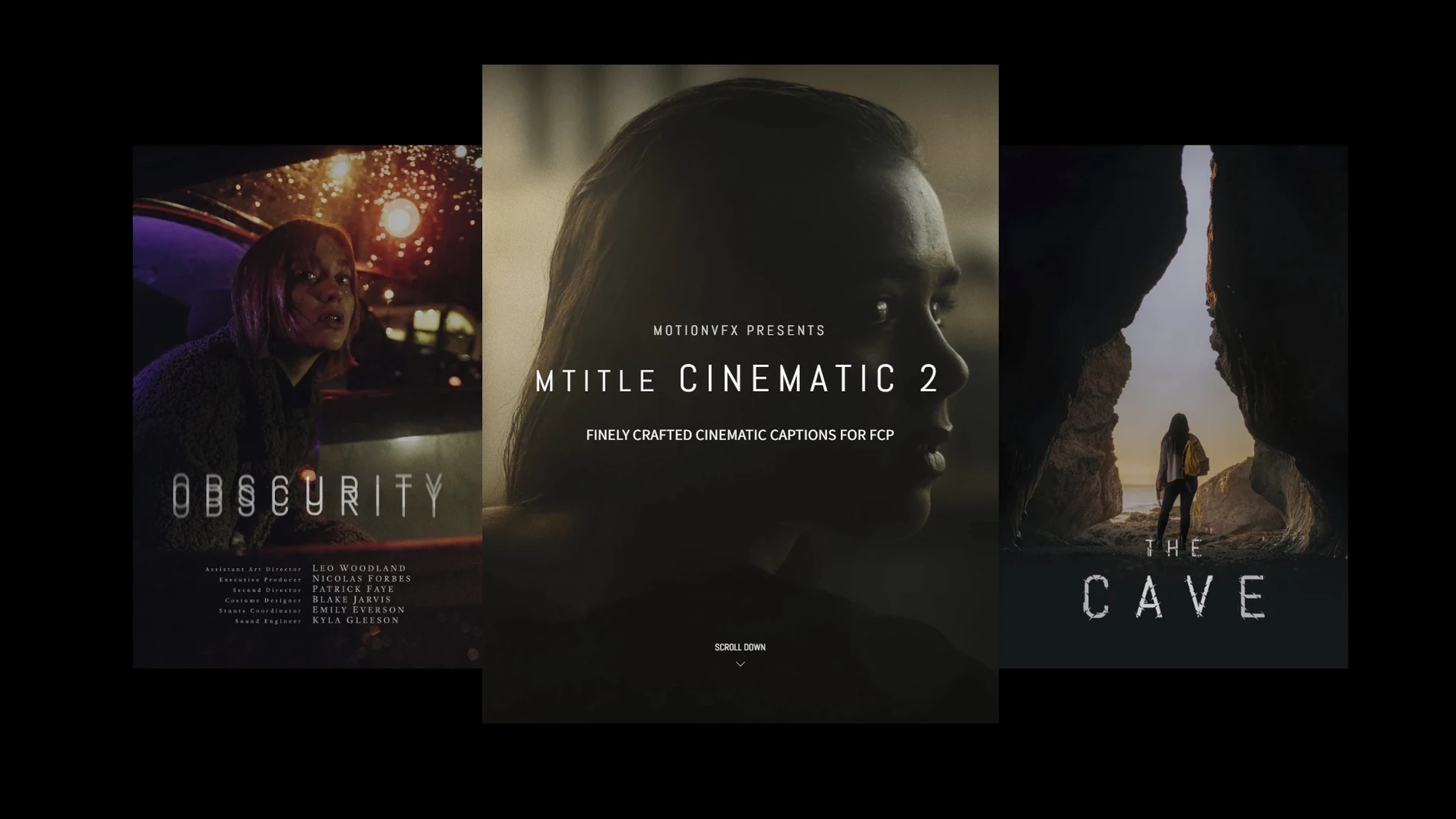
You've locked the picture on a short film and the director wants opening titles that don't feel like an afterthought — something wide, deliberate, paced for a 2.39:1 frame. That's where a dedicated cinematic titling toolkit earns its spot on the timeline. mTitle Cinematic lives on a dedicated title track above the primary storyline, fed by the same widescreen aspect ratio the edit was built in, so the type sits in the frame without needing constant position adjustments.
| Detail | Notes |
|---|---|
| Host | Final Cut Pro 10.4.6 or Motion 5.4.3 |
| Template location | ~/Movies/Motion Templates/Titles |
| Minimum macOS | 10.14.4 |
Each title is a Motion template, so parameters like typeface, color, and animation pacing are adjustable right in the FCP inspector — no round‑trips to Motion required. The pack is built around horizontal compositions, which means text blocks animate naturally across a wide canvas instead of feeling squeezed into a 16:9 safety zone. For a session where you're already managing dialogue buses, a music bed, and spot effects, having title presets that drop in and respect the aspect ratio keeps the focus on timing rather than troubleshooting layout.
Opening a festival cut with a harbour drone shot and cool blues
A documentary editor I know used three titles from this pack on a festival cut last spring. The film opened with a slow drone shot over a harbour at dawn — all cool blues and greys. She dropped in one of the thinner serif treatments, set the type to a muted gold, and let the animation breathe across eight seconds of black before the first cut. The director wanted the title to feel like it was being revealed by the light, not slapped on top of it. Because the template parameters live inside the FCP inspector, she dialled the fade ramp from 1.2 seconds to just under 2 and pulled opacity down to 85%. That was it. No keyframes, no XML fiddling, no trip into Motion. The rest of the session stayed about the picture, which is what a good titling workflow should deliver.
Building a credit sequence from scratch
Let's walk through a typical end-credit roll using mTitle Cinematic. The assumption is you've already copied the template folder into ~/Movies/Motion Templates/Titles and relaunched Final Cut Pro.
- Open the Titles browser (the T icon in the top-left of the FCP interface) and locate the mTitle Cinematic category. Drag a credit-block template — one of the multiline designs — above the primary storyline at the point where your picture fades to black.
- Stretch the title clip to cover the full duration of the roll. Most of these templates are built to loop or sustain their animation gracefully, so a 30‑second span won't break anything.
- With the title clip selected, open the Inspector. Under the Title tab you'll find controls for text, font, size, color, and often a handful of animation‑specific sliders — fade‑in duration, blur ramp, letter spacing over time.
- Paste your cast and crew list into the text field. The template expects a certain line count for its built‑in timing, so if you have fewer names you might shorten the clip or increase the line spacing to let it breathe.
- Play through once at full resolution. Watch for any names that land on a beat you care about in the music cue. Adjust the clip start or the fade‑in parameter by a few frames — no need to rebuild anything.
If you need to reuse the same look in another project, select the title clip, choose Edit > Copy, then in the new library use Edit > Paste as Connected Title. All your inspector tweaks come along.
Dropping the template folder outside ~/Movies/Motion Templates/Titles
The most common one I see is dropping the template folder in the wrong location. Final Cut Pro looks for custom titles strictly inside ~/Movies/Motion Templates/Titles. If you create a subfolder inside that directory — something like ~/Movies/Motion Templates/Titles/mTitle Cinematic/ — the templates will still appear, but if you place them at the system level under /Library/Application Support/Final Cut Pro/, FCP ignores them unless you know exactly what you're doing with symlinks. Stick to the user Movies folder and you'll never lose an afternoon chasing missing titles.
Another beginner habit: treating every template as a one‑click magic button. These titles give you a strong starting point, but the typeface that ships inside the template is rarely the one your project needs. I see editors drop the title, leave the default sans‑serif in place, and then wonder why the opening feels like a tech demo. Change the font. The inspector makes it a two‑click operation, and it's the single biggest factor in selling the shot as a finished piece rather than a placeholder.
Watch your render format, too. A few of the brighter metallic‑style titles rely on subtle glow compositing that looks crisp in Rec. 709 but can band noticeably if you preview in a low‑bitrate proxy mode. Switch to Optimized or Original media for the title sections before you judge color fidelity.
A single title layer adds barely a second of background render
These are Motion templates, not third‑party GPU renderers, so they lean on FCP's own compositing engine. On my machine a single title layer adds negligible render time — a 10‑second clip background‑renders in maybe a second or two once textures are cached. Stack four or five of them over 4K ProRes 422 and you'll notice the background‑render wheel spin up, but scrubbing stays responsive because FCP drops to lower quality on the fly. If you're cutting on a machine that meets the 10.14.4 baseline, you're almost certainly on an SSD, which keeps template loading fast. The Titles folder itself is small — under a gigabyte — so it's not competing with your media drive for space.
Stability is uneventful, which is exactly what you want. I've run projects where mTitle Cinematic clips sat on the timeline across weeks of revisions, and I've yet to see one cause a crash or a corrupt library. Because they don't bundle their own codec or external renderer, there's nothing to go out of sync when macOS updates. The only quirk worth noting: if you rename the template .moef files inside the Titles folder, FCP will lose track of them on the next launch. Leave the file names alone and everything stays predictable.
- macOS 10.14.4 or later
- Final Cut Pro 10.4.6 or Motion 5.4.3
- Template folder copied to
~/Movies/Motion Templates/Titles
$ man motionvfx-mtitle-cinematic | grep -A2 "?"
Which app opens mTitle Cinematic templates — Final Cut Pro or Motion?
Both. You can apply and customize the titles directly in Final Cut Pro 10.4.6 or later, and they are also editable in Motion 5.4.3.
Comments 0
Sign in or create an account to leave a comment.
No comments yet. A codec, a slice, a machine — they appear after moderation.
More in Final Cut Pro Plugins
cd ../ MotionVFX mModules
Final Cut Pro Plugins 5 MB
 MotionVFX - mLowers Universal for FCP
Final Cut Pro Plugins 71 MB
 MotionVFX mKBHD
Final Cut Pro Plugins 12 MB
 MotionVFX mInfographics
Final Cut Pro Plugins 8 MB
 FxFactory Pro
Final Cut Pro Plugins 68 MB
 Flicker Free
Final Cut Pro Plugins 24 MB
 Dehancer Pro
Final Cut Pro Plugins 382 MB
 Color Finale
Final Cut Pro Plugins 35 MB