
4K Video Downloader for macOS
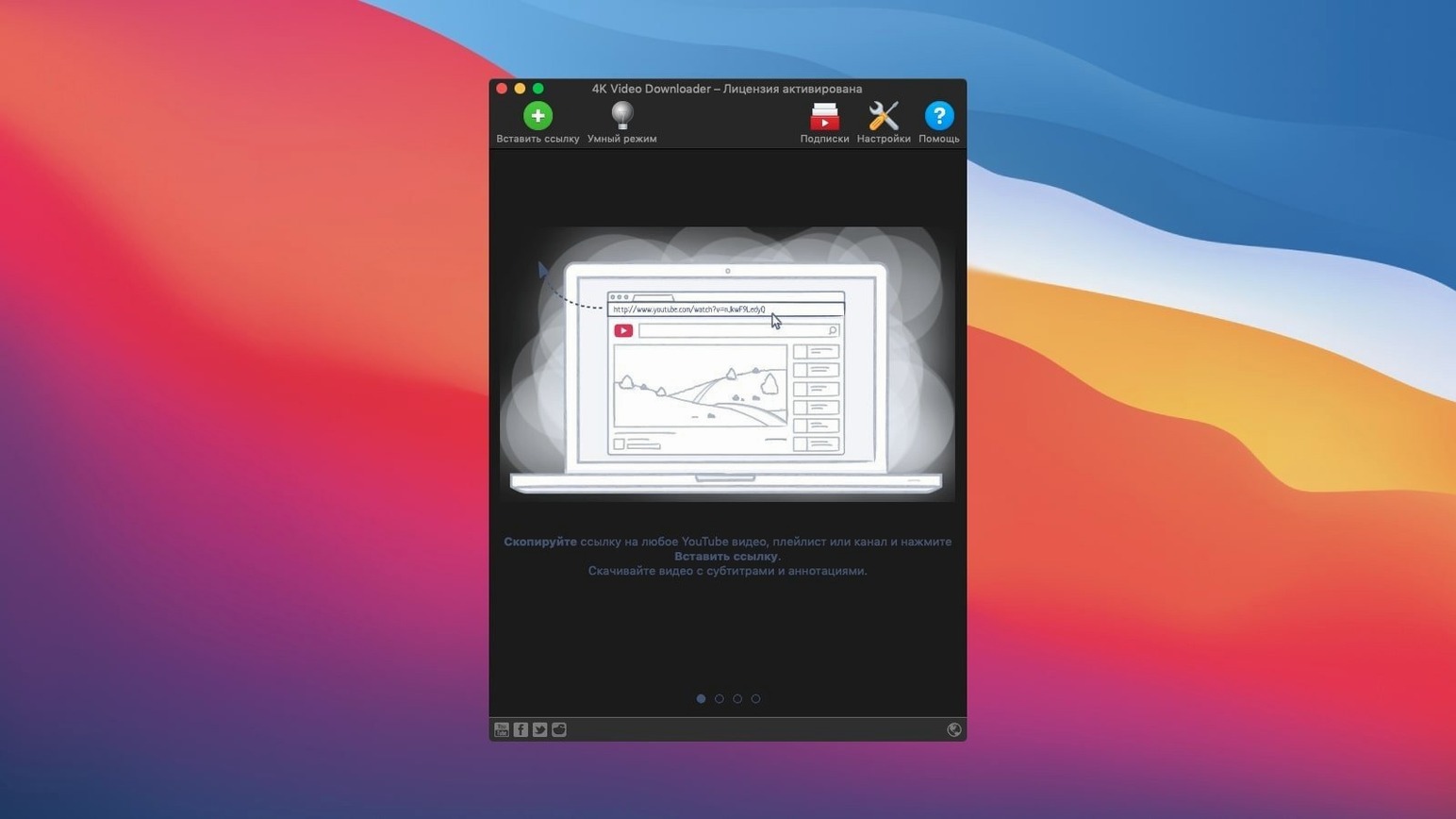
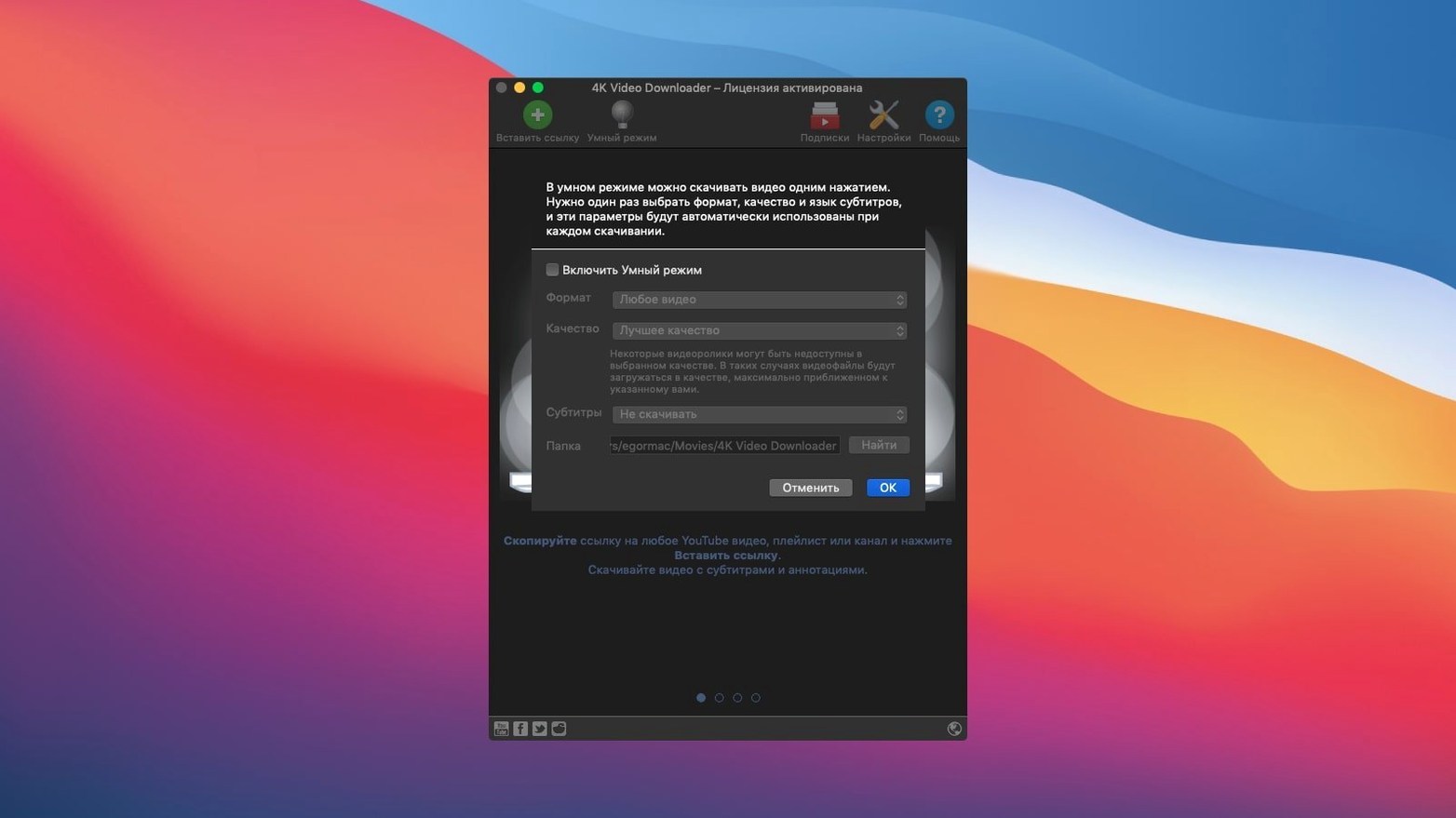
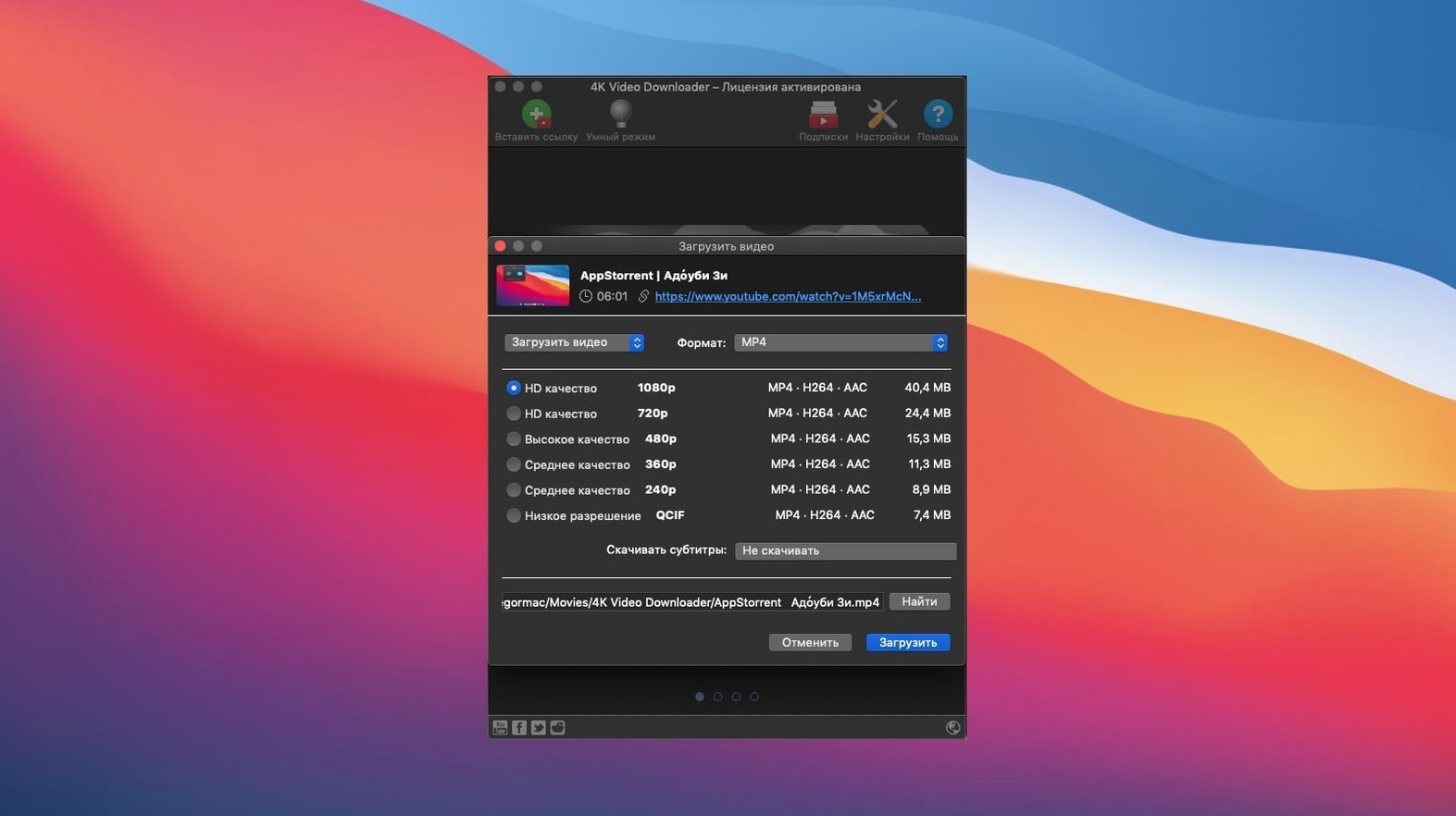
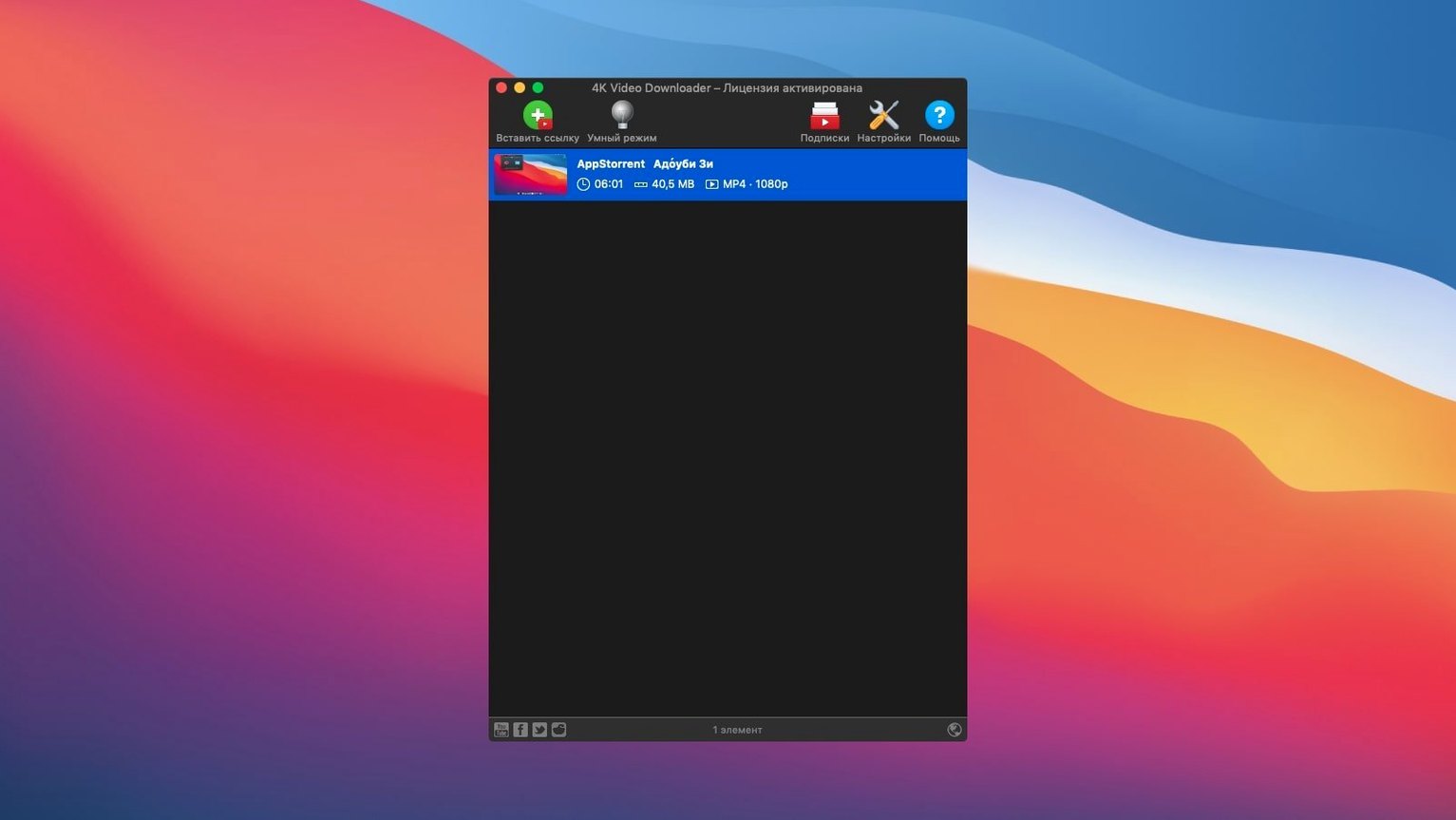
Six output formats ship in 26.3.5 — MP4, MKV, M4A, MP3, FLV, and 3G — so the downloader side of 4K Video Downloader is more flexible than the name suggests. The experienced-user angle isn't really about the defaults; it's about what you can push into Smart Mode and what happens to subtitles.
Can I make every download follow my own rules?
Smart Mode applies one saved setup to every download: format, quality, save location. Turn it on, paste a URL, and the app skips the per-link dialog. Clipboard monitoring plus the Paste Url action keeps the flow down to two keystrokes.
What happens to subtitles?
Subtitles come down as a separate .srt file or get embedded inside the video container. For multi-language channels that's the difference between a clean archive and a folder full of loose files.
Which sources actually work?
YouTube, Vimeo, SoundCloud, Flickr, Facebook, DailyMotion, and Instagram are supported, and the app can pull embedded YouTube videos out of a regular web page. The interface itself ships in sixteen languages, from Swedish to Traditional Chinese.
What does it feel like day to day?
On an Intel Mac running macOS 12, version 26.3.5 sits around 180–220 MB of RAM with a single download running. Queue up a playlist of thirty videos and that nudges toward 350 MB, which is modest for what it's doing — parsing video streams, muxing audio and video tracks, writing subtitles. The CPU graph stays flat once a download is in flight. The heavy lifting happens at the start when it resolves the URL, and again right at the end when it stitches the final file together. Between those two points, it's mostly a network-bound operation.
Stability is the quiet kind you stop noticing after two weeks. It doesn't beachball on paste, doesn't lose its place in a channel download after sleep, and hasn't yet produced a zero-byte file from an interrupted fetch — it flags the failed item and moves on. That matters when you leave it running overnight on a 200-video channel and check the folder in the morning to find 198 completed files and two red marks in the queue, not a silent gap.
Resource use shifts noticeably with 4K content. A single 2160p download from YouTube can spike the write speed on an older SATA SSD to 40 MB/s for a few seconds during the final mux. On a machine with 8 GB of RAM and a few browser tabs open, that's fine. With 4 GB and a heavy Photoshop session running, you'll feel the swap pressure. The app itself doesn't leak memory — it releases chunks after each file completes — but the mux stage wants a contiguous buffer, and macOS obliges.
One quirk worth knowing: the app prefers the discrete GPU on dual-GPU MacBook Pros if one is available. You'll see the dGPU kick on briefly during format detection, then switch back to integrated graphics once the download stream stabilizes. Hardly a dealbreaker, but it's the kind of thing that shows up in battery logs if you're running off the charger.
Why the pause button matters before you paste a link
Does it handle age-restricted content?
It does, provided you're signed into a YouTube account through the app's built-in browser window. Without that login, age-gated videos bounce back with an error. The login session persists across restarts unless you explicitly sign out, so it's a one-time step for most people. The session cookie lives in the app's sandbox, not in Safari, which keeps things tidy.
Will 4K downloads eat my entire drive?
A ten-minute 2160p video in MP4 with the VP9 codec lands around 1.2–1.8 GB depending on bitrate. A hundred of those is a serious chunk of a 256 GB internal drive. The app doesn't warn you about available space before starting a queue, so point the output folder at an external volume if you're pulling down channels. Format choice matters too — MKV files with embedded subtitles run slightly larger than bare MP4 because of container overhead and subtitle track data.
How Smart Mode grabs audio-only streams, skipping video entirely
Yes, and Smart Mode makes this frictionless. Set the format to M4A or MP3, quality to 256 kbps, and paste away. The app skips the video stream entirely — it parses the audio-only streams YouTube serves alongside video, so you're not downloading a full MP4 and extracting audio afterward. That saves both time and bandwidth. For someone building a local music library from live sessions or DJ sets, it's a quiet workhorse.
What the queue looks like when Smart Mode is already dialed in
You open the app. The main window shows an empty queue and a URL field at the top. In the menubar, you've already set Smart Mode to MP4 at 1080p with embedded subtitles, saved to ~/Movies/4K Downloads. You haven't touched those settings in three weeks.
You switch to Safari, where six tabs hold concert footage you want offline. You copy the first URL — the app grabs it from the clipboard before you even switch back. A subtle notification banner slides in from the right edge of the screen: Parsing… then Downloading: Live at Red Rocks (1080p). Three minutes later the file lands in the folder, metadata intact, subtitles burned into the container.
The second video is a 4K nature documentary. You paste it manually — right-click the dock icon, hit Paste Url — and the format dialog appears because you temporarily toggled Smart Mode off for this one. You pick MKV, 2160p, separate .srt file. The download takes eight minutes on a 50 Mbps connection. The progress bar fills in chunks: first the audio track, then the video stream, then a brief pause while it fetches subtitle data, then the final mux. The resulting folder holds two files: documentary.mkv and documentary.srt.
You queue the remaining four links as a batch — paste them one after another, no Smart Mode, varying formats per file. The queue panel shows estimated time remaining, which jumps around as each file's bitrate becomes known. Twenty-two minutes later, you have six videos and one subtitle file, all named sensibly with the video title, not a string of random characters. No post-processing needed.
Why your video download ended up as an M4A file
The most common beginner mistake is ignoring the format dropdown in the per-link dialog and wondering why a "video" download produced an M4A file. The app remembers the last-used format, not the last-used intention. If you downloaded an audiobook as MP3 yesterday, today's video paste defaults to MP3 too. Smart Mode exists precisely to lock that down, but people treat it as a power-user feature and skip it, then curse the output folder.
Another classic: pasting a playlist URL and expecting the app to ask how many videos to grab. It doesn't — it queues the entire playlist. For a 400-video channel, that's a sudden wall of network activity. The pause button stops new downloads from starting but doesn't cancel queued items, so you either let it run or clear the queue manually. Right-clicking the playlist entry and choosing "Select videos" before confirming would save a lot of bandwidth, but people rarely spot that option.
Subtitles cause confusion too. "Embedded" means the subtitle track lives inside the MKV or MP4 container — play the file in VLC or IINA and you can toggle it on and off. "Separate .srt" means a standalone text file with timestamps. Beginners often choose embedded, then open the file in QuickTime Player and wonder where the captions went. QuickTime doesn't read embedded subtitle tracks from MP4 containers the way VLC does. The fix is either switch video players or switch to separate .srt files, not re-download the whole video.
Finally, people assume the 4k video downloader macbook experience will match what they saw in a YouTube tutorial filmed on Windows. The Mac version handles clipboard monitoring through macOS pasteboard APIs, not a global hook, so it needs the app to be running and visible in the dock. If you quit the app, clipboard monitoring stops. That's by design — it's sandbox-safe behavior — but it catches newcomers who expect a background daemon.
Where MP4 and MKV files land in your QuickTime workflow
This app doesn't try to be a media library. It produces files, and those files slot into whatever ecosystem you already use. Downloaded MP4 and MKV files play natively in QuickTime Player, though for MKV containers with embedded subtitles you'll want IINA or VLC. The Finder's Quick Look handles MP4 previews with a spacebar tap; MKV files still need a third-party Quick Look plugin, which is a macOS limitation, not an app shortcoming.
The .m3u playlist files it generates for YouTube playlists are plain text — open one in a text editor and you'll see relative paths to each downloaded video. Drop that file into IINA or VLC and you've got a sequential playlist without importing anything into a database. It's a refreshingly lightweight approach compared to apps that demand you catalog everything inside their own library structure.
For podcast workflows, the M4A and MP3 output pairs naturally with Apple's Podcasts app or a third-party player like Overcast. Drag the audio files into a folder watched by your player of choice, and they appear in your listening queue without conversion. The metadata — title, artist if available — carries over from YouTube's video information, so you're not staring at a track called videoplayback.m4a.
Shortcuts integration is nonexistent — there's no Automator action or AppleScript dictionary — but the clipboard monitoring effectively turns the app into a passive downloader. Copy a URL, the download starts. That pairs well with browser extensions or bookmarklets that copy URLs to the clipboard in one click. It's not automation in the strict sense, but it's fast enough that you don't miss it.
The app's sandbox means downloaded files land wherever you pointed the output folder — no hidden caches in ~/Library, no temp files that survive a reboot. When you delete a download from the queue history, it's gone from the list; the file itself stays wherever you saved it. That separation of concerns — the app manages downloads, Finder manages files — keeps things predictable when you're moving content between machines or backing up to an external drive.
- macOS 12 or later
- Intel architecture
$ man 4k-video-downloader | grep -A2 "?"
Which file formats can 4K Video Downloader output?
It supports MP4, MKV, M4A, MP3, FLV, and 3G output formats.
Can I download subtitles separately from the video?
Yes — subtitles can be saved as a separate SRT file or embedded directly in the video file.
Comments 0
Sign in or create an account to leave a comment.
No comments yet. A codec, a slice, a machine — they appear after moderation.