4K YouTube to MP3 for macOS
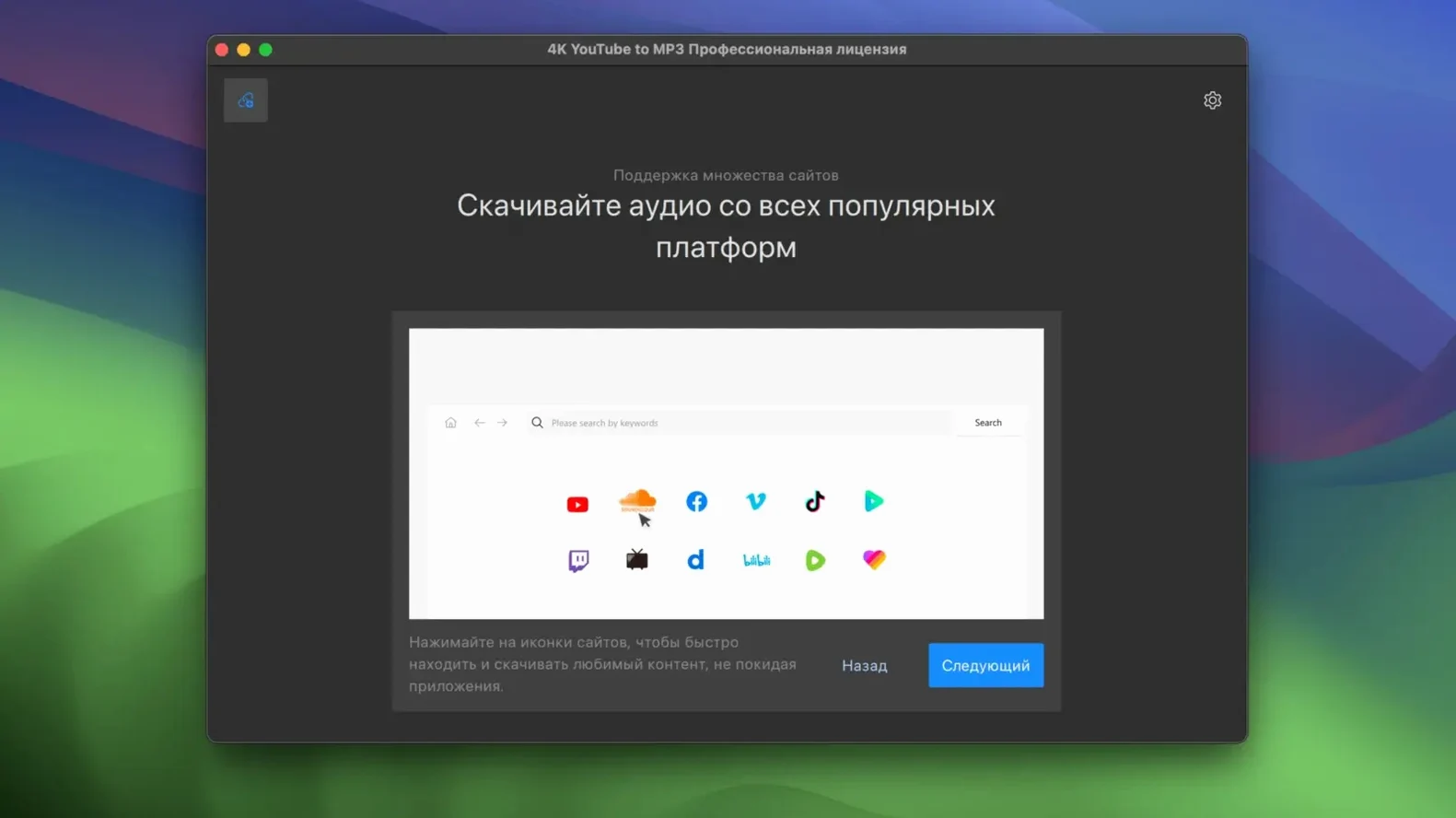
Downloading a long talk or a live set just to keep the audio feels like wasted bandwidth. That's the problem 4K YouTube to MP3 solves — it grabs the sound directly and skips the video stream entirely.
Does it handle playlists or just single videos?
It supports playlists, so you can queue up a whole album or lecture series in one go instead of pasting links one at a time.
What audio format do I actually get?
The output is MP3. The converter extracts the audio track from the source and writes it straight to a file — no intermediate video sitting on your disk.
Is this a macOS-native app or something else?
It's a standalone Mac application from OpenMedia LLC, separate from the main 4K Video Downloader. An Intel build runs on macOS 12 and later, and the interface is in English.
What do people usually ask before installing?
One question that comes up a lot is whether it grabs the exact audio stream or re-encodes it. The answer depends on the source. For most YouTube videos, the converter pulls the best available AAC or Opus audio track — whichever the server provides for that resolution — and writes it into an MP3 container. That means a transcode step happens, but it's quick and the quality holds up well for spoken word and most music. If you point it at a SoundCloud link where the original upload was MP3, the result stays close to the source.
Another common concern is playlist length. People wonder if a 200-video playlist will choke the app. In practice, the queue handles large sets fine; the limiting factor is usually the site's rate-limiting, not the converter. Past a certain volume you might hit temporary blocks, so spreading a massive queue across a couple of sessions is wise.
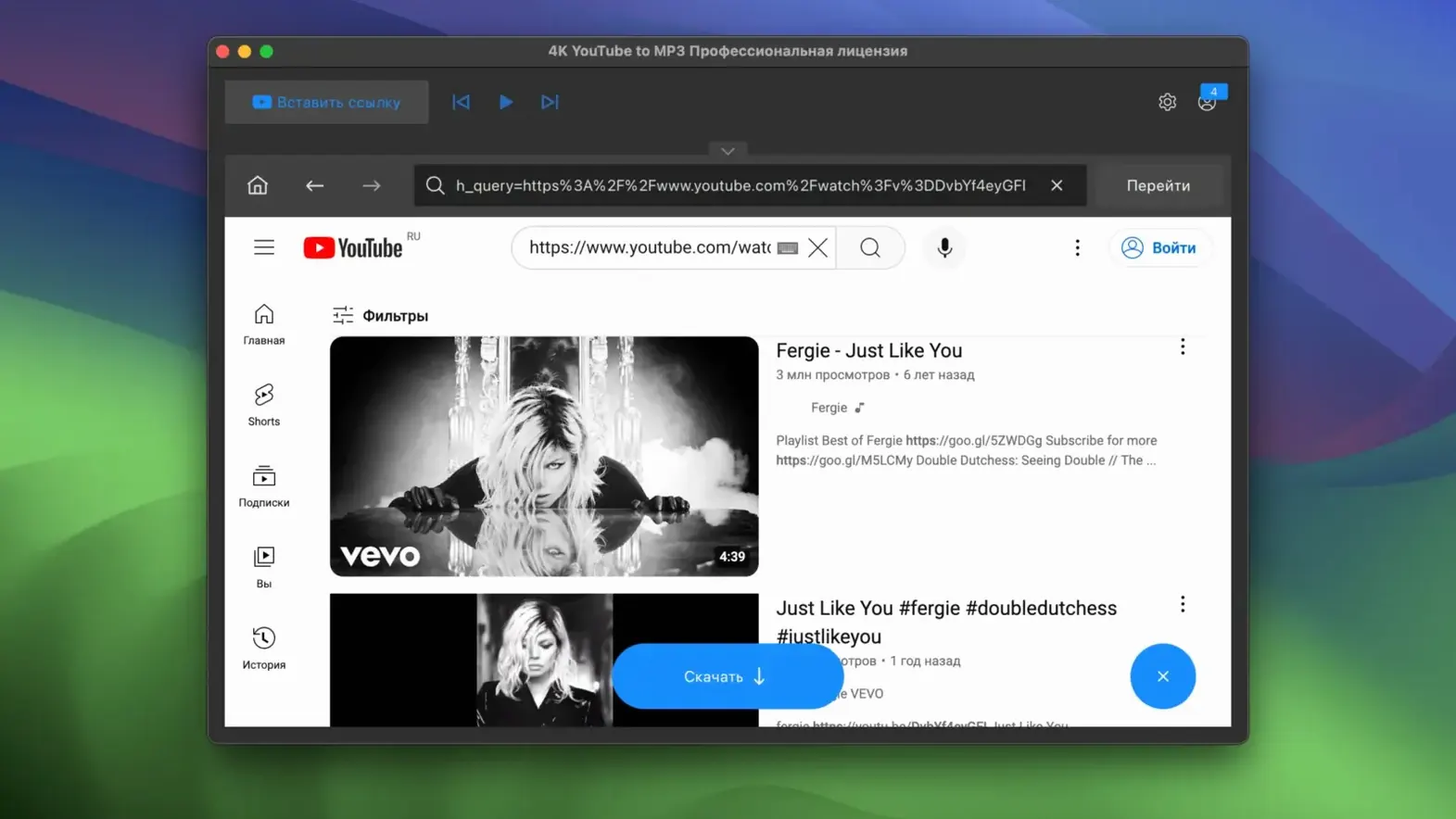
And yes — you can paste a 4k youtube to mp3 search phrase into the in-app browser if you want to grab audio from videos you find that way, though the direct link method is faster.
Mistakes beginners make with it
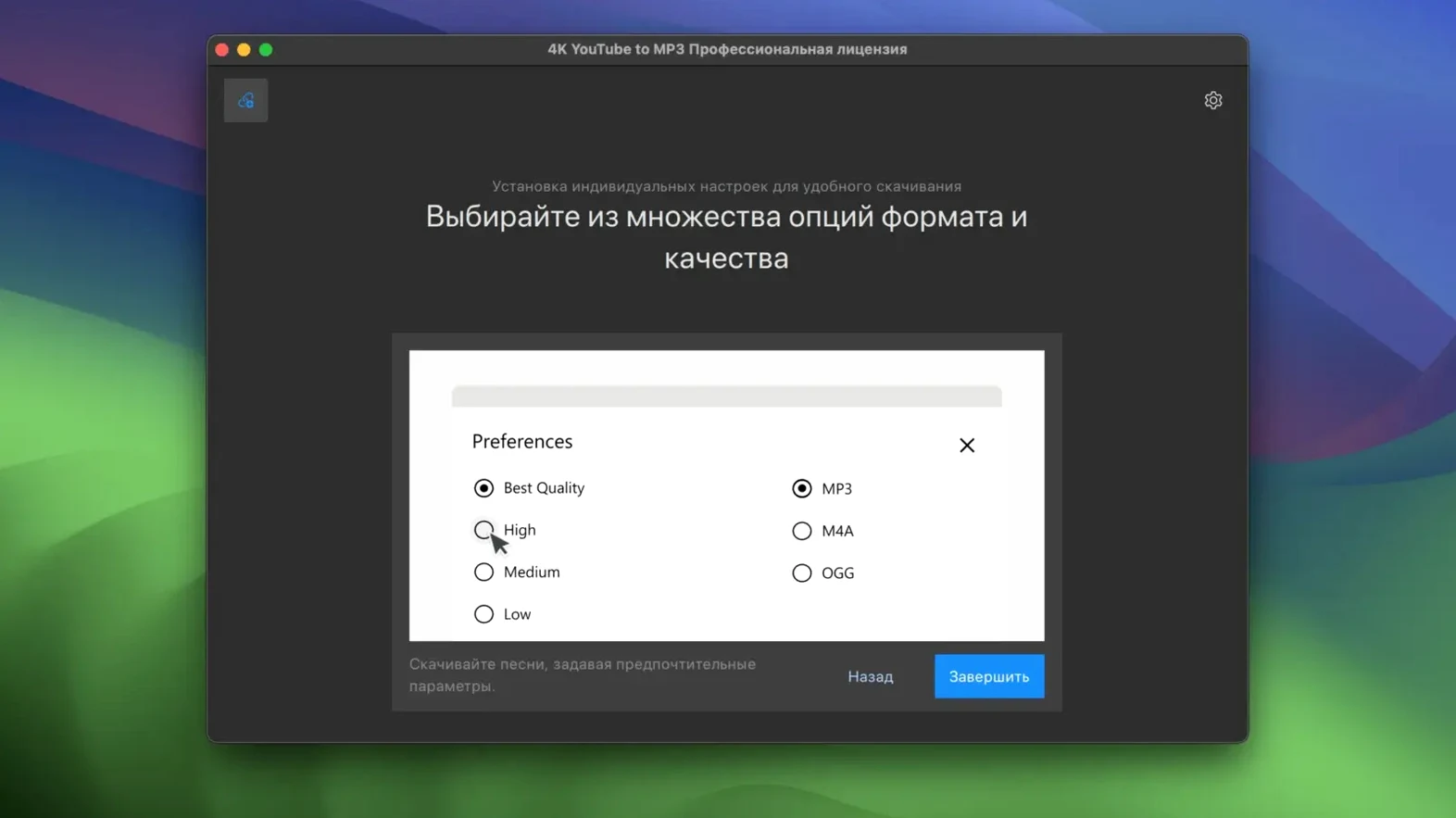
The most frequent misstep is not checking the output format before hitting the download button. The app defaults to MP3 at a moderate bitrate, which is fine for casual listening, but if you plan to archive a rare live recording you probably want to bump the quality setting first. It's a one-time tweak in the preferences, easy to forget when you're in a hurry.
Another one: dragging a channel URL instead of a video or playlist link. The parser expects a specific video or a playlist ID — a channel homepage won't resolve, and the error message doesn't spell that out clearly. If nothing happens when you paste a link, look at the URL structure.
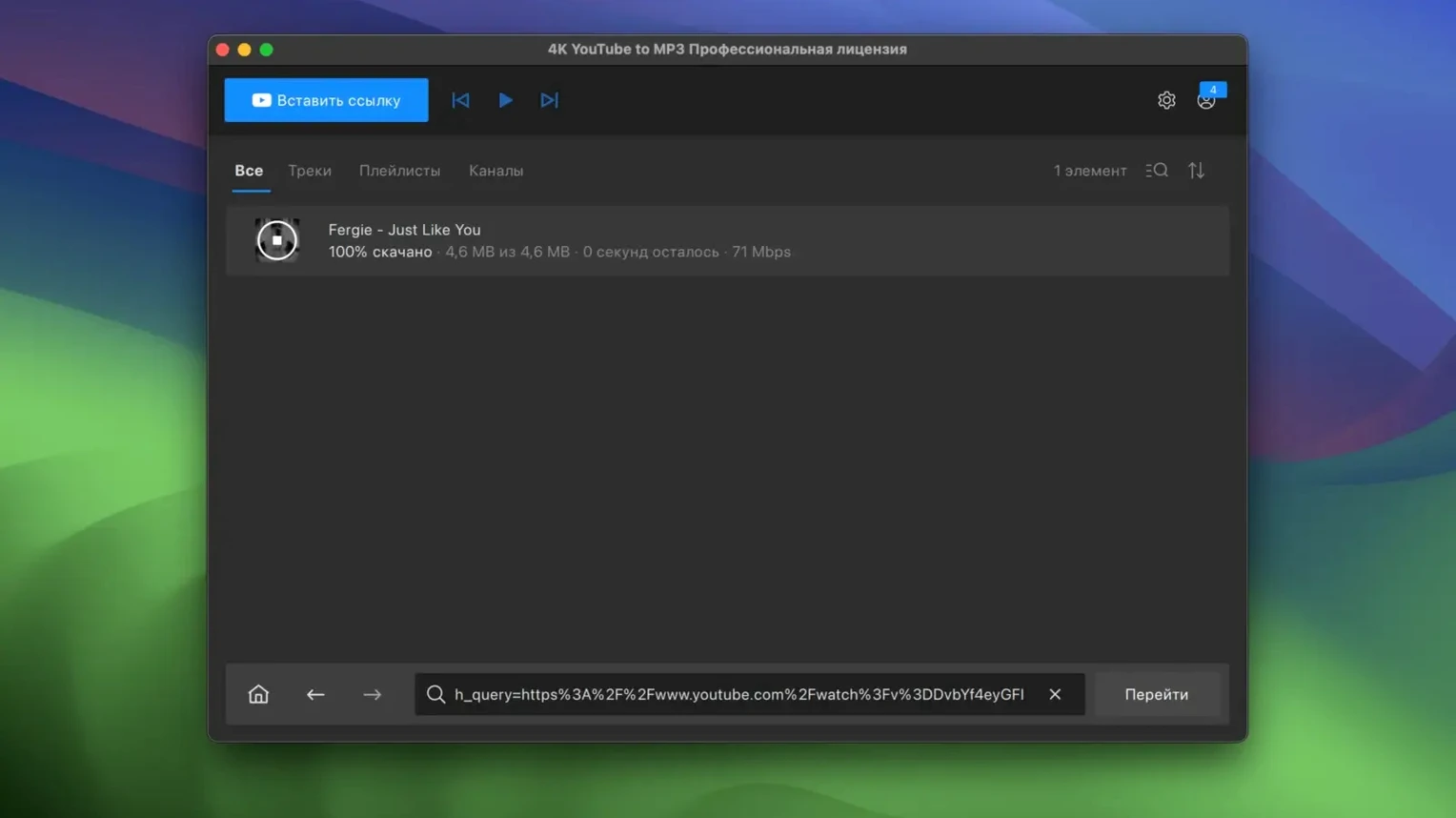
New users also tend to close the app immediately after the progress bar finishes. Let it complete the file-write step. On slower external drives, the conversion finishes before the file is fully flushed. If you eject the drive right at that moment you get a zero-byte file and a moment of confusion. Just watch for the status to switch to "Done" and you're safe.
First days: practical tips
Set your output folder deliberately on day one. The default location is a 4K YouTube to MP3 folder inside your Music directory, but if you keep a separate drive for audio projects, point it there now. Moving thousands of files later is tedious.
Name your playlists inside the app. When you queue a batch, the converter assigns the playlist title as the folder name. If you leave the auto-grabbed title — often something generic like "My Playlist" — you end up with folders that tell you nothing six months later. Rename the batch before starting the conversion and your future self will thank you.
If you're on a Mac with limited internal storage, watch the temporary cache. The app uses a working directory during the conversion; on large playlists that space adds up. You can point the cache to an external volume in the preferences, which keeps your system drive breathing room.
One more thing: the in-app browser isn't just a gimmick. If you regularly search for 4k video download youtube or 4k youtube to mp3 converter terms to find audio sources, the integrated browser saves you from tab-switching. Paste a search, play the video, and the app detects it automatically.
A workflow: turning a conference playlist into tagged audio files
Say you have a 15-video conference playlist on YouTube — talks you want to listen to offline. Here's a step-by-step that avoids the usual cleanup headache later.
First, open the app and set the output format to M4A at the highest available bitrate. M4A gives you better metadata handling than MP3 for this kind of material, and since it's spoken word, you're not worried about player compatibility — any phone or Mac plays it.
Paste the playlist URL. The parser fetches all 15 entries and displays them in a list. Before you start the download, select all entries and check the checkbox to embed the thumbnail as cover art. For conference talks, the slide preview frame is often more useful as a visual cue than a blank square.
Now tweak the naming template. The default is Artist - Title, but for a conference you want the speaker name and talk title instead. Set it to grab the video title as-is; most conference uploads follow a consistent naming pattern like "Speaker Name — Talk Title." If the channel didn't follow a pattern, you can manually edit the filenames in the queue before starting — tedious for 200 videos, but quick for 15.
Hit download and let the batch run. While it churns, open Finder and create a folder called Conference 2025 on the external drive you'll use for playback. Point the app's output there if you haven't already.
Once the batch finishes, open the folder and spot-check three files: the first, a middle one, and the last. Play the first five seconds and the last five seconds of each. This catches truncated downloads — rare but possible if a connection dropped mid-stream. If any file is short, re-queue just that video.
Finally, drag the folder into Apple Music or your player of choice. Because you used M4A with embedded artwork, the files import with speaker names intact and thumbnail art attached. What was a scattered playlist is now a clean offline library, and you didn't spend an hour renaming files after the fact.
- macOS 12 or later
- Intel processor
- Interface language: English
$ man 4k-youtube-to-mp3 | grep -A2 "?"
Does it only work with YouTube?
It emphasizes YouTube to MP3 conversion, though it describes the app as a converter for online video and audio sources generally.
Is there anything else I need to install first?
No extra dependencies. The app comes as a self-contained download — just mount the disk image and follow the standard Mac install steps.
Comments 0
Sign in or create an account to leave a comment.
No comments yet. A codec, a slice, a machine — they appear after moderation.