iTubeGo for macOS
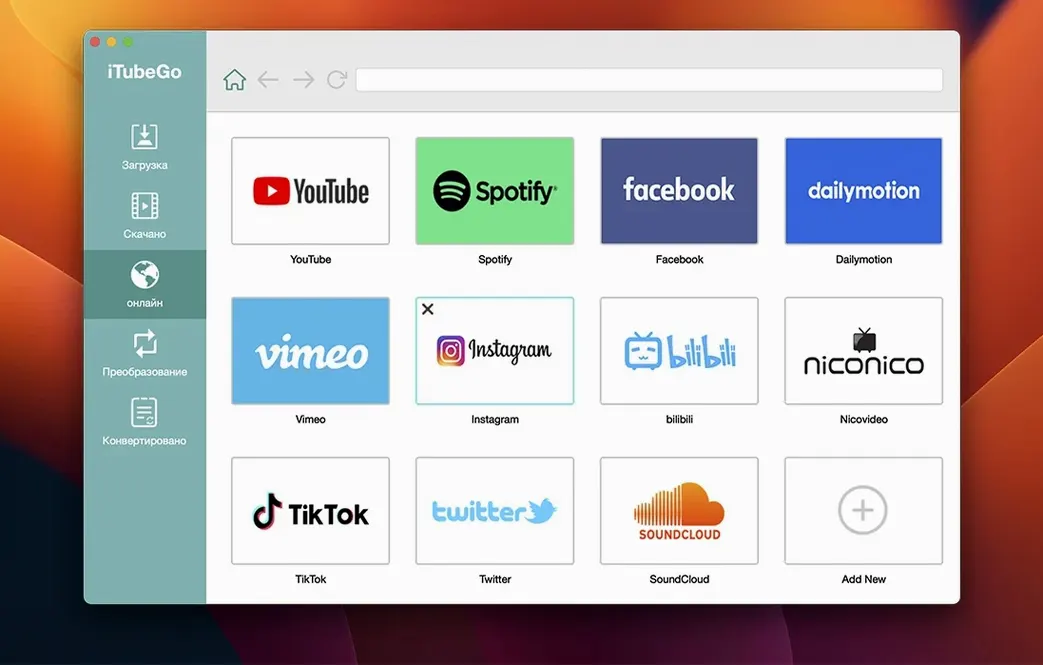
iTubeGo is a Mac app that downloads and converts online video and audio from more than 10,000 websites.
What formats does it handle?
Video can be saved as MP4 at resolutions from 480p all the way up to 8K. For audio-only work, the app extracts the soundtrack and encodes it as 320 kbps MP3, along with other common formats.
Who is it actually for?
Anyone who needs offline copies of web video or high-quality audio rips. It suits students grabbing lecture clips, musicians pulling reference tracks, and people who want to watch content on a device without a steady internet connection.
What about bulk downloads?
A batch mode queues up multiple URLs and processes them in one go. The developer claims this runs up to 10× faster than fetching each item individually, which helps when you are working through a long playlist or a season of videos.
Does it do anything beyond downloading?
Yes — the built-in converter can change an already-saved file into a different format without re-downloading it, so a video you grabbed as MP4 can be turned into an audio-only MP3 afterwards if your needs shift.
What does a real session actually look like?
Say you're a design student putting together a mood reel. You've got six Vimeo links from your lecturer, a handful of YouTube clips with soundtrack ideas, and an Instagram video a friend sent that has exactly the right colour grade. You need all of this offline, in one folder, by the time you open Premiere later that afternoon.
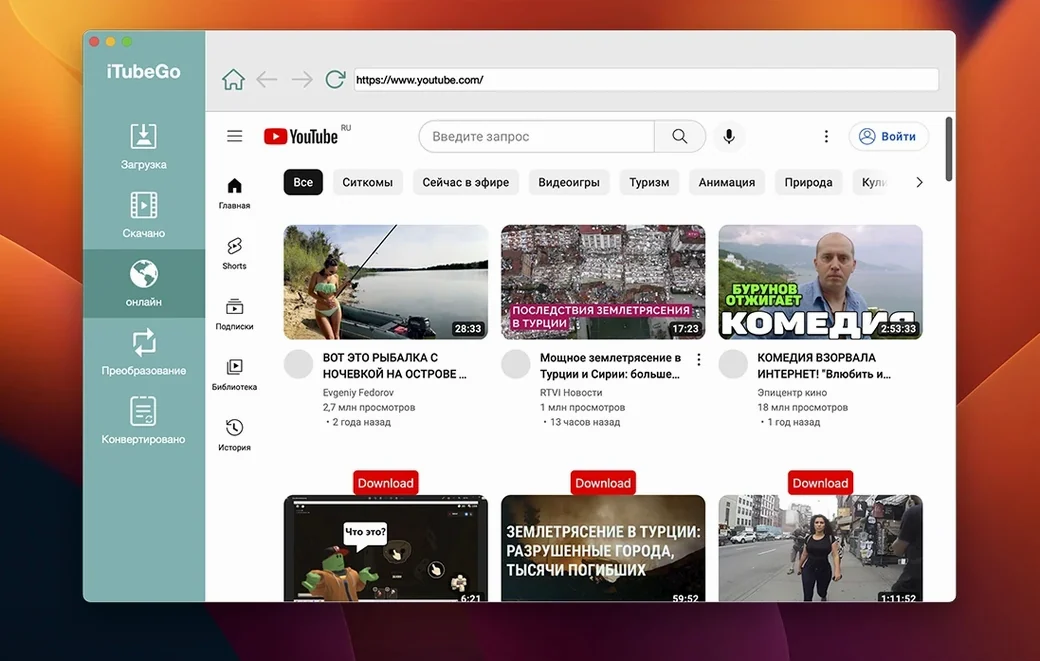
You open the app and paste the first YouTube URL. The built-in browser pops up — it's not a full Chrome replacement, but it renders the page natively so the downloader can see the video stream directly. You pick 4K MP4 from the quality dropdown and hit the download button. The progress bar fills quickly; a 12-minute clip lands on your desktop in under a minute.
Next, the Vimeo links. You paste them one after another into the batch queue. Five sit waiting while you grab the Instagram clip separately — that one needs a different approach, so you open the built-in browser, navigate to the post, and the app detects the video automatically. You right-click the thumbnail in the browser, select download, and choose 1080p.
You now have seven video files. The two YouTube clips with soundtrack potential need to be audio-only. Instead of re-downloading anything, you drag the MP4s into the converter tab, set the output to MP3 at 320 kbps, and let it rip. Thirty seconds later you have two crisp audio tracks sitting alongside the video files. Everything goes into a single project folder, and you close the app until next week's session.
A few things that are easy to miss
The quality dropdown isn't just a resolution picker — it also shows the codec combination the site is serving for that stream. On YouTube you'll often see VP9 in a WebM container listed alongside the standard H.264 MP4. If your editing software chokes on WebM, grabbing the H.264 variant saves a transcode step later.
There's a clipboard monitor you can toggle on from the preferences. When it's running, any URL you copy in your browser gets picked up automatically and offered as a download. It's off by default, which makes sense — you don't always want every copied link to trigger the app — but for long research sessions it cuts out the constant app-switching.
If you hold Option while clicking the download button, the app skips the format dialog and uses whatever settings you last picked. Muscle memory for that one saves about four clicks per video once you're in a rhythm.
The built-in browser can log into sites that require an account — Instagram and Facebook downloads need this — and the session persists until you clear it. That means you log in once, grab everything you need across multiple tabs, and stay authenticated the whole time without opening Safari or Chrome separately.
How it fits into a larger workflow
iTubeGo sits comfortably between a browser and whatever you use for playback or editing. Downloaded files land wherever you set in preferences — an external drive, a watched folder for your media library, or straight into a cloud-synced directory. If you point the output at a folder that Plex or Infuse monitors, new videos show up in your library without any manual import step.
For audio work, the 320 kbps MP3 output is clean enough for reference tracks in a DAW. You can set the converter to drop files directly into an Ableton or Logic user library folder, so downloaded audio appears in the browser next time you open the session. It's a small thing, but it eliminates the drag-and-drop shuffle between Finder and the DAW.
The app integrates with macOS's share sheet too. In Safari or Firefox, right-click a link, choose Share, and iTubeGo appears as a destination if you've enabled the extension. The URL gets handed off, the app opens in the background, and the download starts without bringing the main window forward — useful when you're reading and don't want your focus broken.
For users who've picked up iTubeGo for Mac specifically to handle video from sites like TikTok or Dailymotion, the built-in browser handles the peculiarities of each platform's video delivery without needing separate scripts or browser extensions. The same download engine that parses a 4K YouTube stream also pulls the highest available bitrate from a short-form post, which keeps the workflow consistent no matter where the content lives.
- OS X 10.10 or later
- Intel processor
- Interface languages: Russian, English, German, Vietnamese, Indonesian, Spanish, Italian, Traditional Chinese, Simplified Chinese, Korean, Portuguese, French, Japanese
Comments 0
Sign in or create an account to leave a comment.
No comments yet. A codec, a slice, a machine — they appear after moderation.