
PullTube for macOS
Version 1.8.6.40 is a maintenance release that keeps PullTube running smoothly on current macOS setups, with no new feature switches to flip.
PullTube — A macOS utility that grabs online video, audio, and subtitles from sites you point it at.
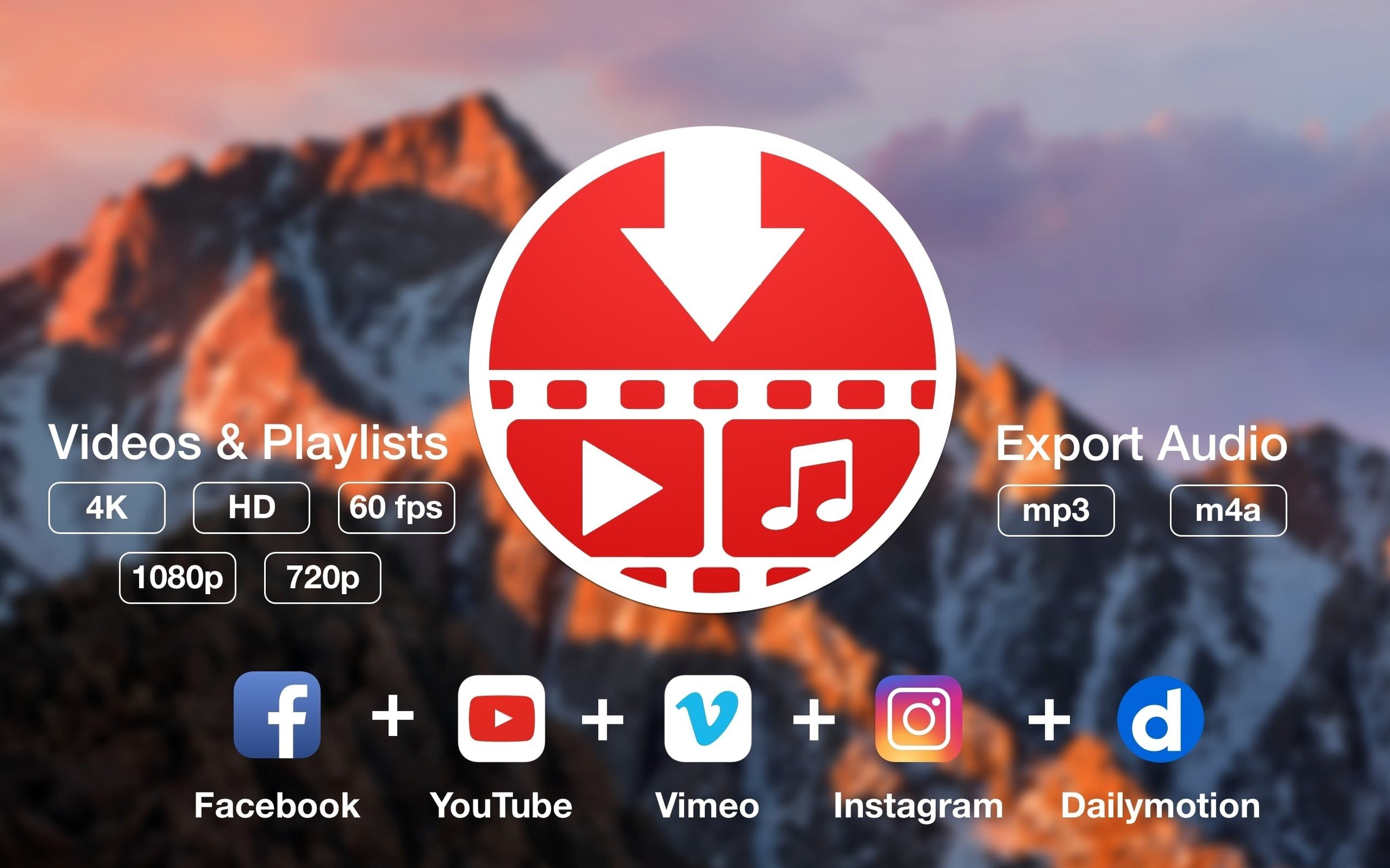
Supported sites — The developer lists over 1,000, including YouTube, TikTok, Twitch, Facebook, Vimeo, Instagram, Bilibili, and SoundCloud.
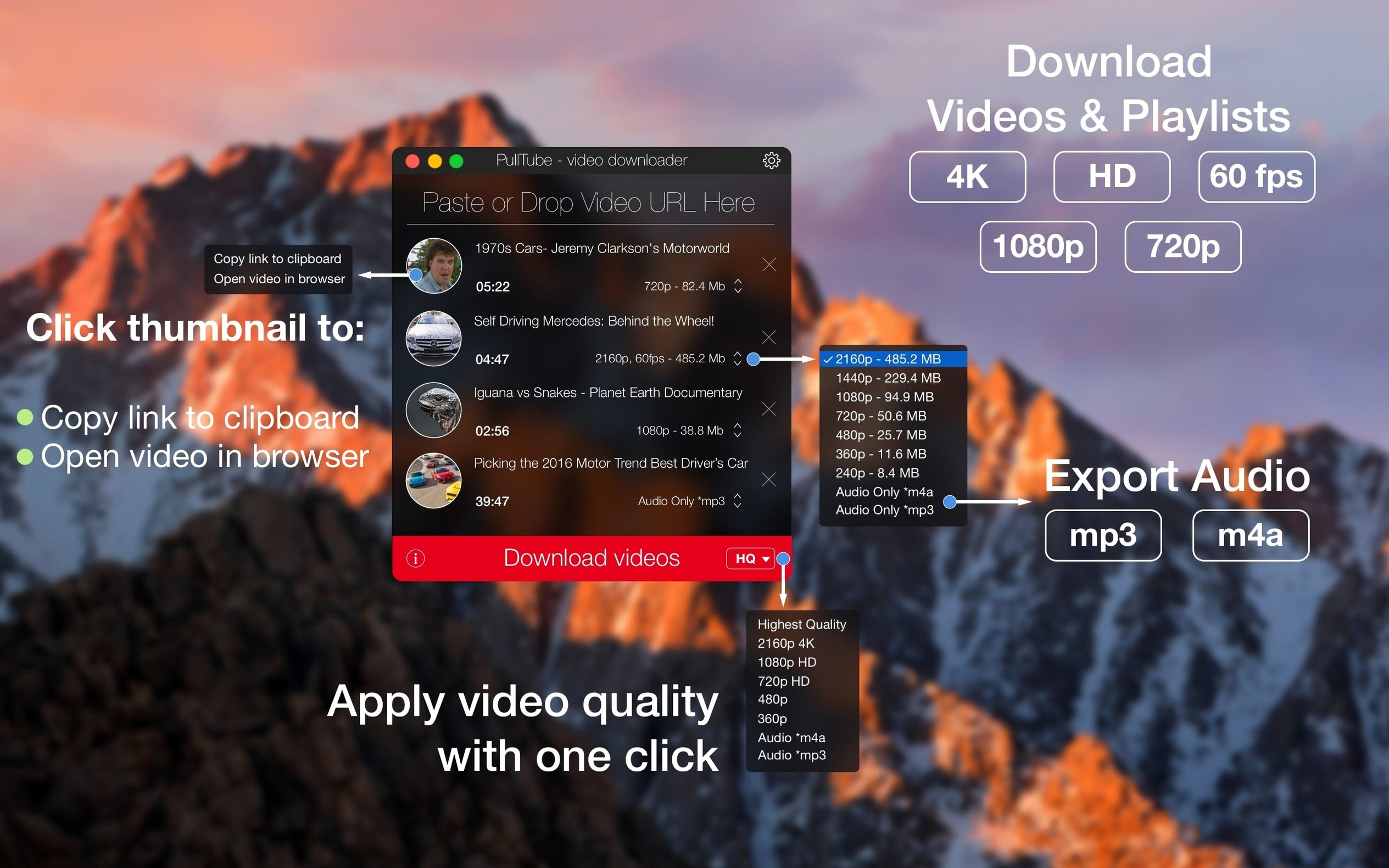
Video qualities — Highest available, 4K, HD, or normal; you choose before the transfer starts.
Audio mode — Strip the video track and save just the sound, in MP3 or M4A.
Playlists — Drop a playlist link and PullTube queues every item, so you don't click through one by one.
File naming — Optionally append quality info to the filename, which helps when you grab the same clip at different resolutions.
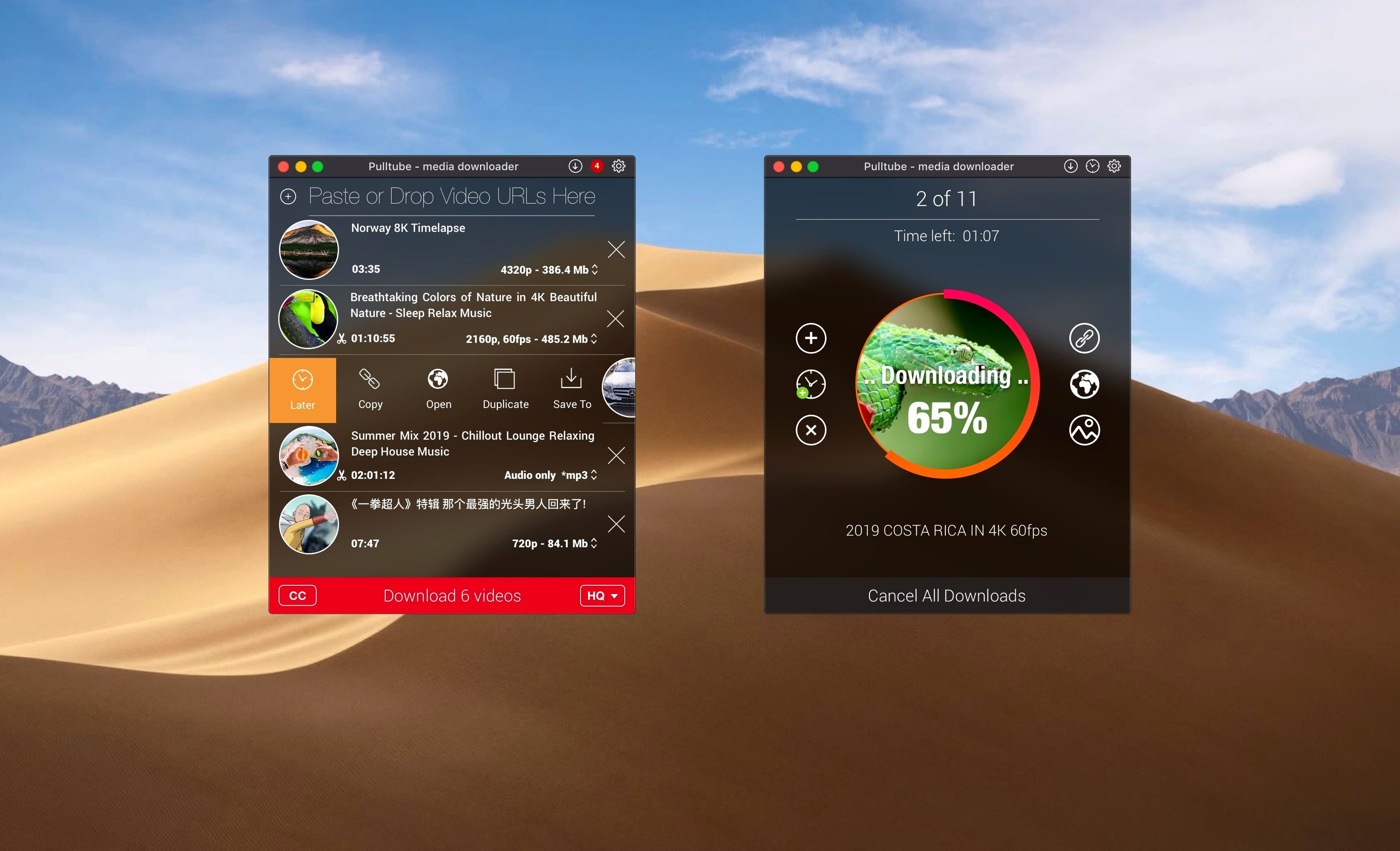
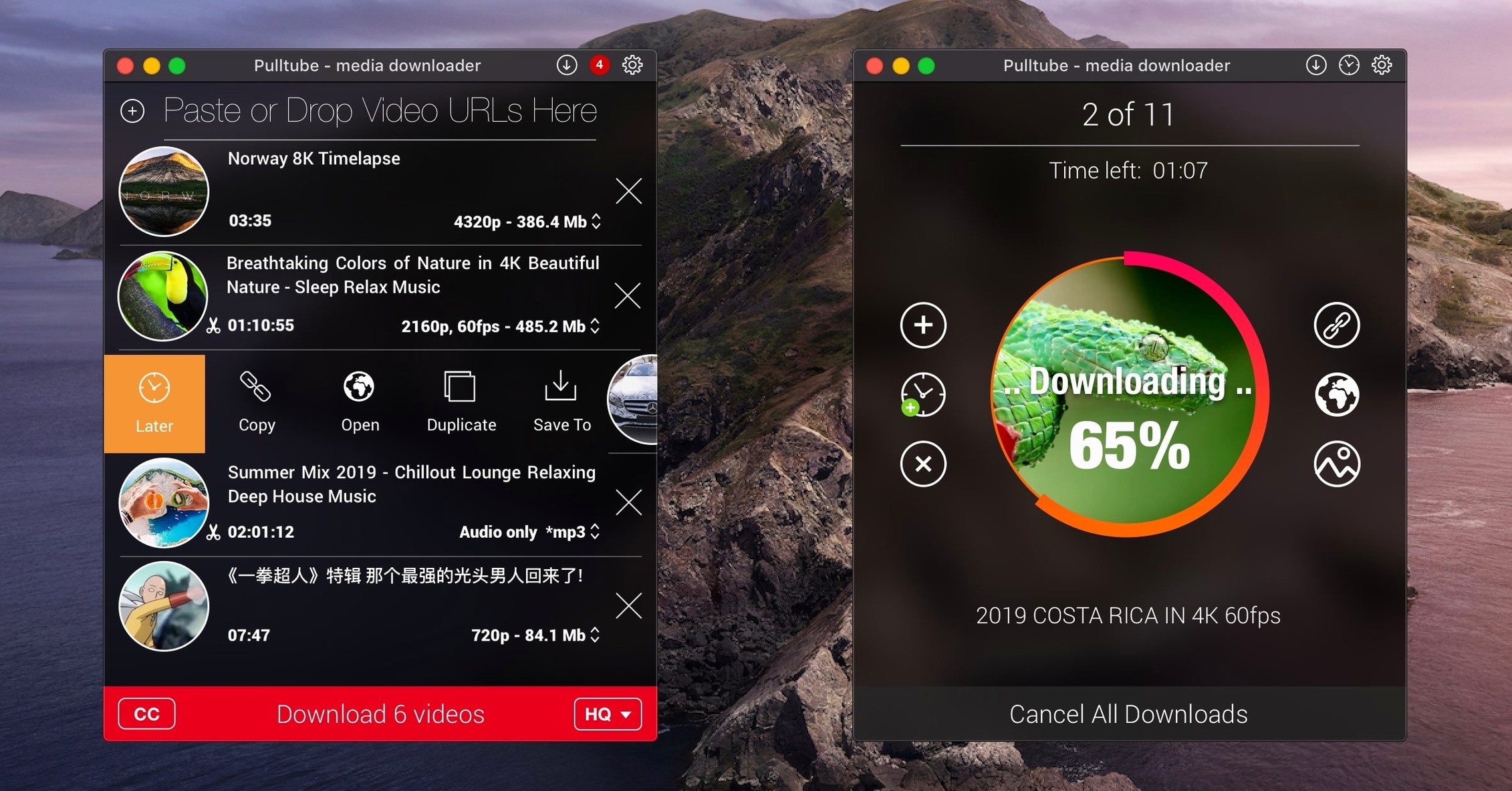
Preview — Before anything downloads, you see the title, duration, and thumbnail, so you know exactly what you're getting.
PullTube is built for people who want a simple grab-and-save tool without routing their traffic through a web service. It runs natively on both Intel and Apple Silicon Macs, and the interface speaks Russian, English, German, Spanish, Italian, Simplified Chinese, and French.
Grabbing a YouTube interview, Vimeo clip, and SoundCloud episode for offline use
Say it's a Tuesday evening and you're researching a project. You find a long-form interview on YouTube, a short clip on Vimeo that shows a technique, and a podcast episode on SoundCloud you want offline for the train tomorrow. PullTube is already running in your Dock, the menu bar icon tucked away.
You copy the YouTube URL in Safari — no extension needed, just ⌘C. Switch to PullTube and the link is already pasted and parsing. Within a second you see the thumbnail, title, and duration appear. You choose 1080p as the quality, leave the default .mp4 container, and hit the download arrow. The progress bar fills while you go back to the browser.
For the Vimeo clip, you drag the URL from the address bar straight into PullTube's window. It lands in the queue and auto-detects the best available quality. You right-click the item, pick Audio only, and switch the format to M4A before it starts.
The SoundCloud link comes next. You paste it, the app identifies the stream, and you set it to MP3 at 320 kbps if the source allows. Three items queue up, and you can reorder them by dragging rows up or down. While the first download is still running, the second one starts as soon as it finishes — no manual intervention.
Before you close the lid for the night, you tick the preference to Quit after all downloads finish. In the morning, the files are in your designated folder, PullTube has closed itself, and nothing was left half-done.
Changing the default download folder and file-naming behavior
Out of the box, PullTube drops files into a default folder, picks the best video quality available, and names files with the original title. A few tweaks make it fit your habits better.
Output folder. Open Preferences and set a dedicated directory — something like ~/Downloads/PullTube keeps the desktop clean. If you separate video and audio projects, create two folders and switch the destination before starting a batch.
File naming. Enable Append quality to filename. When you download the same lecture at 720p and 4K, you'll see Lecture_720p.mp4 and Lecture_4K.mp4 instead of one overwriting the other. For audio, the format extension (.mp3 or .m4a) does the job.
Default audio format. Decide whether your ecosystem prefers MP3 (wider device support) or M4A (better quality at the same bitrate for Apple devices). Set it once in Preferences and every audio-only grab will use it unless you override per item.
Playlist behavior. When you paste a playlist, PullTube lists every entry. If you only need three of twenty, delete the unwanted rows before starting. It saves bandwidth and time.
Quit when done. If you often queue large playlists overnight, this checkbox is your friend. Find it in Preferences and toggle it on for unattended sessions.
How does PullTube fit with other apps and macOS features?
PullTube doesn't try to be a media player, editor, or library manager — it just hands off clean files. That narrow focus means it slots into a larger toolchain without friction.
Finder and Spotlight. Downloaded files are standard .mp4, .m4a, or .mp3 containers. Quick Look (spacebar) previews them instantly. Spotlight indexes the filenames, so searching for a video title pulls up the file directly.
Apple Music and TV. Drag an M4A into the Music app and it appears in your library with the embedded metadata the source provided. Video files land in the TV app the same way — no transcoding step needed if the codec is H.264, which most streams use.
Editing tools. Drop a downloaded .mp4 into iMovie, DaVinci Resolve, or Final Cut Pro and it imports as a native clip. No re-wrap step. For audio, an MP3 or M4A opens in Audacity, Logic Pro, or GarageBand without complaints.
Shortcuts and Automator. Because PullTube accepts drag-and-drop and pasted links, you can build a Shortcut that takes a URL from the clipboard, opens PullTube, and starts the download. Combine it with a folder action that watches the output directory and triggers a conversion or upload step — useful for podcasters who archive interviews.
AirDrop and Handoff. Once a file lands in Finder, it's a regular file. AirDrop it to an iPhone or iPad, or open it on another Mac via iCloud Drive. PullTube itself doesn't need to run on the receiving device.
Notification Center. When a download finishes, macOS posts a notification with the filename. Click it and the file opens in the default player. If you miss it, the Notification Center history holds it until you clear the day.
A workflow: archiving a conference playlist with audio extracts
Imagine a developer conference posts a YouTube playlist of thirty talks. You want the full video for five keynotes and audio-only MP3s for the rest, to listen on your phone during commutes. Here's how PullTube handles it end to end.
Step 1. Copy the playlist URL from YouTube. PullTube detects the playlist and populates the queue with all thirty entries, each showing its title and duration.
Step 2. Skim the list. Select the five keynotes — hold ⌘ and click each row — and choose 4K quality from the dropdown that applies to the selection.
Step 3. Select the remaining twenty-five talks. Right-click the selection, pick Audio only, and confirm MP3 as the format. The queue now shows a mixed list: five video items at 4K, twenty-five audio-only items at MP3.
Step 4. Set the output folder to ~/Documents/Conference2025/Video for the video batch. Start those five downloads. While they run, switch the destination folder to ~/Documents/Conference2025/Audio. The audio items are still queued; they'll use the new folder when their turn arrives.
Step 5. Enable Quit after all downloads finish. Walk away. An hour later, PullTube has exited, and Finder shows two tidy folders: Video with five .mp4 files and Audio with twenty-five .mp3 files, all named after the talk titles.
Step 6. Drag the audio folder into the Music app. Sync your iPhone over Wi-Fi or USB. You now have an offline conference playlist without touching a streaming app.
How PullTube and Downie handle the same video sources
Several native Mac downloaders take a crack at this problem. Here's how PullTube sits alongside a few you might run into when searching for a pulltube downloader.
Downie. Downie is the most frequent comparison. Both apps support a broad range of sites and handle 4K, playlists, and audio extraction. Downie leans harder into browser integration, offering a Safari extension that sends links with one click. PullTube keeps things simpler — no extension, just a window that accepts pasted or dragged URLs. If you prefer a minimal footprint, PullTube feels lighter. Downie's per-site settings and user-guided extraction are deeper, but PullTube's queue-and-forget workflow is faster for straightforward grabs.
ClipGrab. ClipGrab is a free, open-source option. It covers YouTube and Vimeo well, and its built-in search bar lets you find videos without leaving the app. PullTube skips the search feature entirely — it assumes you've already found your link. ClipGrab's interface feels older and occasionally trips on macOS permissions for screen recording (a Gatekeeper quirk). PullTube's install process handles that upfront with a one-time Terminal command, after which it's quiet. For audio extraction, both produce clean files, but PullTube's M4A option and playlist handling give it an edge for batch work.
youtube-dl / yt-dlp. The command-line tools are the most powerful and site-compatible of all, but they live in Terminal. PullTube for mac wraps that same concept in a window with thumbnails, a progress bar, and drag-and-drop. If you need to script downloads or pass exotic flags, yt-dlp is unbeatable. For everyone else, PullTube is the graphical alternative that doesn't require memorizing flags. The trade-off is site breadth: yt-dlp supports practically anything with a video tag, while PullTube works with a curated list maintained by the developer.
In practice, many Mac users keep both PullTube and a command-line tool around — PullTube for daily quick grabs where seeing the thumbnail and progress is satisfying, and yt-dlp for the edge cases PullTube doesn't cover yet. The two approaches complement rather than compete, and PullTube mac occupies the GUI niche cleanly.
PullTube 1.8.6.41 applies a fresh set of under‑the‑hood fixes so the app parses video sources and finishes downloads without interruption.
- macOS 11 (Big Sur) or later
- Apple Silicon or Intel 64‑bit
$ man pulltube | grep -A2 "?"
Can PullTube save only the audio from a video?
Yes. You can extract the audio track and save it as an MP3 or M4A file, leaving the video behind.
Does it handle full playlists?
It does. Paste a playlist link and the app queues every video in the list, supporting sites like YouTube.
What video quality can I download?
You can pick from the highest available quality, 4K, HD, or normal, depending on what the source provides.
Comments 0
Sign in or create an account to leave a comment.
No comments yet. A codec, a slice, a machine — they appear after moderation.