iDownerGo for macOS
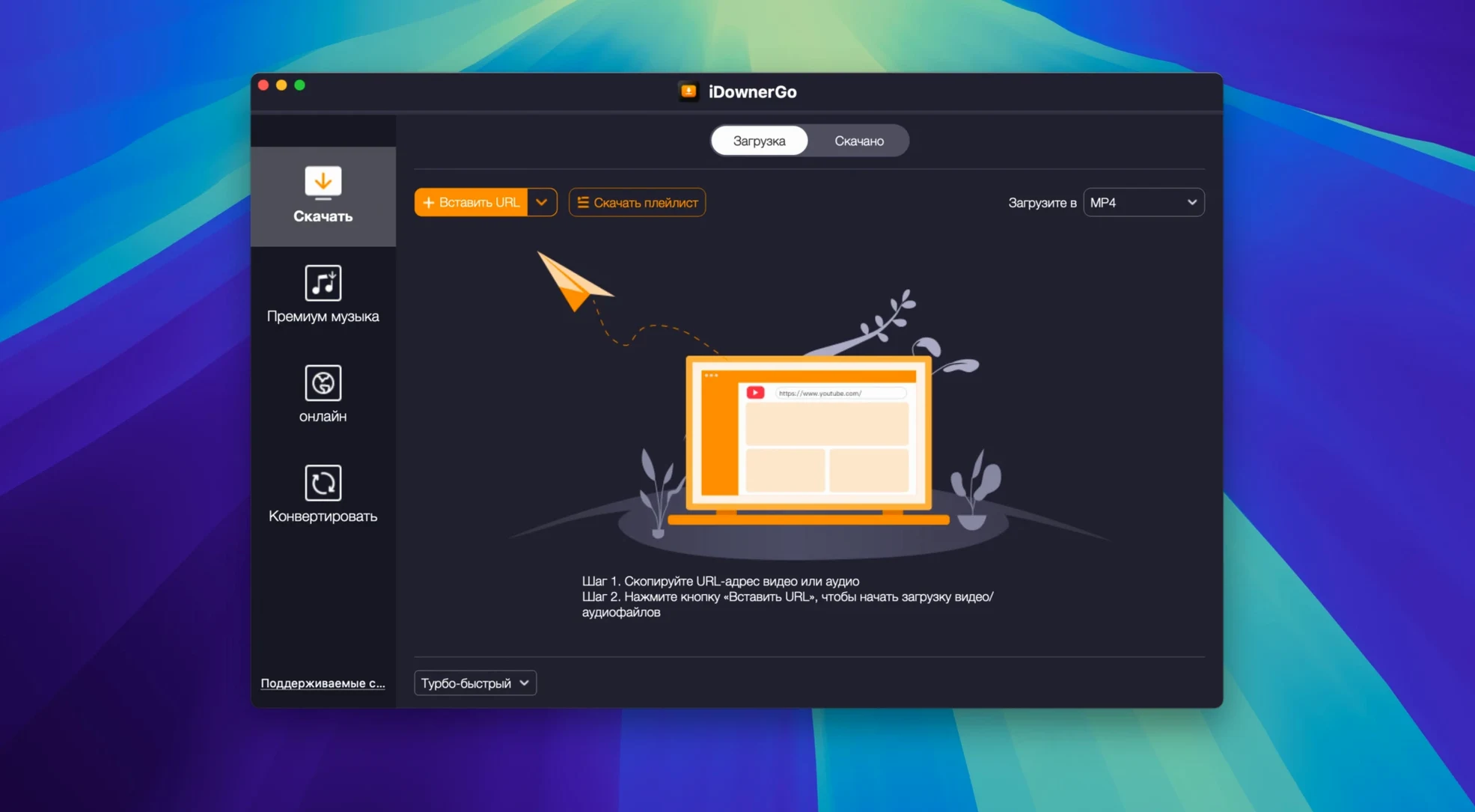
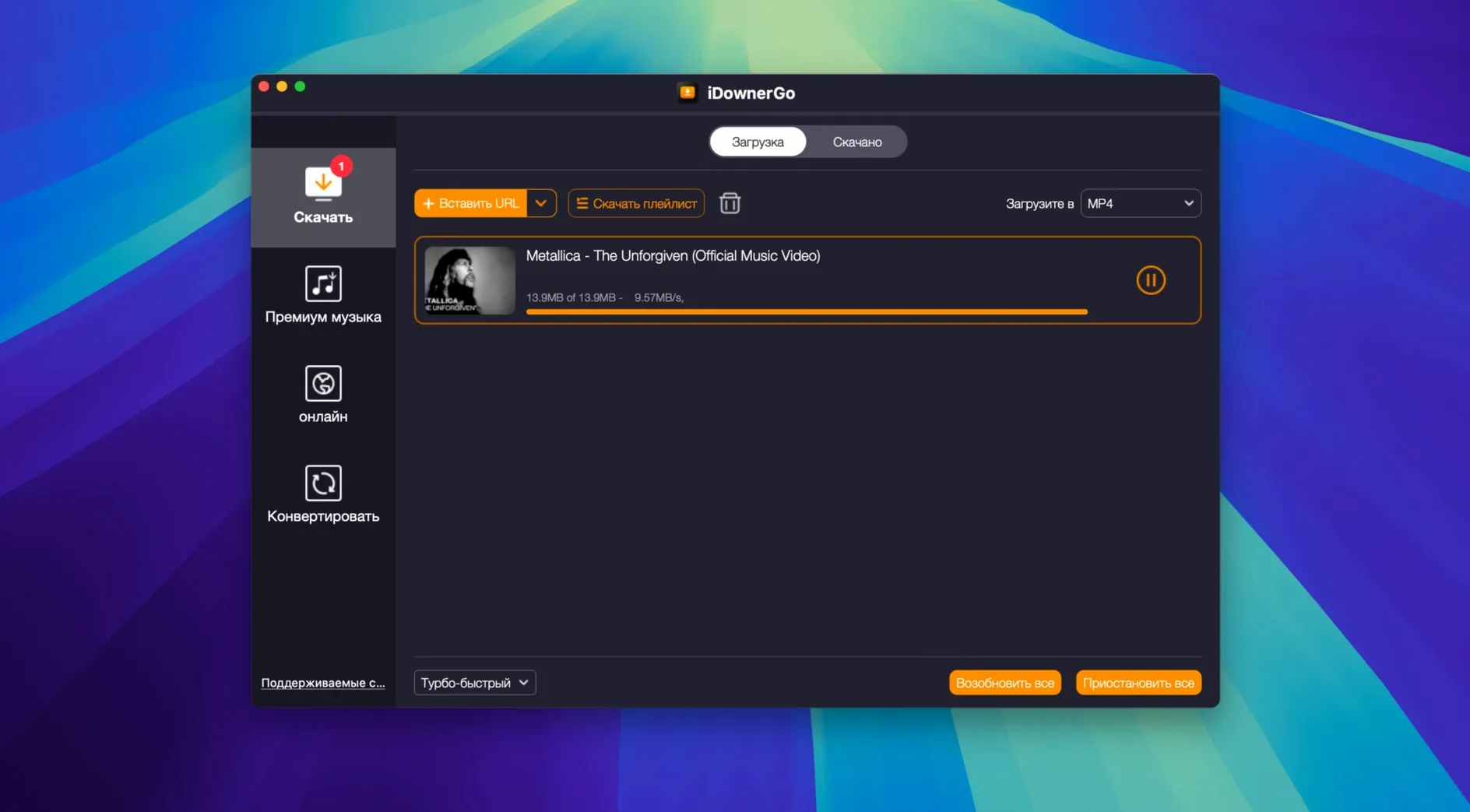
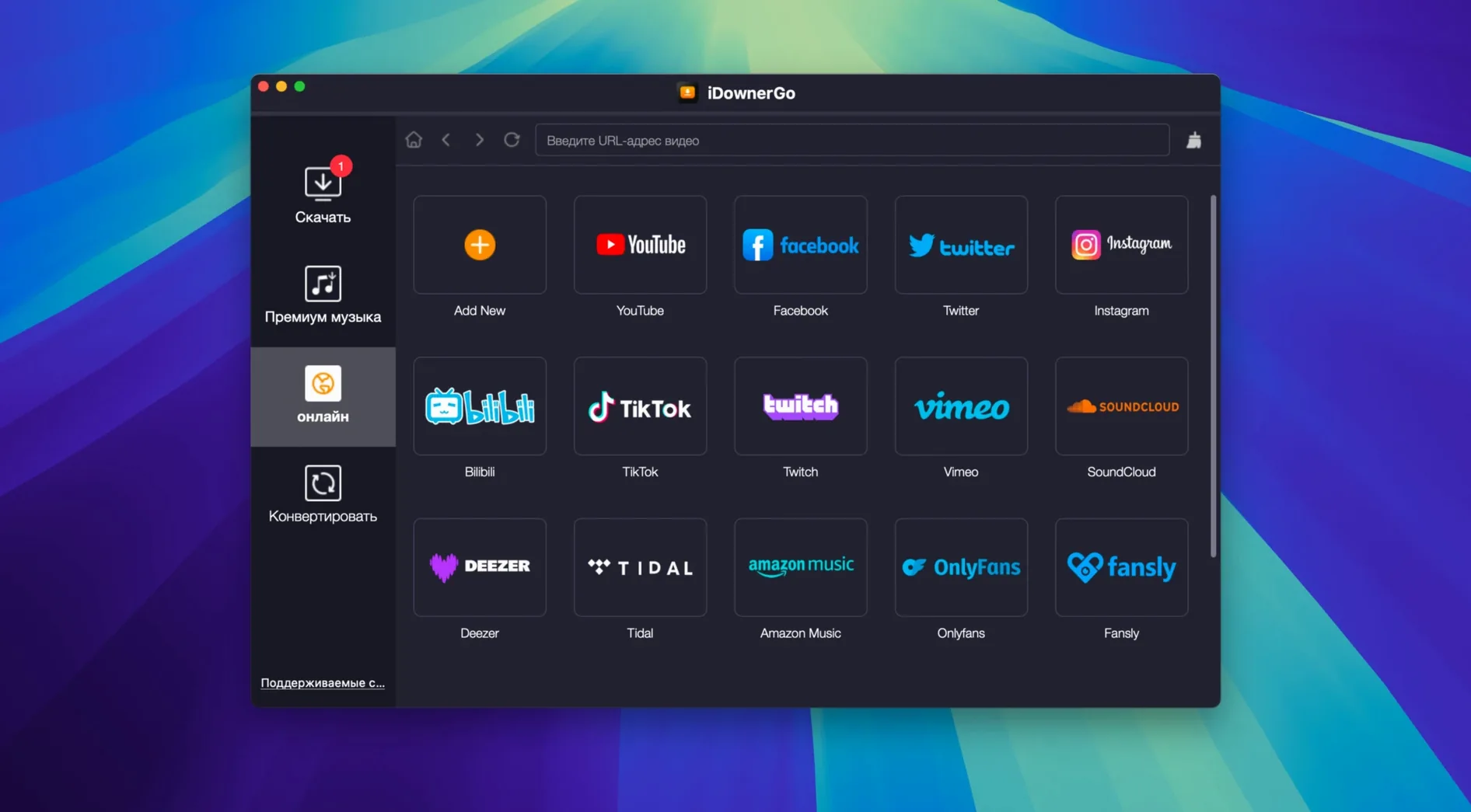
Version 10.15.0 of iDownerGo keeps the toolchain current with the shifting landscape of streaming sites — it's a maintenance release that ensures the app can still parse the video sources you throw at it. If you've used it before, the workflow hasn't changed: you give it a URL, pick a format, and it pulls down the file. What's worth knowing is how broad the format support really is — video, music, and whole playlists land on your drive without re-encoding the original stream, so there's no quality loss between the server and your disk.
Grabs 8K video without touching the bitstream
- Archiving high-resolution video. iDownerGo can save files in HD, 4K, and 8K where the source provides them, and it doesn't touch the bitstream — you get exactly what the server sent.
- Audio extraction from video. Grab a music video or a talk and save just the audio track as an MP3. Useful when you want the content without the video container eating up space.
- Real-time stream capture. The app can download live streaming video as it plays, which is handy for saving broadcasts you'd otherwise only have one shot at watching.
- Playlist and music downloads. Drop in a playlist link and it'll queue up every item, saving them in the format you specify — video or audio-only — across a long list of supported sites.
Runs through Rosetta 2, not a universal binary
- This is an Intel binary. On Apple Silicon it runs through Rosetta 2; there's no universal build as of 10.15.0.
- The
.dmginstall requires a Terminal step to bypass Gatekeeper, which is an extra hoop on modern macOS versions. - It's part of a family of site-specific downloaders from the same developer — if you only need one particular platform, a sibling app might be a leaner choice.
Gatekeeper and site quirks cause most support threads
A few patterns show up in support threads and forum posts, and most of them aren't bugs — they're friction points where the app's behavior clashes with macOS expectations or the quirks of specific websites. Here's what tends to trip people up.
Gatekeeper blocking the app even after the Terminal step
The install instructions tell you to mount the .dmg and run a Gatekeeper bypass in Terminal. Sometimes macOS still refuses to launch the app afterward — the icon bounces once in the Dock and vanishes. The culprit is usually a quarantine flag that survived the bypass. You can strip it by running xattr -cr /Applications/iDownerGo.app in Terminal, then launching again. If you're on a managed Mac with MDM profiles, the flag re-applies on every reboot, so you'll need to repeat the step after restarts.
Downloads stalling on HTTPS streams
Some video hosts serve media over chunked transfer encoding with aggressive timeouts. iDownerGo waits for a complete header handshake before writing to disk, and if the server drops the connection mid-negotiation, the download sits at zero bytes. Pausing and resuming the download kicks off a fresh handshake, which usually gets past the timeout. If that doesn't work, copying the URL again from the browser — especially when the page has cycled its access token — often resolves it.
Playlist imports grabbing the wrong resolution
When you drop a playlist URL, the app defaults to the highest available resolution for every item. That sounds ideal until you hit a 2-hour playlist where half the videos top out at 480p and the other half are 4K — your drive fills up fast. Before confirming the batch, scan the queue list and manually set a ceiling resolution. It's a small habit that saves gigabytes.
First days with iDownerGo: things that help
Once the app is in /Applications and Gatekeeper stops complaining, a few small adjustments make the first week smoother.
- Set a default download directory with plenty of free space. The app writes files to a location you specify in Preferences. Pick a folder on a volume that can handle large files — 8K video clips routinely cross 10GB. An external drive is fine, but avoid network-mounted volumes; the write latency on some SMB shares can cause incomplete file headers.
- Check the audio extraction settings before your first batch. The MP3 encoder defaults to a fixed bitrate. If you're pulling spoken-word audio, drop it to 128 kbps — the quality difference is imperceptible and the file sizes shrink by half. For music, 320 kbps is the safe ceiling.
- Keep the app open after a download finishes. iDownerGo runs a quick integrity check on the file — comparing byte count with the stream's Content-Length header — and it discards the temp file only after that check clears. Closing the app mid-check leaves orphaned
.partfiles in your temp directory that don't get cleaned up automatically. - Use the real-time capture feature with a buffer. For live streams, start the capture a minute or two after the stream begins if you can afford to. The initial seconds of a broadcast often have lower bitrates while the encoder stabilizes, and grabbing mid-stream avoids those rough frames.
ClipGrab covers fewer sites but feels lighter
iDownerGo sits in a crowded category, and how it compares depends on what you prioritize — format breadth, simplicity, or specific platform support.
ClipGrab is the lightweight option. It handles YouTube, Vimeo, and a handful of other major sites, but its site list stops well short of the 10,000-plus that iDownerGo claims. ClipGrab's advantage is that it's a universal binary — no Rosetta penalty on Apple Silicon — and its Gatekeeper experience is straightforward: it's notarized, so macOS doesn't fight the launch. The trade-off: ClipGrab re-encodes on the fly for format conversion, which means a quality hit that iDownerGo avoids by saving the original stream untouched.
Downie is the closest competitor in scope. It also supports thousands of sites and does permissive downloading with user-defined format preferences. Downie handles Apple Silicon natively and integrates with Safari via an extension, which iDownerGo doesn't offer. Where iDownerGo pulls ahead is real-time stream capture — Downie doesn't target live broadcasts — and the audio extraction path: Downie shells out to a separate conversion step, while iDownerGo does it in-process without intermediate files.
4K Video Downloader covers a similar site list and adds smart playlist parsing that some users prefer. It's also Intel-only at the time of writing. The difference is in the output: 4K Video Downloader tends to remux into MP4 containers even when the source uses WebM, which changes the file structure without re-encoding the video track. iDownerGo preserves the original container format by default — useful if you need the exact stream for archiving or editing.
A week with iDownerGo: the music archivist
Imagine someone curating a personal archive of live session recordings — the kind that surface on YouTube and Bandcamp and vanish a few months later when channels get reorganized. This user isn't interested in video; they want clean audio captures tagged and sorted by artist and date.
On day one, they set iDownerGo's default format to MP3 at 320 kbps and pointed the download directory at an Incoming folder watched by a tagging script. A Bandcamp playlist of a European tour came down as twelve audio files in under three minutes — each named sensibly from the page metadata, no manual renaming needed. The real test was a Dailymotion upload of a radio session from 2013. The video was 1080p but the audio track was a 128 kbps AAC stream. iDownerGo extracted it as-is; the archivist ran a quick spectrogram check in another tool to confirm it wasn't transcoded upward — clean pass, it matched the source exactly.
Midweek, a live-streamed festival set showed up on Facebook. The real-time capture ran for 90 minutes without dropping a segment. The resulting file clocked in at 1.2GB, which the archivist later split into individual tracks. By Friday, the Incoming folder held 47 new recordings, none of which needed re-downloading or format correction. The only hiccup was a TikTok link that returned an error — the video had been made private between copying the URL and pasting it, which isn't something the app can work around.
- macOS: OS X 10.10 or later
- Architecture: Intel (Apple Silicon via Rosetta 2)
Comments 0
Sign in or create an account to leave a comment.
No comments yet. A codec, a slice, a machine — they appear after moderation.