YTD Video Downloader PRO for macOS
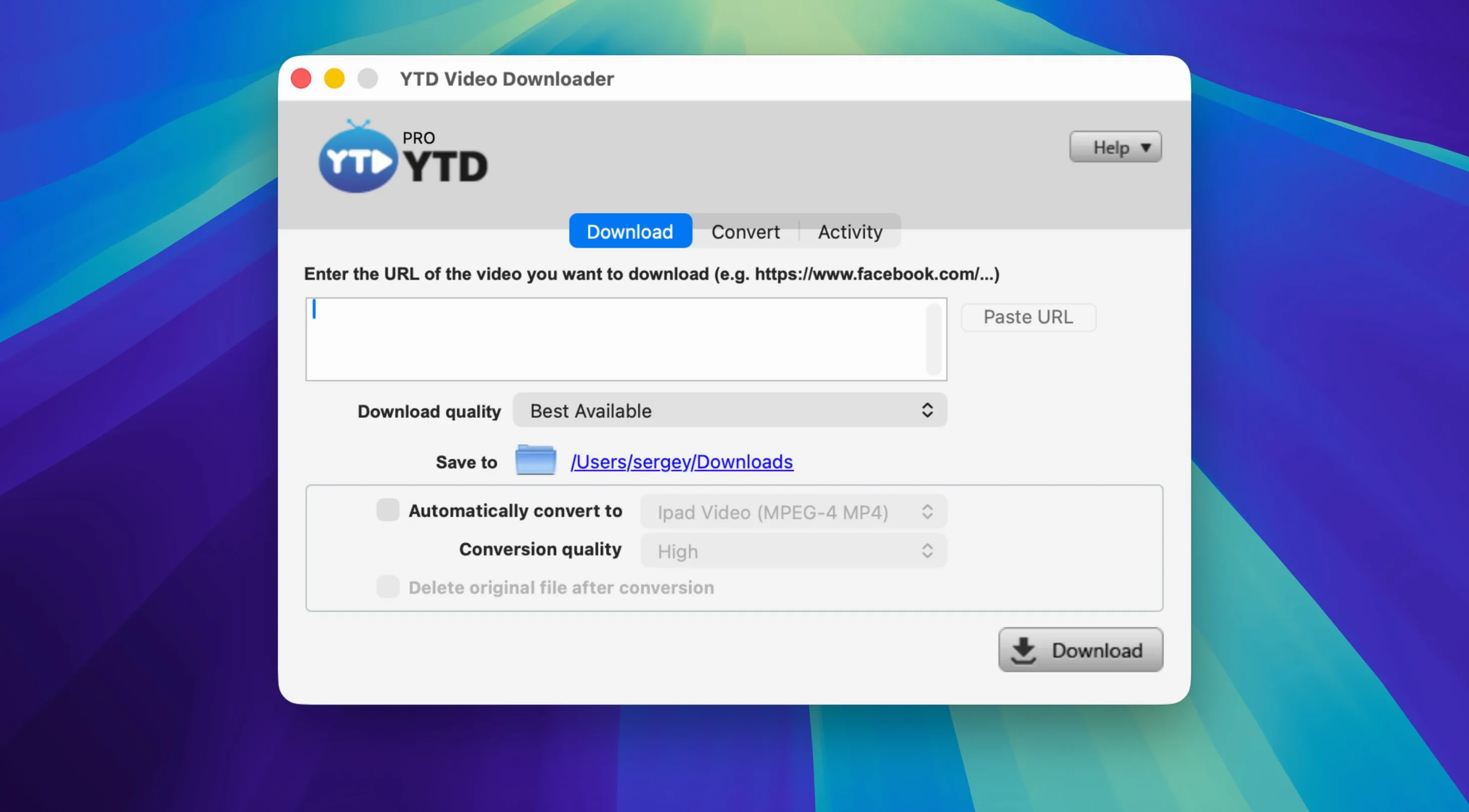
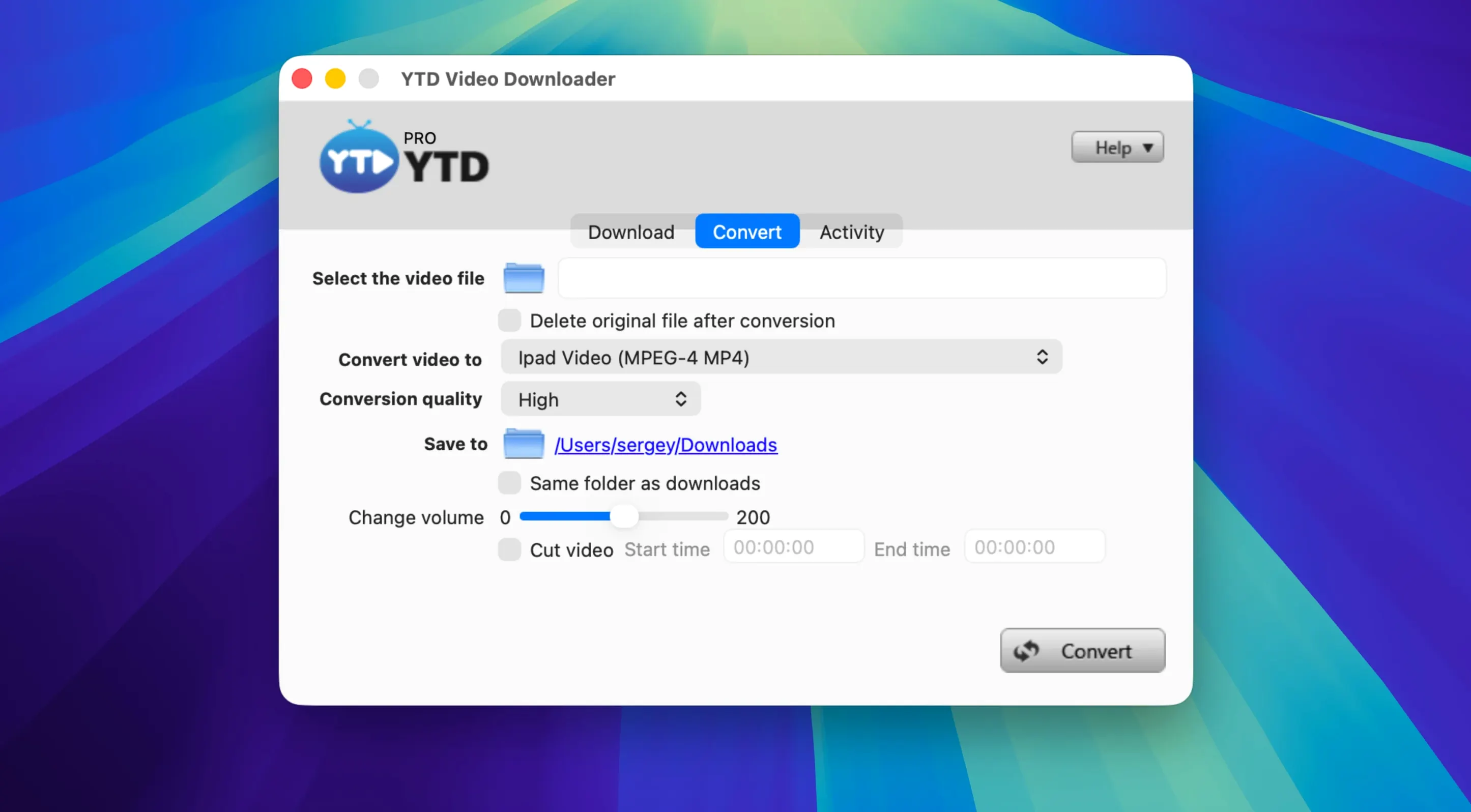
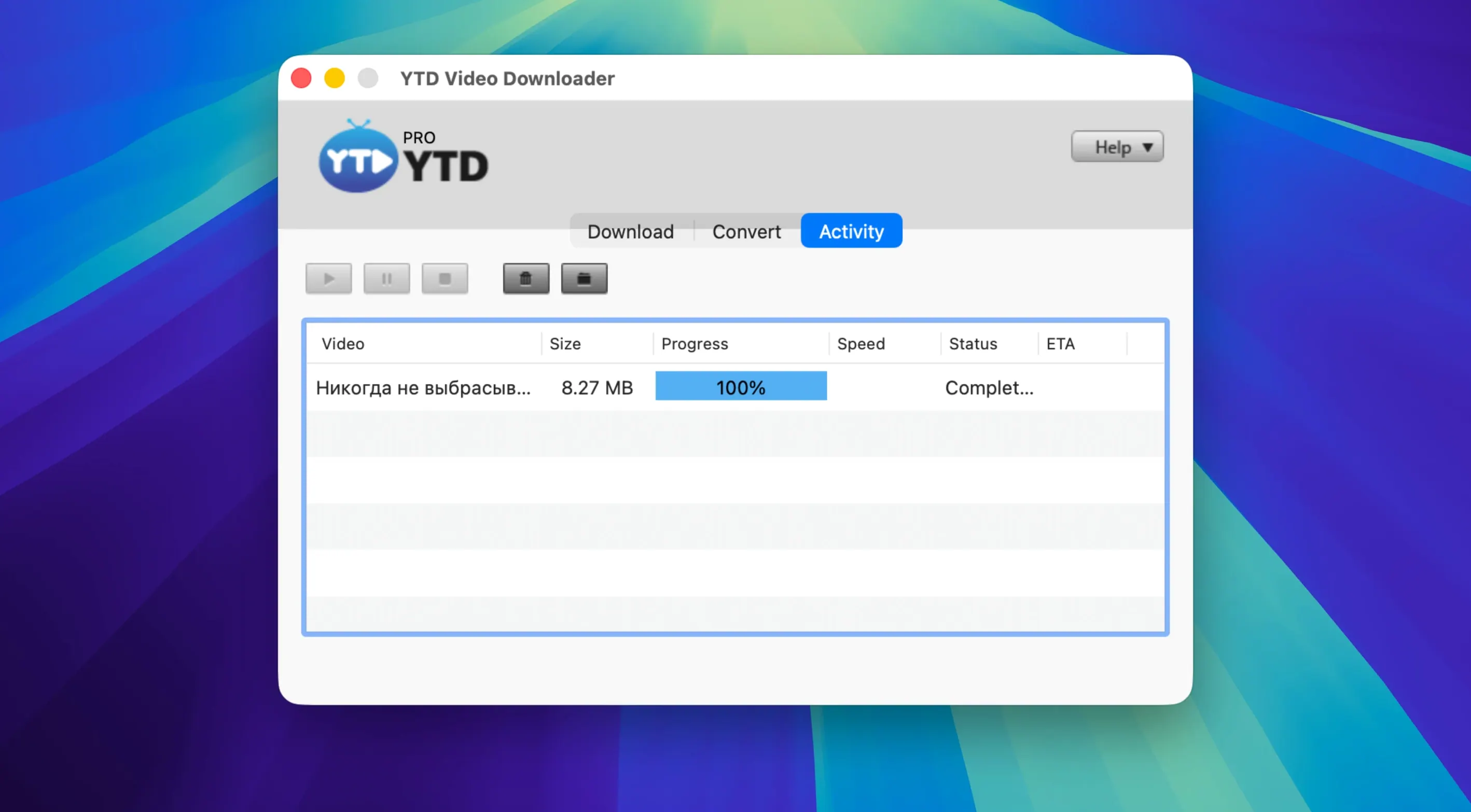
The Paste Link detection is often where it starts. YTD Video Downloader PRO watches the clipboard, so grabbing a video from YouTube, Vimeo, Dailymotion, or Youku doesn't require hunting for a browser extension or messing with a murky in-app browser. It's an icon in the Dock that slots into a Mac environment where you're probably already using QuickTime to preview and Music to listen—this app aims to be the sensible bridge between the two when the source is a web stream.
- Clipboard awareness. Copy a URL and the app offers to parse it immediately, trimming the usual launch-and-paste dance.
- Playlist handling. It can work through entire YouTube playlists, not just one-off links, which changes how you'd use it alongside a local media library.
- MP3 and AAC extraction. The converter side isn't just an afterthought—it pulls audio directly, which pairs cleanly with a Music library that prefers local files over cloud streams.
- No activity logs. There's no download history stored, a detail that matters if you're juggling research clips or borrowing a shared Mac.
- Pause and resume. Downloads are not a single-shot affair; the state can be held and restarted, which is practical on spotty connections.
For a machine running back to OS X 10.10, support is there—but it's an Intel binary, so Apple silicon Macs will route it through Rosetta 2. You're essentially trading native code for broad backward compatibility. If your workflow already involves manually curating media in the Finder before it hits an editor or player, the directness of a tool that watches the clipboard and gives you a format choice right away starts to make sense.
Turn off clipboard monitoring if you grab links from multiple sources
The defaults work, but a few tweaks make daily use smoother—especially if you're pulling from more than one kind of source. Open Preferences right after the first launch and hit the General tab.
- Clipboard monitoring. It's on by default. If you copy URLs constantly for other reasons, the pop-up can get chatty. Most people keep it on and just learn to ignore the rare false trigger—the convenience of pasting a YouTube link and seeing the format picker appear is hard to give up.
- Download location. The default dumps everything into a
YTD Video Downloaderfolder inside~/Downloads. If you already have a media staging area—say~/Movies/_incomingor an external drive—point it there now. You'll save yourself a regular Finder cleanup. - Simultaneous downloads. The app defaults to one at a time. Bumping it to two or three works fine on any Mac with a decent connection; beyond that the bottleneck is usually the site's throttling, not your machine. For playlists, two simultaneous is a sweet spot—one finishes while the next is spinning up, with no noticeable CPU sting.
- Post-download action. There's an option to open the file or its folder when a download completes. Turn that off unless you want windows spawning while a playlist is still running. It's the kind of small thing that becomes irritating by the third video.
- Output format default. Under the Convert tab, set your preferred fallback format. MP4 is the factory choice and makes sense for video, but if you mostly strip audio from talks or mixes, switch the default to MP3 or AAC so every download doesn't need an extra click.
Can it download from sites that require a login?
How Rosetta 2 translation affects the first launch on Apple Silicon
Yes, through Rosetta 2. The binary is Intel-only, so the first launch takes a couple of extra seconds while macOS translates it. After that it's transparent—it doesn't feel sluggish during downloads or conversions, which are I/O-bound and CPU-light anyway. If you're on an M1, M2, or M3 machine running macOS 11 or later, it will run. The stated minimum is OS X 10.10, so you're well covered.
Can it grab age-restricted or private videos?
No. YTD works with publicly accessible URLs. If a video requires a login, an account verification, or a regional workaround, the app won't bypass that. It downloads what a browser can reach without signing in. This trips people up when they paste a link from a playlist that includes one locked video—the rest will download, but that one will fail with a nondescript error.
Why a download can fail overnight when a streaming site redesigns
Downloaders that parse web pages break when the source changes its structure. YTD goes through periodic updates—version 7.8.0 included fixes for several platforms—but there's always a gap between a site change and an app update. During that gap, some sites may stop working. YouTube is the primary target and tends to be prioritised; smaller platforms might stay broken longer.
Does it keep a download history?
No. The developer states the app does not log activity, and there's no visible history panel. Once you clear the completed-download list, the record is gone. If you need a history for your own tracking, you'll need to note it elsewhere.
How it lines up against the few remaining Mac downloader apps
On the Mac, the space of desktop video downloaders is small and shrinking. YTD sits alongside a handful of others that take roughly the same approach—paste a link, pick a format, get a file. Here's how it lines up.
YTD Video Downloader PRO vs. Downie
Downie is the one people tend to mention first. It supports far more sites—well over a thousand—and receives very frequent updates, sometimes within hours of a YouTube change. It also has a more polished interface and native Apple silicon support. Where YTD has an edge is simplicity: Downie's extensive feature set can feel busy, and its post-processing options are deeper than many people need. YTD is a narrower tool. If your world is YouTube, Vimeo, TikTok, and the other fifty-odd platforms it covers, YTD does the job with less interface to navigate. The built-in converter in YTD also outputs to .wmv and .flv, which Downie doesn't offer without extra steps—a niche need, but one that still exists for some legacy hardware.
YTD Video Downloader PRO vs. ClipGrab
ClipGrab is free, open-source, and covers YouTube well. Its format options are similar, and it also converts. The trade-off is interface polish and platform breadth. ClipGrab feels more like a utility someone built for themselves and shared; YTD at least presents a proper Mac app structure, with Preferences, a download queue, and playlist handling that doesn't feel tacked on. If you download the occasional video, ClipGrab is fine. If you're working through playlists regularly, YTD's queue management and simultaneous-download control save real time.
YTD Video Downloader PRO vs. 4K Video Downloader
4K Video Downloader is a closer peer. Both handle playlists, both extract audio, both run on older macOS. 4K has the edge in supported sites and offers a native Apple silicon build. YTD counters with clipboard detection that feels more immediate and a converter that writes to a few extra container formats. Neither is dramatically faster than the other—both are limited by the server's delivery speed more than by local processing. On an Intel Mac, they land in roughly the same spot; on Apple silicon, 4K's native binary gives it a lighter footprint, though in practice the difference is small because downloading is not a CPU-intensive task.
Memory footprint on Intel when idling with an empty queue
After a few days of regular use, the performance picture becomes clear. YTD is not a heavy application. On an Intel Mac—where it runs natively—it idles at under 100 MB of RAM with an empty queue. During a single 1080p download, memory use stays around 150–200 MB and CPU usage barely registers, typically sitting at 2–5% of one core. The work is almost entirely network I/O; the local processing is thin.
On Apple silicon through Rosetta 2, the memory footprint is slightly higher—expect around 220 MB during active downloads—but still unremarkable. The translated binary doesn't cause spikes or beachballs. Conversions are where you'll see the CPU engage briefly: transcoding a ten-minute video to MP3 might push a single core to 30–40% for fifteen or twenty seconds on an M1, then drop back to idle. It's quick and unobtrusive.
Stability is solid in normal use. The app doesn't crash when a download fails; it logs the error and moves
- macOS: OS X 10.10 or later
- Architecture: Intel (Apple silicon via Rosetta 2)
$ man ytd-video-downloader-pro | grep -A2 "?"
Which audio formats does the converter support?
It converts video and playlists directly to MP3 or AAC, covering the two formats most relevant for a Mac Music library.
Comments 0
Sign in or create an account to leave a comment.
No comments yet. A codec, a slice, a machine — they appear after moderation.